
Add and assign staff
Updated October 10, 2026 · 3 min read
In this guide
Add a staff member or update an existing record with their photo, contact details, position and assigned services.
Before you begin
Prepare the staff member’s name and email address and check which services they can deliver. Configure their working hours after saving the record; service assignment alone does not establish availability.
Open Add Staff
Open Agents (labelled Staff in some screens), then select + Add New Staff on Manage Staff.
Add a photo and contact details
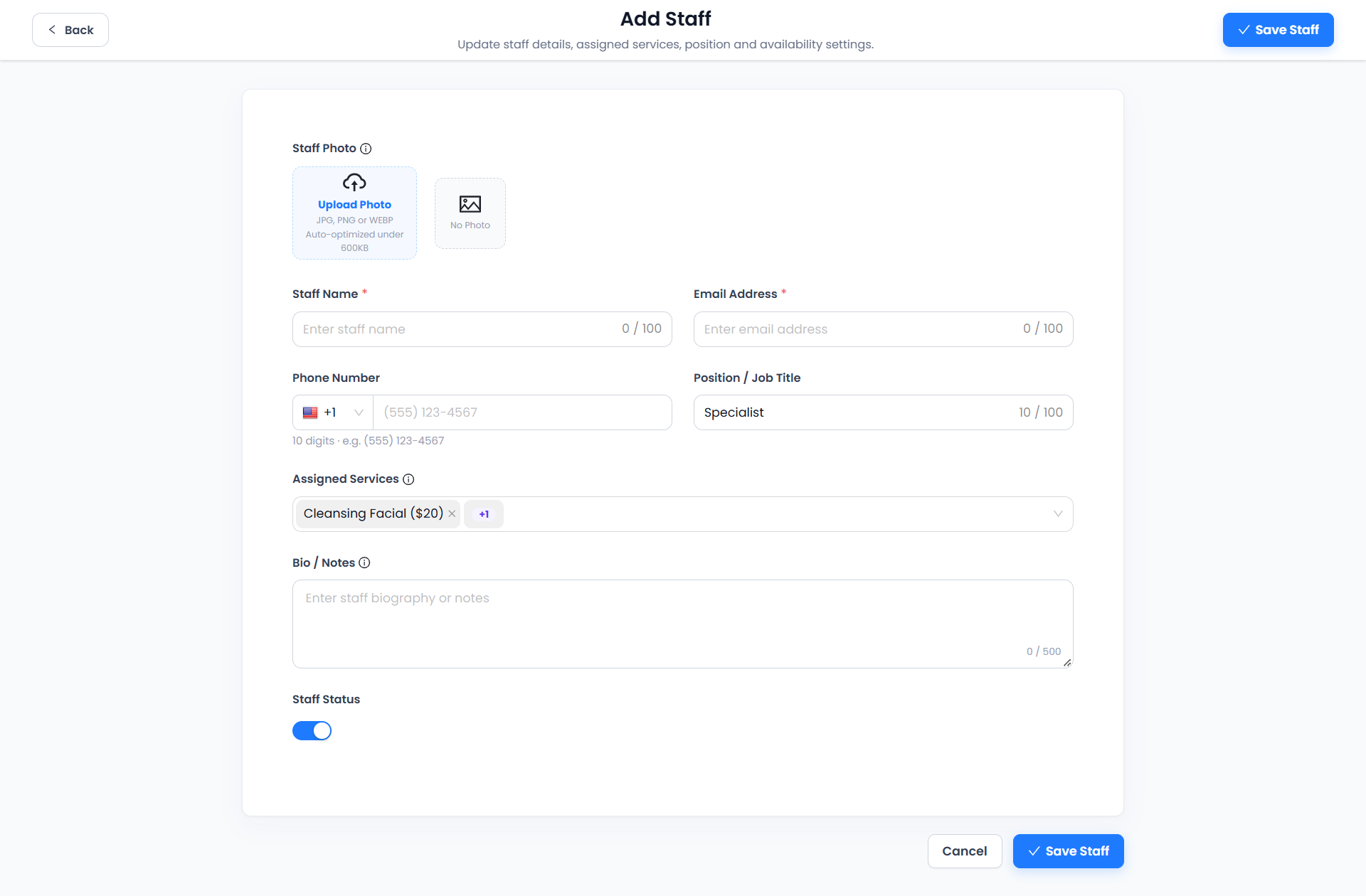
- Use Upload Photo to choose a staff photo. The screen lists JPG, PNG and WEBP and states that images are auto-optimized under 600 KB. Review the preview.
- Enter the required Staff Name and Email Address. Both display a 100-character limit.
- If entering a Phone Number, select the correct country code and follow the validation guidance shown for that selection. The supplied US example requests 10 digits.
- Review Position / Job Title, which displays a 100-character limit. Replace the example Specialist value with the appropriate title.
Assign services and review status
Select the relevant services in Assigned Services. The screenshots show Cleansing Facial ($20) and a +1 indicator for another selected service. Open the dropdown to review the full selection; use a chip’s remove control only when you intend to remove that assignment.
Enter useful information in Bio / Notes, up to the displayed 500-character limit. Review Staff Status to set the record’s enabled state.
Save the staff record
- Check the photo, name, email, phone, position, services, notes and status.
- Select Save Staff at the top or bottom of the editor.
- Return to Manage Staff and verify the saved record.
- Configure Shifts and any Special/Holidays entries, then test the intended service and date in the customer booking flow.
Use Cancel or Back to leave without completing the save. Review any unsaved-change prompt shown by your workspace.
Edit an existing staff member
Use the pencil action on the intended staff row. Confirm the name and email before changing fields, then select Save Staff.
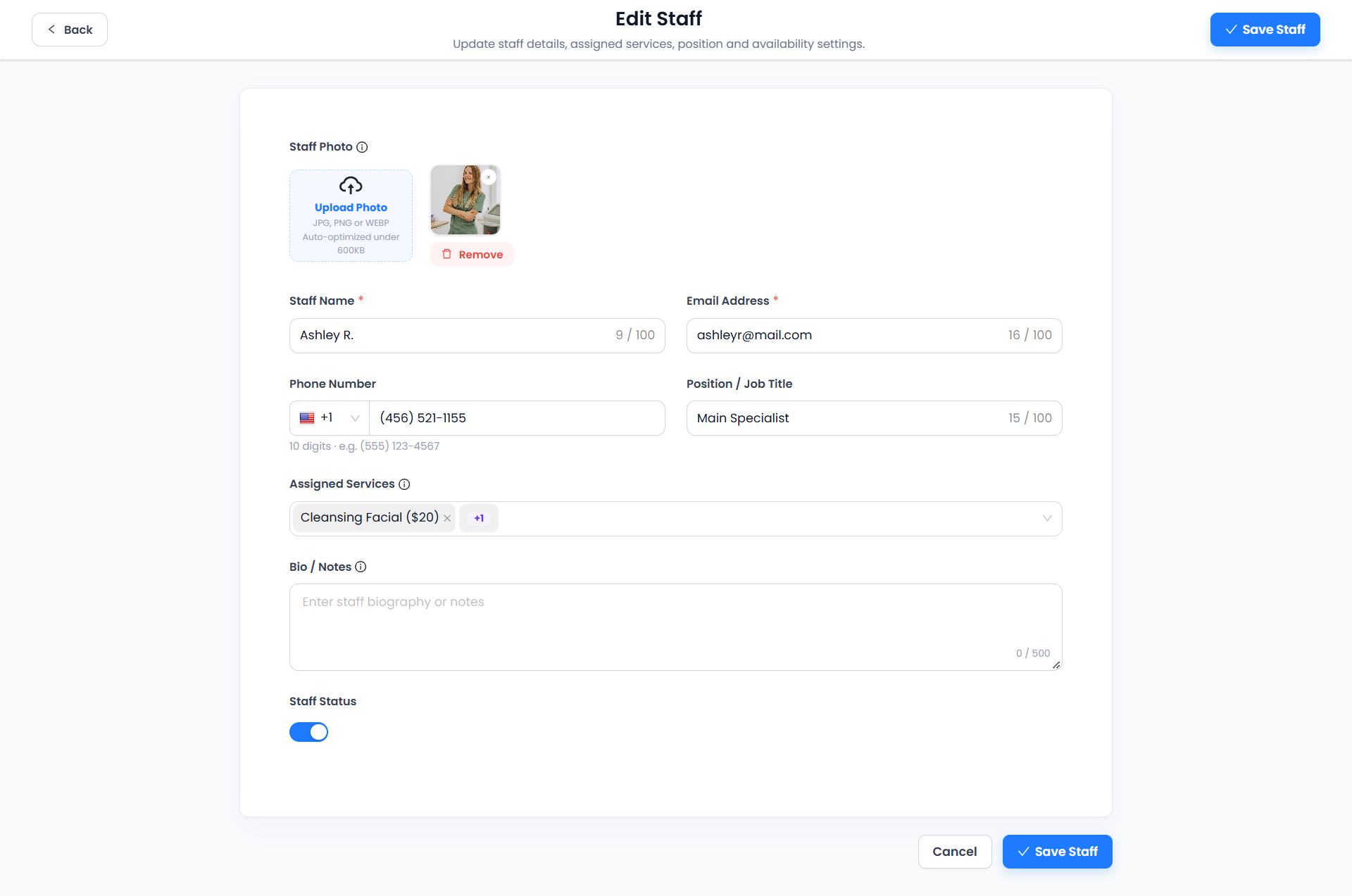
The existing photo provides a Remove control. Review the preview after replacing or removing it. Change only the intended fields and verify the resulting record. Do not assume changes to status or assignments alter appointments already saved.
Troubleshooting
- Cannot save: check required name and email fields and the visible validation message.
- Phone rejected: review the country code and the guidance for that selection.
- Photo missing: check the listed formats and inspect the upload preview before saving.
- No available times: review status, service assignments, weekly shifts, breaks and special days.
- Changes not visible: reopen the staff record and verify saved values.
A staff record does not by itself confirm login access or permissions. Verify any separate staff access configuration before sharing a login route.
Next: Staff List and schedules, staff availability and holidays and time away.
Need a hand with your setup?
Tell us which step you reached and what happened. Keep passwords and client secrets out of your message.
Contact Accurate Scheduler →