
Understand your Dashboard
Updated October 10, 2026 · 3 min read
In this guide
The Dashboard gives you a quick overview of your appointments and the bookings that need attention. Use it to review your day, then open the Calendar or Appointments for more detail.
1. Open the Dashboard
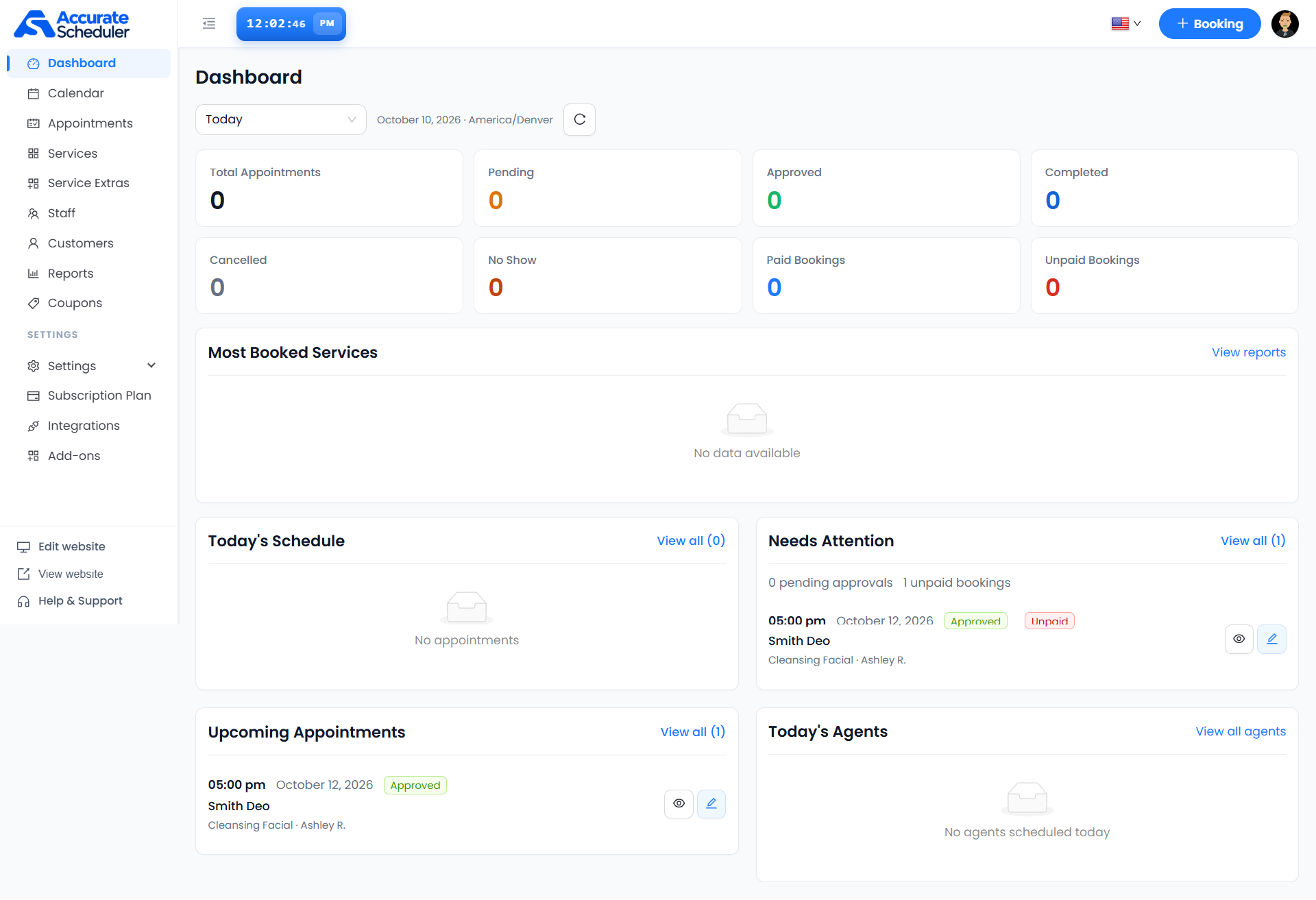
Sign in to your workspace and select Dashboard in the left menu. Before reviewing the numbers, check the selected reporting period and the date and time zone displayed beside it.
2. Check the period and refresh
- Review the period selector at the top of the Dashboard. In this screenshot, Today is selected.
- Use the options available in that selector when you need another period.
- Check the displayed date and time zone before comparing appointment times.
- Select the circular-arrow refresh button beside the date to refresh the overview.
3. Read the appointment summary cards
- Total Appointments: the appointment count shown for the selected period.
- Pending: appointments carrying a pending status.
- Approved: appointments carrying an approved status.
- Completed: appointments marked completed.
- Cancelled: appointments marked cancelled.
- No Show: appointments marked as no-shows.
- Paid Bookings: bookings recorded as paid.
- Unpaid Bookings: bookings recorded as unpaid.
Appointment status and payment status describe different things. A booking can be Approved and still be Unpaid, as shown in the Needs Attention panel. Paid Bookings is a booking count, not a revenue amount.
4. Review the Dashboard panels
Most Booked Services
This panel summarizes service activity when data is available. The supplied screenshot shows No data available. Select View reports to open the reporting area for further review.
Today’s Schedule
Review the appointments shown for today. Select View all to open the associated list. In the example, View all (0) and No appointments indicate an empty schedule for that day.
Needs Attention
Review the pending-approval and unpaid-booking counts, then inspect the listed appointments. The example shows zero pending approvals and one unpaid booking: Smith Deo’s Cleansing Facial with Ashley R., scheduled for October 12 at 5:00 pm. Its appointment status is Approved and its payment status is Unpaid.
Use the eye icon to view the appointment or the pencil icon to open its editing controls. Check the customer, service and appointment date before making a change.
Upcoming Appointments
Use this panel to review future appointments. Each visible entry includes its date, time, customer, service, agent and appointment status. Select View all to review the associated list, or use the view/edit controls beside an entry.
Today’s Agents
Review the agents scheduled for today. The example shows No agents scheduled today. Select View all agents to review the team in the Staff area.
5. Start a booking or open a detailed view
Select + Booking in the top-right bar to start a booking. To inspect the timetable, open Calendar. To find and review individual records, open Appointments. For your team, open Staff.
If the numbers or panels look unexpected
- Summary cards show zero but a future booking appears: check the period. In the supplied screenshot, Today is October 10 while the upcoming appointment is October 12. The panels can show a different scope from the selected summary period.
- An approved booking appears under Needs Attention: check its payment status. Approval does not mean payment has been recorded.
- No appointments or agents appear today: confirm the displayed date, time zone and the relevant appointment or agent schedule.
- Recent changes are not visible: refresh the Dashboard, then compare with the record in Appointments.
If the result still looks wrong, contact support with the selected period, displayed time zone and the affected appointment details. Do not share passwords or payment credentials.
Continue with the Calendar guide or reviewing and managing appointments.
Need a hand with your setup?
Tell us which step you reached and what happened. Keep passwords and client secrets out of your message.
Contact Accurate Scheduler →