
Workspace settings
Updated October 10, 2026 · 4 min read
In this guide
Open Settings → Settings to manage Business & Profile, Payments, Email Settings, Password & Security and Logs. This guide explains the controls shown in the supplied application screens.
Before you begin
Review your business details, preferred formats and payment provider credentials. Save each tab using its own save control and verify the resulting values. Keep passwords and payment secrets private.
Business & Profile
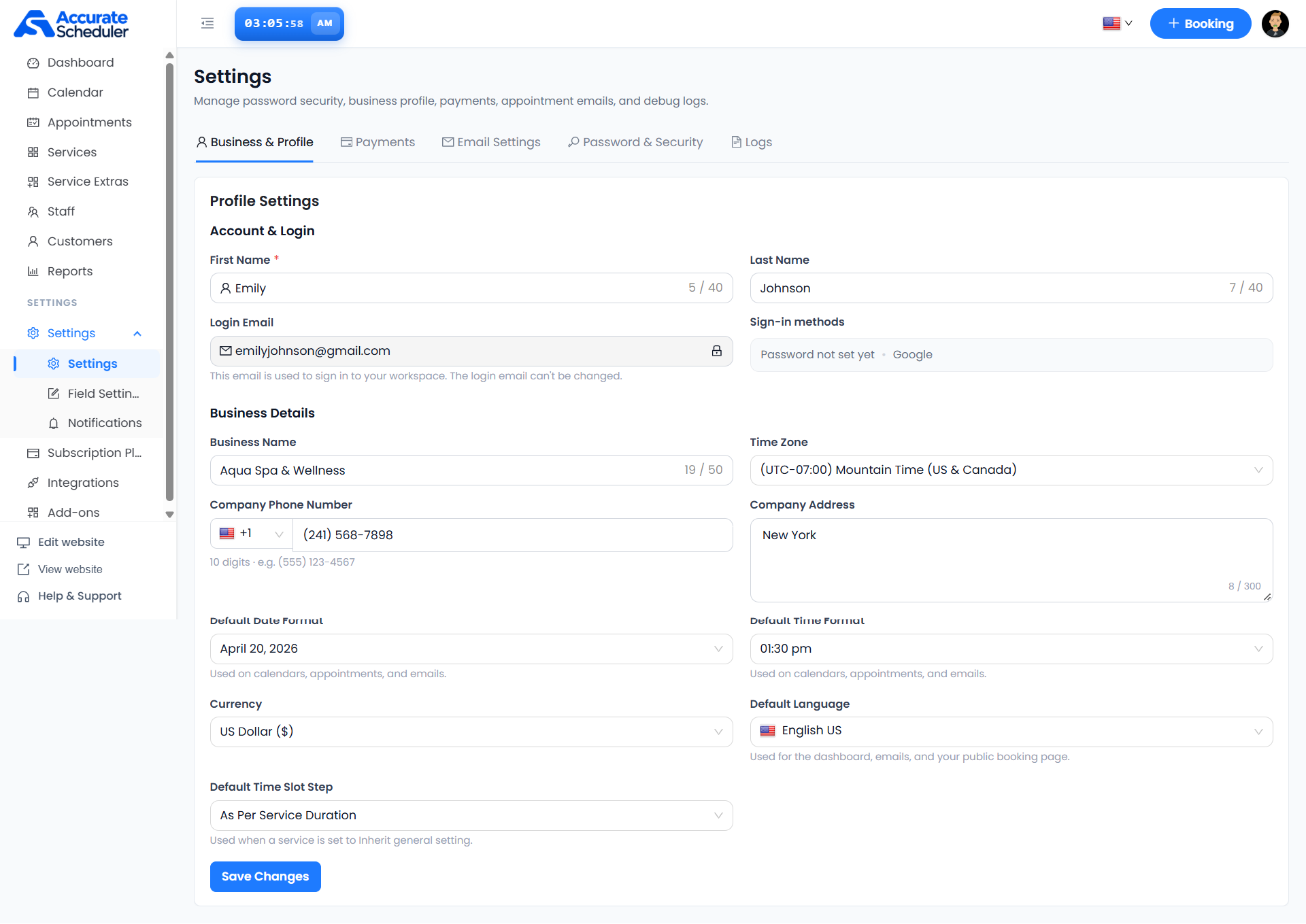
- Review First Name (required) and Last Name. Both display 40-character limits.
- Check Login Email and Sign-in methods. The screen states that login email cannot be changed. It is separate from the admin email described below.
- Update Business Name, Company Phone Number and Company Address as needed. Displayed limits are 50 characters for the business name and 300 for the address. Follow the phone guidance for the selected country code.
- Select the correct Time Zone. Use your business’s timezone rather than copying the example.
- Choose Default Date Format, Default Time Format, Currency and Default Language. The screen states that formats are used on calendars, appointments and emails, and language is used for the dashboard, emails and public booking page.
- Review Default Time Slot Step. This is used when a service selects Inherit general setting; the example shows As Per Service Duration.
- Select Save Changes and review the resulting settings.
After changing timezone, currency or time slots, check an appointment and the public booking flow. Do not assume existing appointment prices or saved times are rewritten.
Payments
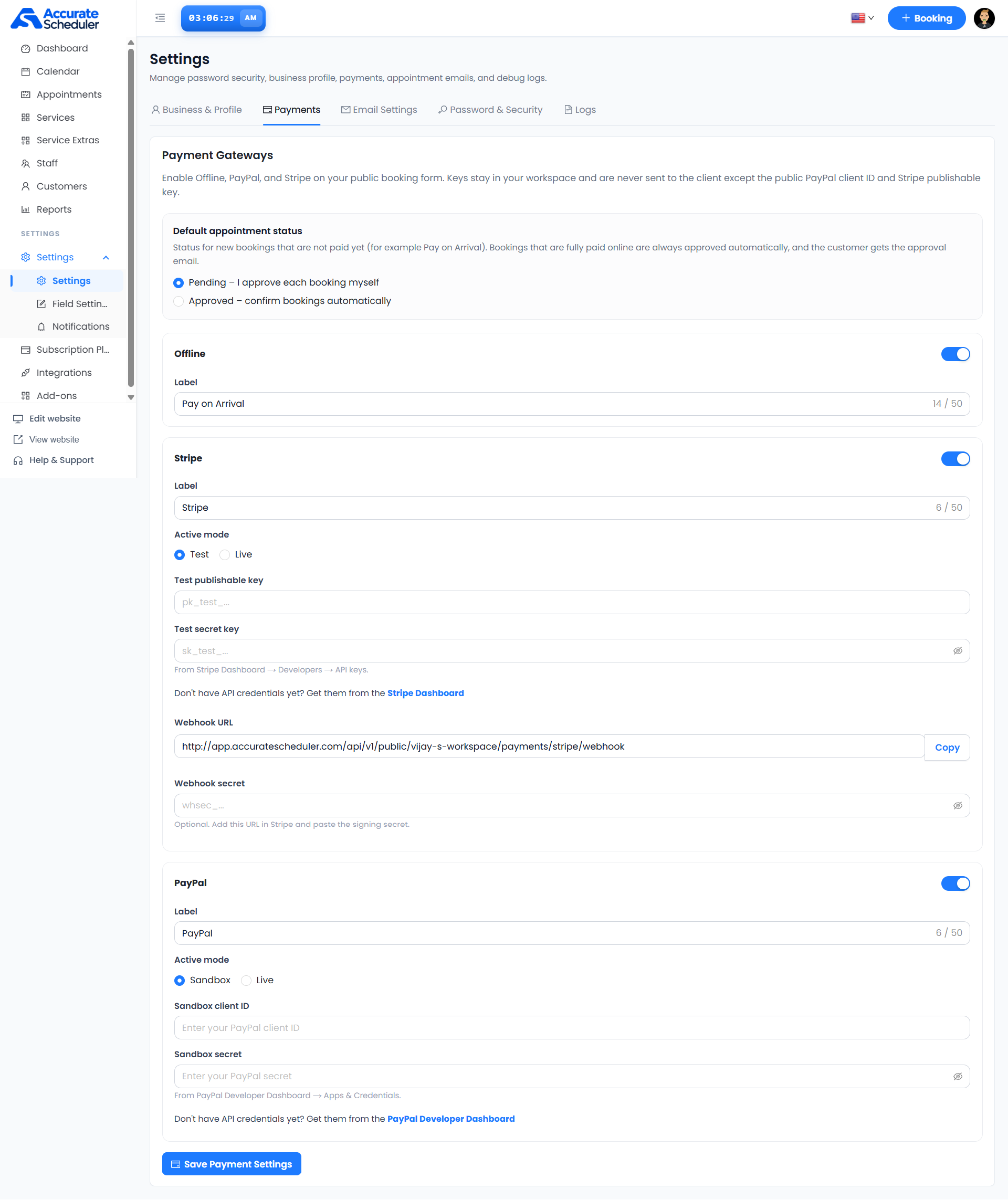
Default appointment status applies to new bookings that are not yet paid, such as Pay on Arrival. Choose Pending for manual approval or Approved for automatic confirmation. The supplied screen states that fully paid online bookings are automatically approved and the customer receives the approval email.
- Offline: review its enabled state and customer-facing Label. The example uses Pay on Arrival.
- Stripe: review its switch, Label and Active mode (Test or Live). Enter matching publishable and secret keys for the selected mode. Use your workspace’s Webhook URL and the signing secret when configuring the webhook; do not copy the example workspace URL.
- PayPal: review its switch, Label and Active mode (Sandbox or Live). Enter the matching client ID and secret for that environment.
Select Save Payment Settings. Verify the public booking payment choices and test the intended flow in the provider’s testing environment before relying on live payments. A visible switch alone does not confirm a working payment connection.
For more guidance see Stripe payments and PayPal payments.
Email Settings
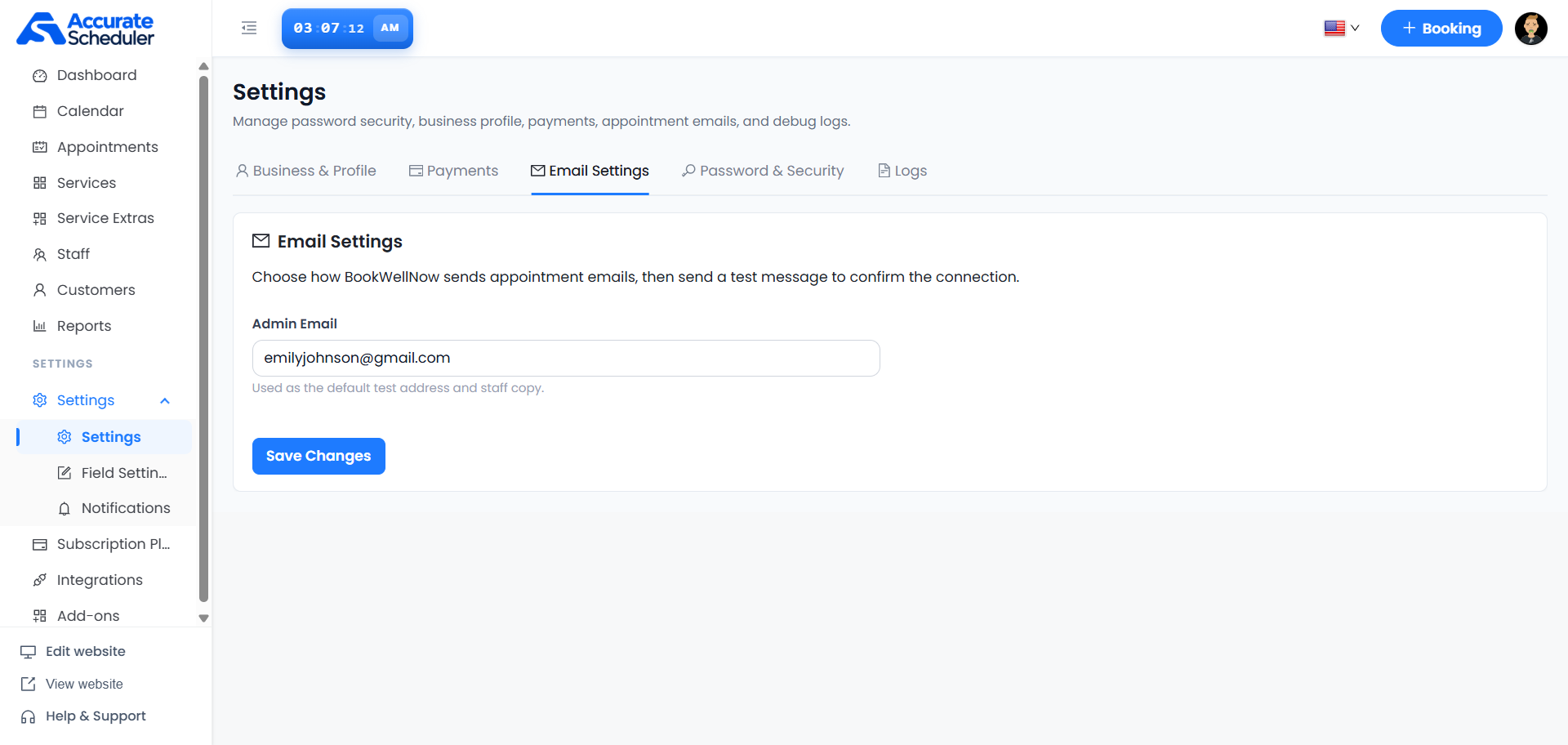
Review Admin Email, described in the screen as the default test address and staff copy, then select Save Changes. The screenshot’s introductory text mentions testing email, but no test-send or mail transport control is visible here. Follow any additional controls in your workspace when available, and check actual receipt of appointment messages. The screenshot also contains an older BookWellNow name; this guide uses Accurate Scheduler terminology.
Password & Security
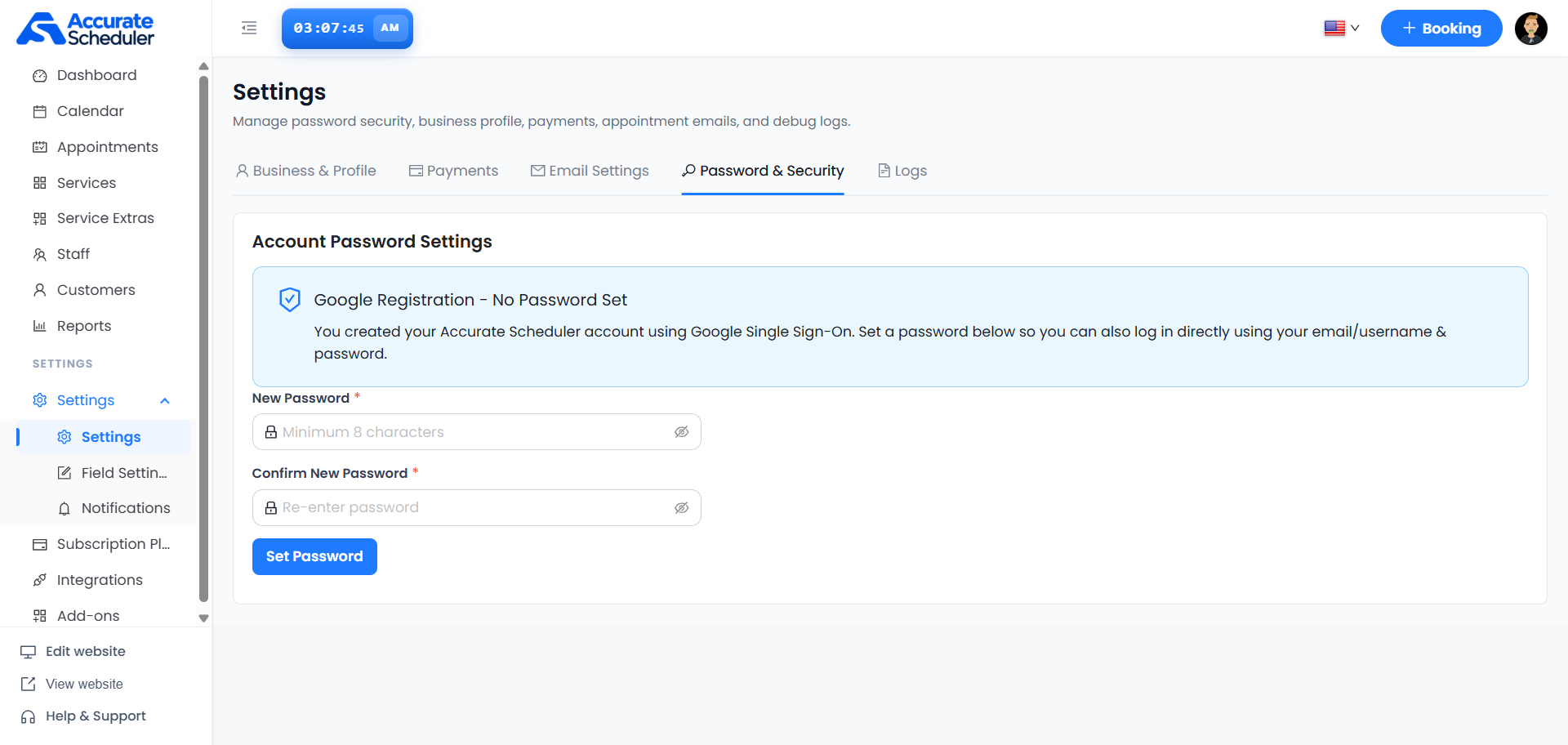
The screen explains that setting a password also enables direct sign-in using email/username and password. Enter a New Password and matching Confirm New Password, then select Set Password. The displayed minimum is eight characters; use a strong, unique password. The controls may differ for an account that already has a password. Never put a password in support messages or documentation screenshots.
Logs
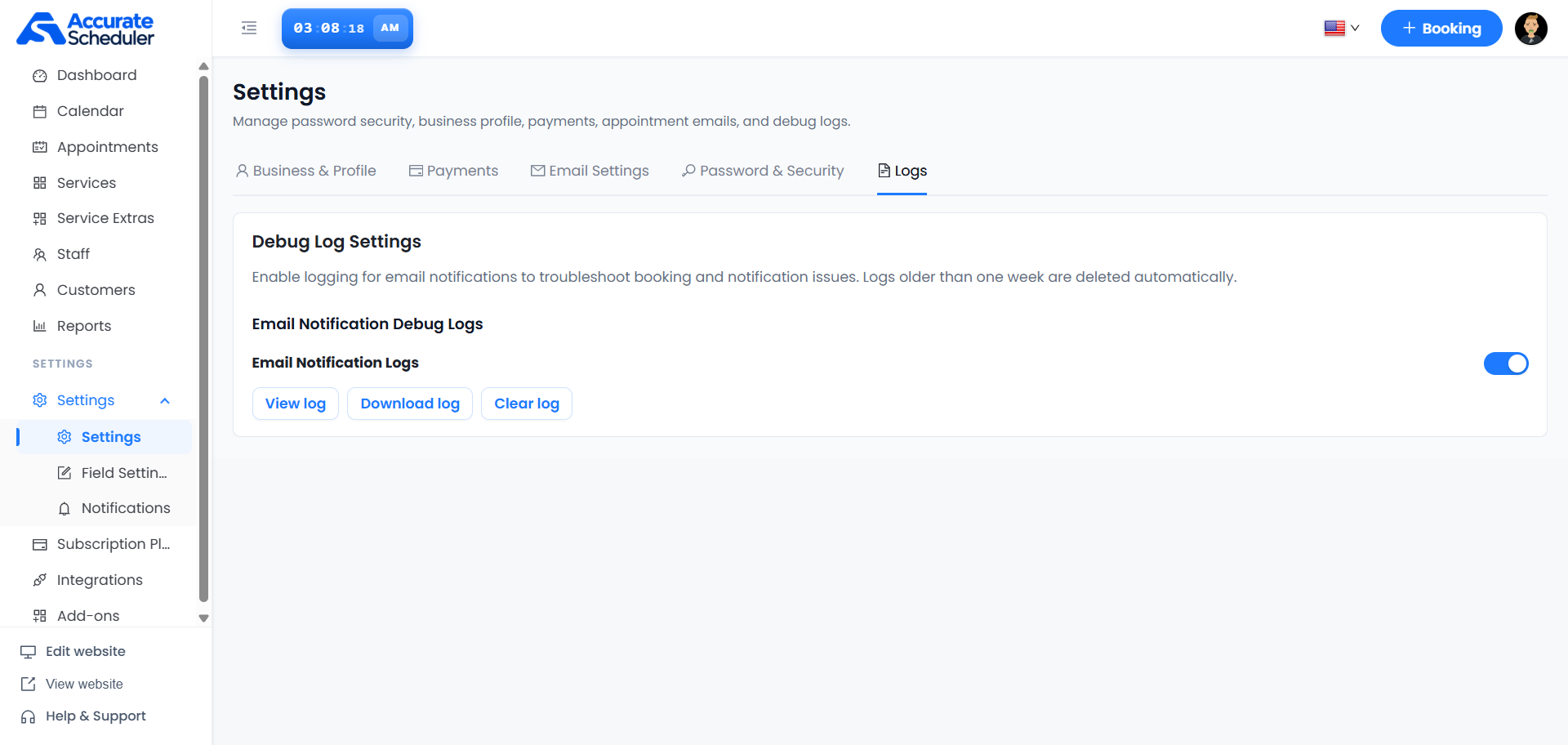
Use Email Notification Logs to enable logging while investigating booking or notification issues. The supplied screen states that logs older than one week are deleted automatically.
- View log: inspect the recorded information.
- Download log: keep a copy needed for troubleshooting.
- Clear log: review any confirmation and retain needed diagnostic information before clearing.
Check downloaded logs for customer information or secrets before sharing them with support.
Troubleshooting and verification
- Changes not retained: use the save control for the current tab, then reopen it to check saved values.
- Wrong booking times: review business timezone and inherited time slot settings alongside service and staff availability.
- Payment option not working: check enabled state, selected mode and matching credentials, then review any gateway error.
- Email not received: check Admin Email, recipient details, spam folders and notification logs.
- Password rejected: check the displayed validation requirements and matching confirmation.
Related: service setup and staff schedules.
Need a hand with your setup?
Tell us which step you reached and what happened. Keep passwords and client secrets out of your message.
Contact Accurate Scheduler →