
Edit website and booking page
Updated October 10, 2026 · 4 min read
In this guide
Use Edit website in Accurate Scheduler to customize the page customers use to book appointments. Review the live preview while editing, then select Save at the top of the Website editor.
Open the Website editor
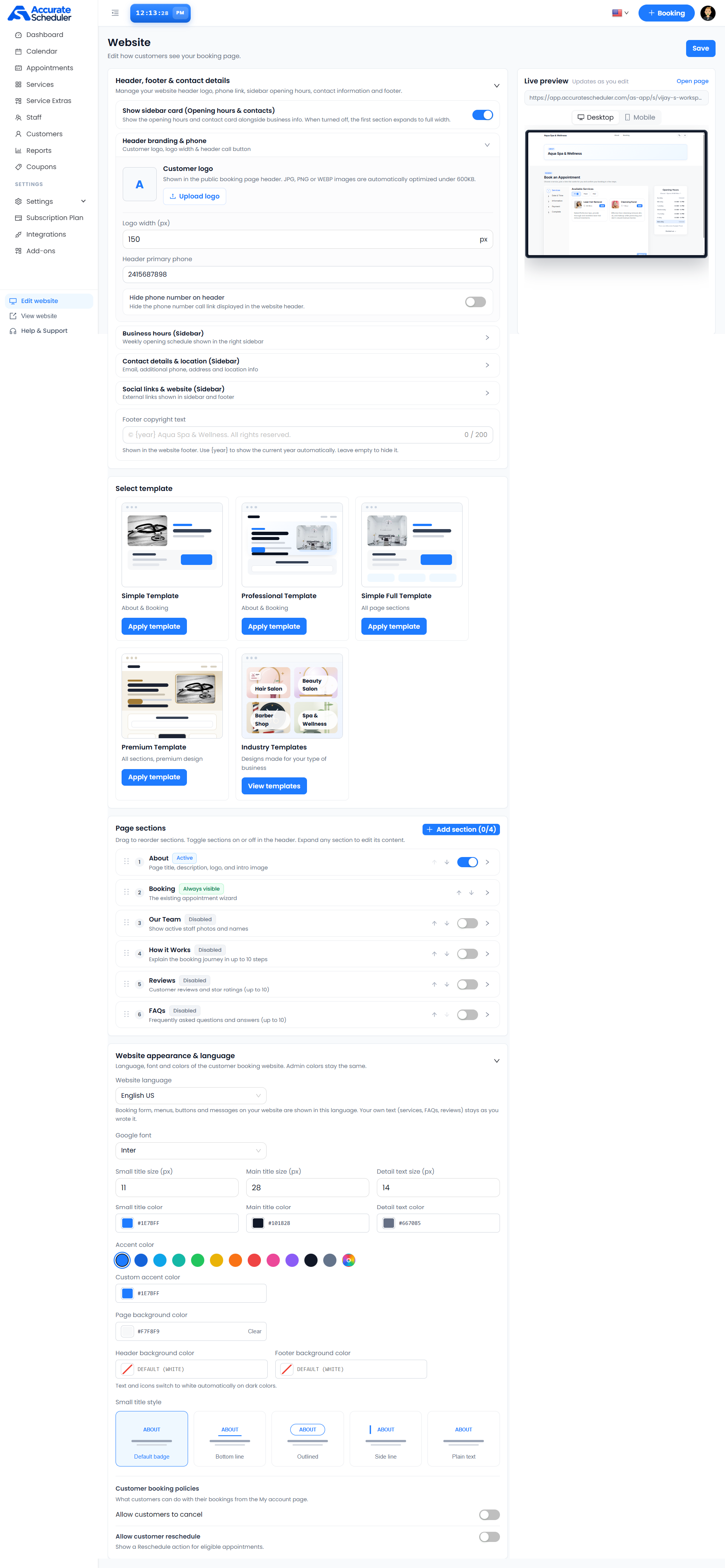
Select Edit website at the bottom of the left navigation. The Website page groups header and contact details, templates, page sections, appearance and customer booking policies.
Set the header, footer and sidebar
Expand Header, footer & contact details. The Show sidebar card (Opening hours & contacts) switch controls the opening-hours and contact card beside the first section. Turning it off lets the first section expand to full width.
- Customer logo: select Upload logo. JPG, PNG and WEBP images are automatically optimized under 600KB. Adjust Logo width in pixels; the example shows 150.
- Header primary phone: enter the number for the header call link. Use Hide phone number on header to hide it.
- Footer copyright text: enter up to 200 characters. Use
[year]for the current year automatically. Leave this field empty to hide the text.
Display business hours
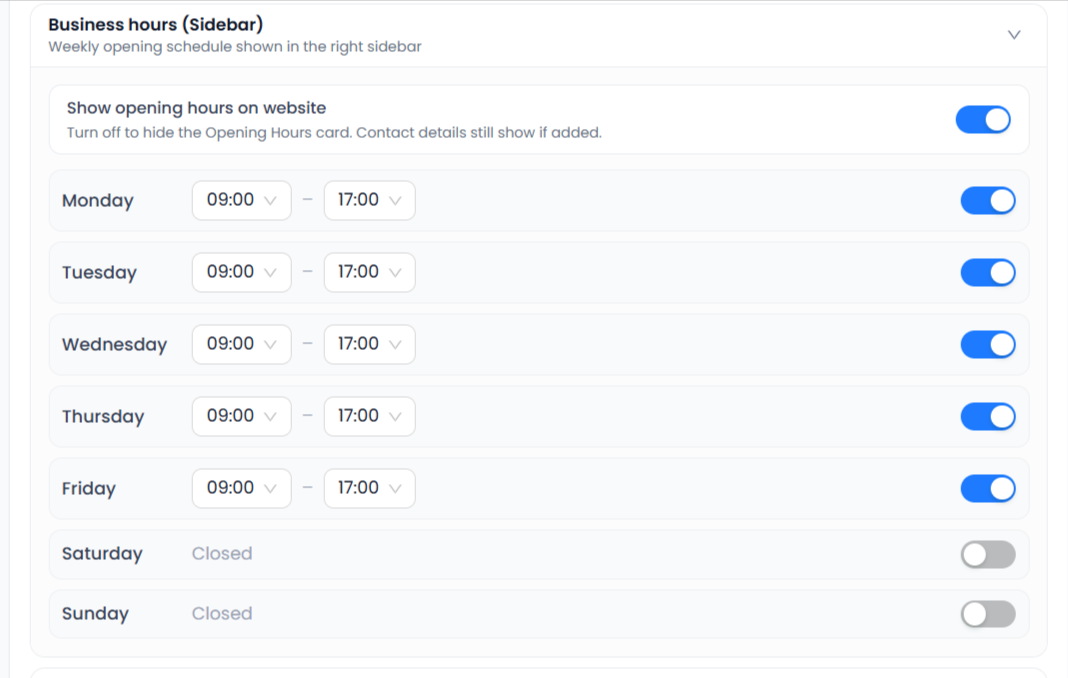
Expand Business hours (Sidebar). Turn on Show opening hours on website to display the Opening Hours card. Set each day’s switch and opening and closing times. Turning off this display switch hides the hours card; contact details still show if added.
These settings describe the opening schedule displayed on the website. Review staff shifts and special days separately when checking appointment availability.
Add contact details and social links
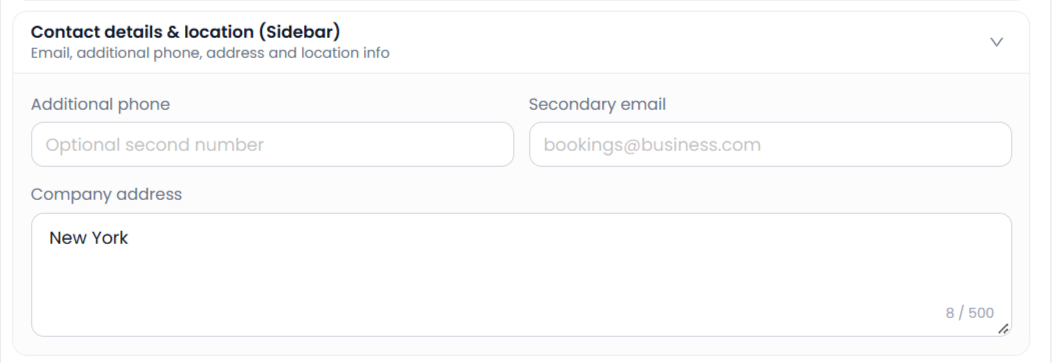
Expand Contact details & location (Sidebar) to enter an additional phone number, secondary email and company address. The address allows up to 500 characters. The example address is New York.
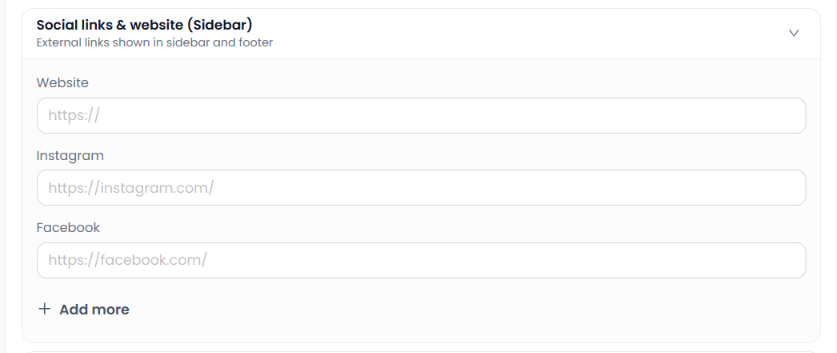
Expand Social links & website (Sidebar). Enter your Website, Instagram and Facebook URLs. Select + Add more for additional links using the controls offered. Verify the destination of each link in the saved booking page.
Choose a template
| Template | Description shown |
|---|---|
| Simple Template | About & Booking |
| Professional Template | About & Booking |
| Simple Full Template | All page sections |
| Premium Template | All sections, premium design |
| Industry Templates | Designs for your type of business |
Select Apply template on a template card, or View templates under Industry Templates. Review the resulting preview and section content before saving. The screenshot does not establish a price or plan requirement for these choices.
Arrange and edit page sections
Under Page sections, drag sections to reorder them, or use the up/down arrows shown beside a section. Toggle optional sections in their headers and expand a section to edit its content. Booking is marked Always visible and contains the appointment wizard.
- About: page title, description, logo and intro image; active in the example.
- Our Team: active staff photos and names.
- How it Works: explain the booking journey in up to 10 steps.
- Reviews: customer reviews and star ratings, up to 10.
- FAQs: frequently asked questions and answers, up to 10.
Our Team, How it Works, Reviews and FAQs are disabled in the example. The + Add section (0/4) control shows no added sections out of four available slots. Open it to review the section options provided by your workspace.
Adjust appearance and language
Expand Website appearance & language. Website language applies to booking-form labels, menus, buttons and messages. Your own text, including services, FAQs and reviews, stays as written. The example uses English US and the Inter Google font.
Set small-title, main-title and detail-text sizes and colors. The example sizes are 11, 28 and 14 pixels. Choose an accent swatch or custom accent color, and adjust page, header and footer backgrounds. The editor notes that text and icons switch to white automatically on dark colors; check readability in the preview.
Choose a small-title style: Default badge, Bottom line, Outlined, Side line or Plain text. These settings customize the customer booking website; admin colors stay the same.
Set customer booking policies
Under Customer booking policies, review Allow customers to cancel and Allow customer reschedule. These control actions available from the customer’s My account page; rescheduling is shown for eligible appointments. Both switches are off in the example. After saving, verify the expected actions using a test customer’s appointment.
Preview, save and check the booking page
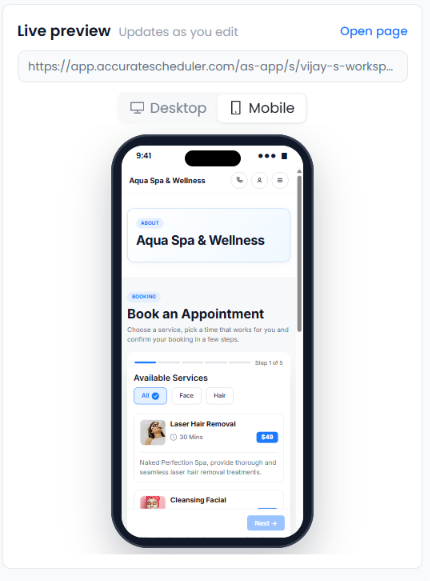
- Review the Live preview, which updates as you edit.
- Switch between Desktop and Mobile. Check section order, text, colors, logo, contact details and the booking wizard.
- Select Save at the top of the editor.
- Use Open page in the preview or View website in the navigation to inspect the customer page. Use your own workspace’s booking URL.
- Recheck the saved layout and complete a test booking to confirm the form remains usable.
If the saved page differs from the preview, confirm that Save completed, reopen the correct workspace booking page and review the relevant section switch. Check sidebar visibility separately from opening-hours visibility. For customer-detail fields, use Form Fields.
Need a hand with your setup?
Tell us which step you reached and what happened. Keep passwords and client secrets out of your message.
Contact Accurate Scheduler →