
Customize booking form fields
Updated October 10, 2026 · 3 min read
In this guide
Use Form Fields to customize the customer details collected on your booking form. Keep the form clear and ask only for information needed for the appointment.
Open Form Fields
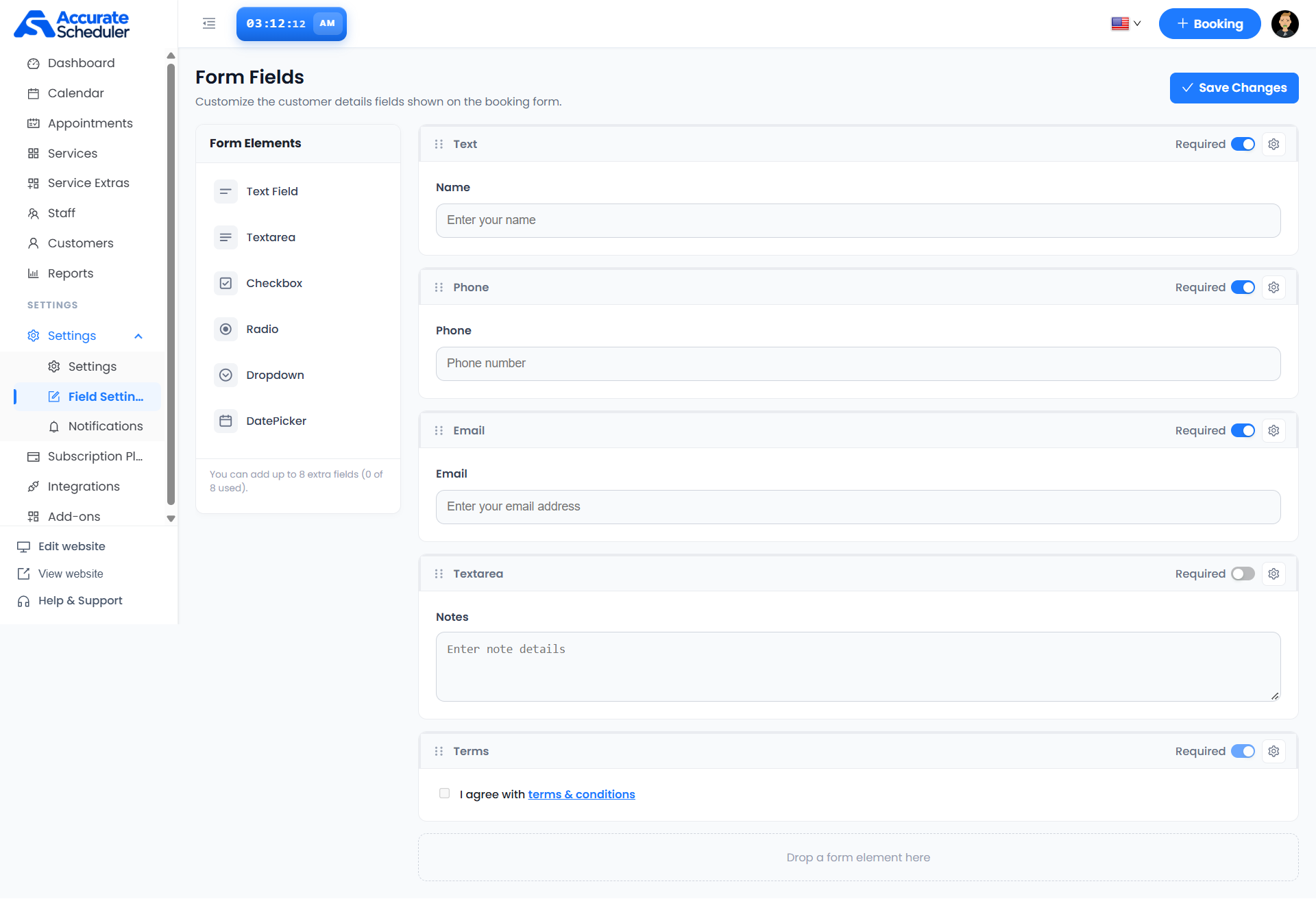
Expand Settings in the left menu and select Field Settings. The page heading is Form Fields.
Review the existing fields
The example contains Name, Phone, Email, Notes and Terms. Name, Phone and Email have Required enabled; Notes has it disabled. Terms shows a required switch and a checkbox with a terms & conditions link. Review your own form rather than assuming these example values are correct for your business.
Add a form element
- Choose an element from the Form Elements panel.
- Drag it into the area labelled Drop a form element here.
- Use the new field’s settings icon to review the available configuration.
- Configure clear labels and any options exposed by the editor, then review the field preview.
- Text Field: a short text response.
- Textarea: a longer response.
- Checkbox: a checkbox response.
- Radio: a single choice from options.
- Dropdown: a selection from a list.
- DatePicker: a date selection.
The screenshot states that up to 8 extra fields can be added and shows 0 of 8 used. Check the counter in your workspace before adding more.
Set required fields and order
Review the Required switch on each field. Enable it only when the customer must provide that information. If a switch is unavailable, follow the restrictions shown by your workspace.
Use the dotted handle in a field card’s header to drag it into the intended order. Keep related questions together and put essential contact details where customers can find them easily.
The gear icon opens field settings. The supplied screenshot does not show that panel, so review its actual controls before changing labels, options or terms links. Verify that the terms link opens the intended document.
Save and test the form
- Review field order, labels, required switches and any configured choices.
- Select Save Changes at the top right.
- Open the public booking page and verify the customer details step.
- Try leaving required fields empty and confirm the validation matches your setup.
- Test choices and date fields, then review the saved details in a test appointment.
- Check the form on mobile as well as desktop.
Troubleshooting
- Cannot add another field: check the extra-field counter.
- Changes not visible: save, reopen the editor and refresh the public booking page.
- Customer cannot proceed: review required fields and visible validation messages.
- Unclear question: use a concise label and only the relevant choices available in field settings.
- Wrong field order: review the cards after dragging and save again.
Related: Appointments List and Add and edit an appointment.
Need a hand with your setup?
Tell us which step you reached and what happened. Keep passwords and client secrets out of your message.
Contact Accurate Scheduler →