
WhatsApp Notifications
Updated October 17, 2026 · 7 min read
In this guide
- Activate WhatsApp Notifications
- Before changing provider settings
- Configure WhatsApp Business (Meta)
- Configure Twilio
- Create and refresh approved templates
- Configure appointment events and recipients
- Map numbered template variables
- Send a test message
- Review activity and understand acceptance
- Recipient numbers and consent
- Deactivate the add-on
- Troubleshooting
WhatsApp Notifications lets businesses send automated appointment updates to customers and staff through their own WhatsApp Business (Meta) or Twilio provider. Messages use approved templates, and customer and staff rules can be configured separately.
Included in Free and all paid plans. This is the Accurate Scheduler feature entitlement, not a promise of free messages. Provider charges may apply, including to test messages.
Activate WhatsApp Notifications
- Sign in to the Accurate Scheduler dashboard.
- Open Add-ons.
- Find WhatsApp Notifications and click Activate.
- Click Configure.
You can also open the configuration screen through Settings → WhatsApp Notifications. The four tabs are API Configuration, Messages, Send Test and Activity. Start with the Add-ons guide if you need help finding the feature.
Before changing provider settings
Changing the gateway, account IDs or credentials clears cached templates and disables configured WhatsApp message rules. Save the new configuration, refresh approved templates and configure the message rules again before expecting automated messages.
Use your own provider account. Keep tokens and account credentials private, and never include them in a public screenshot, message template or support description.
Configure WhatsApp Business (Meta)
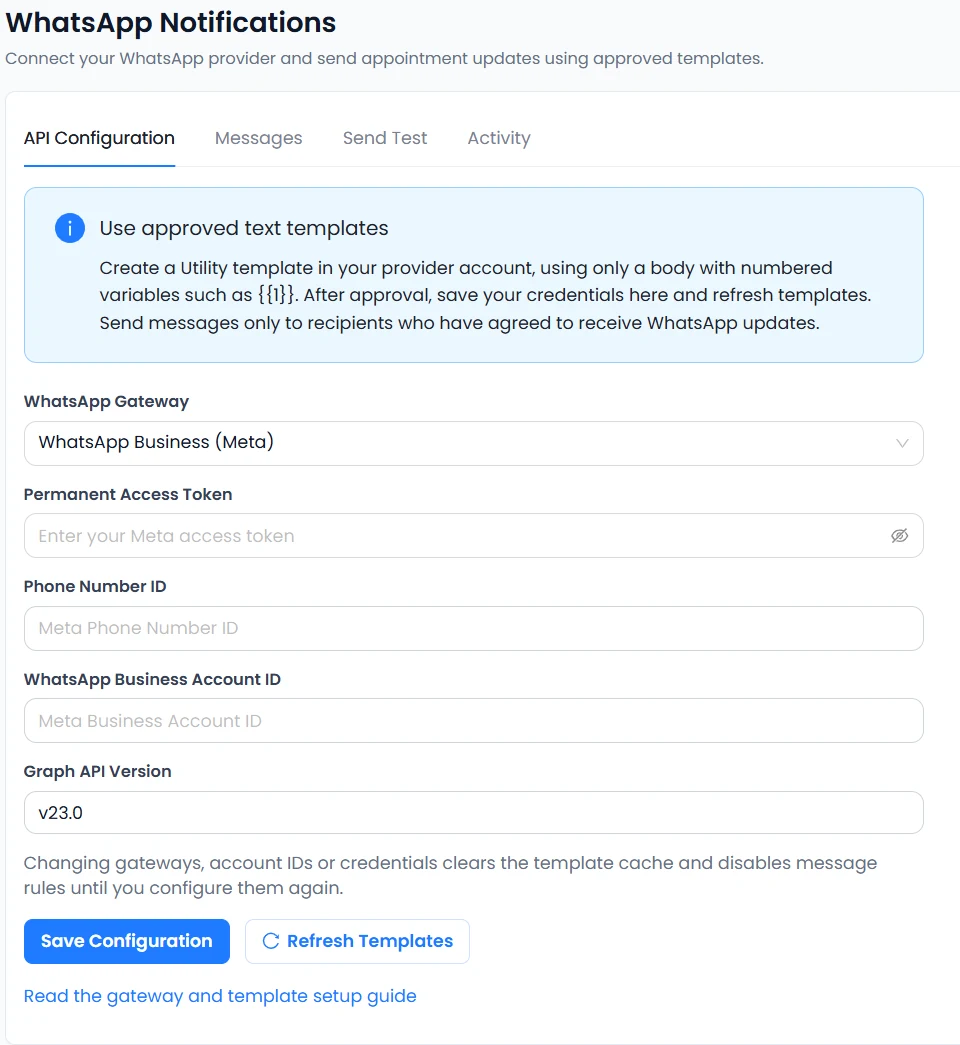
In API Configuration, select WhatsApp Business (Meta). Obtain these values from your own Meta developer and business setup:
- Permanent Access Token
- Phone Number ID
- WhatsApp Business Account ID
- A supported Graph API Version
- Enter the required values in the matching fields.
- Click Save Configuration.
- After your provider has approved suitable templates, click Refresh Templates.
- Check that the approved templates are available before configuring Messages.
The API version visible in the screenshot is an example from that application screen, not a permanent version requirement. Use a version supported by your provider and the current application configuration. A Phone Number ID is an account identifier; it is not the same field as a recipient’s WhatsApp number.
Configure Twilio
Select Twilio as the gateway, then enter values from your own Twilio account:
- Twilio Account SID
- Twilio Auth Token
- WhatsApp Sender Number
- Messaging Service SID
The WhatsApp sender must be associated with the selected Messaging Service. Check that association in your provider account, enter the corresponding values in Accurate Scheduler, then Save Configuration and Refresh Templates.
The supplied API screenshot shows Meta fields. Twilio uses its own fields after you select that gateway; no Twilio configuration screenshot is included here. Do not copy another business’s identifiers or use sample credentials.
Create and refresh approved templates
Create and submit templates through your chosen provider. Accurate Scheduler’s current integration supports Utility templates with a text body and numbered variables, such as {{1}} and {{2}}. The integration does not support template headers, footers, buttons or media, even if your provider offers those formats elsewhere.
Submission does not mean approval. Check the provider’s template status and keep the appointment message clear and relevant. Twilio documents its template approval process and statuses and its approved-template notification workflow.
- Wait for the provider to approve a compatible template.
- Return to API Configuration in Accurate Scheduler.
- Click Refresh Templates.
- Confirm the template appears before using it in a message rule.
Configure appointment events and recipients
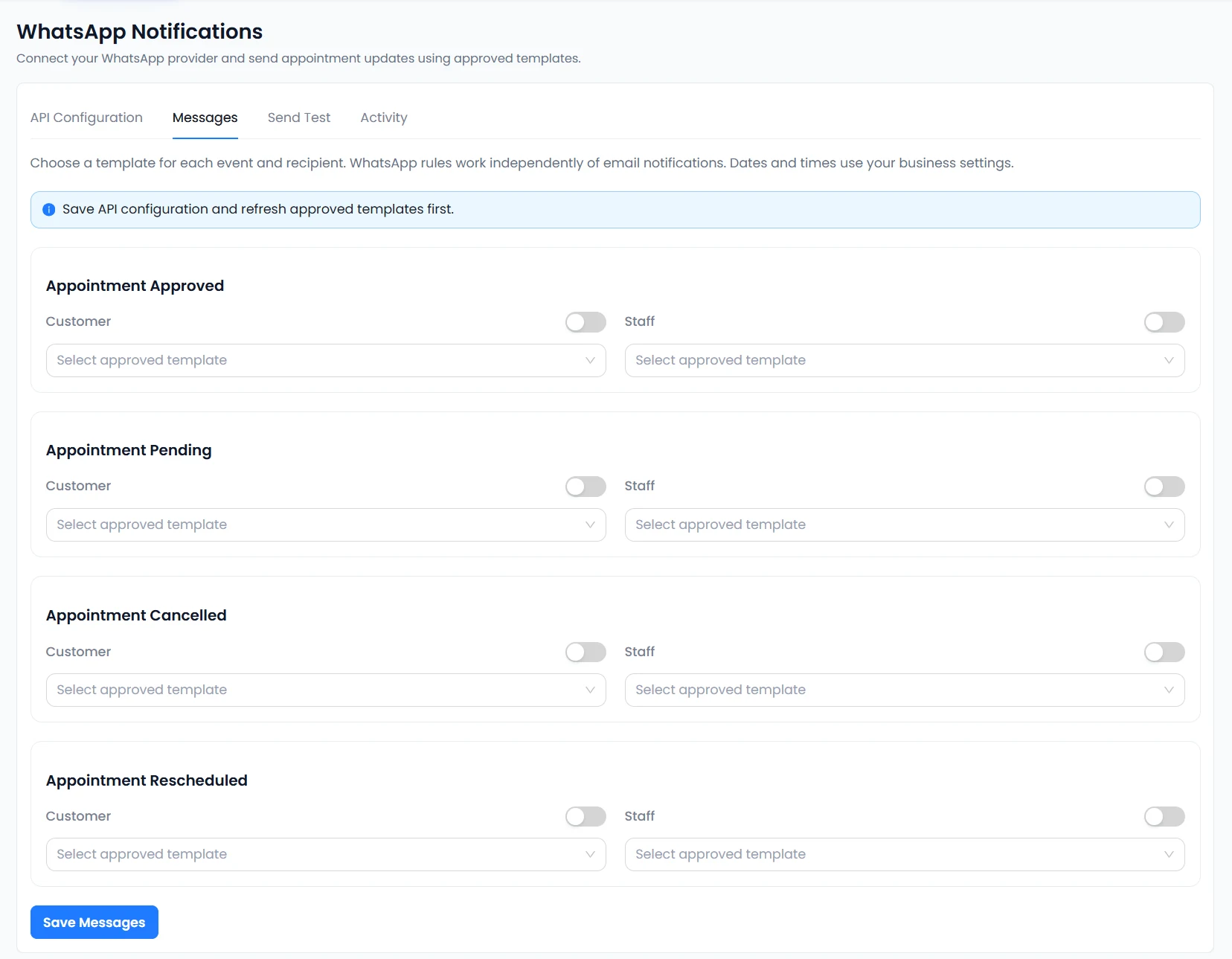
Open Messages. The supported events are:
- Appointment Approved
- Appointment Pending
- Appointment Cancelled
- Appointment Rescheduled
Each event has separate Customer and Staff settings. Configure each recipient you want to notify:
- Find the relevant appointment event.
- Select an approved template for Customer or Staff.
- Map every required numbered variable to an available appointment field.
- Enable the corresponding recipient switch.
- Click Save Messages.
WhatsApp rules work independently of email notifications. Turning on an email rule does not turn on its WhatsApp counterpart. Dates and times in messages use your business settings; check those settings when reviewing a test.
Map numbered template variables
A template can contain placeholders such as:
Hello {{1}}, your appointment is scheduled for {{2}}.This example illustrates placeholder syntax only. After selecting the approved template, assign each numbered placeholder to an actual field offered by your workspace’s mapping controls. Choose fields that match the meaning of the sentence, and check that each required field has a value for the booking and recipient.
Review the resolved values in a test before enabling the rule for customers or staff. Do not assume a particular field name or value is available just because it would suit an example. The supplied screenshots show unselected templates, so they do not establish a complete list of mapping options.
Send a test message
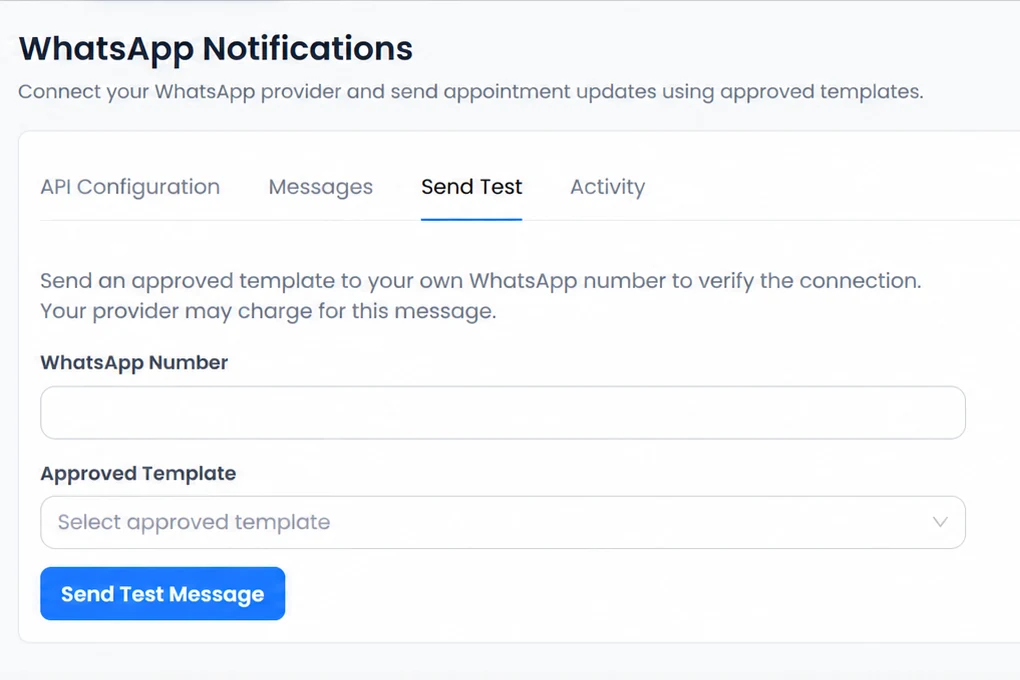
Use Send Test to check the connection with your own WhatsApp number. This sends a real provider request; provider charges may apply.
- Open Send Test.
- Enter your own valid WhatsApp-compatible number, including its country code.
- Select an approved template.
- Provide sample values if the selected template requires them.
- Click Send Test Message.
- Check Activity for the request result and check your own WhatsApp account separately.
Do not use another person’s number to test without their agreement. The phone value from the supplied screenshot has been redacted; no example phone number is provided as a recommended test recipient.
Review activity and understand acceptance
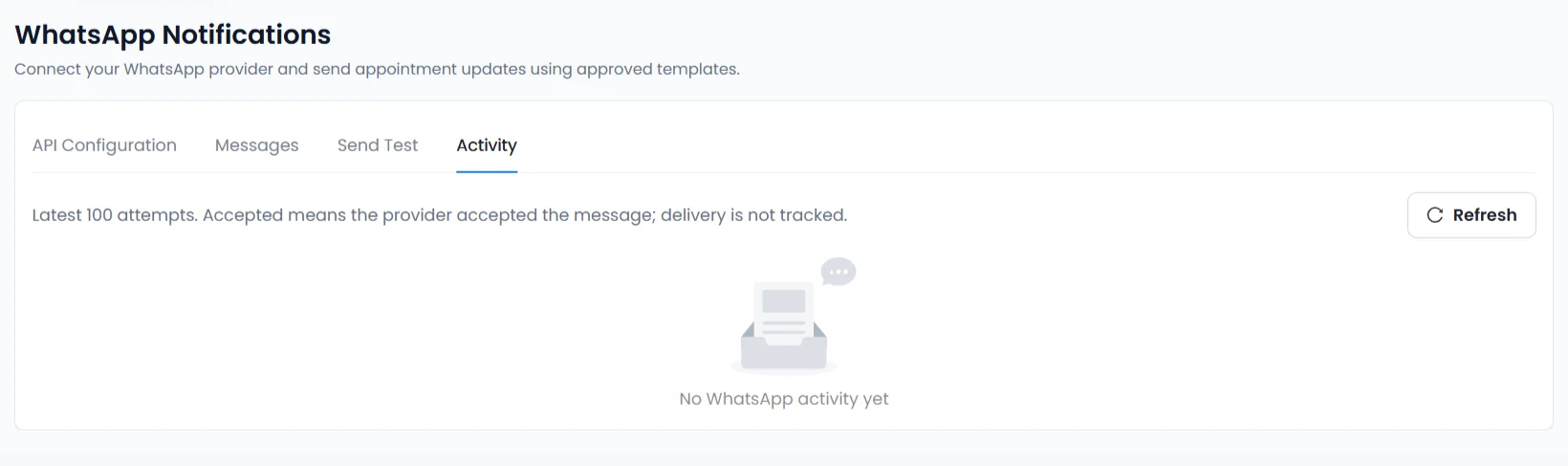
Activity shows the latest 100 message attempts. Use Refresh to review recent results. An empty state is normal before messages have been attempted, as shown in the screenshot.
Accepted means the provider accepted the request. It does not confirm delivery or reading. Accurate Scheduler does not track delivery or read receipts in this integration. Check recipient receipt separately; do not describe an accepted attempt as a delivered message.
Recipient numbers and consent
Before enabling a recipient rule, confirm the recipient has a valid WhatsApp-compatible phone number with the country code and has agreed to receive the relevant WhatsApp appointment updates. Businesses are responsible for obtaining and maintaining appropriate recipient consent and following their provider’s policies.
The integration does not automatically collect consent. Keep templates limited to the intended appointment information. For clinic bookings, use generic status updates and avoid sensitive medical information in template text or mapped values.
Deactivate the add-on
Deactivating WhatsApp Notifications stops automated WhatsApp messages and retains the saved configuration. Email notifications continue to operate independently. If you later change provider credentials, remember that templates must be refreshed and message rules configured again.
Troubleshooting
Why are no templates available?
Save API Configuration first. Confirm the provider account has approved compatible Utility body-only text templates, then refresh them. Check that the credentials and account IDs belong to the account containing those templates.
Why is my approved template missing?
Check the selected gateway, account and template status. Make sure the template fits this integration’s body-only format without headers, footers, buttons or media. Refresh Templates after approval or account changes.
Why was a message not sent?
Check that the add-on is active, the correct event and recipient switch are enabled, an approved template is selected, all required variables are mapped to populated fields, and Save Messages was clicked. Review Activity for the attempted request.
Why is my customer not receiving WhatsApp updates?
Check the customer’s recipient number and country code, their agreement to receive messages, the event rule and the provider account. An accepted request alone is not delivery evidence. Use a test to your own number to investigate configuration before contacting the provider.
Why did my message rules become disabled?
Changing the gateway, account IDs or credentials clears cached templates and disables message rules. Refresh approved templates, select them again, map their variables and save the enabled rules.
What does an accepted message mean?
The provider accepted the request. Delivery and reading are not tracked by this integration.
Does Accurate Scheduler charge for WhatsApp messages?
The WhatsApp Notifications feature is included in Free and all paid plans. That feature entitlement does not establish a free messaging allowance or a per-message price. Provider charges may apply, including for tests. Review your chosen provider’s current account terms and charges before sending.
Can I use Meta and Twilio simultaneously?
Configure the gateway selected in API Configuration; do not assume parallel sending through both providers. Changing that selection resets cached templates and disables message rules until they are configured again.
Related help: email notifications, appointment management, integrations and Add-ons. This feature covers outgoing appointment status notifications, not two-way messaging, chatbots, SMS, AI replies, delivery tracking or read receipts.
Need a hand with your setup?
Tell us which step you reached and what happened. Keep passwords and client secrets out of your message.
Contact Accurate Scheduler →