
Use the booking calendar
Updated October 10, 2026 · 3 min read
In this guide
Use the Calendar to see your appointments and move between Day, Week and Month views. This guide follows the Accurate Scheduler screens shown below.
1. Open your calendar
Sign in to your Accurate Scheduler workspace and select Calendar in the left menu. The heading shows the date, week or month you are viewing.
2. Choose the view you need
- Day: see the times and appointment details for one date.
- Week: compare appointments across seven days.
- Month: scan the month in a vertical list of dates, as shown in the current interface.
Day view: check one day in detail
Select Day at the top right. Choose a date in the horizontal date strip below the heading. If your date is outside the visible strip, scroll the strip horizontally or use its navigation arrows. Scroll inside the calendar to reach earlier or later times.
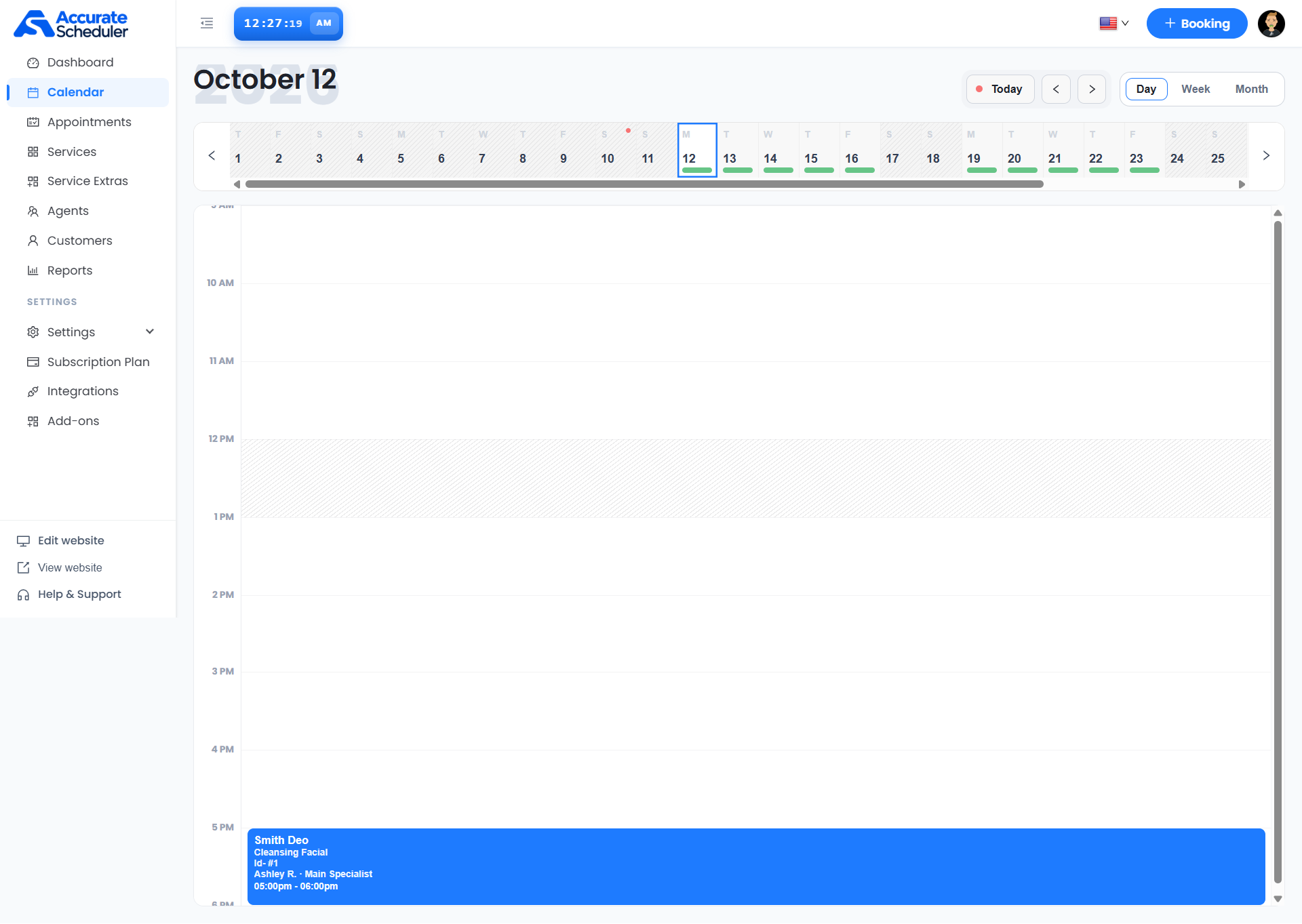
In this example, the blue appointment is for Smith Deo, for a Cleansing Facial with Ashley R. – Main Specialist, from 5:00 pm to 6:00 pm. These are example details from the supplied screen.
Week view: review your weekly schedule
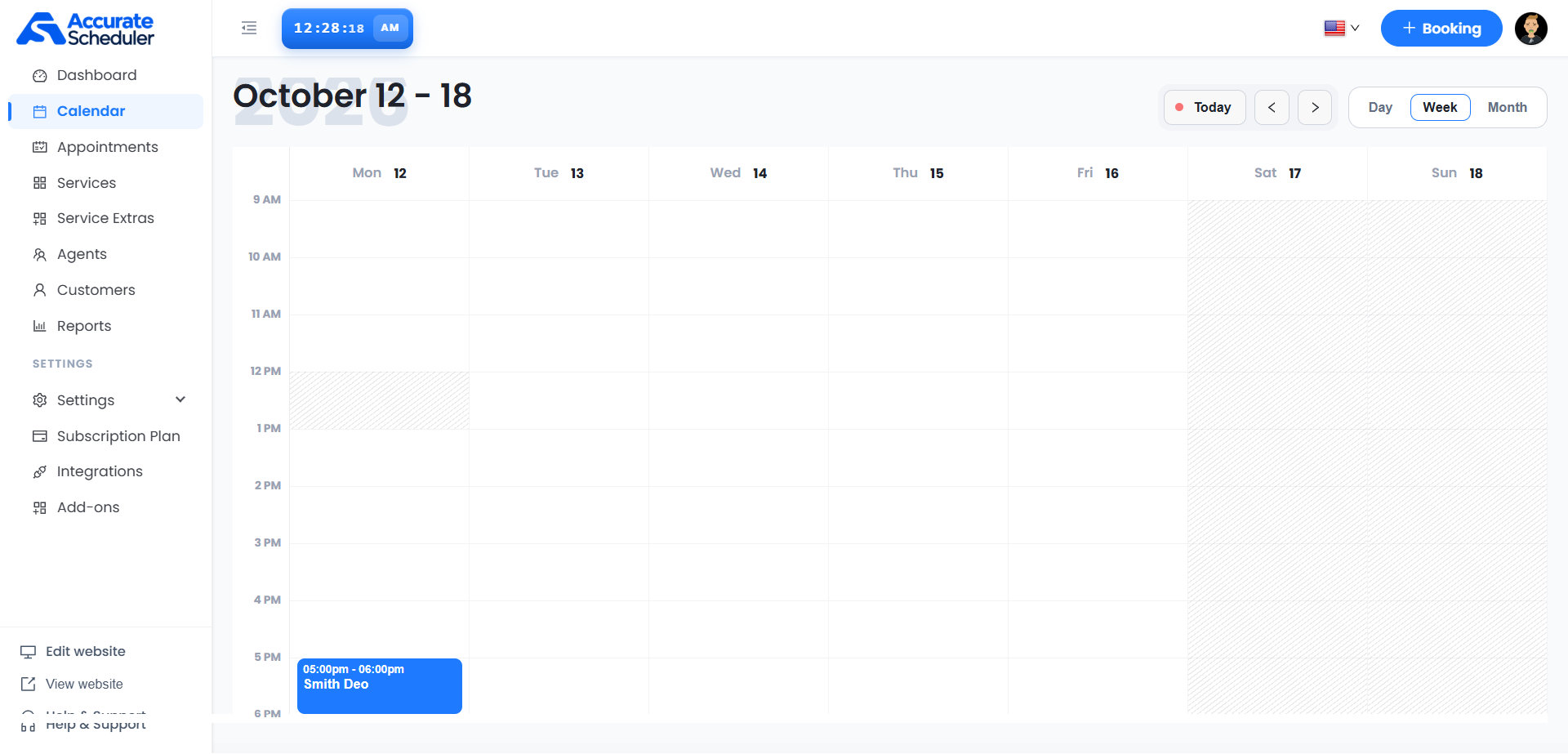
Select Week. Each column represents one day, with times along the left edge. Read the date above the column before reviewing a booking. The example shows October 12–18, with a Monday appointment from 5:00 pm to 6:00 pm.
Month view: find a date across the month
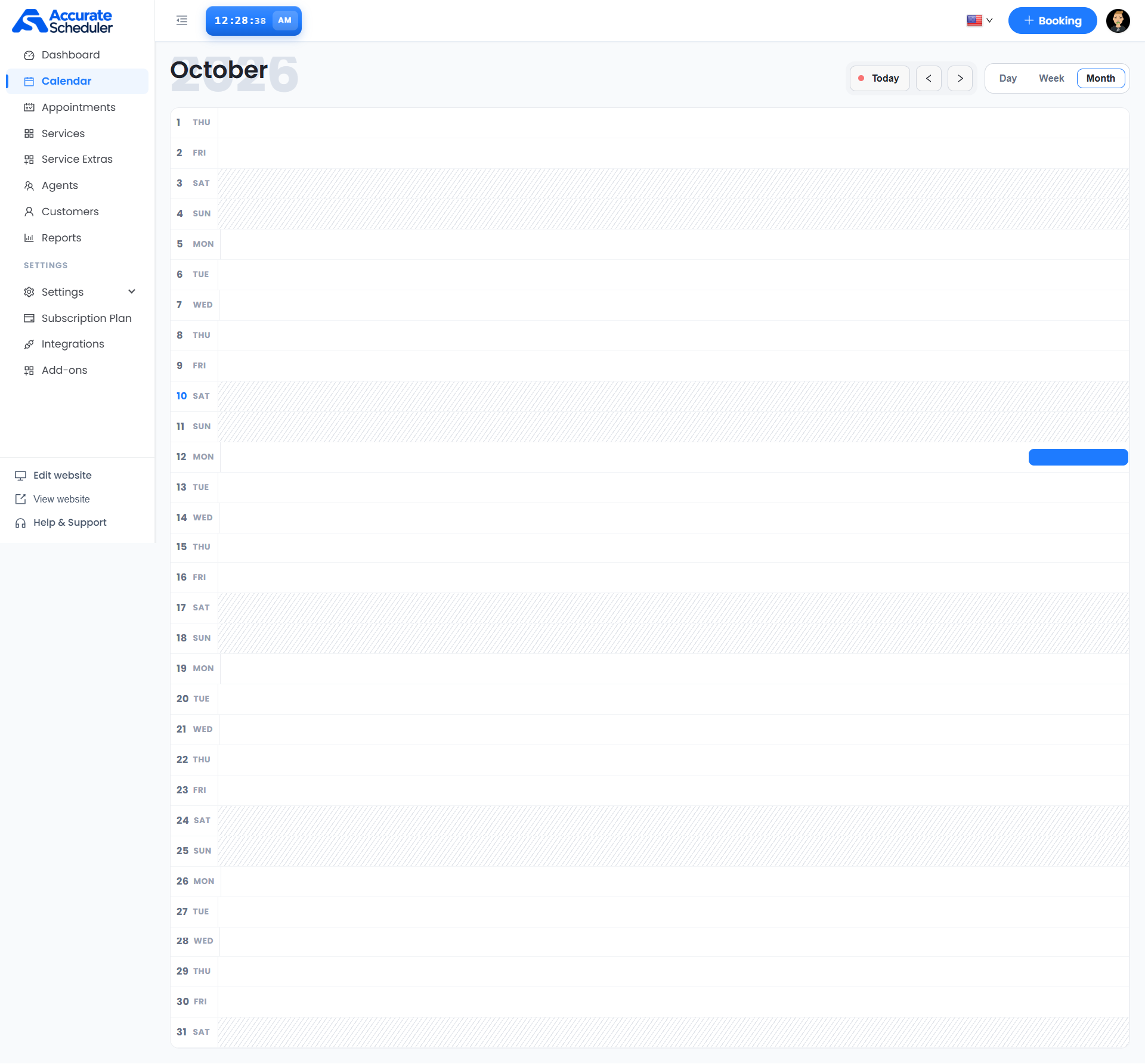
Select Month. The current Month view lists dates vertically rather than in a seven-column grid. Look for the day number and weekday on the left, then scan across that row for an appointment. In the example, a blue booking appears on Monday, October 12.
3. Move between dates
- Select Today to return to the current date.
- Use the left and right arrows beside Today to move backward or forward in the selected view.
- Check the heading after navigating so you know which period is displayed.
4. Start a new booking
Select + Booking in the top bar to start a booking. Follow the fields displayed in your workspace. When you finish, return to the correct calendar date and confirm the appointment appears at the intended time.
If something looks unexpected
- Cannot see an appointment? Check the selected date and view, then scroll to its scheduled time. You can also open Appointments from the left menu to look for the record.
- Text is hard to read in Month view? Switch to Day or Week to see more detail.
- Seeing diagonally shaded areas? The supplied screens show shading at a break and across weekends. Check your staff working hours and breaks before interpreting those areas as bookable time.
- Time looks wrong? Review your business time zone and staff availability settings before making changes.
For help with an unexpected result, note the selected view, date and time, and contact Accurate Scheduler support with the visible issue.
Need a hand with your setup?
Tell us which step you reached and what happened. Keep passwords and client secrets out of your message.
Contact Accurate Scheduler →