
Create and organize service categories
Updated October 10, 2026 · 3 min read
In this guide
Use service categories to group related services and keep your service menu organized. You can create categories, reorder them by dragging, and add a category while adding or editing a service.
Before you begin
Sign in to your Accurate Scheduler workspace and open Services in the left menu. Choose clear category names that customers can understand, such as Face or Hair.
1. Create a service category
- Open the Service Categories panel from the Services area.
- Enter the required Category Name. The screen shows a 100-character limit.
- Select + Create Category.
- Check that the new category appears under Existing Categories.
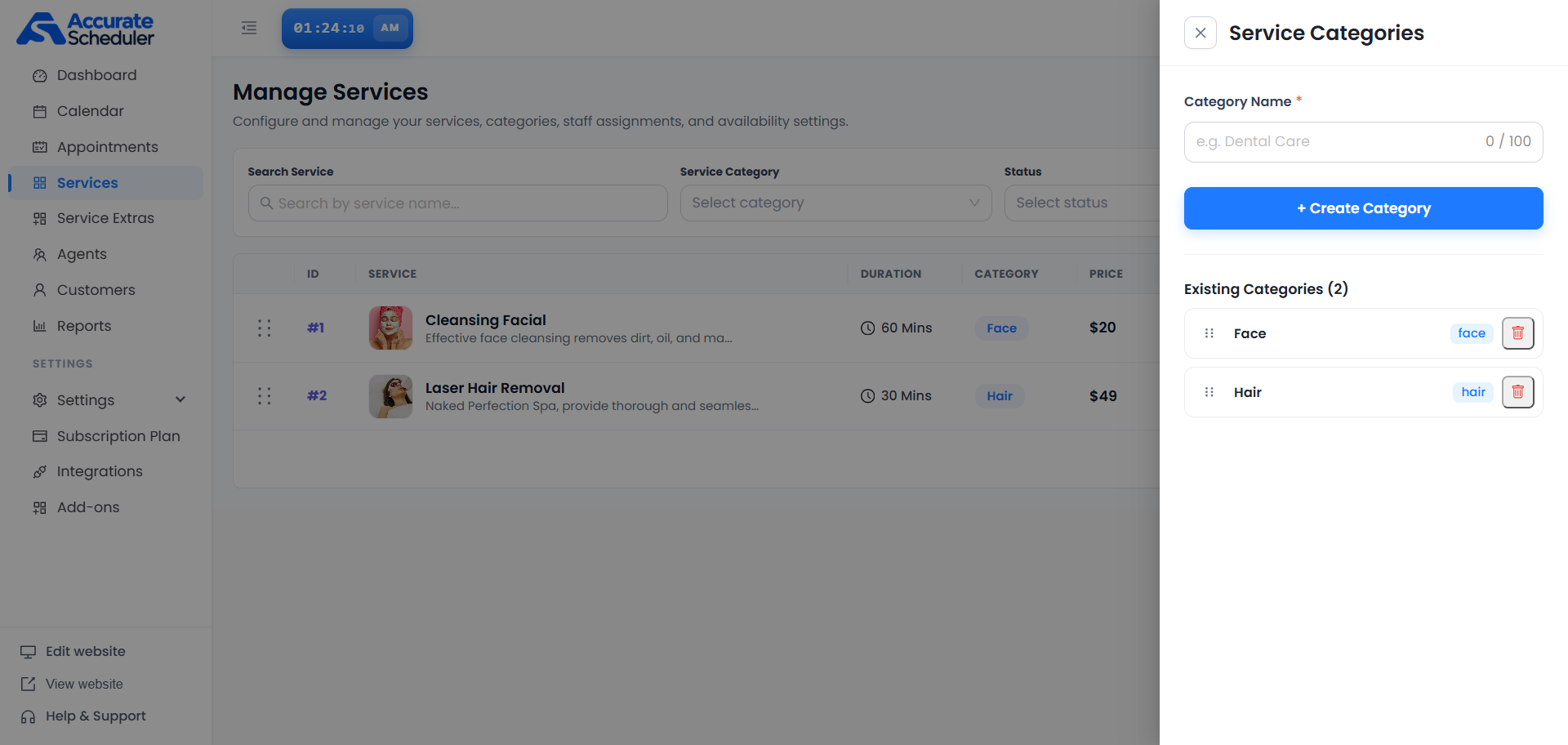
The example shows two existing categories: Face and Hair. The category labels also appear beside the services in the Manage Services list.
2. Change category order with drag and drop
- Find the category under Existing Categories.
- Press and hold the dotted drag handle on the left of its row.
- Drag the row above or below another category.
- Release it in the intended position.
- Reopen the panel to confirm that the new order is retained.
Use the category handles inside the panel to reorder categories. The separate handles beside service rows in the background belong to the service list.
3. Add a category while adding or editing a service
- Open the form for adding a service, or open an existing service for editing.
- Go to the service’s category selection.
- Select an existing category, or use the category-add control to create the category you need.
- Enter the category name and complete the category creation step.
- Check that the intended category is selected for the service, then save the service changes.
After saving, review the service’s category label in Manage Services. Use its Service Category filter to check which services belong to a category. The supplied screenshot shows the category-management panel; the service add/edit form is not pictured in this guide.
4. Review before deleting a category
Each category row includes a trash control. Before using it, review the services assigned to that category and any confirmation shown by the application. If services need another category, update their assignments first. Do not assume deleting a category deletes its services or automatically assigns them elsewhere; check the resulting records.
If a category does not appear as expected
- Cannot create a category: check that Category Name is filled in, within the displayed limit, and review any validation message.
- Wrong order: drag using the dotted category handle, then reopen the panel to verify the result.
- Service has the wrong category: open that service for editing, select the correct category and save the service.
- Services seem missing: review the active Service Category, search and status filters in Manage Services.
Continue with the Manage Services guide to review service details and assignments.
Need a hand with your setup?
Tell us which step you reached and what happened. Keep passwords and client secrets out of your message.
Contact Accurate Scheduler →