
Staff list and schedules
Updated October 10, 2026 · 3 min read
In this guide
Use Manage Staff to find team members, review service assignments and manage their working schedules. The supplied screens open this page from Agents; one screenshot labels the same navigation item Staff.
Before you begin
Check the staff member’s identity, assigned services and intended working hours before changing availability. Review existing appointments separately after schedule changes.
Find and review staff
- Open Agents (or Staff, depending on your workspace’s labels).
- Enter a name in Search Staff and choose a Status filter if needed.
- Select Apply Filters. Use Reset to clear the filters.
- Review the matching rows and use pagination to move through results.
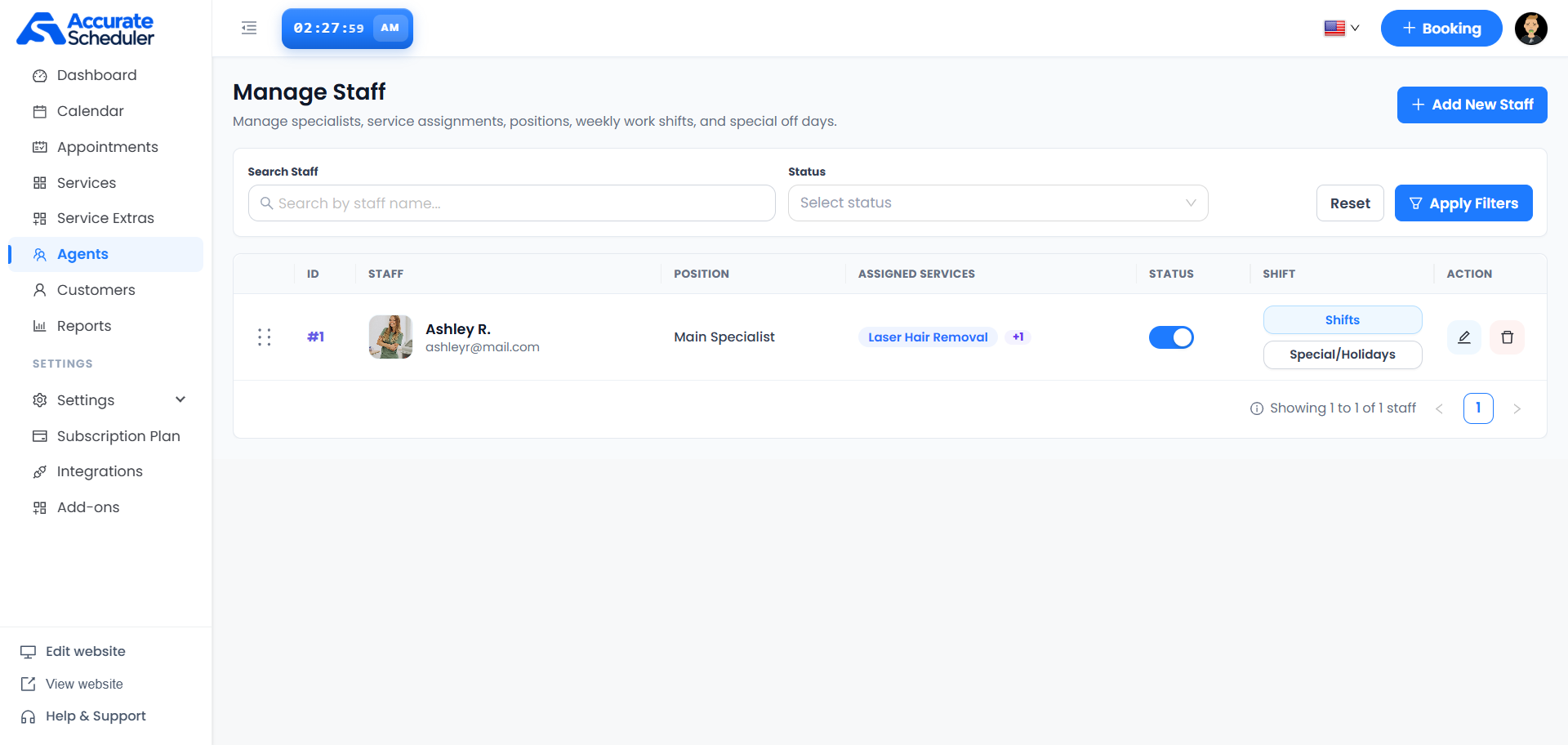
Each row shows ID, staff name and email, position, assigned services, status, shift controls and actions. The example shows Ashley R., Main Specialist, with Laser Hair Removal and one additional service indicated by +1. Review the full assignment before making changes.
Use staff actions
- + Add New Staff: opens staff creation. See Add and assign staff.
- Pencil: opens the staff record for editing.
- Status switch: controls the staff record’s enabled state. Check booking availability after changing it.
- Trash: use only after checking the staff identity and any confirmation. Do not assume deletion cancels existing appointments.
The list displays a dotted handle beside each row. If your workspace supports reordering through this handle, verify the resulting order after moving a row.
Manage weekly shifts
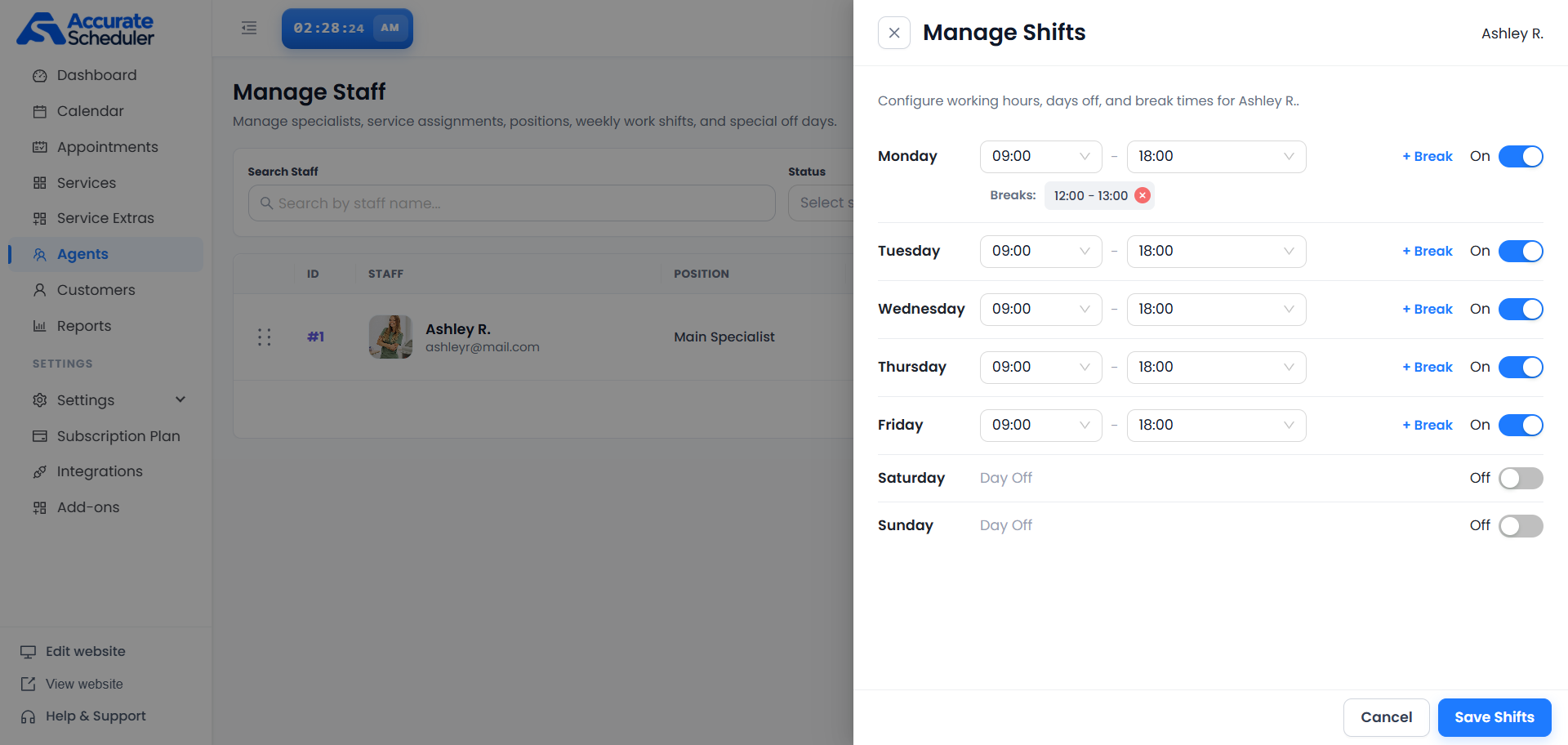
- Select Shifts in the intended staff member’s row.
- Check the staff name at the top of Manage Shifts.
- Turn each working day On and set its start and end times. Turn non-working days Off; they display Day Off.
- Use + Break to add a break and review the resulting break interval. Use its remove control only when the break should be removed.
- Select Save Shifts and verify availability. Use Cancel to leave without completing the save.
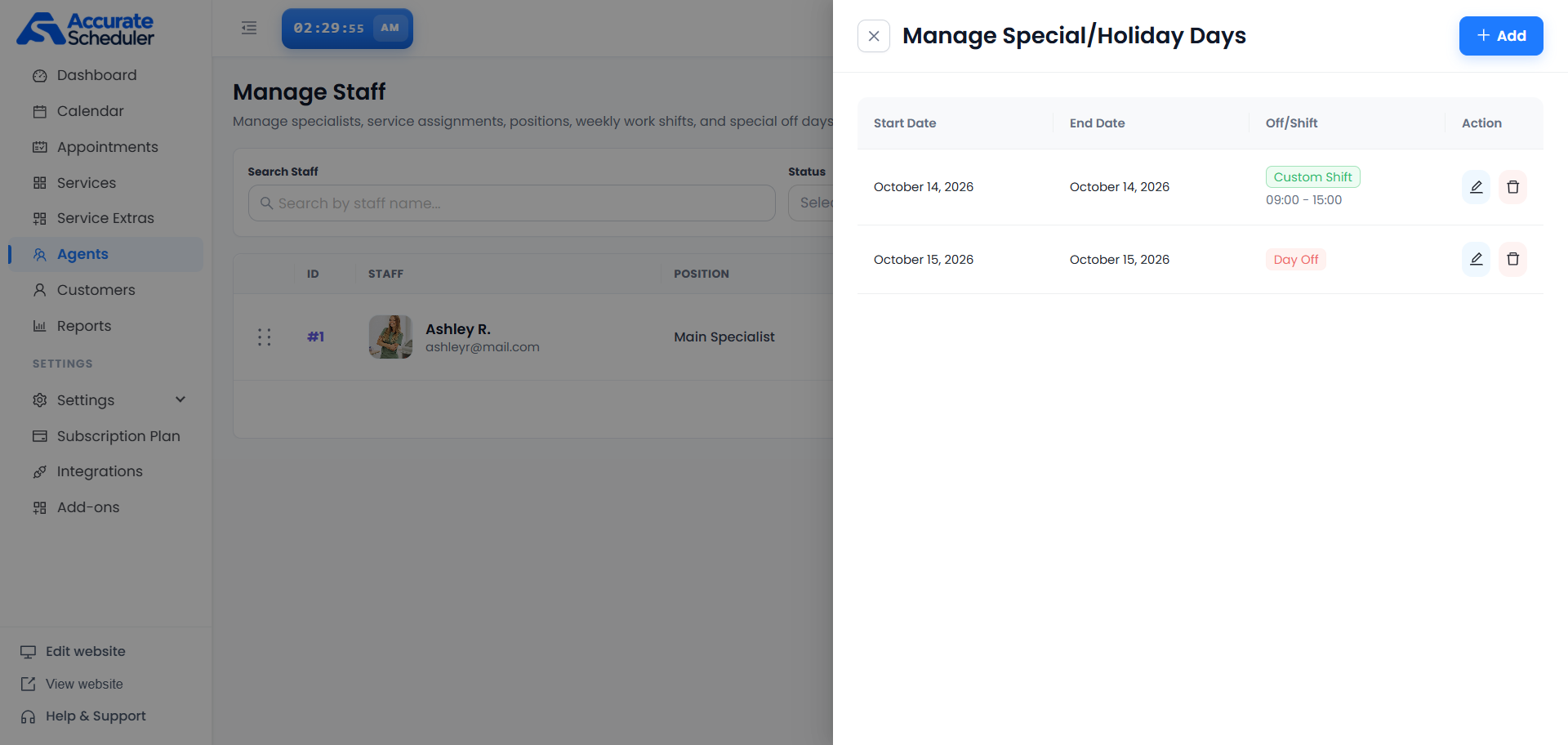
Review special days and holidays
Select Special/Holidays in the staff row. The list shows Start Date, End Date, Off/Shift and edit/delete actions.
Add or edit a special day
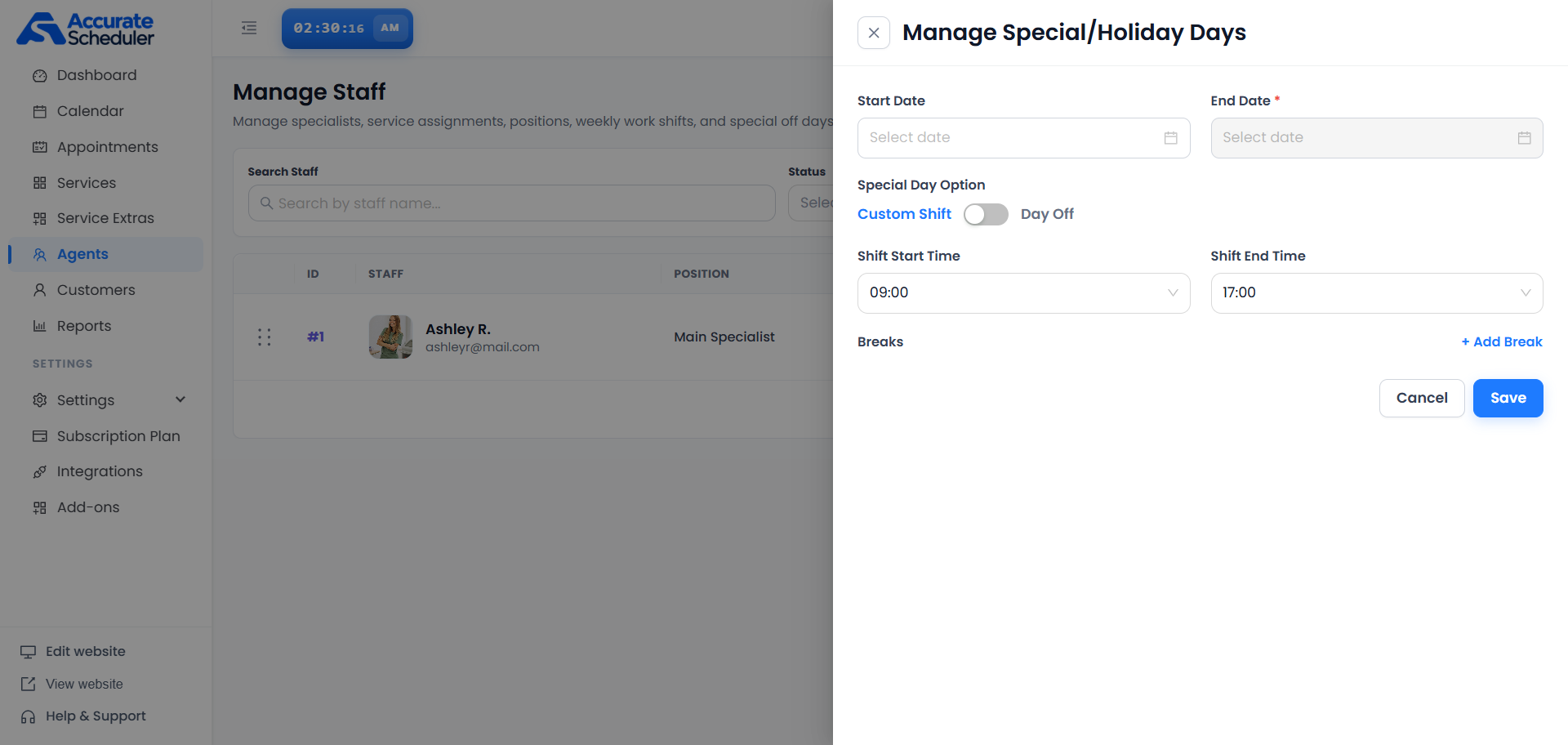
- Select + Add in Manage Special/Holiday Days, or use an existing entry’s pencil action.
- Select the intended Start Date and End Date. For one day, review both dates to ensure they match.
- Choose the intended Special Day Option: Custom Shift or Day Off.
- For a Custom Shift, set Shift Start Time and Shift End Time and add breaks if needed.
- Select Save, then verify the entry in the list and the affected date in the booking flow.
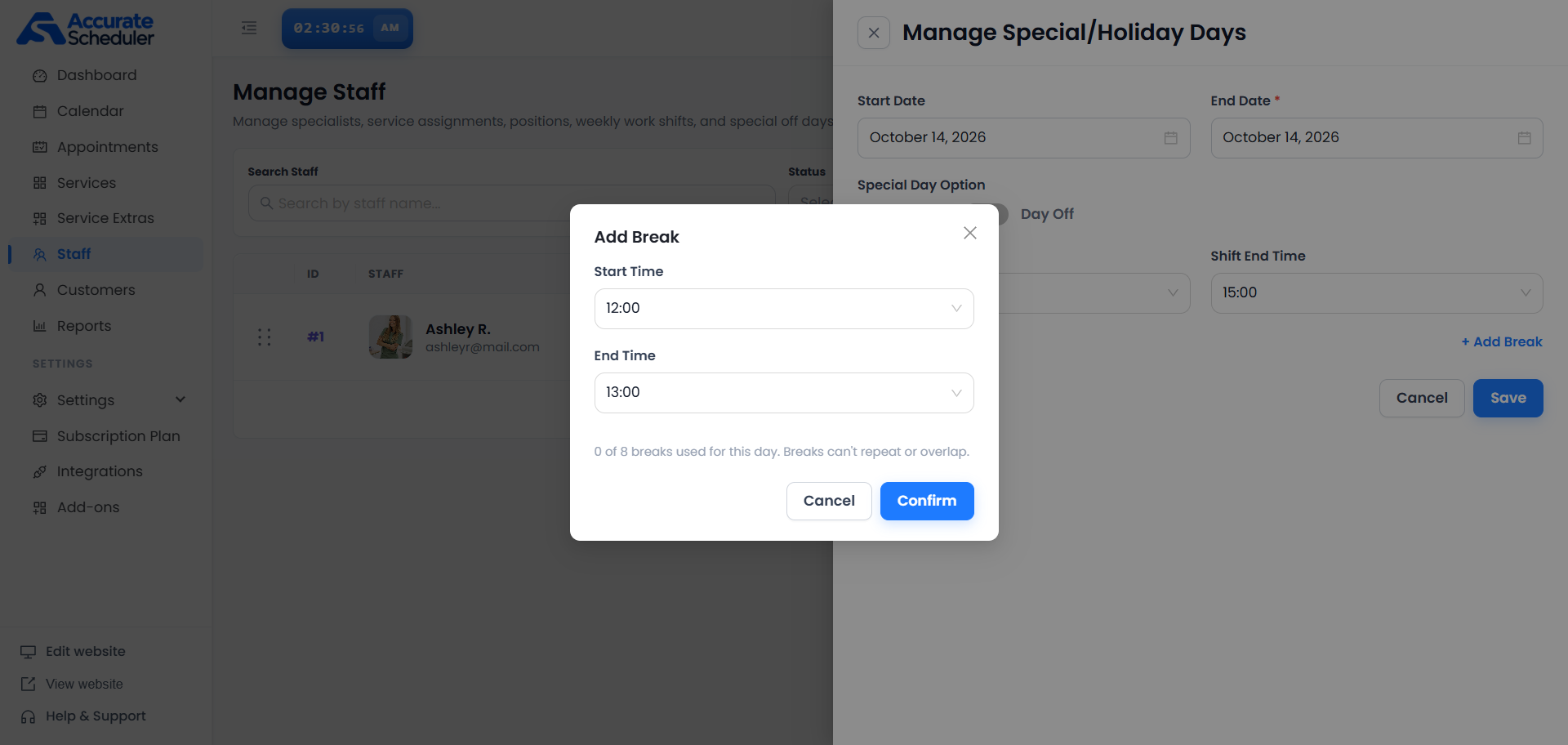
Add a break to a custom shift
- Select + Add Break.
- Set the break’s Start Time and End Time within the intended shift.
- Select Confirm to return to the special-day editor.
- Review the break and select Save in the parent editor to complete the change.
Verify and troubleshoot availability
- Staff missing from the list: reset filters and search again.
- No bookable times: review status, service assignments, weekly shifts, breaks, special days, service duration and buffers.
- Break rejected: check the visible limit and avoid repeated or overlapping intervals.
- Unexpected hours on one date: inspect Special/Holidays as well as the weekly shift.
- Changes not retained: reopen the relevant panel and check its saved values; confirming a break is separate from saving the parent editor.
Test the affected service and date in the customer booking flow. Do not assume schedule edits update or cancel appointments that already exist.
Related: staff shifts and availability, holidays and time away, and Services List.
Need a hand with your setup?
Tell us which step you reached and what happened. Keep passwords and client secrets out of your message.
Contact Accurate Scheduler →