
Zoom integration
Updated October 10, 2026 · 7 min read
In this guide
- Step 1: Open Integrations in Accurate Scheduler
- Step 2: Start building a Zoom app
- Step 3: Choose Server-to-Server OAuth
- Step 4: Name the application
- Step 5: Copy the app credentials
- Step 6: Add the meeting scopes
- Step 7: Add user scopes and review the selection
- Step 8: Activate the application
- Step 9: Confirm the app is active
- Required meeting and user permissions
- Save the connection in Accurate Scheduler
- Customize event settings
- Connect staff and enable services
- Test the connection and a booking
- Include Zoom links in notifications
- Troubleshoot missing meetings
Connect Accurate Scheduler to Zoom to create meeting links for appointments. Complete all nine application setup steps below, then save the connection and enable Zoom for your staff and services.
Before you begin: use a Zoom account with permission to create Server-to-Server OAuth apps and add the required scopes. The Zoom images below are reference screenshots; app headings have been adapted to Accurate Scheduler branding. Menu placement can differ in newer Zoom layouts. They do not represent a connection made to your account.
Step 1: Open Integrations in Accurate Scheduler
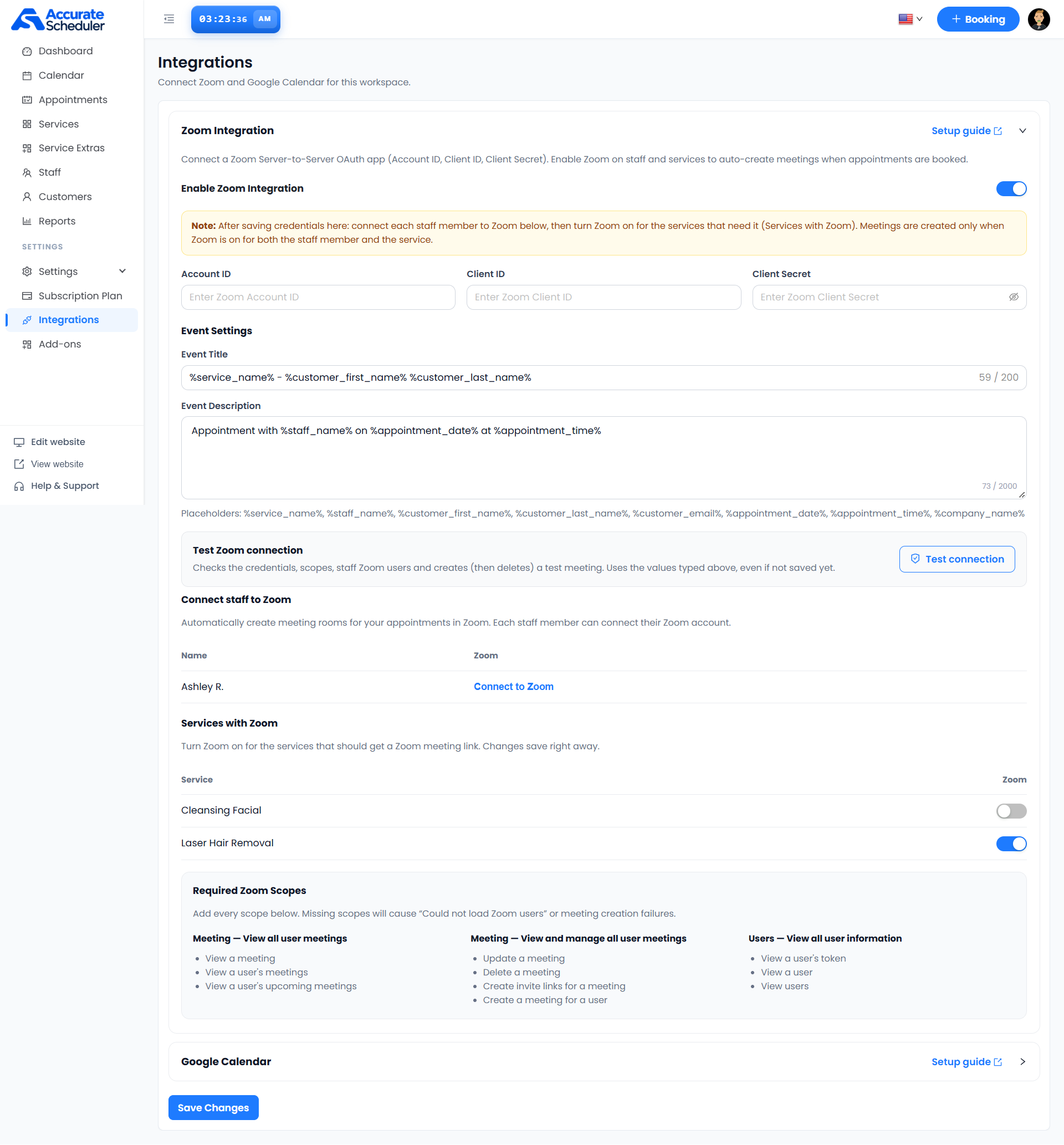
Sign in to your Accurate Scheduler workspace. Select Integrations in the left navigation and expand Zoom Integration. This is where you will enter the Account ID, Client ID and Client Secret after creating the Zoom app. Keep this page open while you complete the Zoom steps in another tab.
Locate the credential fields, Connect staff to Zoom and Services with Zoom sections. You will return to each of these after activating the application.
Step 2: Start building a Zoom app
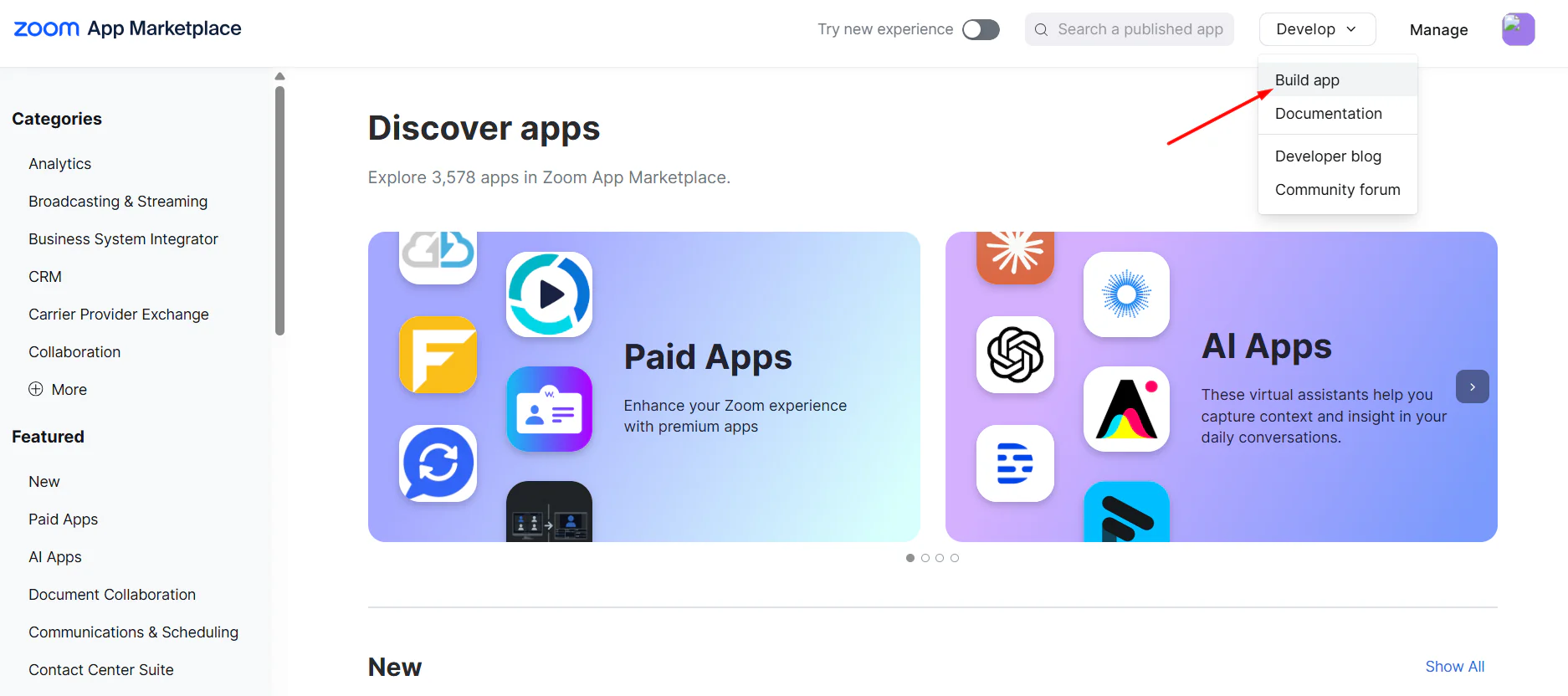
Open the Zoom App Marketplace and sign in to the Zoom account that will host your meetings. In the reference layout, select Develop → Build app in the upper-right corner.
In Zoom’s newer layout, use Developers → Created Apps → the plus button → Build an app. If app creation is unavailable, check your account permissions before continuing. See Zoom’s current official setup instructions.
Step 3: Choose Server-to-Server OAuth
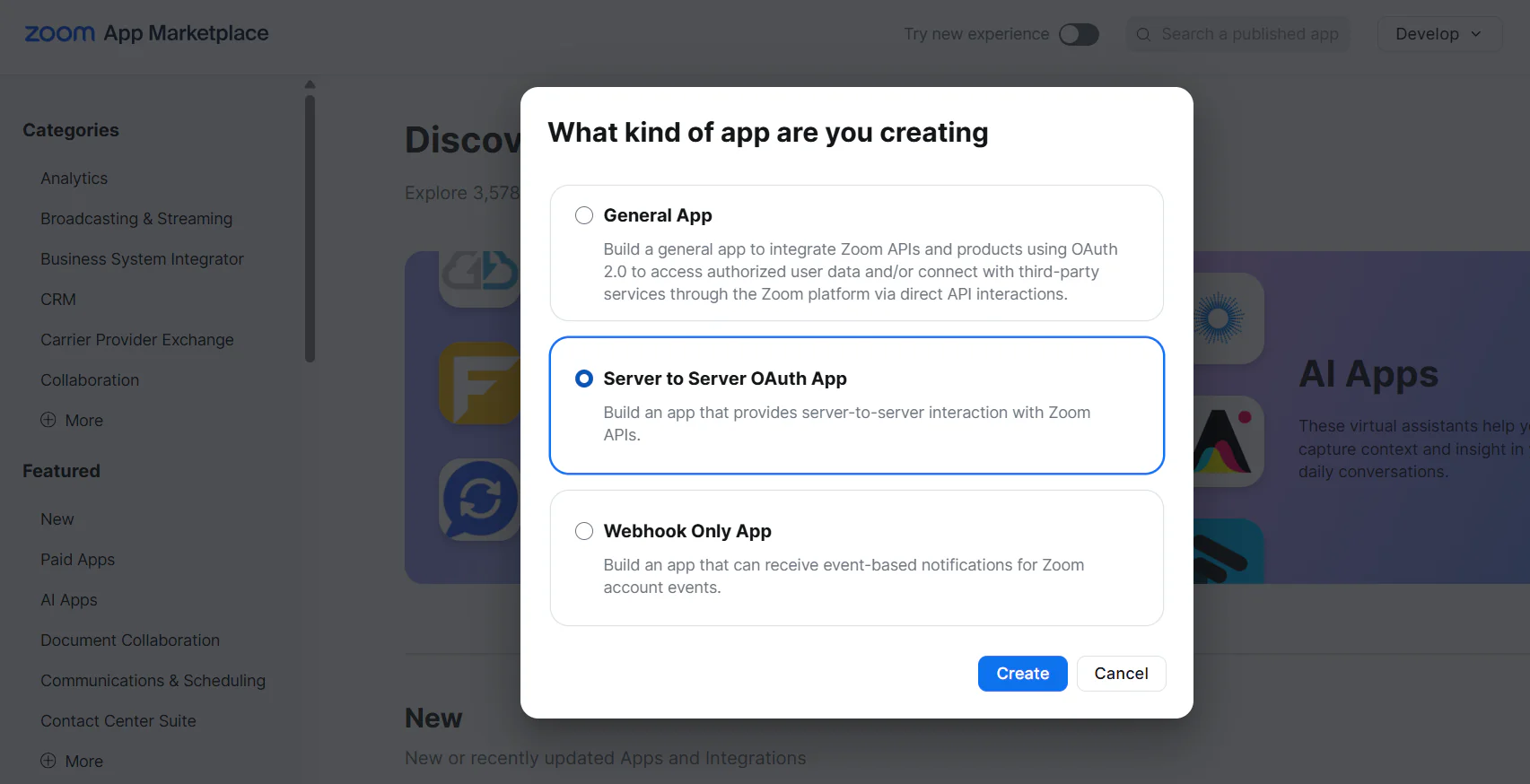
On the app-type selection screen, choose Server to Server OAuth App and select Create. Accurate Scheduler’s credential form expects the Account ID, Client ID and Client Secret from this app type.
Check the selected option before proceeding. General App and Webhook Only App are different choices in the reference dialog; they are not the Server-to-Server OAuth setup shown here.
Step 4: Name the application
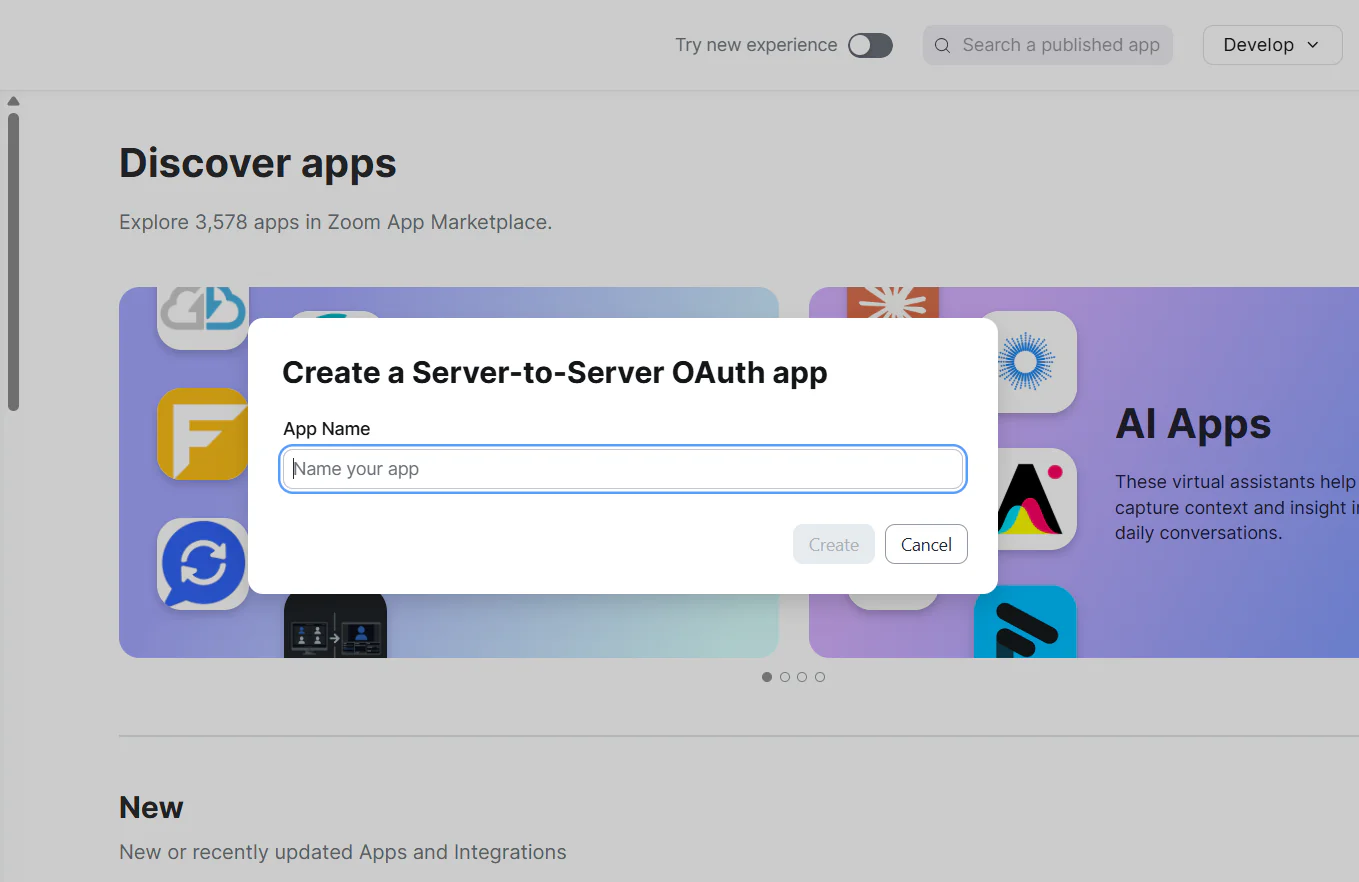
In App Name, enter a recognizable name such as Accurate Scheduler Meetings, then select Create. Use a name that helps your team identify which workspace uses the app.
The screenshot shows the name field before entry. After creation, confirm that the application heading matches the name you entered. Keep using this same application when copying credentials and selecting scopes.
Step 5: Copy the app credentials
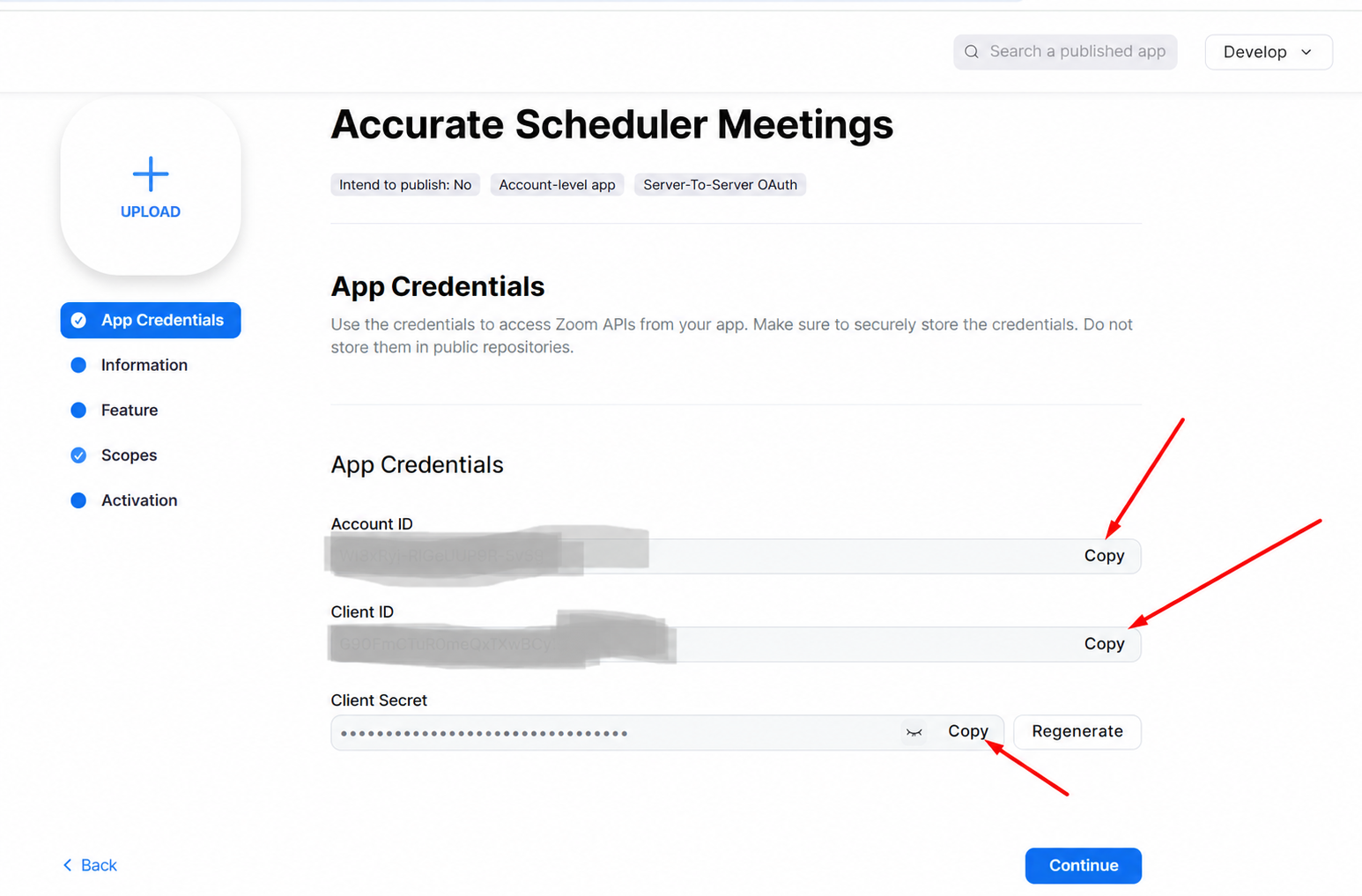
Open App Credentials. Copy Account ID, Client ID and Client Secret into the matching fields on the Accurate Scheduler page from step 1. Each value belongs in its own field; copy them from the same app.
Keep the secret private and do not include it in screenshots or support messages. Complete Zoom’s required Information details, including developer contact information, before activation. Use Continue where offered to advance through the setup.
Step 6: Add the meeting scopes
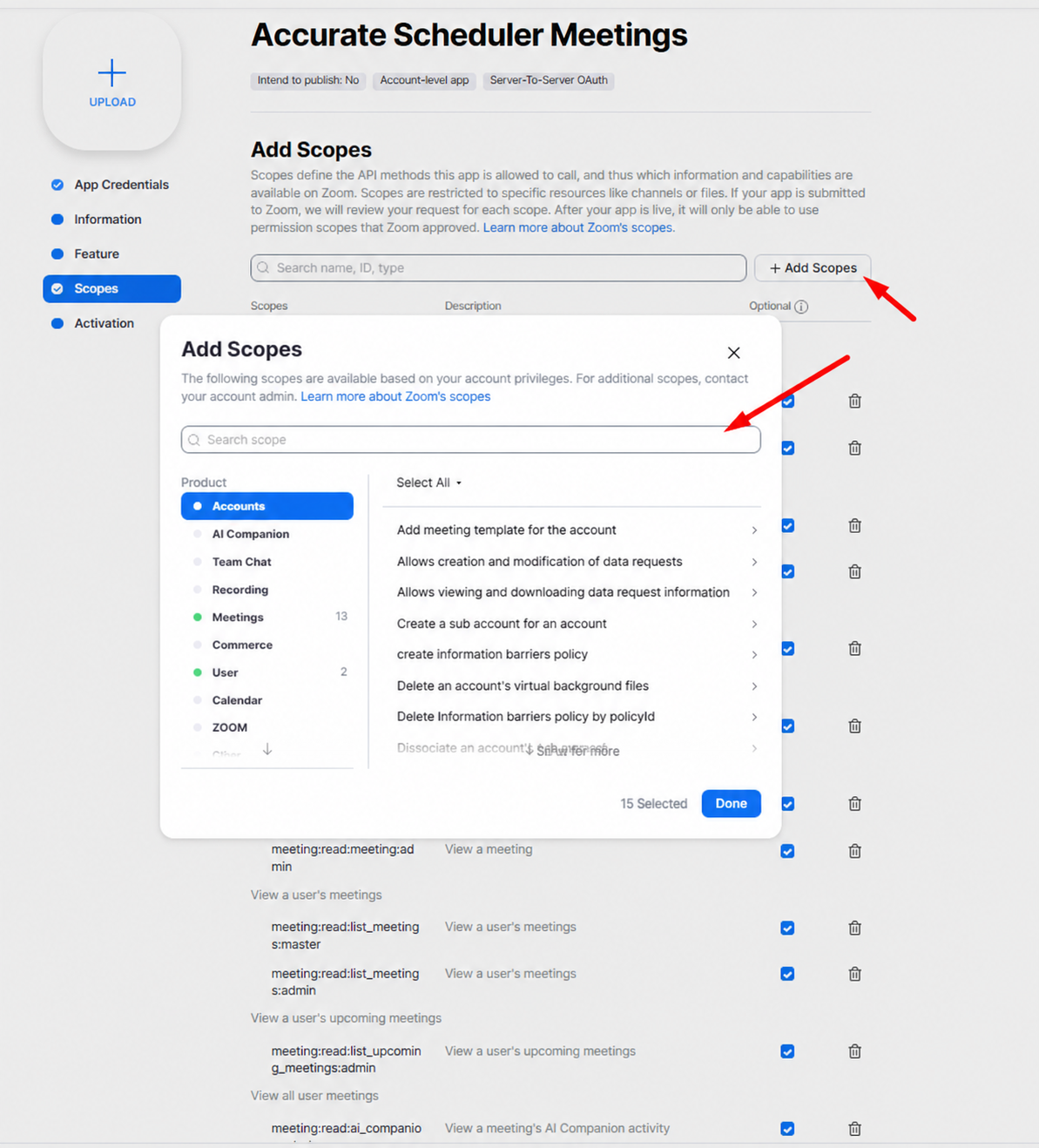
Select Scopes → Add Scopes. In the picker, open the Meetings category or search for the required meeting capabilities. Select the permissions listed in Accurate Scheduler’s Required Zoom Scopes panel: viewing meetings, listing a user’s meetings and upcoming meetings, updating and deleting meetings, creating invite links, and creating a meeting for a user.
Match the available scope variant to your Zoom account and role. Keep the picker open to add the user capabilities in step 7. The reference picker opens on Accounts; select Meetings to find the meeting permissions.
Step 7: Add user scopes and review the selection
In the scope picker, select User and add the capabilities required by Accurate Scheduler: View a user’s token, View a user and View users. These support the staff-user connection described in the integration screen.
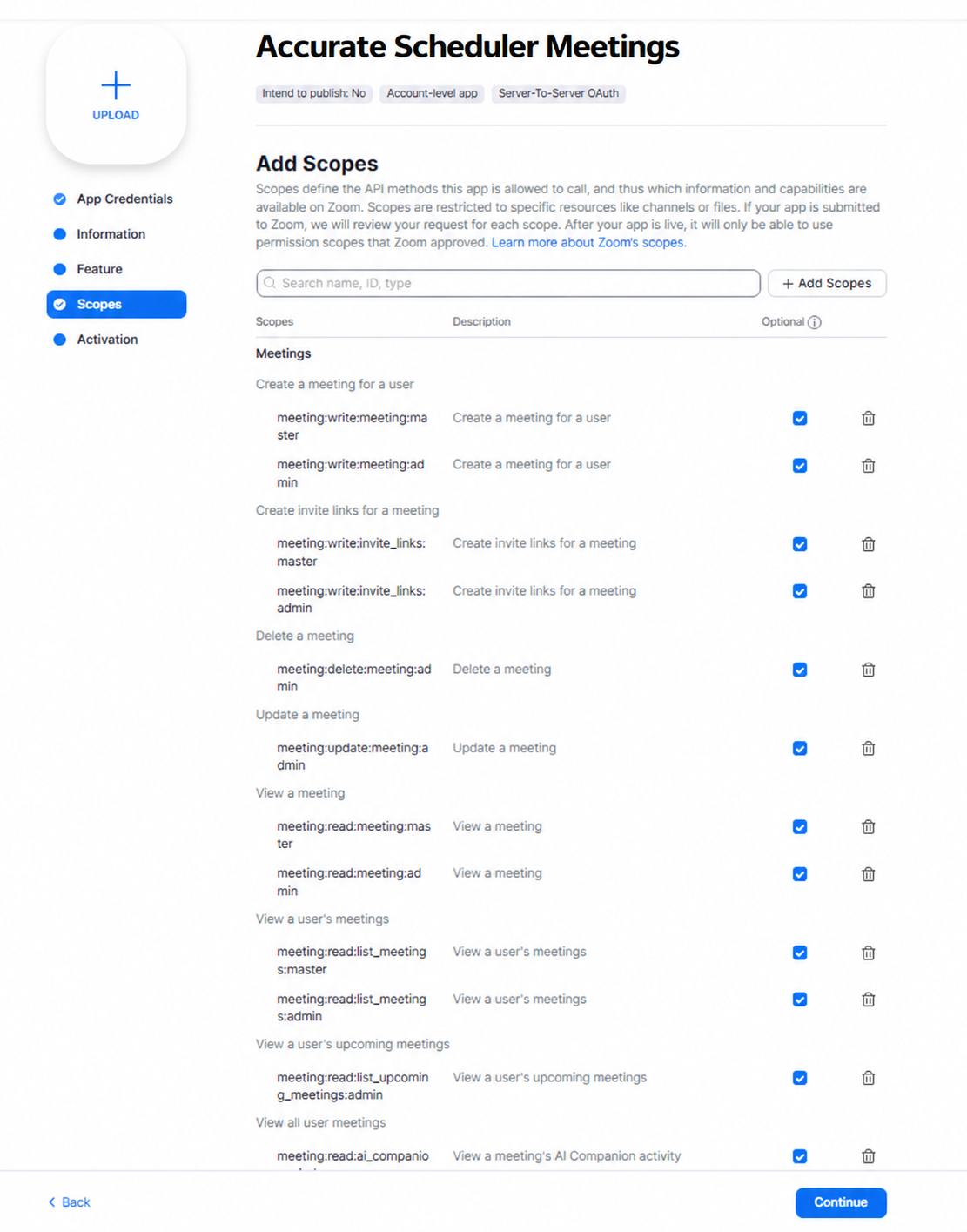
Select Done, then review the selected scopes list for both meeting and user permissions. Use Continue to proceed when the list is complete. The reference screenshot below illustrates the scopes review page and Continue control; its visible portion contains meeting scopes. Check the user scopes too, even if they are farther down your list.
Step 8: Activate the application
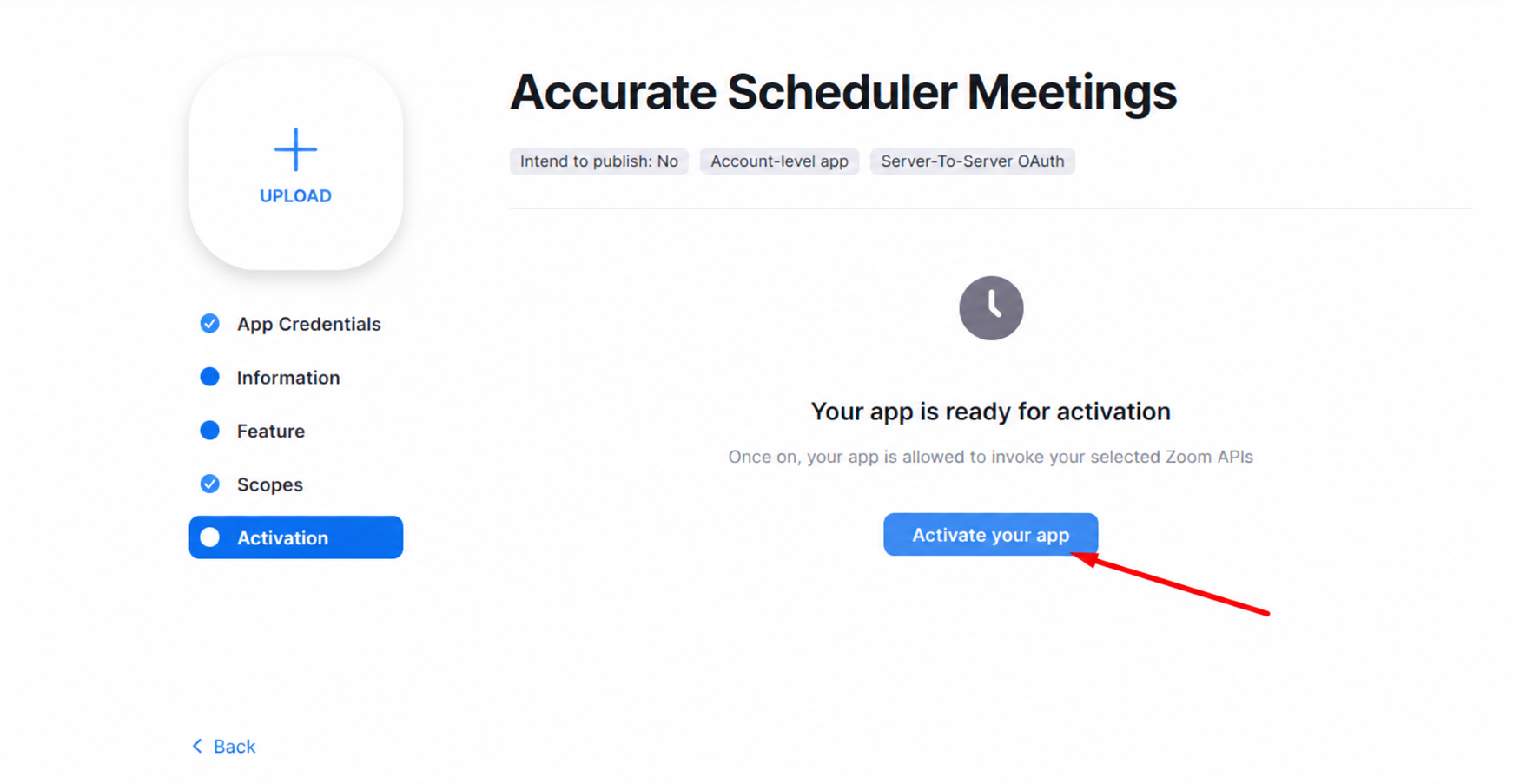
Open Activation in the app’s left menu. Review any outstanding requirements. Once Zoom indicates the application is ready, select Activate your app.
If activation is blocked, complete the missing Information fields or required permissions and return to this page. Saving credentials in Accurate Scheduler does not activate the Zoom application.
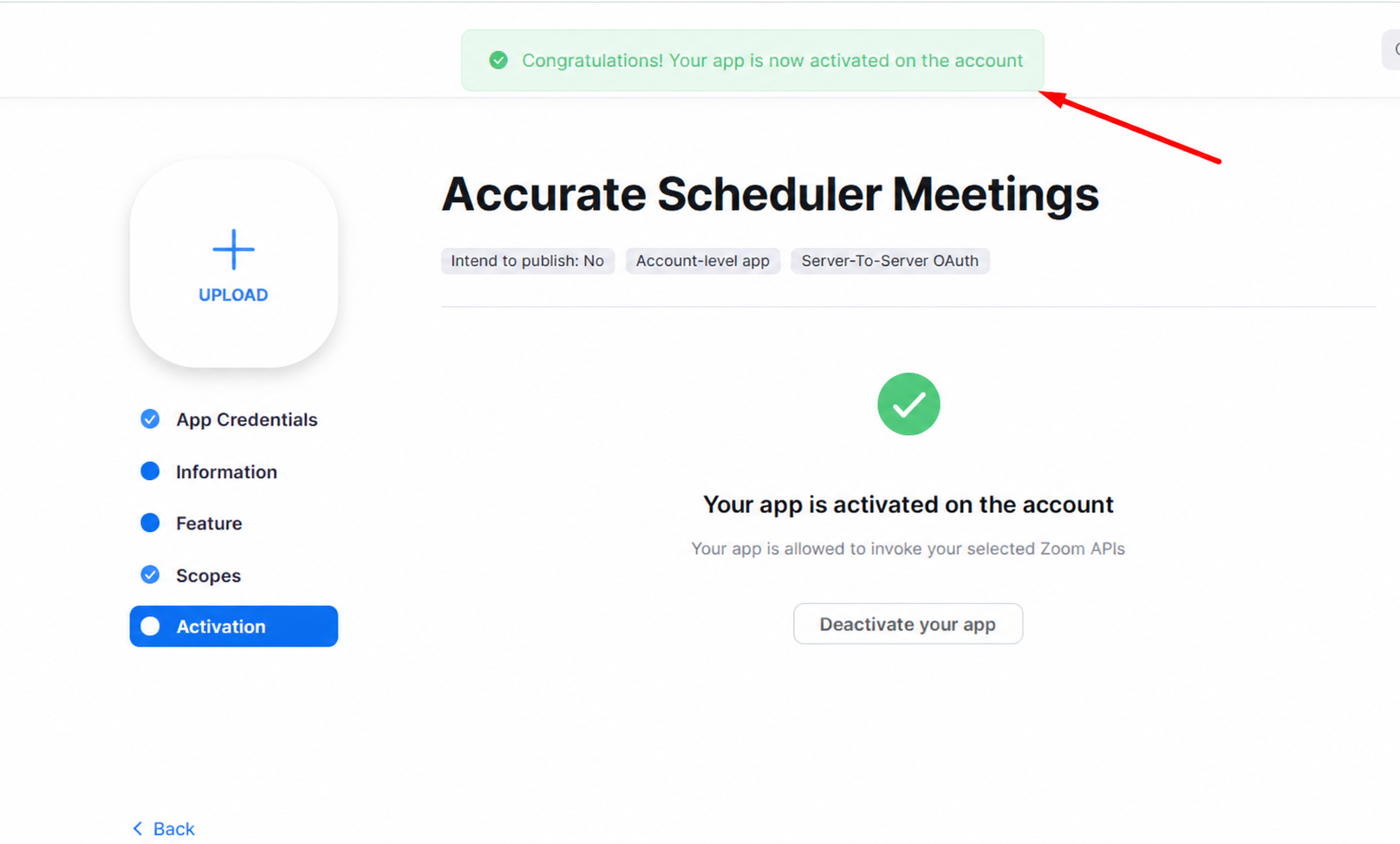
Step 9: Confirm the app is active
Check the activation success banner and active status. The reference screen shows a green checkmark, Your app is activated on the account, and a Deactivate your app control. Leave the app active.
This completes the Zoom application setup. Return to Accurate Scheduler to save credentials, connect staff and switch Zoom on for the services that need meetings. An active app alone does not prove that a booking will create a meeting.
Required meeting and user permissions
Match the Required Zoom Scopes panel in Accurate Scheduler. It lists the following capabilities:
- Meeting — View all user meetings: View a meeting; View a user’s meetings; View a user’s upcoming meetings.
- Meeting — View and manage all user meetings: Update a meeting; Delete a meeting; Create invite links for a meeting; Create a meeting for a user.
- Users — View all user information: View a user’s token; View a user; View users.
Search Zoom’s scope picker for these capabilities and use the scope variants applicable to your account. If a required scope is unavailable, ask your Zoom account administrator to check your role permissions. Do not substitute an unrelated permission or assume that selecting only meeting creation is sufficient.
Save the connection in Accurate Scheduler
- Turn on Enable Zoom Integration.
- Paste the matching Account ID, Client ID and Client Secret from your activated Zoom app.
- Review Event Settings and select Save Changes at the bottom of the page.
Keep the Client Secret private. Use your own credentials; the screenshot intentionally shows empty credential fields.
Customize event settings
Event Title has a displayed limit of 200 characters; Event Description has a limit of 2,000. The example title is %service_name% - %customer_first_name% %customer_last_name%. The description is Appointment with %staff_name% on %appointment_date% at %appointment_time%.
The screen also offers %customer_email% and %company_name%. Preserve the spelling and percent signs of each placeholder. Save your edits and inspect the resulting meeting details during a test booking.
Connect staff and enable services
- Under Connect staff to Zoom, select Connect to Zoom for each staff member who will host appointments. Complete the connection controls shown and verify the intended Zoom user.
- Under Services with Zoom, turn on the switch for each service that needs a meeting link. The screen states that these service changes save immediately.
- Verify that Zoom is enabled for both the assigned staff member and the service.
The screenshot shows Cleansing Facial switched off and Laser Hair Removal switched on. These are examples; choose the services appropriate for your business. Enabling the workspace integration alone does not complete staff and service setup.
Test the connection and a booking
Select Test connection. According to the screen, this checks credentials, scopes and staff Zoom users, and creates then deletes a test meeting. It uses the values currently typed into the form, even if they have not been saved. A successful test therefore does not replace selecting Save Changes.
After saving, create a test appointment for a connected staff member and a Zoom-enabled service. Check that the intended Zoom host receives the meeting and that the customer can use the join link. Verify actual meeting creation before relying on the integration for customer appointments.
Include Zoom links in notifications
In Notifications, add %zoom_join_url% to the customer email and %zoom_host_url% to the staff email where appropriate. Keep the host link in staff messages. Save both templates and check the received emails for the test appointment.
Troubleshoot missing meetings
- Could not load Zoom users: check app activation, credentials and all required user scopes.
- Meeting creation fails: check the meeting scopes and the connected Zoom user.
- No meeting for a booking: check the workspace integration, assigned staff connection and service switch.
- Test succeeds but booking fails: save the credentials used by the test, then verify staff and service setup again.
- Email has no join link: first confirm the appointment has a meeting, then check the recipient template and exact placeholder.
Related: Manage Staff, Manage Services and Appointments List.
Need a hand with your setup?
Tell us which step you reached and what happened. Keep passwords and client secrets out of your message.
Contact Accurate Scheduler →