
Manage coupons
Updated October 10, 2026 · 4 min read
In this guide
Create discount codes and promotional offers for online bookings in Accurate Scheduler. Open Coupons from the left navigation. If you need to enable the module first, review Add-ons.
Review and search coupons
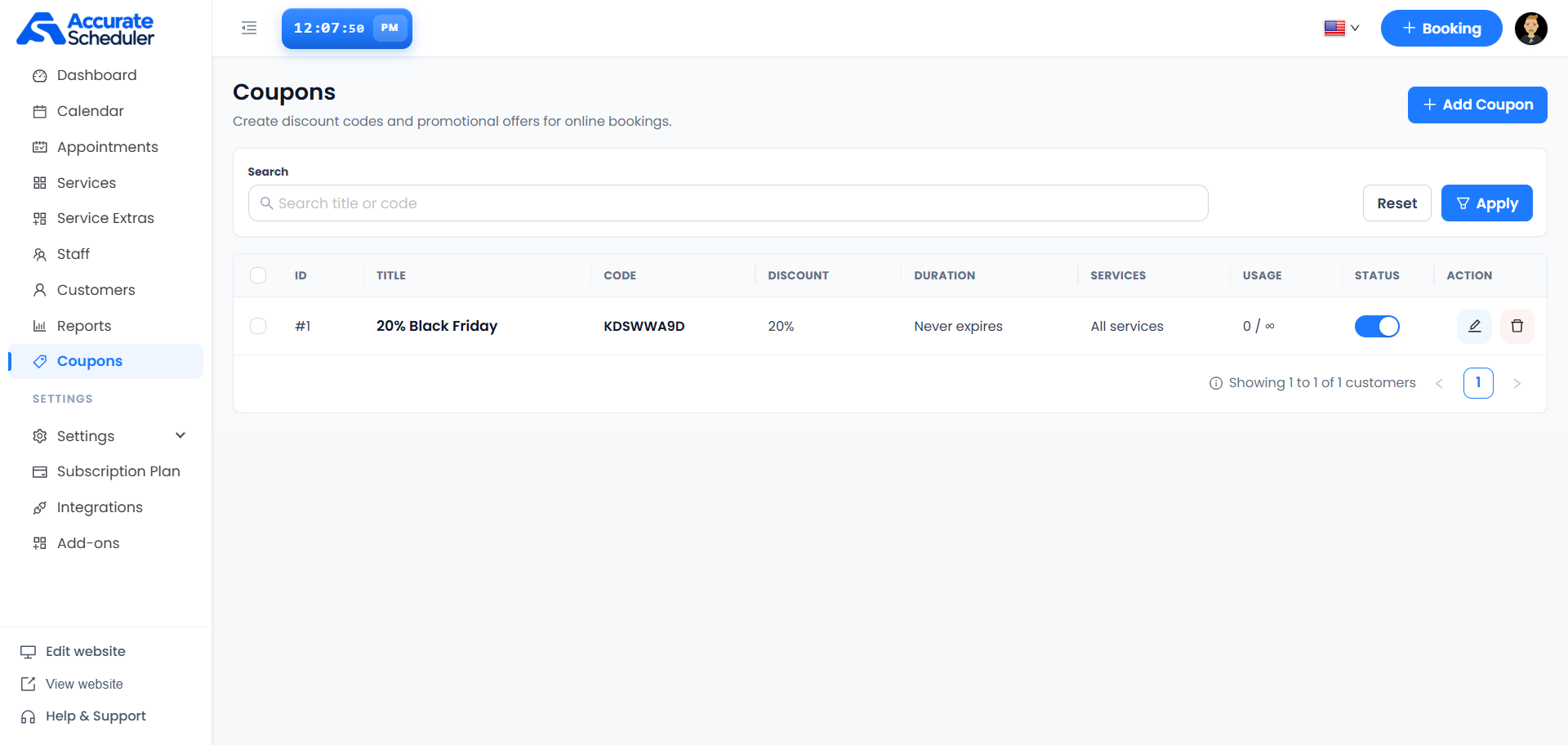
Enter a title or code in Search, then select Apply. Select Reset to clear the search. The list shows ID, title, code, discount, duration, eligible services, usage, status and actions. Use the pagination controls when more results are available.
The example coupon is 20% Black Friday, code KDSWWA9D, with a 20% discount, no expiry, all services and usage 0 / ∞. Its blue Status switch is on. These are example settings, not a discount automatically available in your workspace.
Add a coupon
- Select + Add Coupon.
- Enter a required Title and Coupon code. You can select Generate to populate a code; review it before saving.
- Choose the discount type and value, then configure the minimum booking amount, validity and eligibility.
- Set usage limits, automatic application and Status as needed.
- Select Save, then check the resulting coupon in the list. Select Cancel to leave the editor without saving the changes.
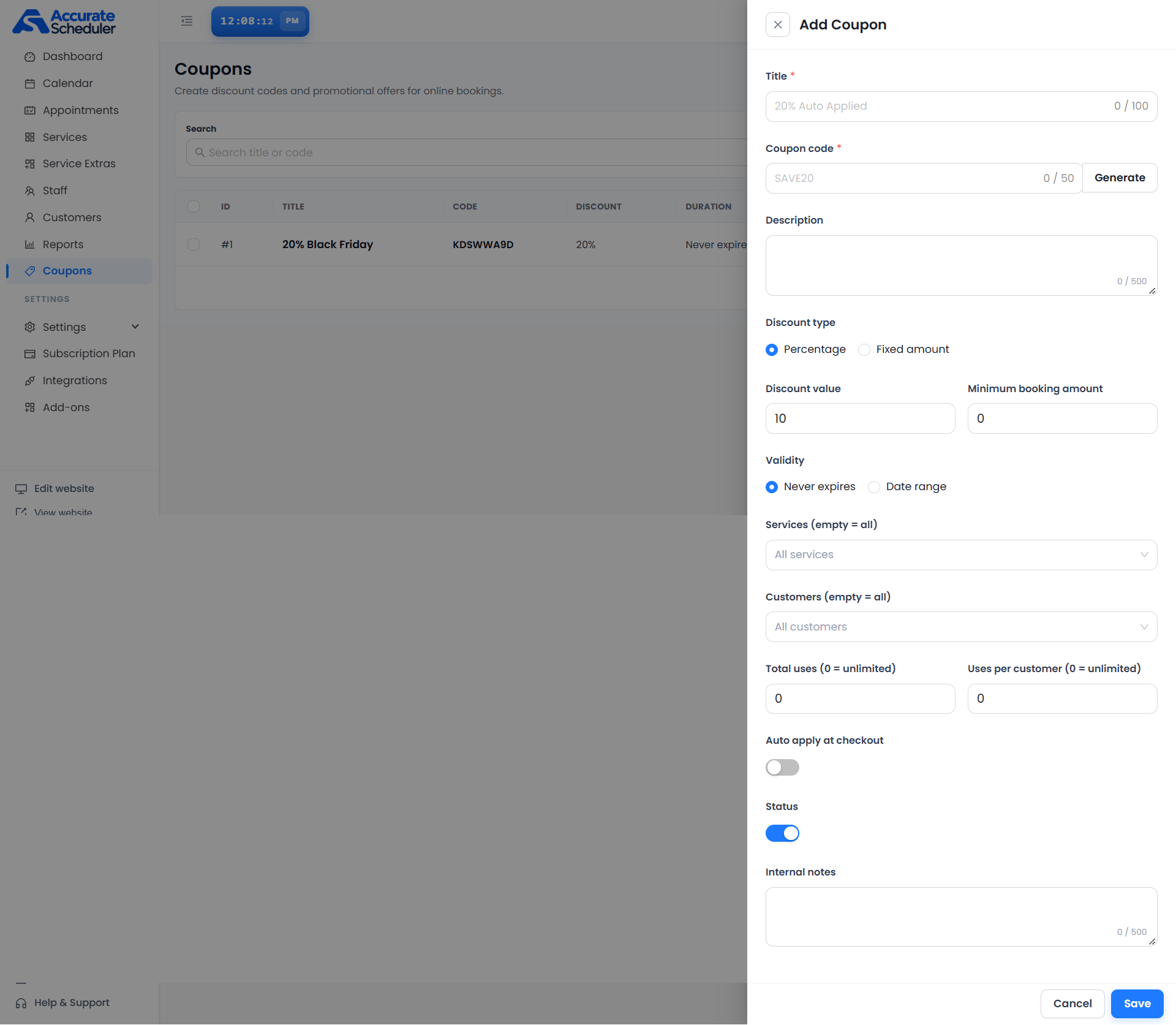
Configure the coupon fields
| Field | How to use it |
|---|---|
| Title | Required; up to 100 characters. Give the promotion a recognizable name. |
| Coupon code | Required; up to 50 characters. Enter a code or use Generate. |
| Description | Optional text; up to 500 characters. |
| Discount type and value | Choose Percentage or Fixed amount and enter the corresponding value. For example, Percentage with value 20 represents a 20% discount. |
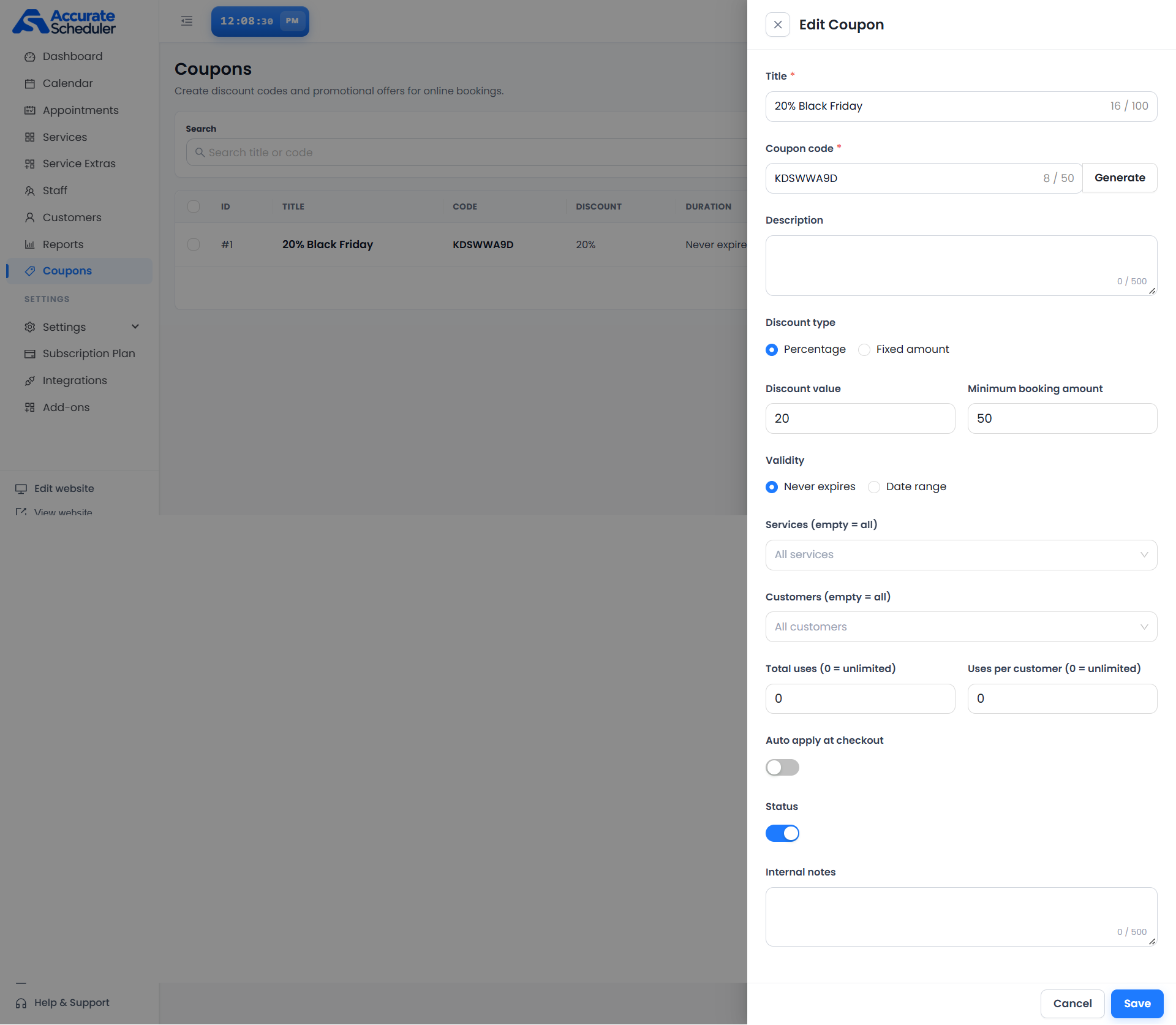
| Minimum booking amount | Set the booking amount required for eligibility. The add example shows 0; the edit example shows 50. Verify the eligible subtotal and final total in a test booking. |
| Validity | Choose Never expires or Date range. When using Date range, complete the date controls presented by your workspace and verify the intended period. |
| Services | Select the services eligible for the offer. Empty means all services. |
| Customers | Select the customers eligible for the offer. Empty means all customers. |
| Total uses | Set the overall usage limit. 0 means unlimited. |
| Uses per customer | Set the usage limit for each customer. 0 means unlimited. |
| Auto apply at checkout | Turn on to configure automatic application at checkout. It is off in both editor screenshots. Test eligibility and the resulting discount before making the promotion available. |
| Status | Use the switch to control the coupon’s active state. It is on in both examples. |
| Internal notes | Record notes about the promotion; up to 500 characters. |
Edit or change a coupon’s status
Select the pencil icon beside a coupon to open Edit Coupon. Review the existing code before changing it, adjust the settings and select Save. The Status switch is also available directly in the list.
The trash icon is the delete action. Check the coupon title and code before using it and read any confirmation presented. The screenshots do not show bulk actions, deletion recovery or the effect on previously discounted bookings.
Test the promotion
- For a customer-entered code, enter the saved code on the booking payment step and verify the discount and final amount.
- For automatic application, test checkout with Auto apply enabled and confirm the intended offer is applied.
- Test eligible and ineligible services and customers, and bookings below and at the minimum amount.
- For date ranges or finite usage limits, check the relevant boundary conditions and inspect the Usage column after a test booking.
The supplied screens do not establish code case sensitivity, discount stacking, rounding, which charges are discounted or when a usage count is consumed. Check the actual checkout result for your configuration.
If a coupon does not apply
Check the saved code, active Status, validity, minimum booking amount, selected services and customers, and both usage limits. If expecting an automatic discount, check Auto apply at checkout. Reopen checkout after saving changes and review the message shown. If the result remains unexpected, contact support with the coupon settings and test booking details.
Related: Manage add-ons, Manage Services and Manage Customers.
Need a hand with your setup?
Tell us which step you reached and what happened. Keep passwords and client secrets out of your message.
Contact Accurate Scheduler →