
Multiple Quantity add-on
Updated October 10, 2026 · 3 min read
In this guide
The Multiple Quantity add-on lets customers book multiple seats for the same service and slot while enforcing the service’s maximum capacity. Activate the workspace module, then configure Multiple Quantity Booking in each applicable service.
Activate the add-on
Open Add-ons and select Activate on Multiple Quantity. Follow the controls presented and confirm the module is active. See Manage add-ons for the activation overview.
Multiple Quantity and Multi-Service cannot run at the same time. Choose Multiple Quantity for several seats in the same slot. Resolve any active Multi-Service conflict using the workspace controls before configuring this workflow.
Enable multiple quantity for a service
- Open Services and edit the intended service.
- Expand Multiple Quantity Booking below the service description.
- Turn on the Multiple Quantity Booking switch.
- Set Maximum Capacity, Minimum Quantity and Maximum Quantity Per Booking.
- Review Price Per Person, then select Save Service at the top or bottom of the page.
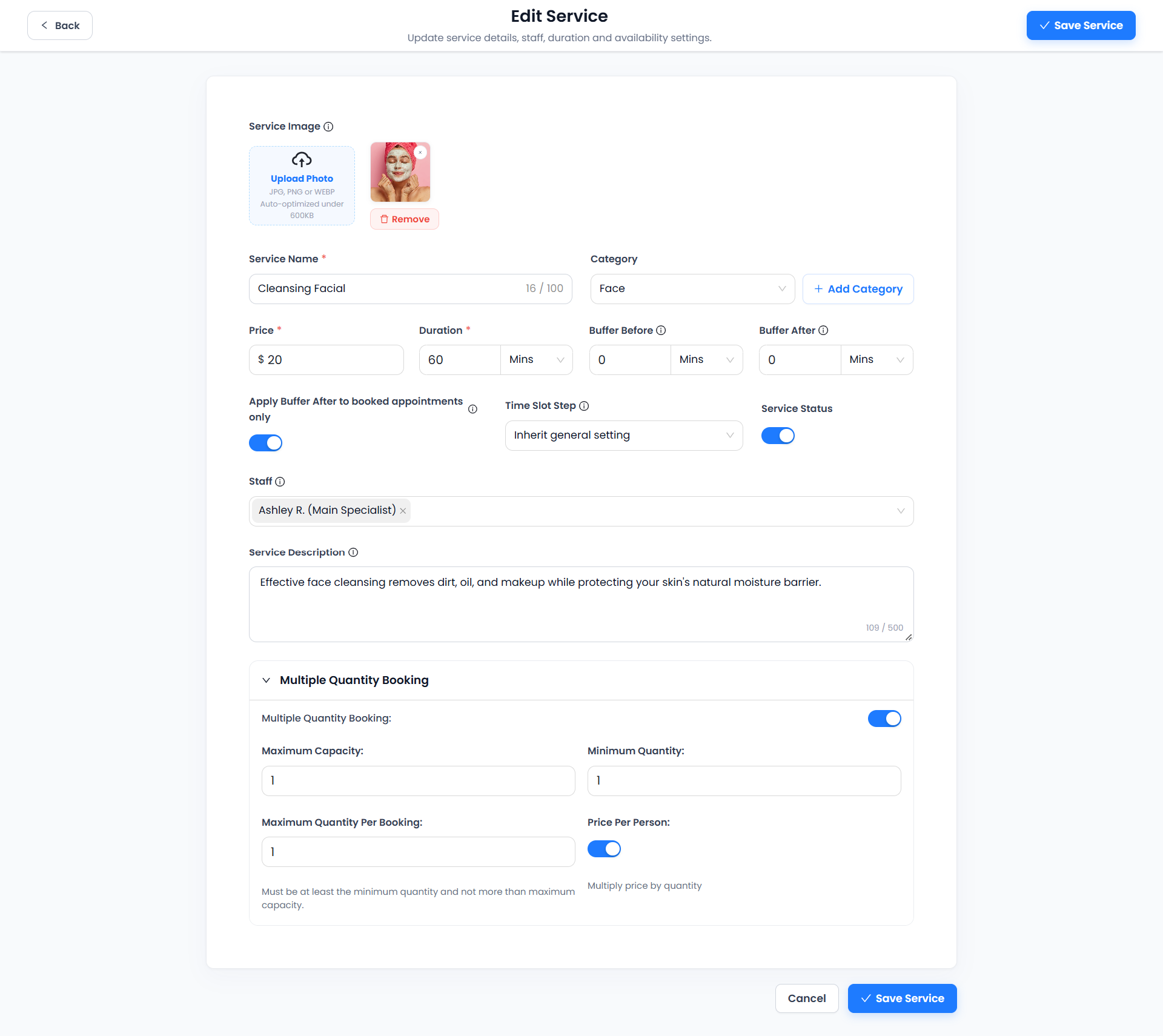
Set capacity and quantity limits
| Setting | Purpose |
|---|---|
| Maximum Capacity | The service capacity available for bookings in the same slot. |
| Minimum Quantity | The minimum quantity a booking must meet. |
| Maximum Quantity Per Booking | The maximum quantity allowed in a single booking. The editor states that this must be at least the minimum quantity and no more than maximum capacity. |
Keep the limits consistent: Minimum Quantity ≤ Maximum Quantity Per Booking ≤ Maximum Capacity. The supplied example has all three set to 1, so its current limits allow only one person per booking, despite the feature being enabled.
For example, a group session could use capacity 8, minimum quantity 1 and maximum quantity per booking 4. One customer could then request up to four seats, subject to the remaining capacity for the slot. Use limits appropriate to the service and staff’s actual ability to accommodate the group.
Review per-person pricing
Price Per Person is on in the screenshot. Its helper text says Multiply price by quantity. With the displayed service price of $20, quantity 3 would give a service-price component of $60 when this setting is on. Other charges or discounts may change the final total.
If you turn Price Per Person off, verify the resulting checkout calculation with a test booking before offering it to customers. The screenshot does not show that pricing outcome.
Save and test the booking flow
- Select Save Service and reopen the service to verify the saved settings.
- Open the customer booking page and select this service and a suitable slot.
- Test quantities at the minimum and maximum allowed per booking, and check that values outside those limits are rejected.
- Verify the service-price component and final total, especially when Price Per Person is on.
- Use clearly identified test bookings to check that remaining capacity decreases and that additional bookings cannot exceed the slot’s capacity.
Also verify how your workspace handles capacity when test bookings are pending, cancelled or rescheduled. These state changes are not shown in the supplied screenshot.
If quantity booking is unavailable
- Confirm Multiple Quantity is active under Add-ons and Multi-Service is not active.
- Check the service’s Multiple Quantity Booking switch and save the service.
- If only one person can be selected, review the quantity limits. All three are 1 in the example.
- Check remaining capacity, service status, assigned staff and the selected slot’s availability.
- If pricing looks unexpected, review Price Per Person and compare the service price with the selected quantity.
Related: Manage Services, Add and edit a service and Manage appointments.
Need a hand with your setup?
Tell us which step you reached and what happened. Keep passwords and client secrets out of your message.
Contact Accurate Scheduler →