
Set up scheduled notifications
Updated October 10, 2026 · 3 min read
In this guide
Use Notifications to configure appointment emails for customers and assigned staff. Open Settings → Notifications.
Before you begin
Check customer and staff email addresses and review Email Settings and notification logs. Decide which events should send messages and who should receive copies.
Choose an event and recipient
The event menu contains On Approval, On Pending, On Cancellation and On Reschedule. Select an event, then choose To Customer or To Staff Member. Review each recipient tab separately.
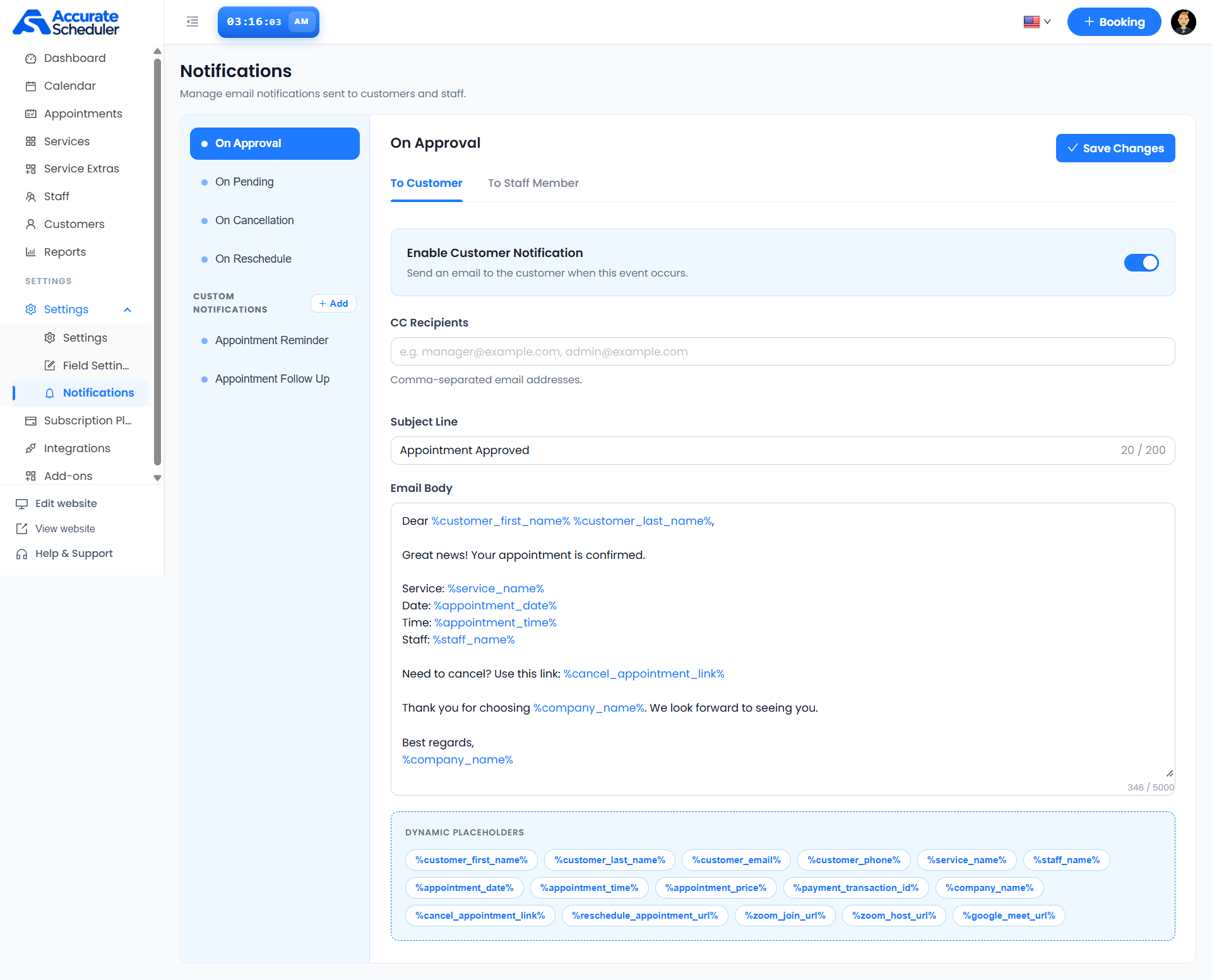
- Review Enable Customer Notification to control the customer message for this event.
- Enter any CC Recipients as comma-separated email addresses. Include only people who should receive these appointment details.
- Write a clear Subject Line, within the displayed 200-character limit.
- Review the Email Body, within the displayed 5,000-character limit.
- Select Save Changes and verify the saved template.
Configure staff emails
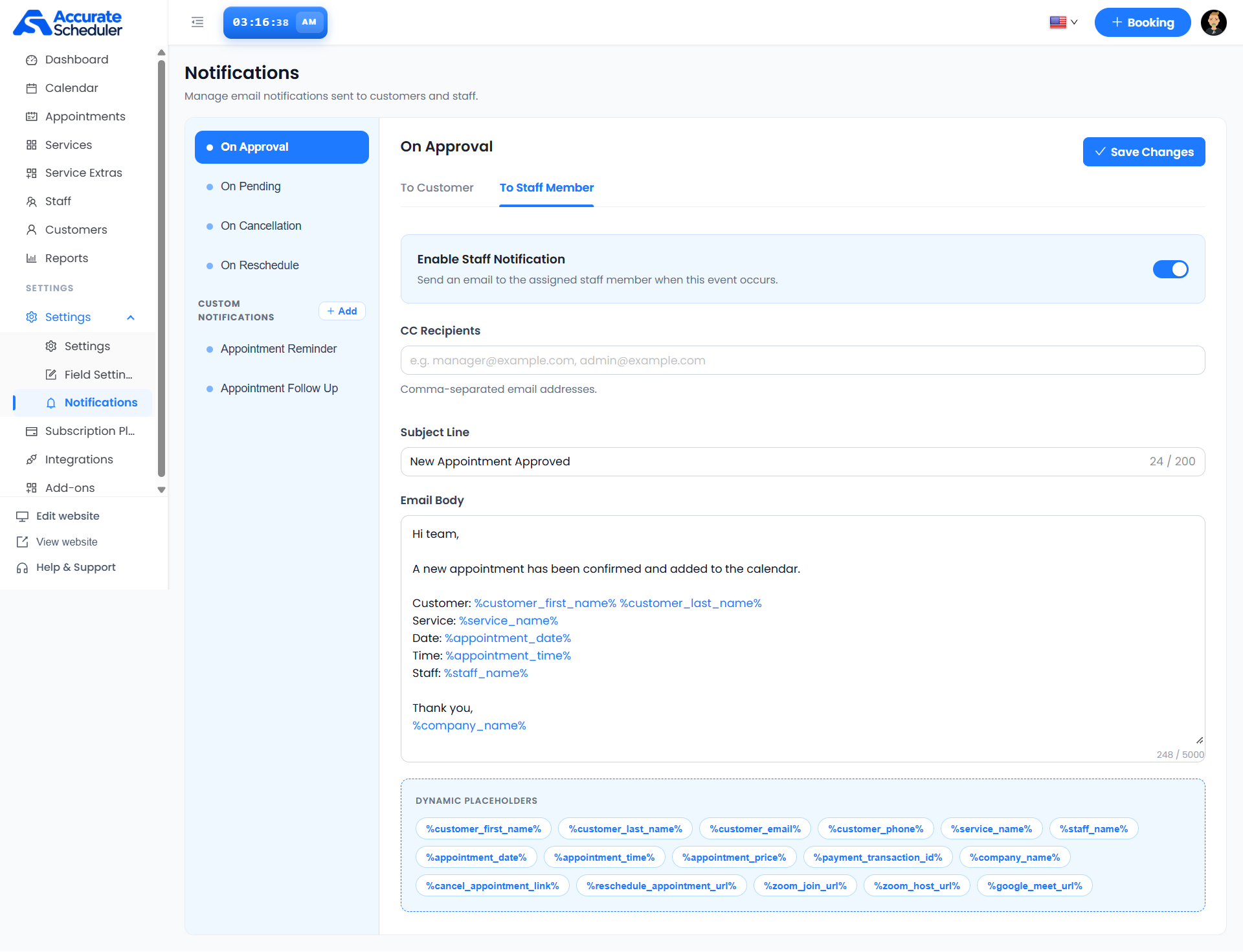
Select To Staff Member and review Enable Staff Notification. The screen describes this as an email to the assigned staff member when the event occurs. Review CC recipients, subject and body, then save. Enabling the customer template does not replace reviewing the staff template.
Use dynamic placeholders
Use the exact tokens offered in the Dynamic Placeholders panel. Keep their percent signs and spelling intact, then verify the substituted values in an actual test email.
- Customer details:
%customer_first_name%,%customer_last_name%,%customer_email%,%customer_phone%. - Appointment details:
%service_name%,%staff_name%,%appointment_date%,%appointment_time%,%appointment_price%. - Other displayed tokens:
%payment_transaction_id%,%company_name%,%cancel_appointment_link%,%reschedule_appointment_url%. - Meeting tokens:
%zoom_join_url%,%zoom_host_url%,%google_meet_url%. Review their availability for the appointment and keep host links intended for staff out of customer messages.
A displayed token does not guarantee a value exists for every appointment. Check links and payment or meeting details in the resulting message.
Review reminders and follow-ups
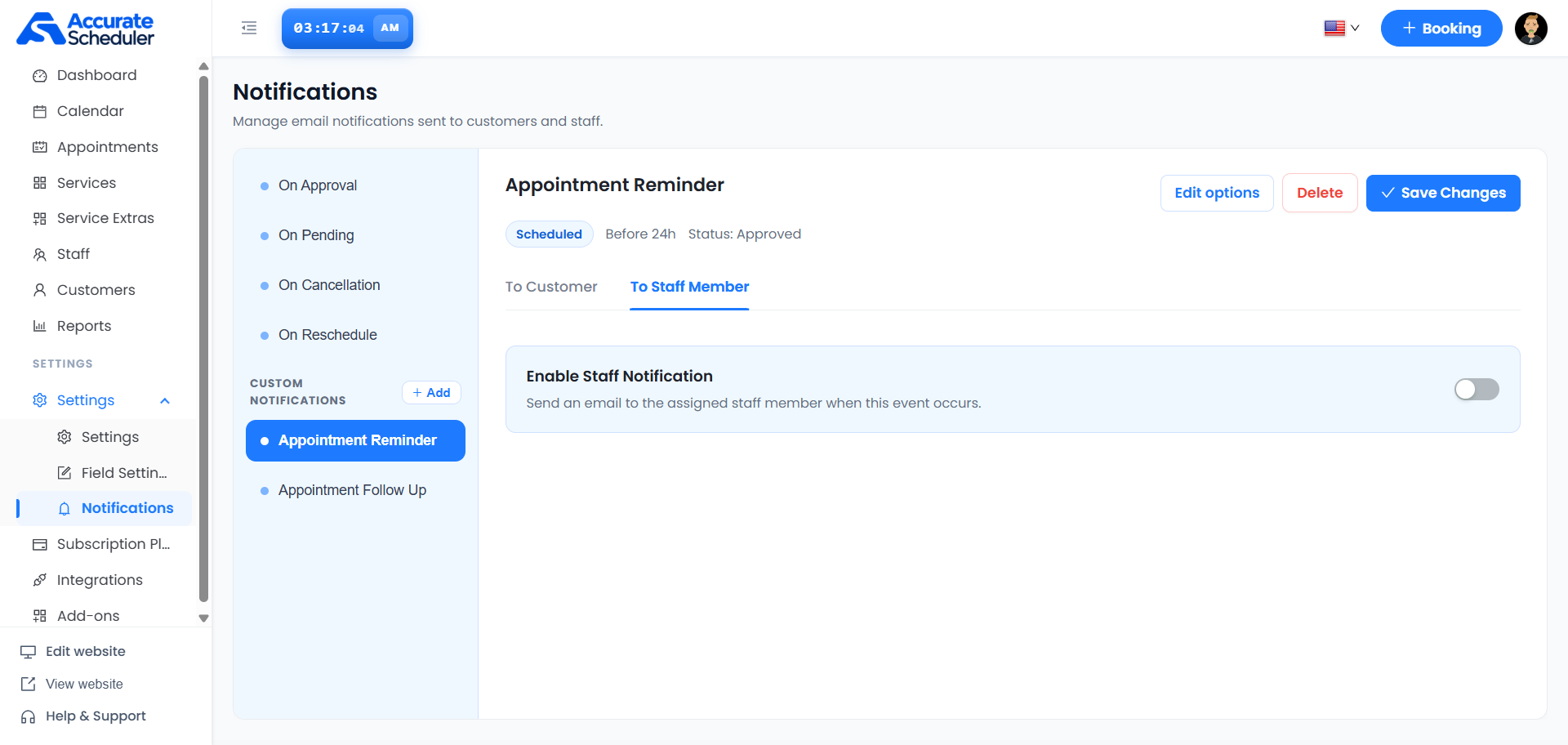
Select a custom notification such as Appointment Reminder or Appointment Follow Up. Review its displayed timing and appointment status, then inspect both recipient tabs. Use Edit options to review the available scheduling controls. The supplied screenshots do not show the Scheduled options panel; use the controls actually available in your workspace rather than assuming a timing setting.
Save template changes using Save Changes. Use Delete only after confirming the intended custom notification and reviewing any confirmation.
Create a custom notification
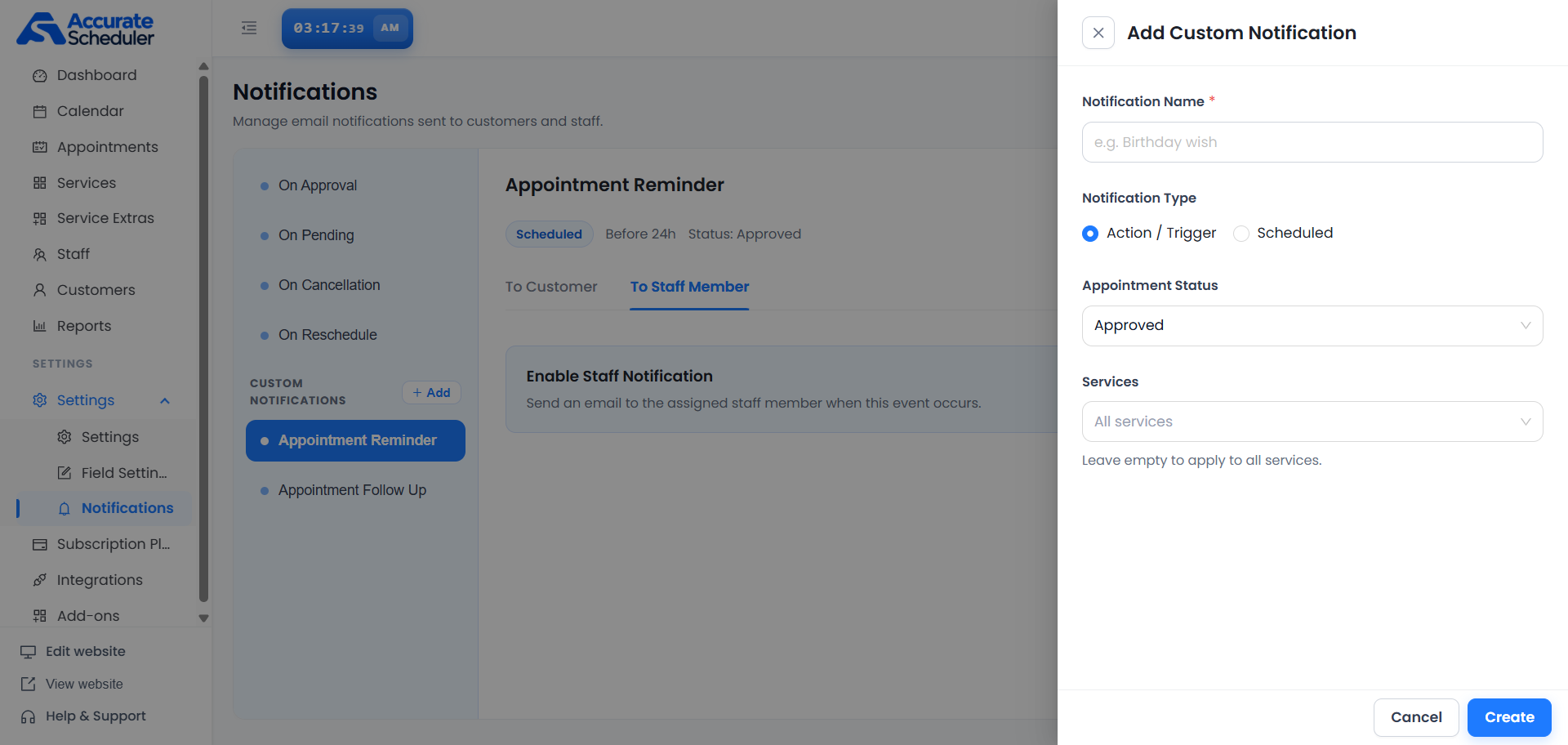
- Select + Add beside Custom Notifications.
- Enter the required Notification Name.
- Choose Action / Trigger or Scheduled.
- Review Appointment Status and any additional options shown for the selected type.
- Select specific Services, or leave the selection empty to apply to all services.
- Select Create, then review recipient switches and configure the message templates.
- Save and test the intended event or scheduled condition.
The Birthday wish placeholder is an example name in the editor; it does not establish a birthday scheduling feature.
Test and troubleshoot
- No email: check the event or schedule, recipient tab’s enable switch, email address and appointment status. Review notification logs.
- Wrong audience: review To Customer, To Staff Member and CC separately.
- Missing values: verify exact placeholder spelling and whether the appointment has the corresponding data.
- Reminder not received: check saved timing, service scope, status and timezone, then review logs. Do not assume missed reminders are sent retrospectively.
- Changes not retained: save and reopen the selected notification.
Test using addresses you control and verify receipt, substituted details and links. These instructions configure email; the screenshots do not show SMS or WhatsApp notification setup.
Related: Appointments List and booking form fields.
Need a hand with your setup?
Tell us which step you reached and what happened. Keep passwords and client secrets out of your message.
Contact Accurate Scheduler →