
Create and organize services
Updated October 10, 2026 · 3 min read
In this guide
Use Manage Services to find and organize your services, review prices and staff assignments, and open the controls for editing or duplicating a service.
1. Open the Services list
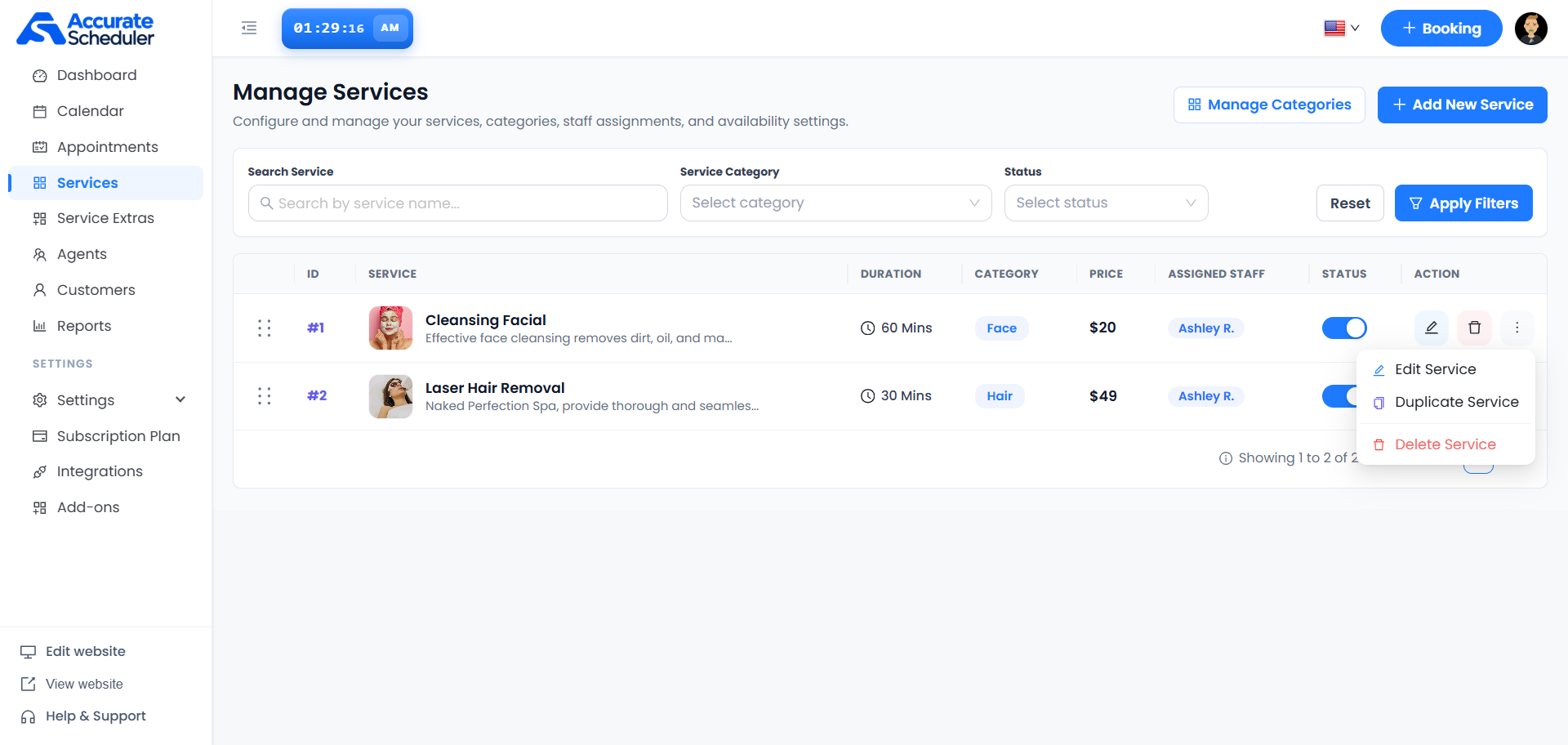
Sign in to your workspace and select Services in the left menu. The Manage Services screen displays your service records and the controls shown below.
2. Search and filter services
- Enter a service name in Search Service.
- Choose a Service Category or Status when you want to narrow the results.
- Select Apply Filters.
- Select Reset to clear the filters and broaden the list.
Check the result count and pagination at the bottom of the list when reviewing multiple pages.
3. Read the service information
- ID: identifies the service record.
- Service: shows its image, name and a description preview.
- Duration: shows the service length.
- Category: shows the assigned service category.
- Price: shows the listed service price.
- Assigned Staff: shows the staff assigned to deliver it.
- Status: provides the service’s on/off switch.
- Action: provides editing, deletion and the additional action menu.
The example lists Cleansing Facial as a 60-minute Face service priced at $20, and Laser Hair Removal as a 30-minute Hair service priced at $49. Ashley R. is assigned to both. These values describe the supplied example, not required service settings.
4. Reorder services
- Find the dotted drag handle at the far left of the service row.
- Press and hold the handle, then drag the row to the intended position.
- Release the row and review the new order.
- Reopen the list to confirm the order is retained.
Clear filters when you want to review the complete service list before ordering it. Service row ordering is separate from category ordering.
5. Review the status switch
Use the switch in the Status column to change the service’s enabled state. The supplied screenshot shows blue switches in the on position. After a change, confirm the resulting state and check the customer booking experience before relying on availability.
Do not assume switching off a service cancels existing appointments. Review any affected bookings separately.
6. Add, edit or duplicate a service
- Add: select + Add New Service above the list to open the service form.
- Edit: select the row’s pencil action, or open the three-dot menu and choose Edit Service.
- Duplicate: open the three-dot menu and choose Duplicate Service. Review the resulting record’s name, duration, price, category, assigned staff and status before using it.
When adding or editing, prepare a recognizable service name, a clear description, a realistic duration, the applicable price and the appropriate staff assignments. Complete the fields shown in your workspace, save the service and review the resulting list entry.
7. Manage categories and deletion
Select Manage Categories above the list to open category management. See Create and organize service categories for category creation, drag-and-drop ordering and categories during service add/edit.
To delete a service, use its trash action or choose Delete Service from the three-dot menu. Verify the service ID and name, review related appointments and follow any confirmation displayed. Do not assume deleted services can be recovered or that their existing appointments are automatically cancelled.
If a service does not appear as expected
- Service missing from the list: use Reset and try a shorter service-name search.
- Wrong category: edit the service and review its category selection.
- No staff assigned: review the service’s staff assignments and the intended person’s record in Agents.
- Service not available to customers: check its status, staff assignment and staff working hours, then test the customer booking flow.
- Unexpected duplicate details: review carried-over values in the new record before enabling or sharing it.
Continue with staff setup and working hours and availability. For longer services, see single-day, multi-day and overnight services; for additional configuration, see service extras and rules.
For the full form walkthrough, see Add and edit a service.
Need a hand with your setup?
Tell us which step you reached and what happened. Keep passwords and client secrets out of your message.
Contact Accurate Scheduler →