
Service extra rules
Updated October 10, 2026 · 3 min read
In this guide
Service Extra Rules connect extras to a service and control how many extras customers must or may select. Use this guide after creating your services and extras.
Before you begin
Check that the intended service and extras exist. Review each extra’s price, duration and active state in Service Extras. Decide whether extras are optional and how many choices are appropriate.
Open the rules list
Open Service Extras in the left menu, then select the Service Extra Rules tab.
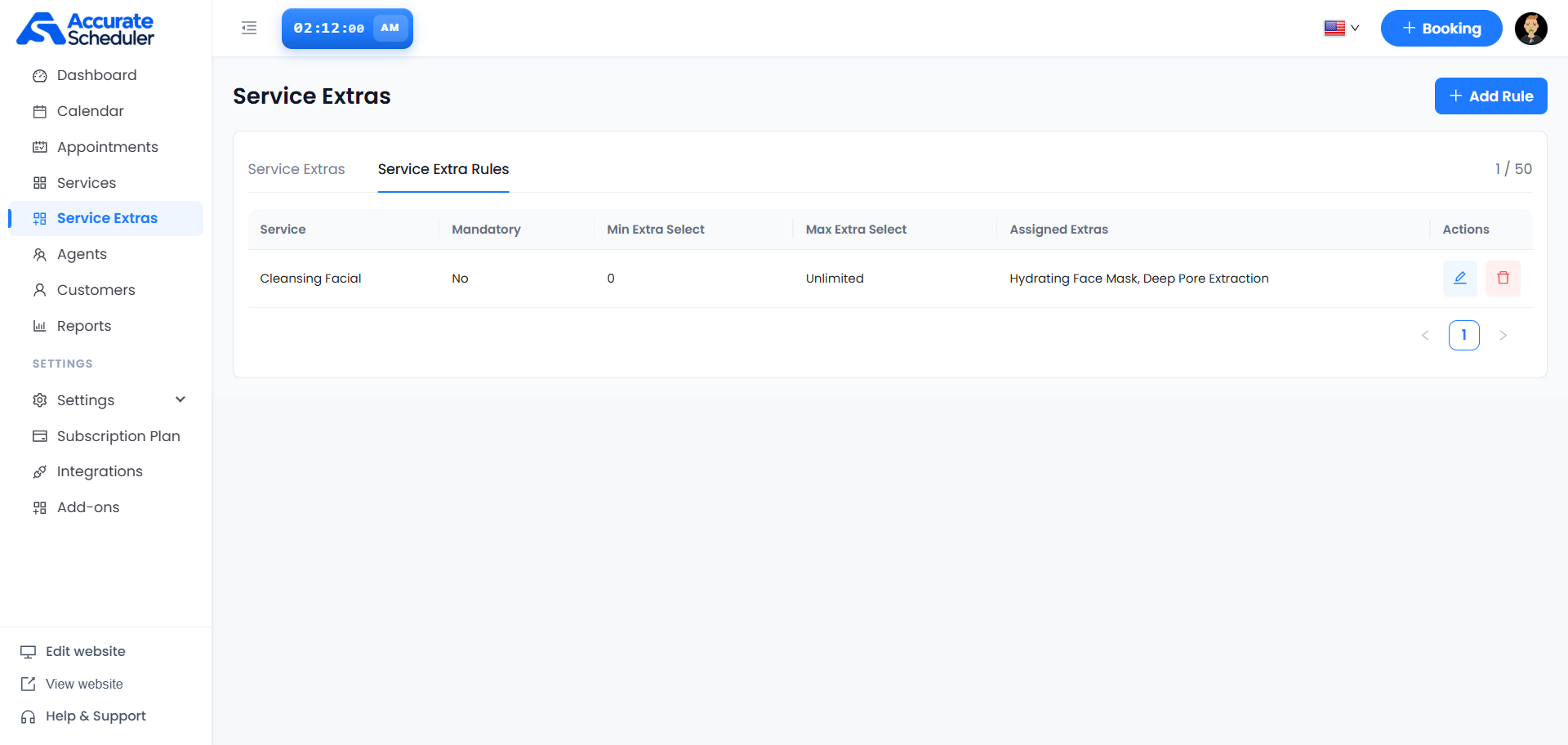
The example assigns Hydrating Face Mask and Deep Pore Extraction to Cleansing Facial. Mandatory is No, minimum selection is 0 and maximum selection is Unlimited. The 1 / 50 counter reflects this example workspace; check the counter in your own workspace.
Add a rule
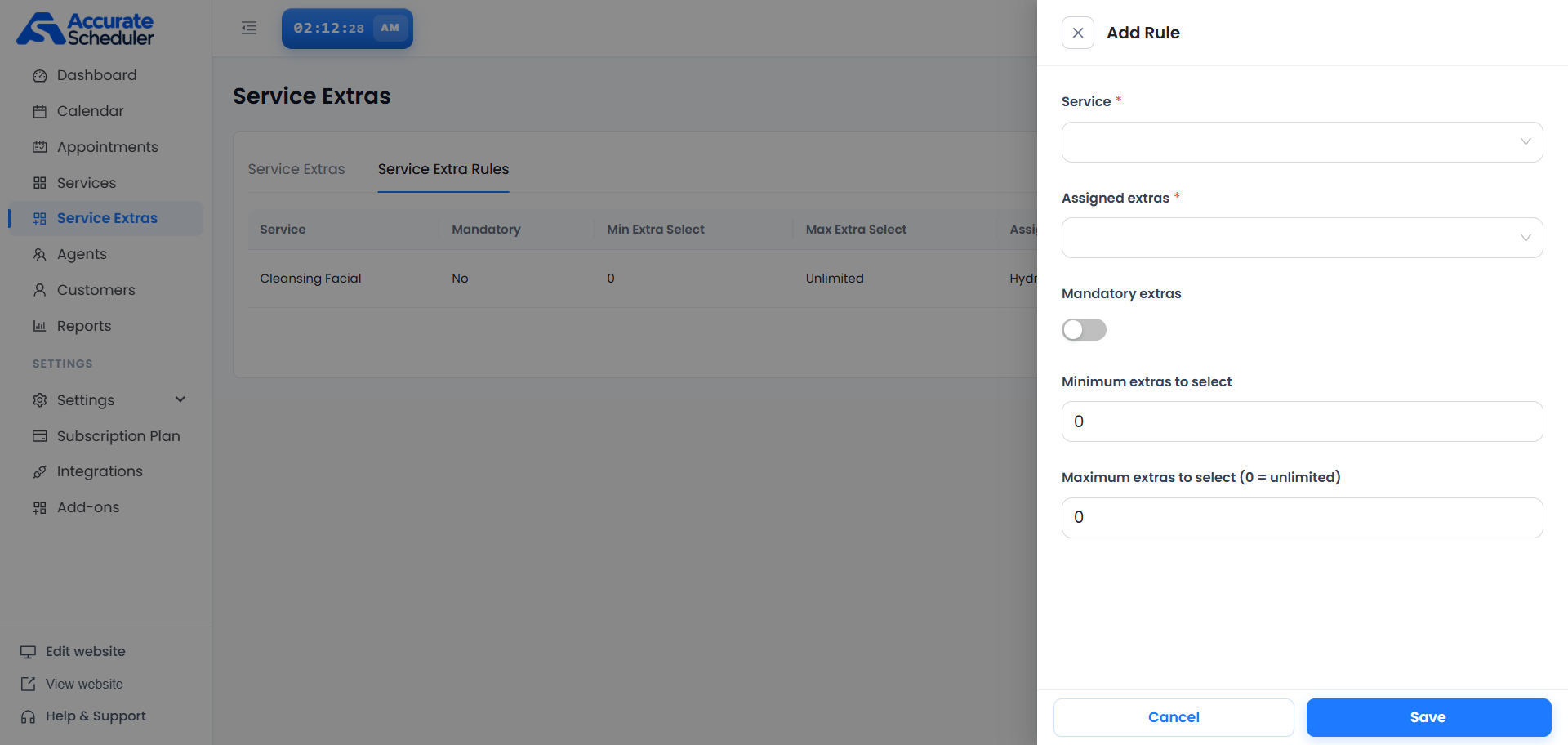
- Select + Add Rule.
- Choose the required Service.
- Choose the required Assigned extras. Review all selected extras before saving.
- Review the Mandatory extras switch according to whether customers must select extras.
- Enter Minimum extras to select.
- Enter Maximum extras to select. The field states that 0 = unlimited.
- Select Save, then confirm the resulting row.
Understand selection limits
Rule selection limits concern the number of extras chosen. They are separate from each extra’s minimum and maximum quantity per booking.
- Optional choices: the supplied example uses Mandatory extras off and a minimum of 0.
- Maximum of 0: means unlimited in this rule field; it does not mean unlimited units of each extra.
- A finite maximum: keep it at least as large as the minimum.
- A required minimum: make sure enough assigned, available extras exist to satisfy it. Test the Mandatory extras setting together with the minimum before offering the booking flow.
For example, if your intended flow allows at most one extra, configure a maximum of 1 and verify that selecting a second extra is prevented. This is a setup example; confirm the result in your workspace.
Edit an existing rule
- Select the pencil action beside the rule.
- Confirm the selected service.
- Review Assigned extras, Mandatory extras and the selection limits.
- Select Save and verify the list values.
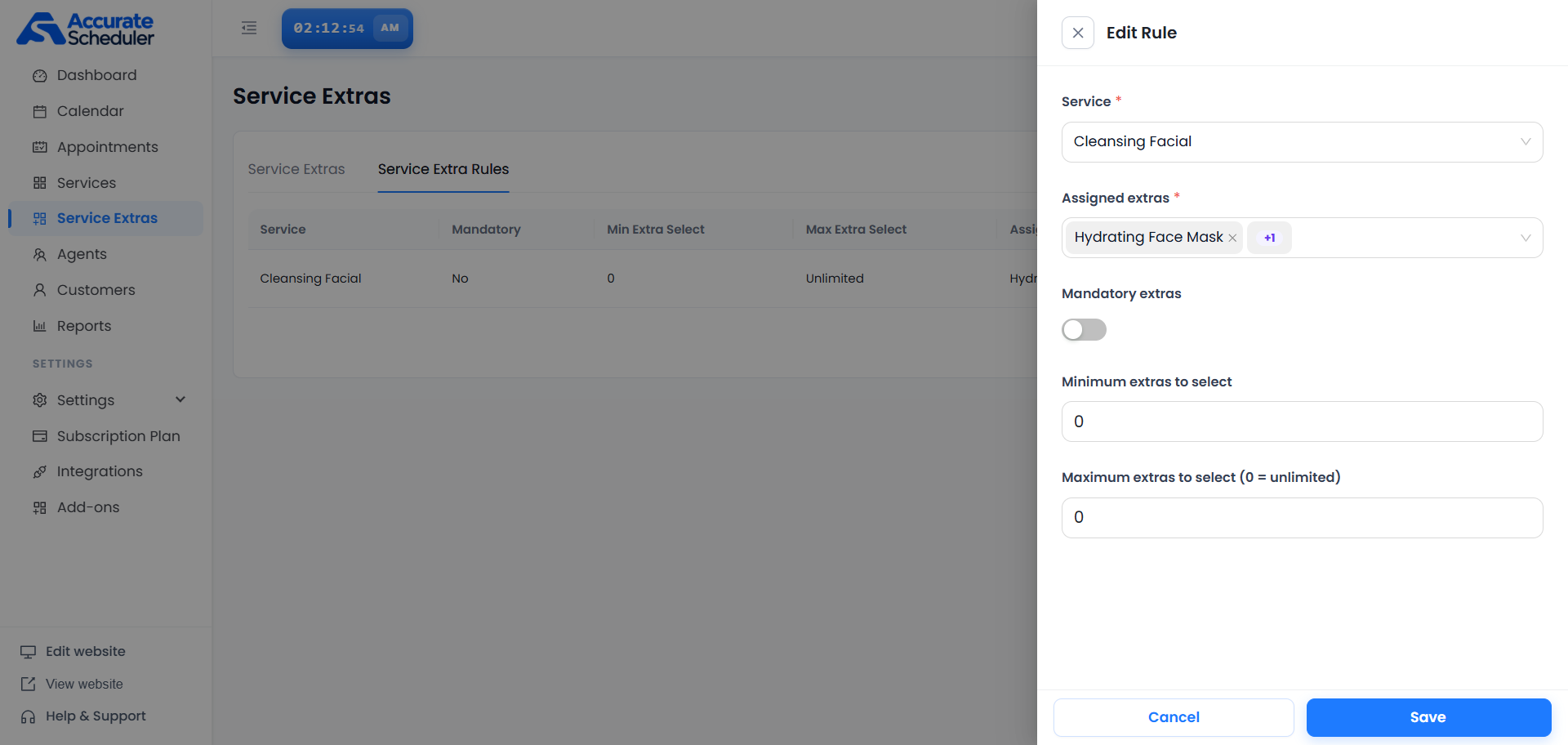
Use Cancel or the close control to leave the panel without completing the save. Review any unsaved-change prompt shown by your workspace.
Delete a rule
Use the trash action only after checking the service and reviewing any confirmation. After deletion, test which extras are offered for that service. Do not assume deleting a rule deletes the extras themselves or changes existing appointment details.
Test the customer booking flow
- Choose the service configured in the rule.
- Confirm that the intended extras appear.
- Try proceeding with no extras and check whether the result matches your optional or required setup.
- Test the minimum selection and any finite maximum.
- Review the final price, duration and appointment details.
Troubleshooting
- Cannot save: check required Service and Assigned extras fields and the displayed validation message.
- Missing extra: check the assigned selection and the extra’s active state.
- Customer cannot proceed: check mandatory selection and minimum limits against the available extras.
- Too many choices allowed: check whether maximum is 0, which means unlimited.
- Unexpected price or duration: review the individual extra settings and selected quantities in the Service Extras guide.
Related: Services List and Add and edit a service.
Need a hand with your setup?
Tell us which step you reached and what happened. Keep passwords and client secrets out of your message.
Contact Accurate Scheduler →