
Add and edit a service
Updated October 10, 2026 · 4 min read
In this guide
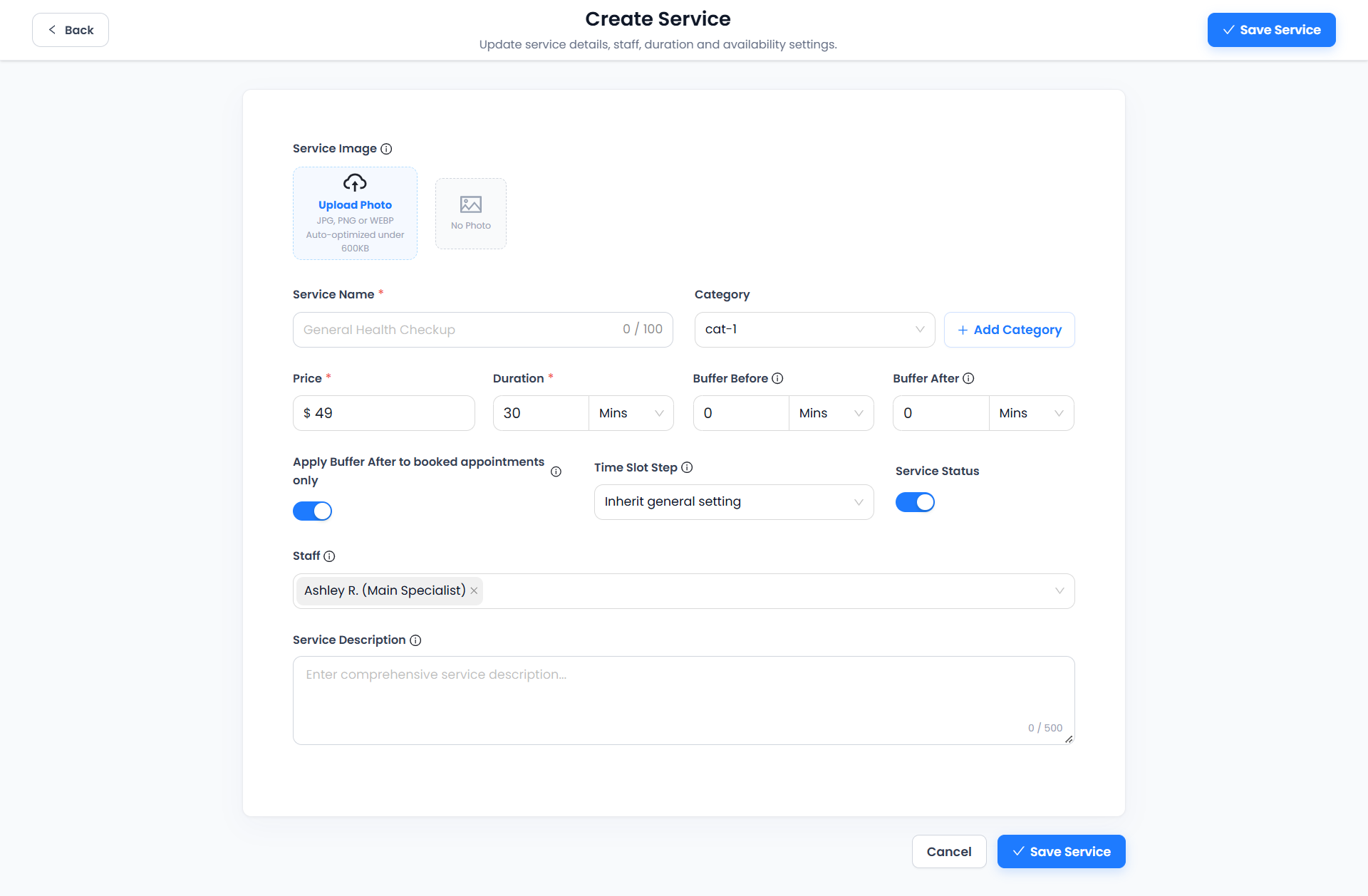
Create a service or update an existing one using the service editor. The screens below show the available fields for an appointment-based service.
Before you begin
Prepare the service name, price, duration, description and staff who can deliver it. Decide which category it belongs to and whether preparation or cleanup time is needed around appointments. Fields marked with a red asterisk are required.
1. Open the service editor
Open Services in the left menu. Select + Add New Service to open Create Service. To change an existing service, use its pencil action or choose Edit Service from its three-dot menu.
2. Add a service image, name and category
- Use Upload Photo to select a service image. The screen lists JPG, PNG and WEBP and states that images are auto-optimized under 600 KB. Review the preview after uploading.
- Enter the required Service Name. The displayed limit is 100 characters. Use a name customers can recognize.
- Select the appropriate Category.
- If the category does not exist, select + Add Category, complete category creation and check the selected category before saving the service.
When editing a service with an image, the screen provides a Remove control. Review the resulting preview if you remove or replace the image.
3. Set price and duration
Enter the required Price and Duration. Check the duration unit beside the value; the supplied screens show Mins. Use the currency and duration appropriate to your business rather than copying the example values.
The Edit Service example is a Cleansing Facial priced at $20 with a duration of 60 minutes. Confirm that the full appointment length fits the assigned staff member’s working hours.
4. Review buffers and time slot settings
- Buffer Before: preparation time before the service.
- Buffer After: time reserved after the service, such as cleanup.
- Apply Buffer After to booked appointments only: review this switch when configuring how your after-buffer is applied. Use the adjacent information control for the explanation shown by your workspace, then test the resulting availability.
- Time Slot Step: controls the interval used for offered starting times. The example uses Inherit general setting. Keep that choice to use the general setting, or select the appropriate available option for the service.
Both examples show zero-minute buffers. Duration and time slot step are different settings: duration describes appointment length, while the slot step concerns offered start times. Test a booking near another appointment after changing these controls.
5. Choose status and staff
Review the Service Status switch to set the service’s enabled state. Select the people who can deliver the service in Staff. The example shows Ashley R. (Main Specialist) selected. Use the remove control on a selected staff chip only when you intend to remove that assignment.
Staff assignment and working hours both matter. After saving, test whether the intended staff member and appointment times appear in the customer booking flow. Do not assume disabling a service changes existing appointments.
6. Write a description and save
- Enter a clear Service Description explaining what the appointment includes. The displayed limit is 500 characters.
- Review the image, name, category, price, duration, buffers, slot step, status and staff.
- Select Save Service at the top or bottom of the editor.
- Return to Manage Services and confirm the resulting record and customer-facing booking details.
Use Cancel or Back when you intend to leave the editor. If you have unsaved changes, review any prompt before leaving; changes are not confirmed until you save and verify them.
Editing an existing service
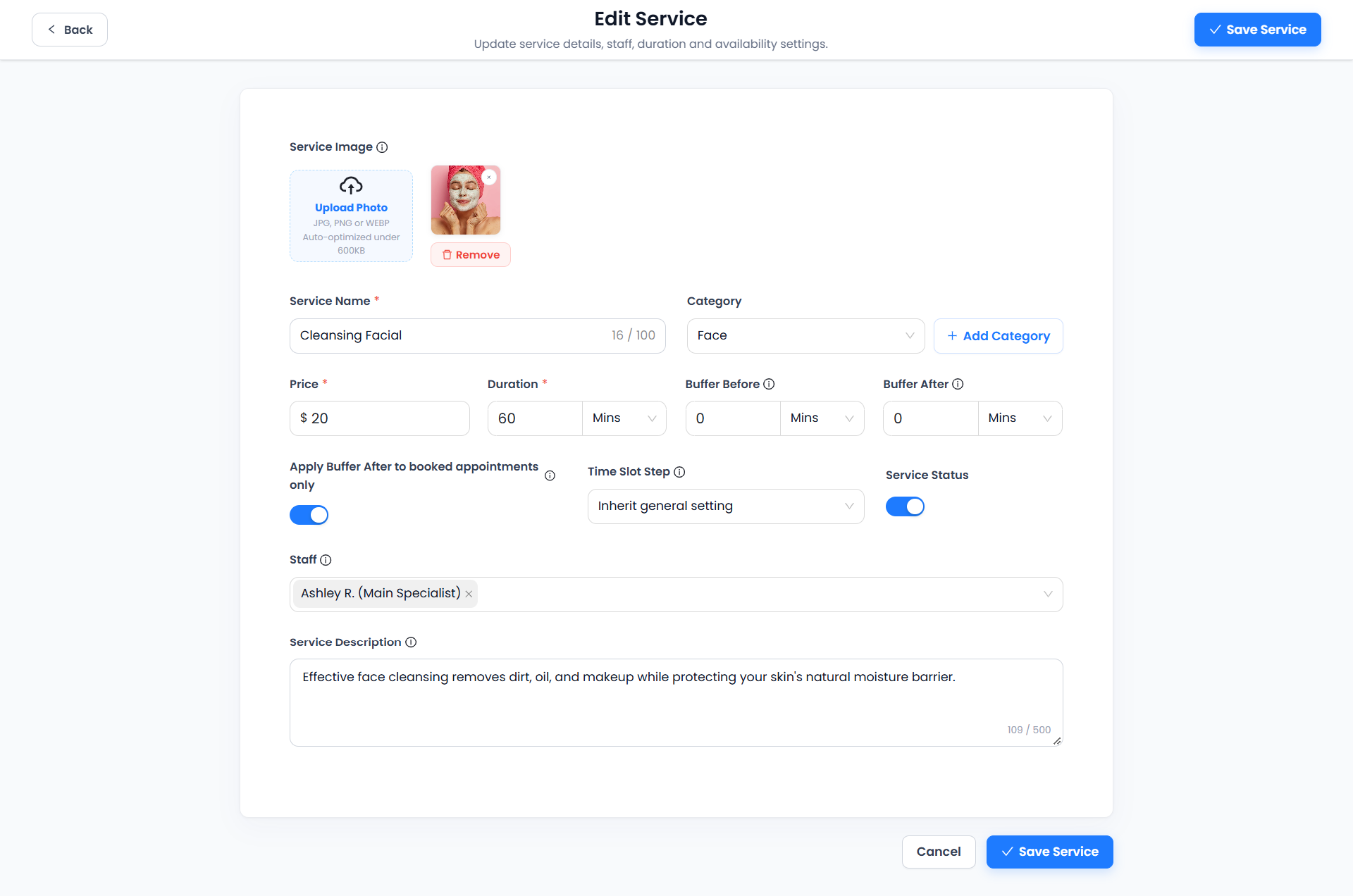
Change only the values you intend to update. Check the affected booking experience after changing duration, staff or availability settings. Review existing appointments separately rather than assuming the service edit updates their saved details.
If you cannot save or find available times
- Validation error: review required Service Name, Price and Duration fields and the visible error message.
- Image not appearing: check the listed formats, retry the upload and inspect the preview before saving.
- Category missing: use + Add Category and verify the category selection afterward.
- No available times: review staff assignments, working hours, duration and buffers, then test the selected date.
- Unexpected start times: review Time Slot Step and the inherited general setting.
- Changes not visible: reopen the service and check its current values before repeating the save.
Continue with the Services List guide, service categories or staff working hours and availability.
Need a hand with your setup?
Tell us which step you reached and what happened. Keep passwords and client secrets out of your message.
Contact Accurate Scheduler →