
Review and manage appointments
Updated October 10, 2026 · 4 min read
In this guide
Use Appointments to find bookings, review customer and payment details, update appointment status and add internal notes.
1. Open and filter the appointment list
Sign in to your workspace and select Appointments in the left menu. Have the customer’s name or contact details and the appointment date ready when looking for a particular booking.
- Enter a customer name, email or phone number in Search appointment.
- Choose any relevant Status, Date, Staff or Service filters.
- Select Apply to apply your choices.
- Use Reset to clear the filters when you want to broaden the list.
2. Read a booking and expand its details
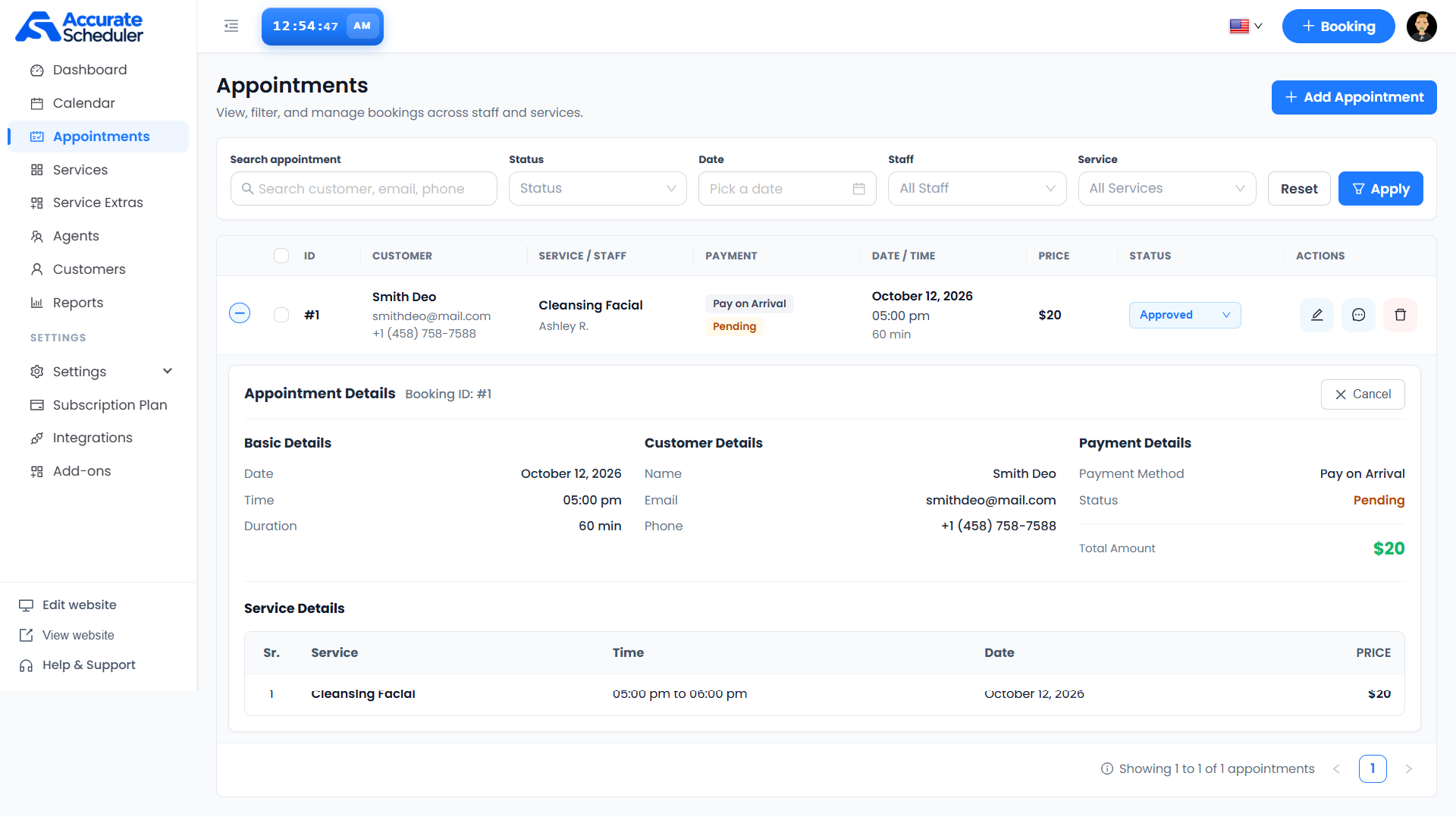
Each row shows the booking ID, Customer, Service / Staff, Payment, Date / Time, Price, Status and available Actions. Check the booking ID and date before making changes.
Use the circular expand/collapse control at the far left of a row to show or hide Appointment Details. The expanded panel includes Basic Details, Customer Details, Payment Details and Service Details.
In the example, booking #1 is a 60-minute Cleansing Facial with Ashley R. on October 12, 2026, at 5:00 pm, priced at $20. Its appointment status is Approved, while its payment method is Pay on Arrival and payment status is Pending. Approval and payment are separate states.
3. Change an appointment’s status
- Find the correct booking and review its details.
- Open the dropdown in its Status column.
- Select the status that accurately reflects the appointment.
- Check the resulting row to confirm the intended status is shown. If your workspace displays a confirmation or additional fields, complete those before checking the result.
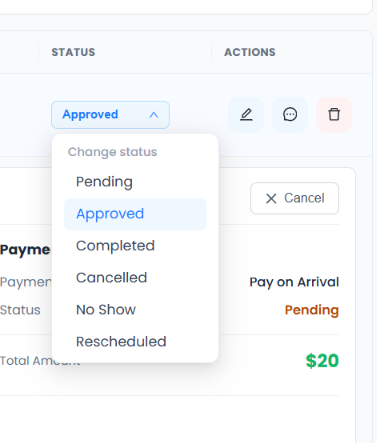
- Pending: the appointment is awaiting approval.
- Approved: the appointment is approved.
- Completed: the appointment has taken place.
- Cancelled: the appointment has been cancelled.
- No Show: the customer did not attend.
- Rescheduled: use for a booking that has been moved to another time.
Selecting a status is not proof that a notification was sent or payment was processed. For a rescheduled booking, also verify its actual date and time rather than assuming the status dropdown changes them.
4. Add an admin note
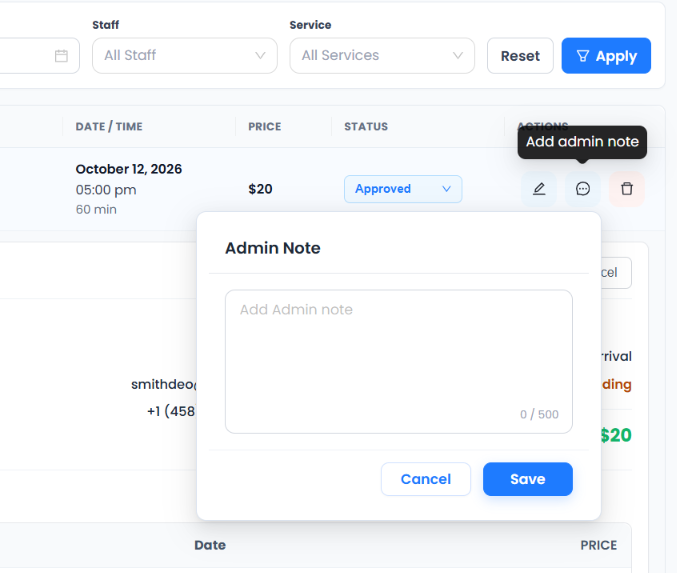
- Use the speech-bubble action labeled Add admin note beside the booking.
- Enter your note in the Admin Note dialog. The supplied screen shows a 500-character limit.
- Select Save to keep it, or Cancel to leave the dialog without saving your entry.
- Reopen the note to check that your saved text is correct.
5. Work with selected appointments
Select a row’s checkbox to display the bulk-action bar. Review the item selected count and the selected rows before applying an action.
- Select the appointments you intend to update.
- Choose the intended value in Change status.
- Select Update, then review the affected records.
- Select Clear when you want to remove the selection.
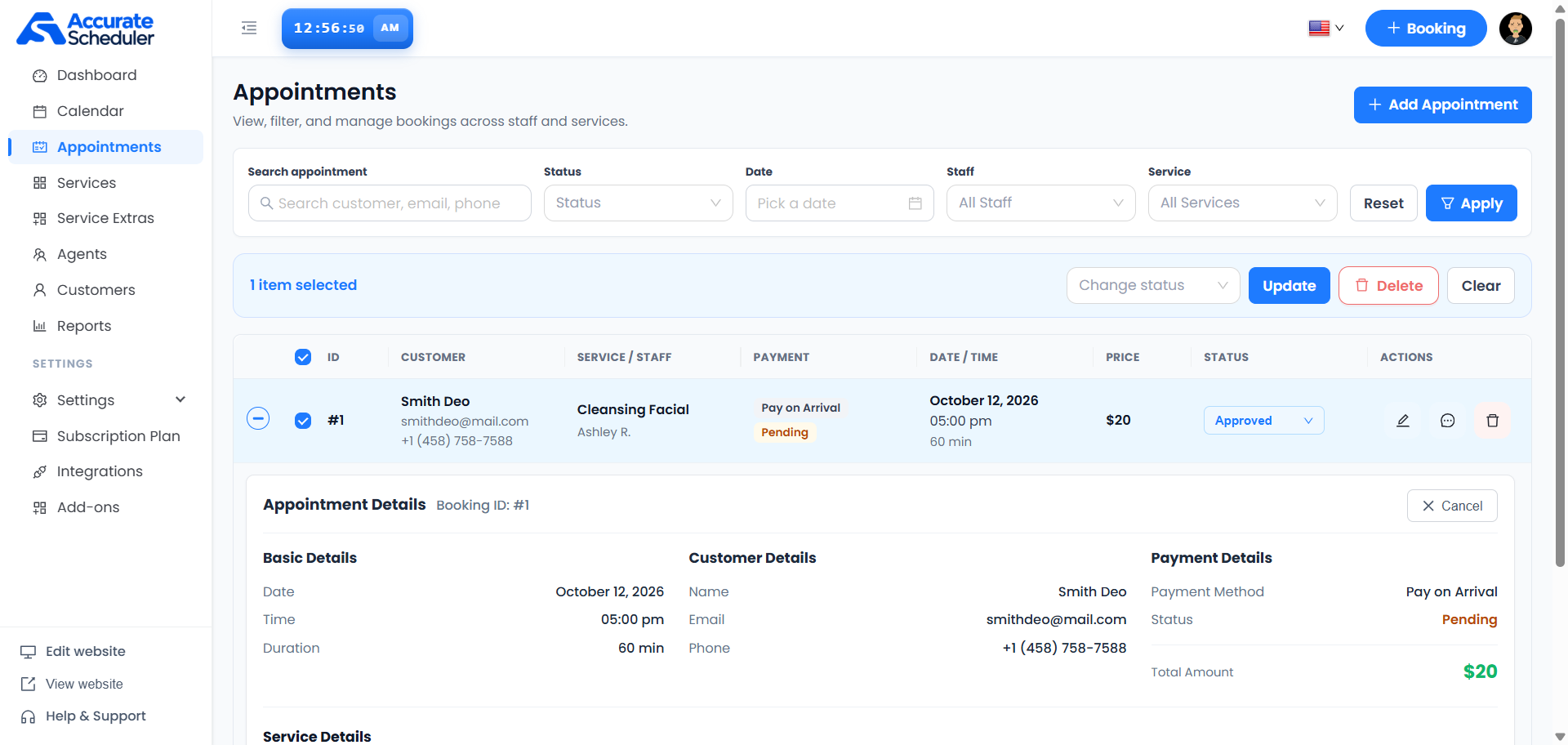
The list also provides a row-level trash icon and a bulk Delete button. Review the booking IDs and any confirmation shown before deleting. Deletion and cancellation are different actions; do not assume deleted records can be recovered.
6. Add or edit a booking
Select + Add Appointment above the list to start a new appointment. Use the pencil action beside an existing row to open its editing controls. Follow the fields shown in your workspace, then check the resulting service, staff, date and time.
Use the page numbers and navigation arrows below the list when results span multiple pages. Check the displayed result count so you know which part of the list you are viewing.
If something does not look right
- Cannot find a booking? Reset the filters, search by another customer detail and check the selected date.
- Approved appointment but Pending payment? Review Payment Details. An approved appointment does not mean payment has been received.
- Wrong rows selected? Select Clear and choose the intended appointments again before updating or deleting.
- A status or note did not save? Reopen the record and check its current value and any visible error before retrying.
- Date does not match Rescheduled status? Review the actual date/time in Appointment Details and use the editing controls as appropriate.
For support, include the booking ID, intended action and visible error. Keep customer information limited to what is needed to explain the issue.
See the Calendar guide for timetable views and the Dashboard guide for an overview of bookings needing attention.
For the full form walkthrough, see Add and edit an appointment.
For the full form walkthrough, see Manage customers.
Need a hand with your setup?
Tell us which step you reached and what happened. Keep passwords and client secrets out of your message.
Contact Accurate Scheduler →