
Deposit Payment: Complete Setup Guide
Updated October 23, 2026 · 8 min read
In this guide
- Activate Deposit Payment
- Configure deposits for individual services
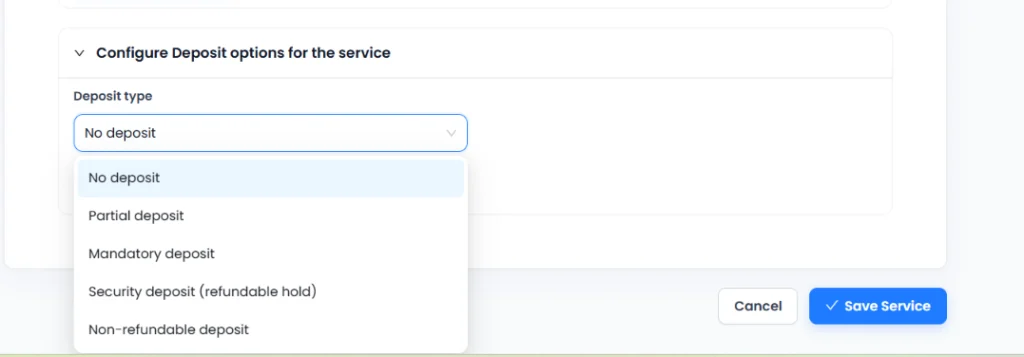
- Deposit types explained
- Partial deposit
- Mandatory deposit
- Refundable security deposit
- Non-refundable deposit
- Fixed amounts and percentages
- Customer checkout experience
- Stripe and PayPal configuration
- Pay on Arrival behavior
- Collecting remaining balances
- Remaining payment links
- Stripe webhook setup
- Payment statuses and visibility
- Deposit calculations and examples
- Email notification variables
- Troubleshooting
- Frequently asked questions
- Related guides
Deposit Payment lets you collect part of an appointment’s price when customers book and receive the remaining balance later. You can also configure mandatory deposits, non-refundable deposits and refundable security holds.
Activate Deposit Payment
- Log in to Accurate Scheduler and open the add-on management area.
- Find Deposit Payment and click Activate.
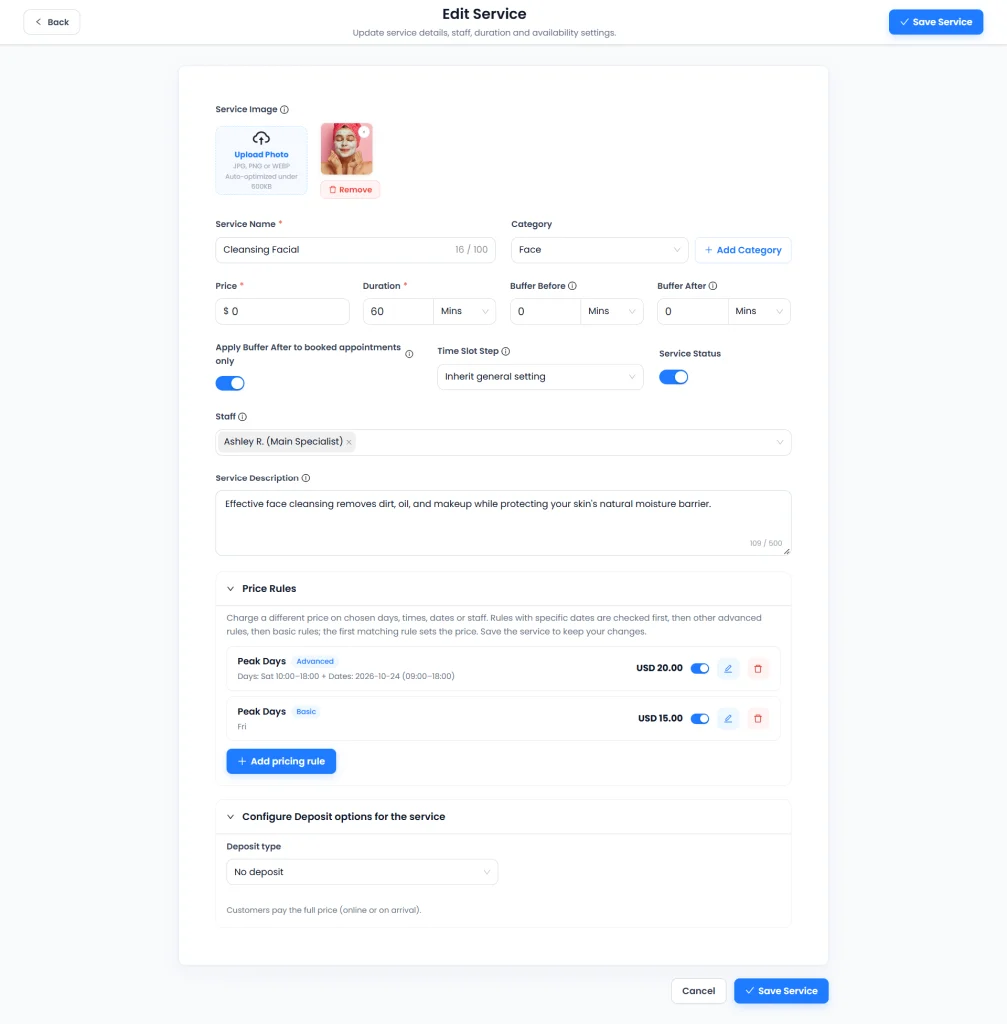
- Open Services to configure each service’s deposit policy.
Configure deposits for individual services
- Open Services and edit the required service.
- Expand Configure Deposit options for the service.
- Choose the deposit type and enter the required amount or percentage.
- Save the service, then check its customer booking flow.
Deposit types explained
| Deposit type | Behavior |
|---|---|
| No deposit | No separate deposit; the full service price is payable online or on arrival using available options. |
| Partial deposit | Pay a deposit online and the remaining service balance later; Pay on Arrival may also be offered. |
| Mandatory deposit | Requires the configured online deposit when a supported online gateway is available. See the gateway exception below. |
| Security deposit | A refundable card authorization hold, separate from the appointment price, where the provider supports this flow. |
| Non-refundable deposit | An online deposit subject to the configured refund rule and disclosed cancellation conditions. |
Partial deposit
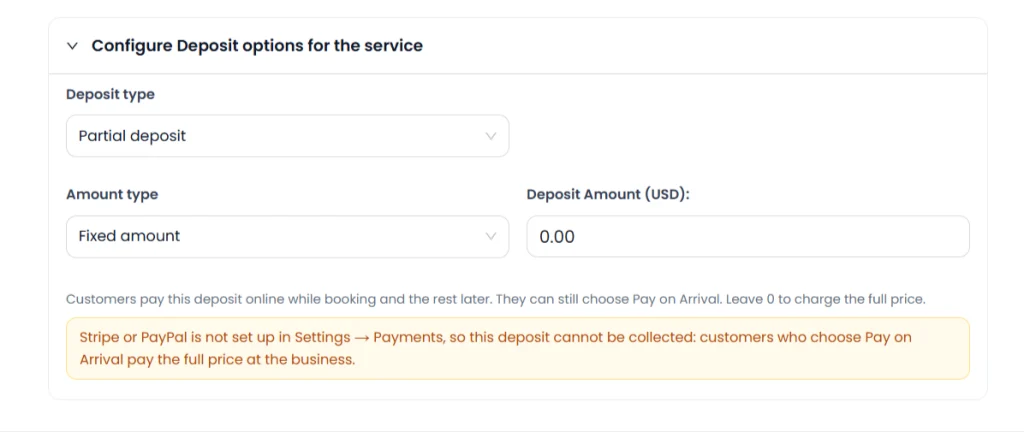
Choose a fixed amount or percentage. Where offered, customers can select Pay deposit or Pay full amount. A successful deposit leaves the booking Partially Paid, with the remaining balance tracked. Pay on Arrival does not collect an online deposit: the full unpaid amount remains payable at the business. The settings indicate that a zero partial deposit charges the full price instead.
Mandatory deposit
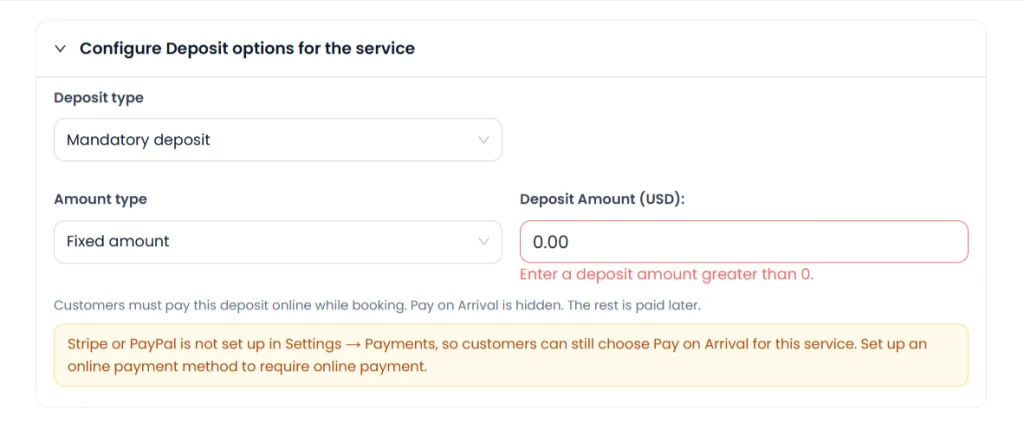
Enter a positive deposit amount. With a supported online gateway configured, customers must pay the configured deposit online and Pay on Arrival is hidden for that flow. The remainder is paid later.
Gateway exception: the application settings warn that Pay on Arrival can remain available if Stripe or PayPal is not configured. Choosing Mandatory deposit alone does not guarantee an online payment. Configure a supported gateway and test checkout before relying on this policy.
Refundable security deposit
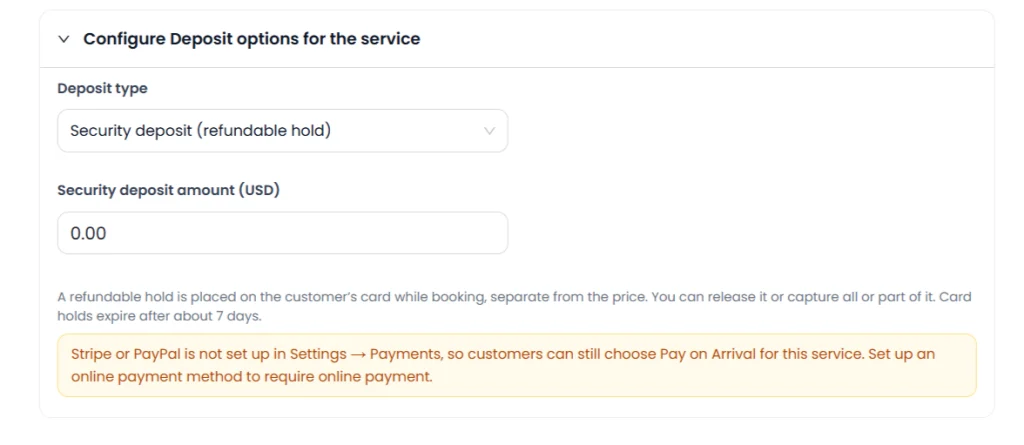
A security deposit is an authorization hold on the customer’s card, separate from the service price. Where supported, the business can release the hold or capture all or part of the authorized amount. A hold is not an ordinary service deposit and is not the same as a completed charge or refund.
Provider, card-network and authorization rules determine expiry. The interface mentions about seven days; this is not a universal guarantee. Check the actual authorization’s expiry and provider capabilities. Stripe and PayPal’s presence as general payment options does not mean every security-hold operation is supported by both.
Non-refundable deposit
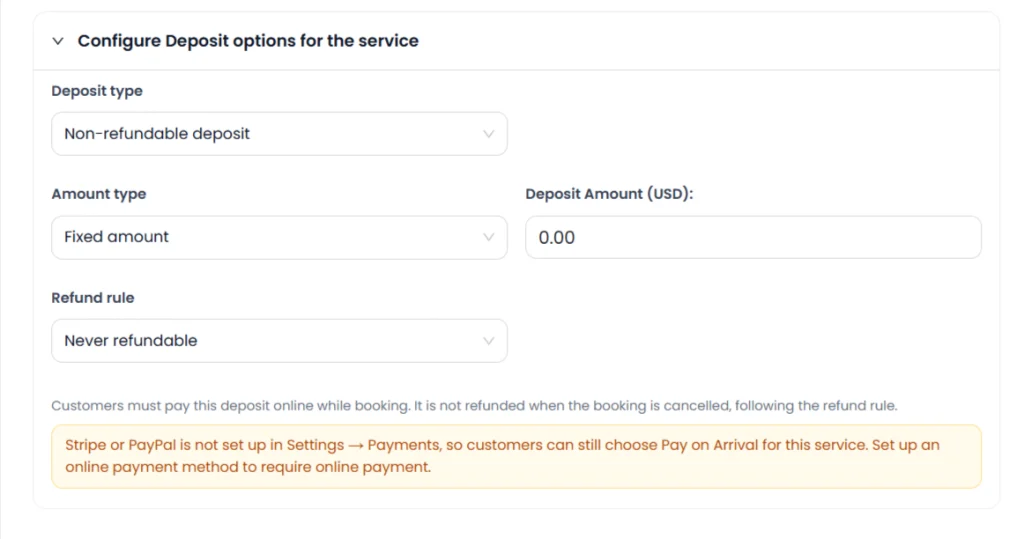
Set the fixed or percentage deposit and the available Refund rule, such as the displayed Never refundable option. Explain the applicable refund and cancellation conditions before customers pay. Refund handling follows that configured rule; do not assume cancellation automatically triggers a refund.
The no-gateway warning also applies here: Pay on Arrival may remain available if an online payment provider has not been set up.
Fixed amounts and percentages
A fixed amount uses the service currency and cannot exceed the applicable price. Percentage values are validated between 0 and 100%; mandatory deposits require a positive amount. Deposit amounts are calculated and validated server-side against the final applicable booking total, including supported extras, quantity, Price Rules and coupons. Security holds are separate from that service balance.
Customer checkout experience
- The customer selects services, extras, quantity and an available appointment.
- Accurate Scheduler calculates the final total and applicable deposit.
- The customer chooses an available payment option.
- The configured gateway processes an online transaction, if selected.
- Payment records and the booking balance reflect the successful payment.
Pay deposit collects the deposit and leaves a remaining balance. Pay full amount collects the complete booking amount. A displayed payment option or checkout redirect does not itself prove that money was collected.
Stripe and PayPal configuration
Open Settings → Payments and configure the supported online provider for your business. Follow the Stripe setup guide or PayPal setup guide. Provider availability varies by payment flow; verify the selected deposit type in checkout. Provider fees may apply.
Pay on Arrival behavior
Pay on Arrival means nothing is charged online at that step. For partial deposits it can leave the full service amount to be paid at the business. Mandatory, non-refundable and security-deposit settings display a fallback warning when no online gateway is configured. Test the actual options shown to customers after saving your service and gateway settings.
Collecting remaining balances
From the Payment panel
- Open the appointment and its Payment panel.
- Select Send remaining payment link.
- Choose Copy, Email or Open, as offered.
From Appointments or the customer panel
Use the expanded appointment view or supported mobile appointment card. Customers can also open My bookings and choose Pay remaining.
Record cash
When you receive the outstanding amount in cash, use Take payment → Cash. Check the payment ledger and remaining balance afterward. Recording cash represents money actually received; do not also charge the same amount online.
Remaining payment links
Remaining-payment links are signed, expire after seven days and are intended for one successful use. The server calculates the outstanding amount, validates payment and protects against duplicate payment recording. A new link may be needed after expiry or previous use. Do not share payment links publicly or include signing secrets in support requests.
These descriptions follow the supplied feature specification; they are not an independent security audit or certification.
Stripe webhook setup
- Open Settings → Payments and copy the displayed webhook URL.
- In Stripe Dashboard, add that exact URL as a webhook endpoint.
- Subscribe to
checkout.session.completedandpayment_intent.succeededfor the specified flow. - Copy the endpoint’s signing secret into the corresponding Accurate Scheduler payment setting and save.
- Use an authorized test configuration to verify successful payment recording, including when the checkout page is closed.
The described implementation uses verified webhook events and duplicate-event handling to update payment records. Do not post webhook secrets in screenshots or emails. Do not treat a checkout-completion event as a universal guarantee of settled payment for every asynchronous method: use the events and methods supported by your application configuration. Additional asynchronous-event requirements should be confirmed before enabling such methods.
Payment statuses and visibility
Payment information is available through My bookings, expanded Appointments, supported mobile appointment cards, the Payment panel, the Add/Edit appointment drawer and customer emails. Depending on the view, inspect Total, Deposit, Paid and Remaining. A successful deposit is Partially Paid; a fully settled booking is Paid or described as Paid in full. These view-specific labels follow the supplied specification. A security authorization is not service-price payment.
Deposit calculations and examples
These are illustrative amounts, not product prices or offers.
| Example | Final total | Deposit | Remaining |
|---|---|---|---|
| 30% partial deposit | $100 | $30 | $70 |
| Fixed deposit after extras and discounts | $150 | $40 | $110 |
The server uses the final applicable total rather than trusting an amount supplied by a browser or payment link.
Email notification variables
| Variable | Description |
|---|---|
%deposit_paid% | Amount of deposit paid |
%remaining_amount% | Outstanding balance |
%security_deposit% | Security deposit amount |
%deposit_policy% | Applicable deposit policy |
Under the supplied behavior, a payment summary is appended automatically when none of these variables appears in the template. Preview and test customer emails after editing templates.
Troubleshooting
Deposit cannot be collected
Check gateway configuration, supported payment options and the saved service settings. A provider warning means an online deposit may not be collected.
Mandatory deposit is not enforced
Review the no-gateway fallback and test whether Pay on Arrival remains available.
Remaining payment is not updated
Compare gateway payment records, webhook delivery results and the appointment ledger before retrying a charge. Check endpoint configuration and signing-secret settings without disclosing the secret.
Remaining link does not work
Check expiry, previous use and whether the booking has already been paid. Generate a fresh supported link if needed.
Security hold has expired
Expired authorizations cannot be assumed capturable. Follow the provider’s process and obtain a new authorization when appropriate.
Deposit amount looks incorrect
Review the final total, extras, quantity, coupons, Price Rules and fixed/percentage setting.
Frequently asked questions
Can customers pay only part of an appointment price?
Yes. Configure a partial deposit and a supported online payment method; the unpaid service balance remains due later. Can I require a deposit before booking?
Use Mandatory deposit with a positive amount and a configured supported gateway. Without an online gateway, Pay on Arrival may still be available. Can customers pay the full amount instead?
Where Pay full amount is offered, customers can settle the complete service amount online. How can I collect the remaining balance?
Use the Payment panel’s remaining-payment link, supported appointment controls or Pay remaining in My bookings. Can customers pay the balance in cash?
Yes. Record cash actually received through Take payment → Cash and check the resulting ledger balance. Can I create percentage deposits?
Yes. Select the percentage amount type; the server validates the percentage and calculates it against the final applicable total. Can I hold a refundable security deposit?
The security-deposit option supports an authorization hold where the configured provider supports that flow. Capture, release and expiry depend on provider capabilities. What happens if a customer cancels?
Refund handling follows the configured deposit and refund rules. Explain those conditions before payment and check the payment record; cancellation alone should not be assumed to refund a deposit. Does it work with Stripe and PayPal?
Stripe and PayPal are online payment options where supported. Do not assume both support every security-hold or capture operation. What if no online gateway is configured?
The settings warn that deposits cannot be collected online and Pay on Arrival may remain available, including for mandatory deposit settings.
Related guides
Need a hand with your setup?
Tell us which step you reached and what happened. Keep passwords and client secrets out of your message.
Contact Accurate Scheduler →