
Booking widget add-on
Updated October 10, 2026 · 3 min read
In this guide
Put your Accurate Scheduler booking form on your own website using the Booking widget add-on. Choose a popup button or an embedded frame, then copy the generated code into your website.
The widget shows the booking form only, including service and staff selection, date and time, information, payment and completion as applicable to your configuration. Customers book directly with you, and new bookings appear in your Appointments list.
Open the Booking widget settings
Open Add-ons, activate Booking widget if it is inactive, then open its configuration. Review Manage add-ons for the activation workflow.
Choose a popup button
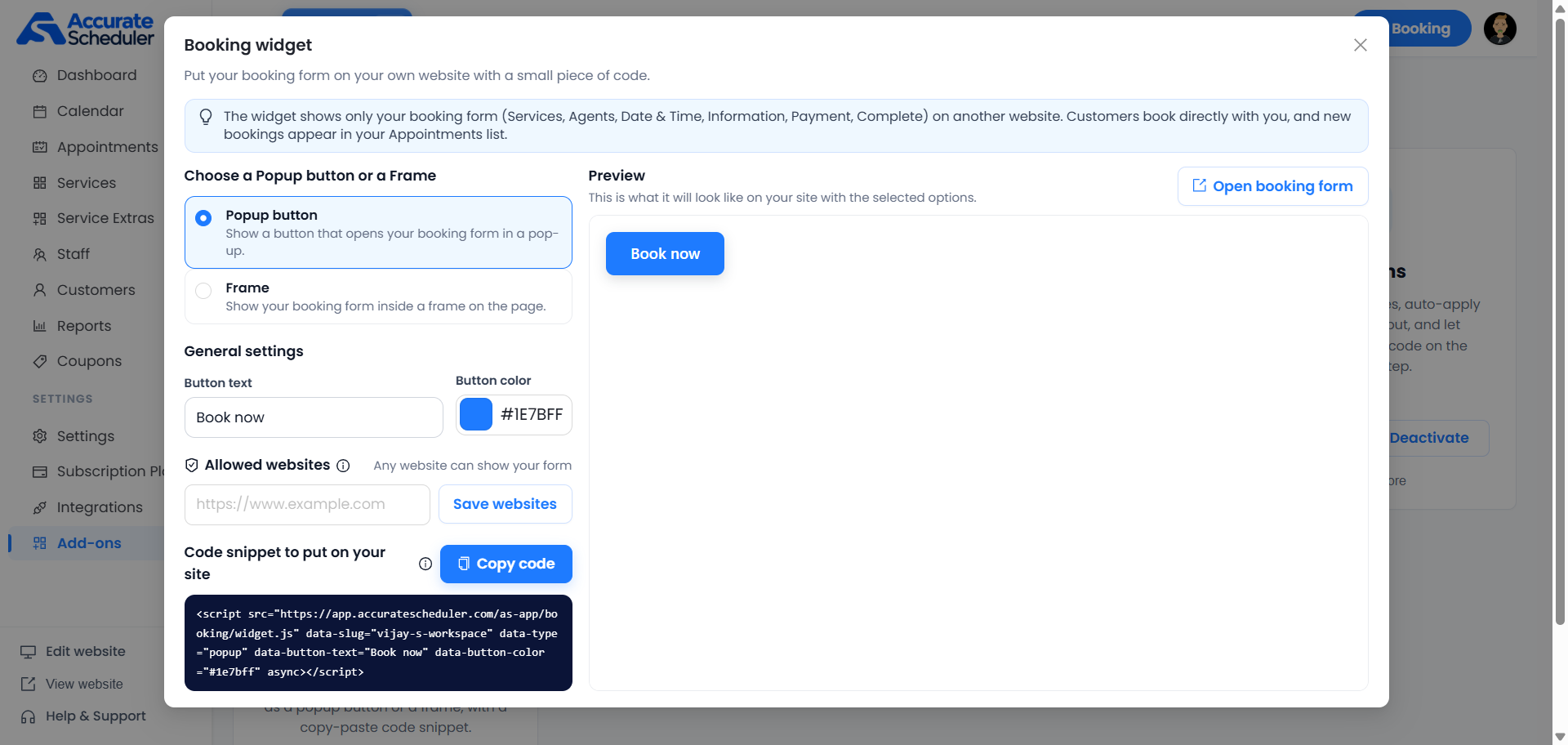
Select Popup button to display a button that opens the booking form in a popup. Under General settings, edit Button text and Button color. The example uses Book now and #1E7BFF. Check the button in the Preview panel.
Choose an embedded frame
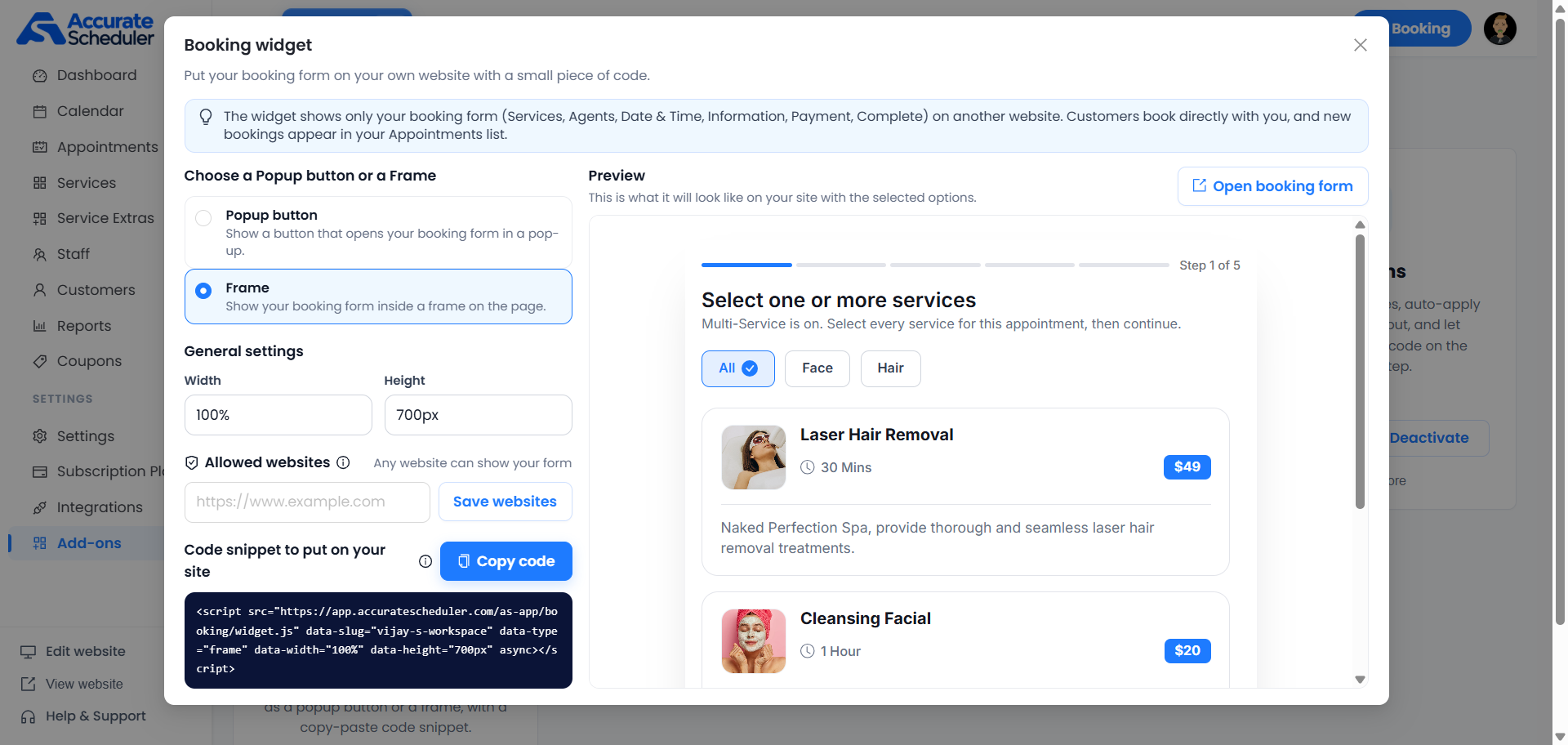
Select Frame to show the booking form directly inside the page. Set Width and Height; the example uses 100% and 700px. Check the preview and test the embedded form on desktop and mobile, including scrolling through all booking steps.
The service selection shown reflects this workspace’s booking configuration. Embedding a frame does not itself activate Multi-Service.
Review allowed websites
The Allowed websites area shows Any website can show your form in both examples. To configure website restrictions, enter the intended website using the controls provided and select Save websites. Review the resulting allowed-websites state.
The screenshots do not show rules for multiple entries, subdomains, wildcard matching or URL paths. Follow the field’s guidance in your workspace and test the exact website where you plan to embed the form.
Copy and install the generated code
- Finish selecting the widget type and its settings.
- Select Copy code beside Code snippet to put on your site.
- In your own website editor, open the page where the widget should appear and use a custom HTML or embed area that permits JavaScript.
- Paste the complete generated snippet, save the page and preview it. Publish through your website’s normal process when ready.
- If you change the widget type or display settings, copy the newly generated snippet and update your website’s embed.
The generated snippet loads https://app.accuratescheduler.com/as-app/booking/widget.js and includes your workspace slug. Popup snippets also include button text and color; frame snippets include width and height. Use the code generated for your own workspace rather than the example slug shown in the screenshots.
Verify the booking flow
- Use Open booking form to inspect the direct booking form separately from the embed.
- Open the page containing your installed widget. For a popup, click its button; for a frame, confirm the form appears in the page.
- Test service and staff selection, date and time, customer information and the payment step applicable to your configuration.
- Complete a clearly identified test booking and verify it in Appointments.
- Check the layout and full booking flow on desktop and mobile.
If the widget does not appear
- Confirm the add-on is active and the complete snippet is present on the intended page.
- Check that your website editor preserves script tags and permits JavaScript in the embed area.
- Review the allowed-websites setting against the website you are testing.
- Compare the direct form with the embed. If the direct form works, review the host page’s script restrictions, security policy and layout.
- For a frame that is clipped, review its width and height and test scrolling through the form.
To customize the full public booking website, see Edit website and booking page. The widget embeds the booking form rather than all the website’s content sections.
Need a hand with your setup?
Tell us which step you reached and what happened. Keep passwords and client secrets out of your message.
Contact Accurate Scheduler →