
Manage add-ons
Updated October 10, 2026 · 3 min read
In this guide
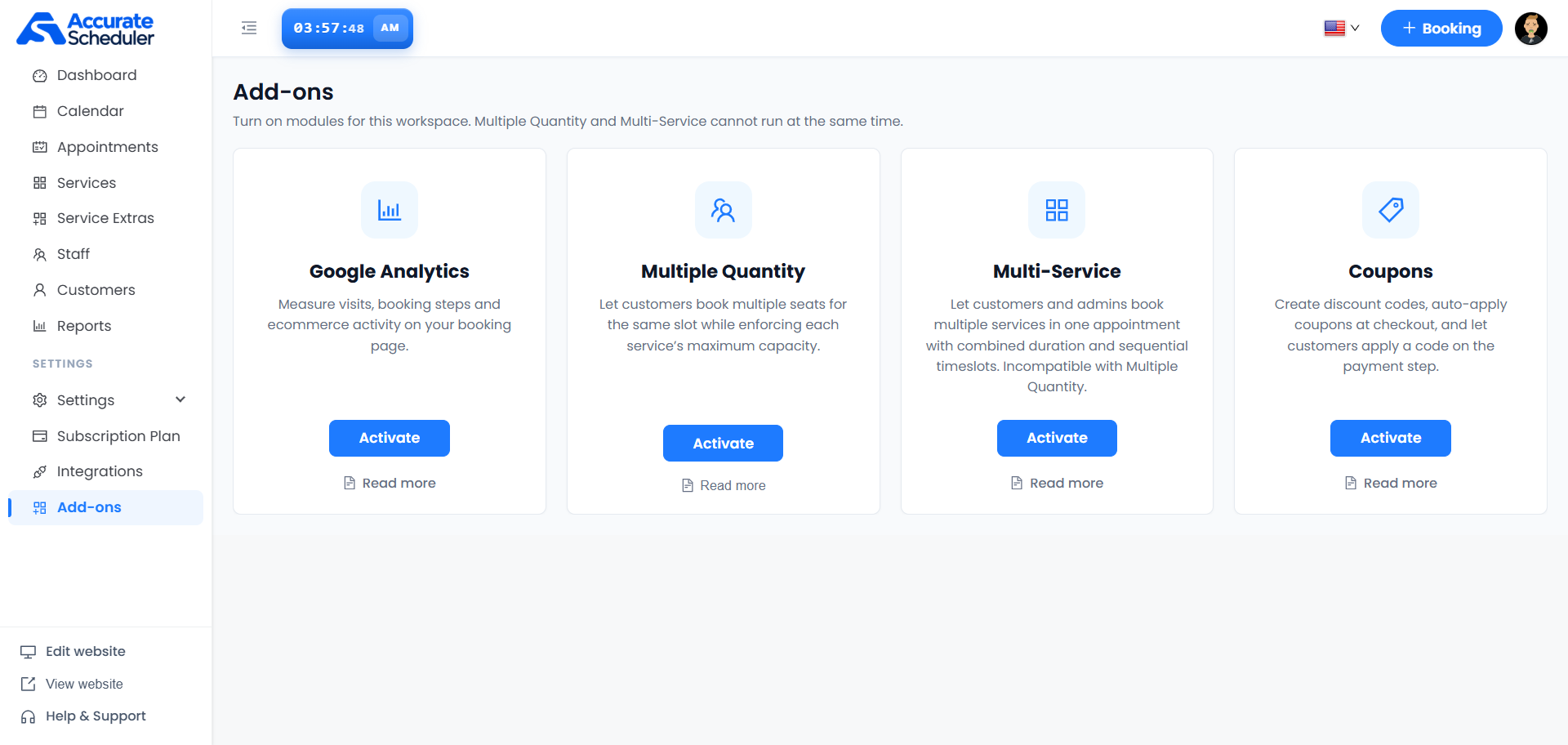
Use Add-ons in Accurate Scheduler to turn on optional modules for your workspace. The supplied screen shows Google Analytics, Multiple Quantity, Multi-Service and Coupons.
Choose a module
| Module | Purpose shown on the screen | What to check |
|---|---|---|
| Google Analytics | Measure visits, booking steps and ecommerce activity on the booking page. | Review the configuration offered after activation and verify that the intended booking activity reaches your analytics property. |
| Multiple Quantity | Let customers book multiple seats for the same slot while enforcing each service’s maximum capacity. | Review service capacity and test quantity selection on the booking form. |
| Multi-Service | Let customers and admins book multiple services in one appointment with combined duration and sequential timeslots. | Check the combined duration and available sequential times for the selected services. |
| Coupons | Create discount codes, auto-apply coupons at checkout and let customers apply a code on the payment step. | Review the available coupon settings and test the discount and final total. |
Multiple Quantity and Multi-Service cannot run together
The page explicitly states that Multiple Quantity and Multi-Service cannot be active at the same time. Choose Multiple Quantity when the booking needs several seats for the same slot. Choose Multi-Service when the booking needs several services with combined duration and sequential timeslots.
Before switching between these modules, review the currently active module and follow the workspace’s available controls. The screenshot does not show the deactivation flow or how existing bookings are handled; verify those details before changing a workflow already in use.
Activate an add-on
- Open Add-ons from the left navigation.
- Read the module description and select Read more for its setup guidance.
- Select Activate on the intended module.
- Review any next screen or confirmation and complete the settings offered for that module.
- Verify the resulting active state and test the relevant booking flow.
All four cards show Activate in this example. This screenshot shows the starting controls, not a completed activation. It does not establish a price, plan entitlement or separate installation requirement.
Test the booking behavior
- Google Analytics: visit the booking page and complete a test booking using the reporting or test tools available in your configuration. Check the intended events rather than assuming activation alone provides a working analytics connection.
- Multiple Quantity: test a single-seat and a multiple-seat booking, then verify the remaining capacity. Confirm the form does not accept more seats than the service permits.
- Multi-Service: select multiple services and inspect their order, combined duration, sequential timeslots and final appointment details.
- Coupons: test the customer-entered code and any auto-apply configuration separately. Check the discount and final amount before completing a real payment.
Troubleshoot
If activation is unavailable, review the message shown by your workspace. If Multiple Quantity and Multi-Service conflict, choose the workflow you need and resolve the existing active module using the controls provided. If the booking form does not change, confirm the module’s active state and saved configuration, then reopen the form.
Related: Manage Services, Appointments List and Workspace Settings.
Need a hand with your setup?
Tell us which step you reached and what happened. Keep passwords and client secrets out of your message.
Contact Accurate Scheduler →