
Manage customers
Updated October 10, 2026 · 3 min read
In this guide
Use Manage Customers to find customer profiles, maintain contact details and review the appointment information shown in the list.
Before you begin
Search for an existing customer before creating another record. Prepare the customer’s name and any email, phone number or useful notes you intend to save.
Search and review customers
- Open Customers in the left menu.
- Enter your query in Search customer and select Apply.
- Use Reset to clear the search.
- Review the matching rows and use pagination to move through results.
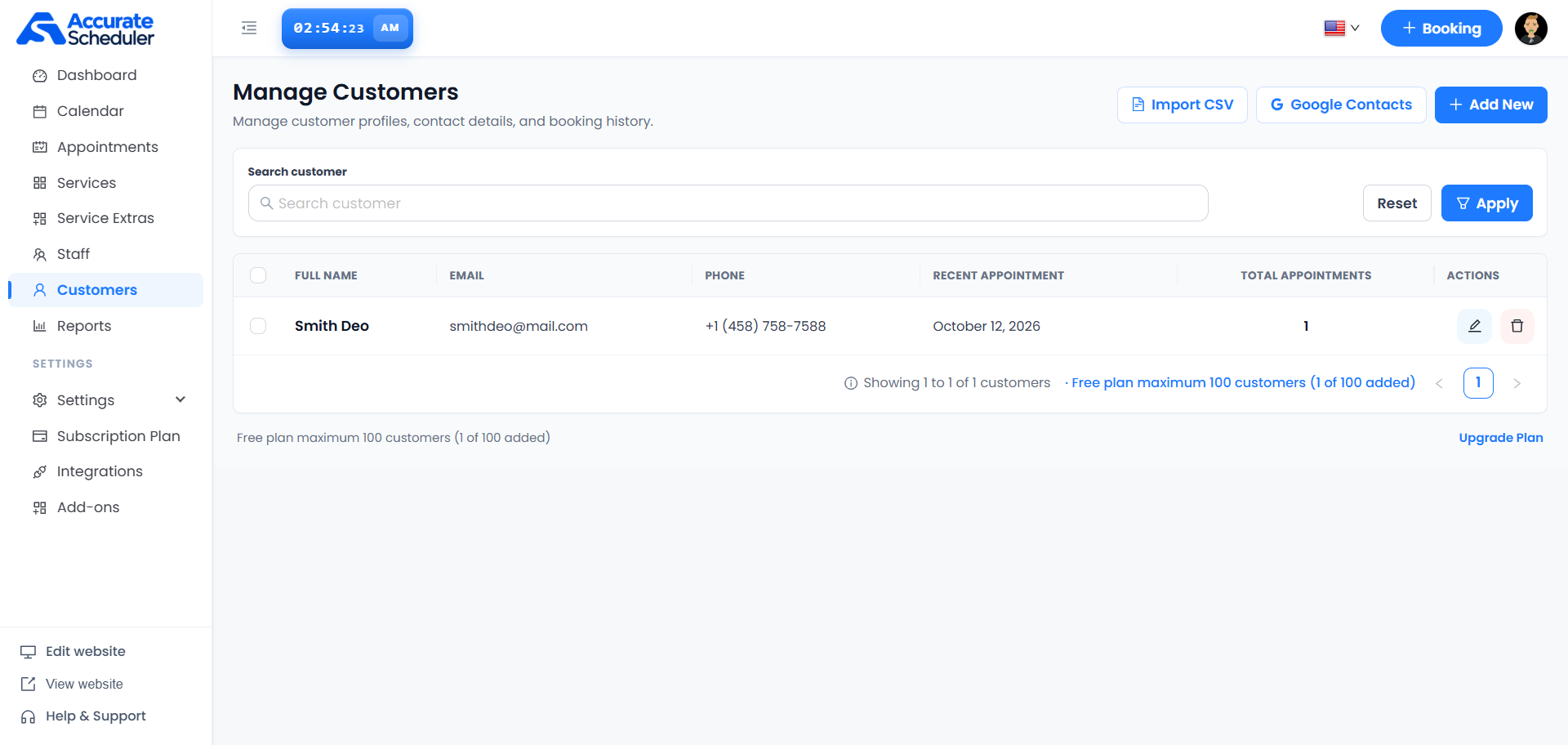
The list shows Full Name, Email, Phone, Recent Appointment and Total Appointments, with pencil and trash actions. The supplied example shows one customer with one appointment and a displayed appointment date of October 12, 2026.
Check the capacity notice in your own workspace before adding or importing records. The screenshot shows a maximum of 100 customers and 1 added; your workspace’s current limit may differ.
Add a customer
- Select + Add New.
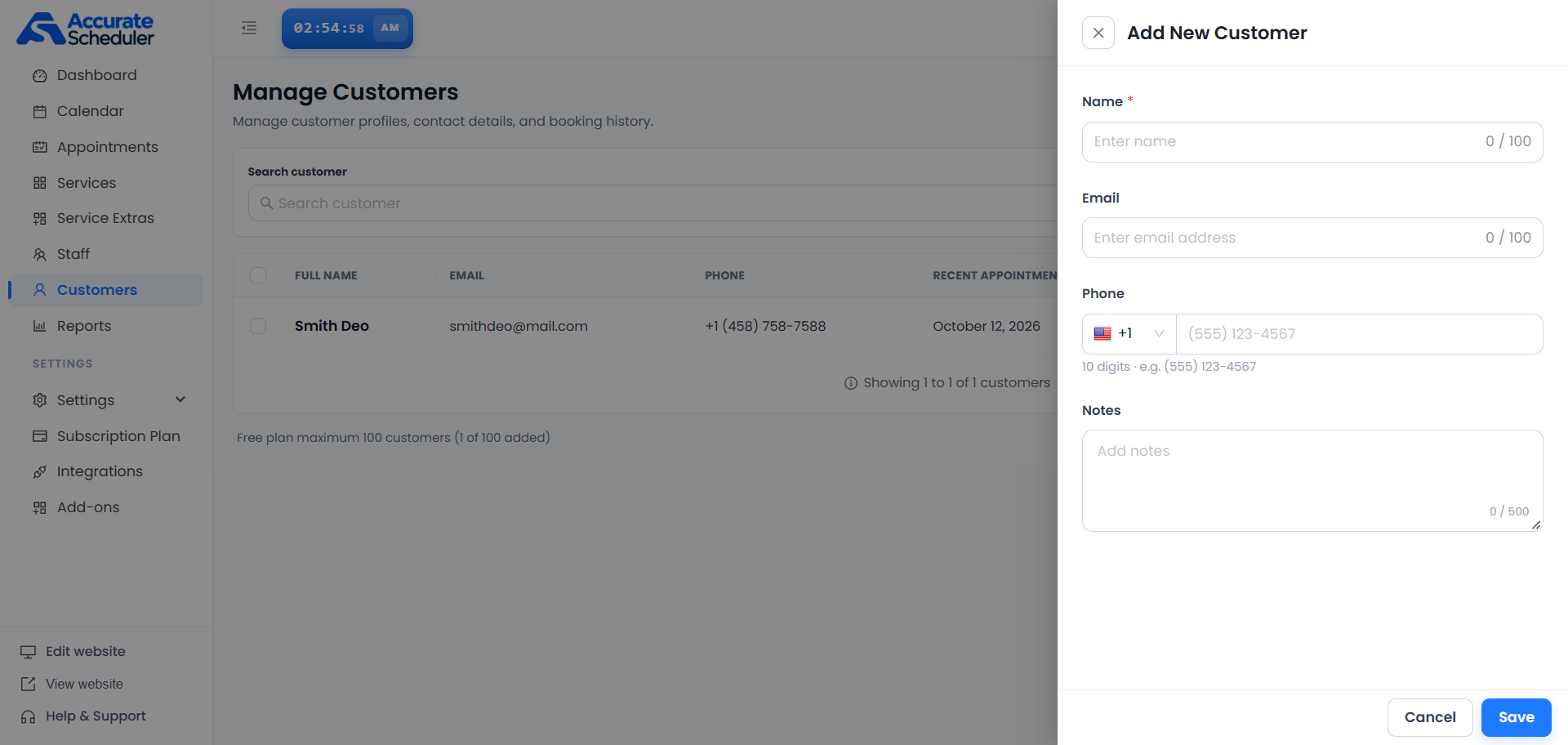
- Enter the required Name, up to the displayed 100-character limit.
- Enter an Email if applicable; its displayed limit is 100 characters.
- For Phone, choose the correct country code and follow the guidance for that selection. The supplied US example requests 10 digits.
- Add useful Notes, up to the displayed 500-character limit.
- Select Save and verify the new customer in the list.
Edit a customer
- Select the pencil action beside the intended customer.
- Confirm the name and contact details to check the record’s identity.
- Change only the intended Name, Email, Phone or Notes fields.
- Select Save and confirm the updated values in the list.
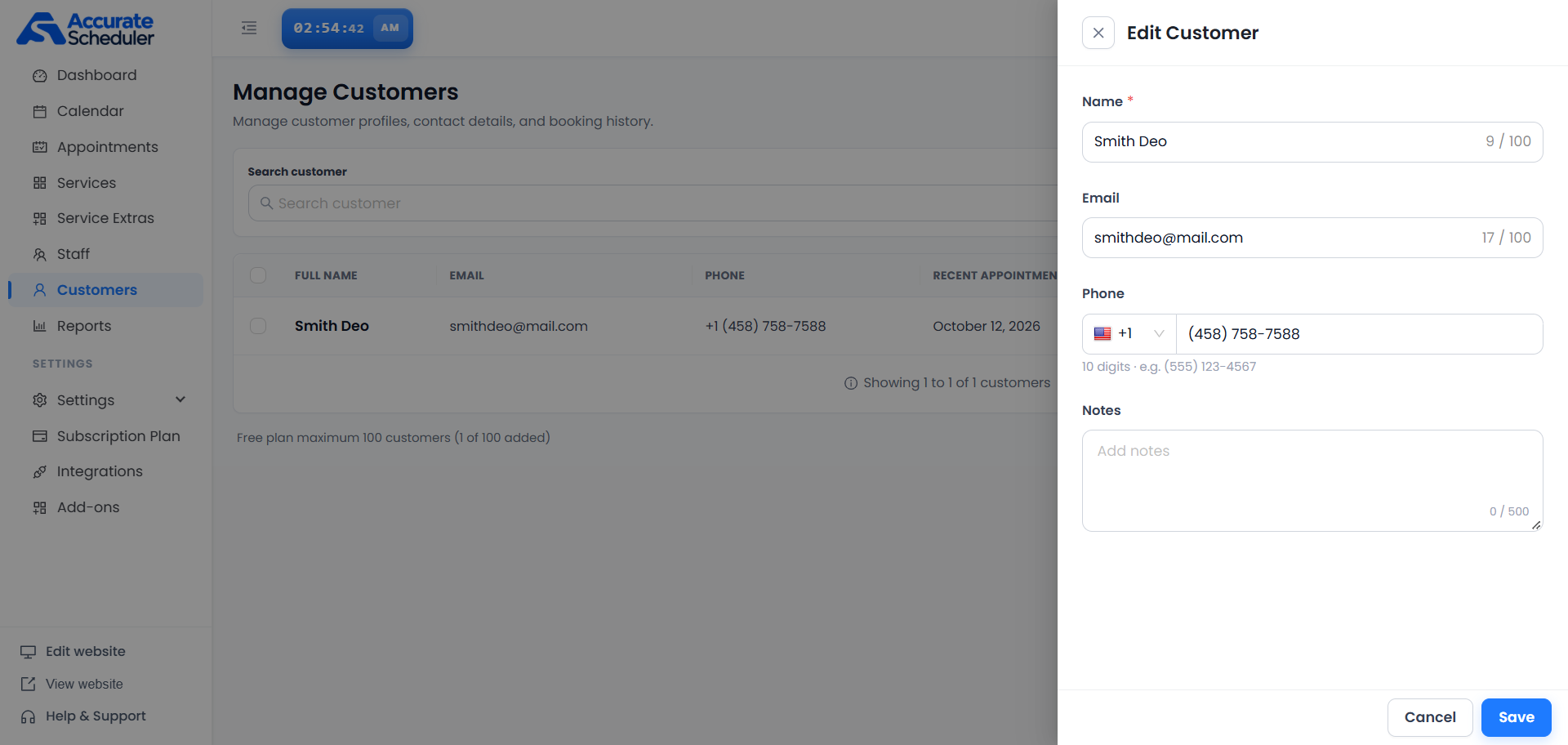
Use Cancel or the close control to leave the panel without completing the save. Review any unsaved-change prompt shown by your workspace. Do not assume profile edits change contact details already stored in existing appointment records; review the relevant appointment separately.
Import controls and deletion
The page provides Import CSV and Google Contacts controls. Review their in-app instructions and any permission request before proceeding. The supplied screenshots do not show import fields or duplicate handling, so confirm those details in the import flow before importing a large list.
Use the trash action only after checking the customer identity and any confirmation. Do not assume deleting a customer cancels appointments. The row and header checkboxes select records; review the actions your workspace offers after selection.
Troubleshooting
- Customer missing: reset the search and check other result pages.
- Cannot save: check the required Name and the displayed validation message.
- Phone rejected: review the country code and its format guidance.
- Cannot add more customers: check the capacity notice and current subscription details.
- Changes not visible: reopen the record and verify its saved values before repeating the edit.
Related: Appointments List, Add and edit an appointment and customer panel and appointment access.
Need a hand with your setup?
Tell us which step you reached and what happened. Keep passwords and client secrets out of your message.
Contact Accurate Scheduler →