
Add and edit an appointment
Updated October 10, 2026 · 4 min read
In this guide
Create a booking from the Appointments list or edit an existing record using the appointment panel. This guide follows the Add Appointment and Edit Appointment screens shown below.
Before you begin
Have the service, staff member, appointment date and customer details ready. Check staff availability and your business time zone before choosing a time. Fields marked with a red asterisk are required.
1. Open Add Appointment
Select Appointments in the left menu, then select + Add Appointment above the list.
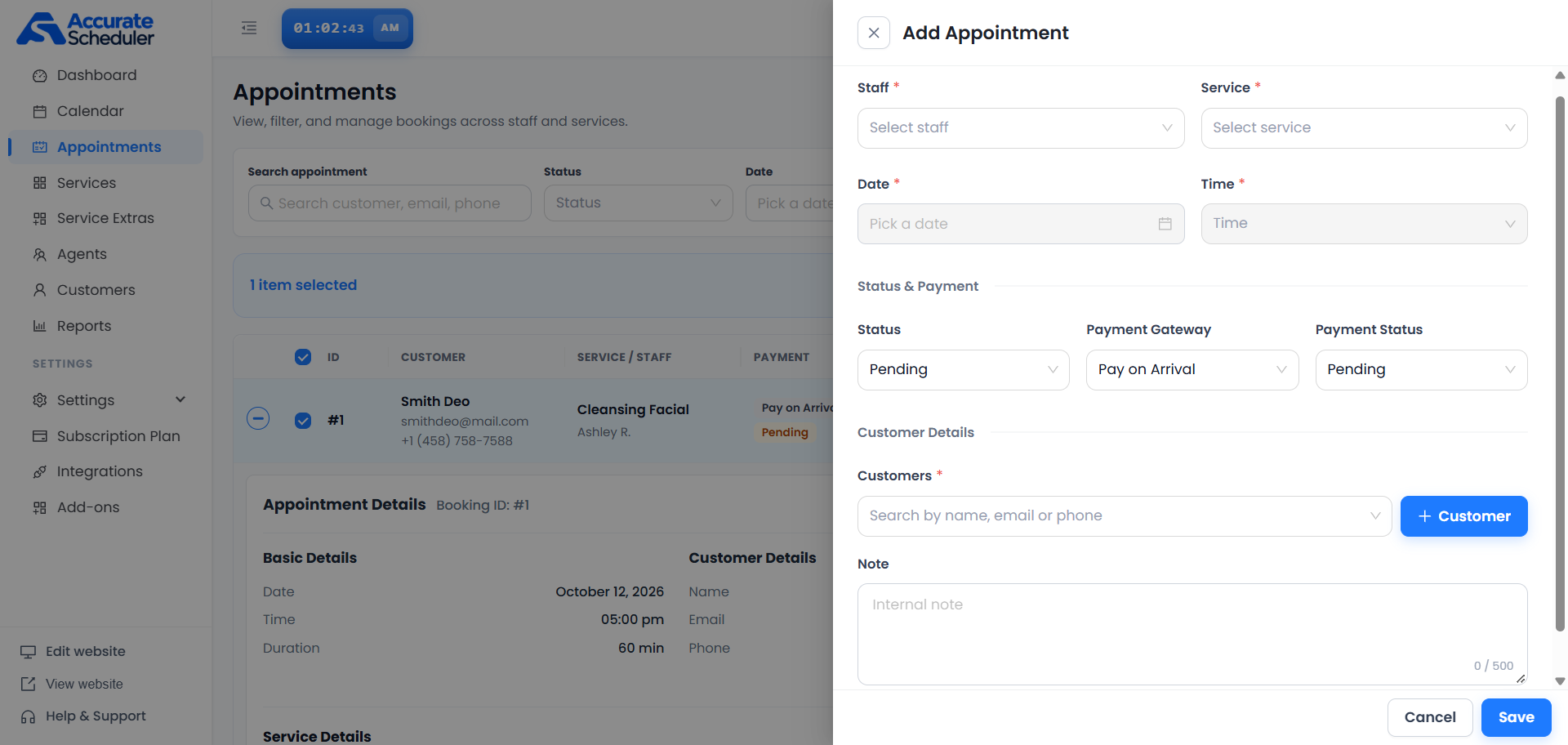
2. Choose the staff, service and time
- Select the intended person in Staff.
- Select the booking’s Service.
- Choose the Date.
- Choose the Time from the options available in your workspace.
These four fields are required. If Date or Time is unavailable, complete the staff and service selections first, then check the resulting options. Review the selected values again if you change the staff or service.
3. Review status and payment fields
- Status: the appointment’s state.
- Payment Gateway: the selected payment method or provider. The example shows Pay on Arrival.
- Payment Status: the payment state recorded for the booking.
The Add Appointment screenshot shows Pending appointment status and Pending payment status. Choose values that match the actual booking. An appointment’s approval and its payment status are separate; changing a dropdown is not proof that money was collected.
4. Select the customer and add a note
- Search the required Customers field by name, email or phone.
- Select the correct customer, checking contact details when names are similar.
- If you need a new customer, select + Customer and complete the customer controls shown in your workspace.
- Optionally enter relevant booking context in Note. The screen labels it Internal note and shows a 500-character limit.
Keep notes concise. Do not enter passwords, card numbers or unnecessary sensitive information.
5. Save the new appointment
Review the staff, service, date, time, customer and status fields, then select Save at the bottom of the panel. Check the resulting record in the Appointments list or Calendar. If an error appears, correct the identified field and check whether a record already exists before trying again.
Select Cancel or the close control if you want to leave the panel without intentionally saving the new booking.
6. Edit an existing appointment
- Find the booking in Appointments and check its ID, customer and date.
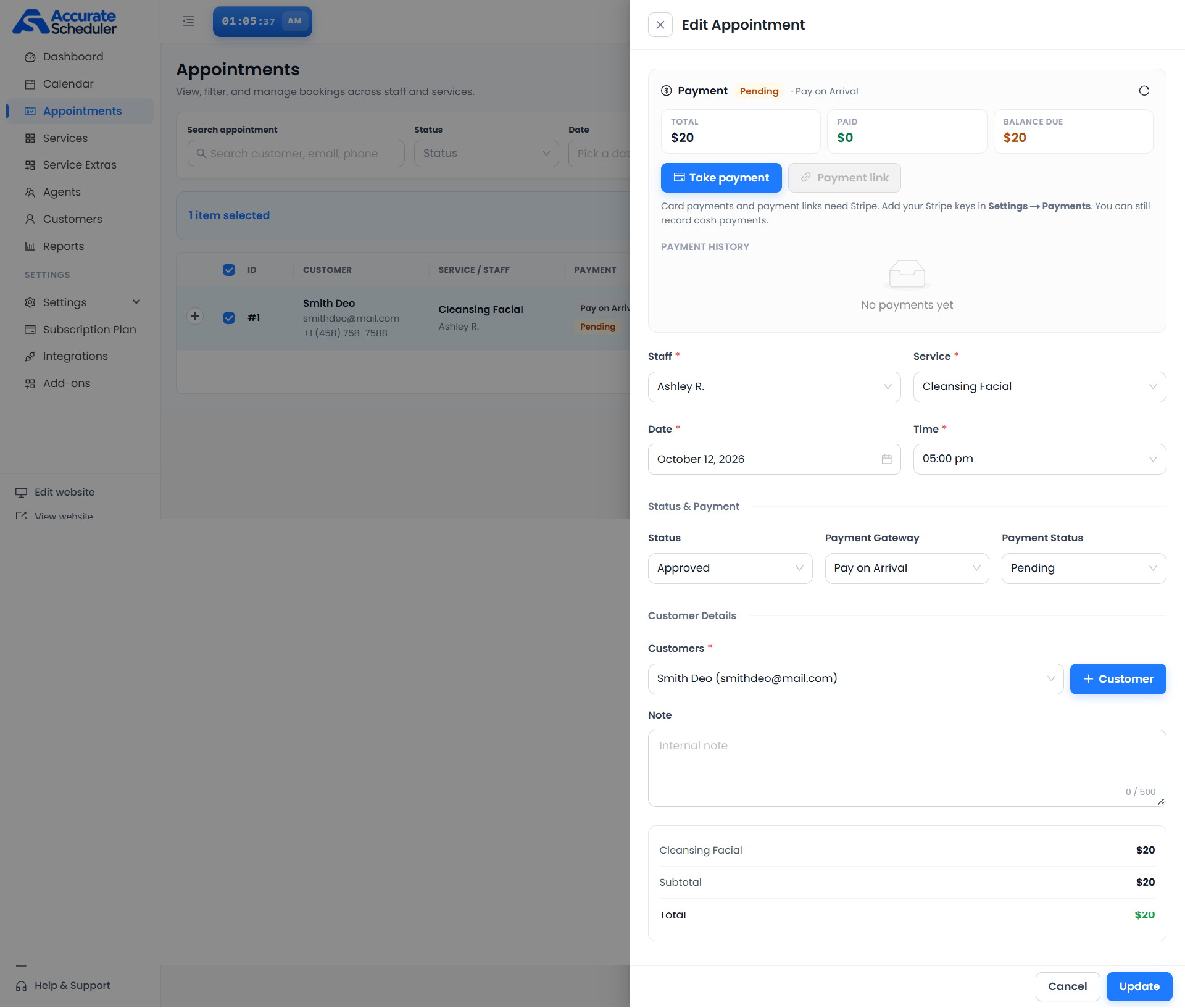
- Select the row’s pencil action to open Edit Appointment.
- Review the existing values before changing the necessary fields.
- Scroll within the panel to review Customer Details, Note and the service price summary.
- Select Update at the bottom, then reopen the booking or check the list to confirm the changes.
Understand the payment summary when editing
The payment panel displays Total, Paid, Balance Due and Payment History. In the example, the payment is Pending with Pay on Arrival, and the history says No payments yet.
Take payment and Payment link are shown in the panel. The screenshot states that card payments and payment links require Stripe configuration under Settings → Payments; it also states that cash payments can still be recorded. Configure the appropriate method before using it. The disabled Payment link in this example does not indicate that a link has been created.
Use the payment controls provided by your workspace for the actual payment process, then verify the recorded payment and balance. Do not mark a booking paid merely to clear a pending label.
If you cannot save or update
- Missing required field: review Staff, Service, Date, Time and Customers, including any visible validation message.
- No suitable time: check the chosen service, staff availability and date.
- Customer not found: try another name or contact detail, or use + Customer for a genuinely new customer.
- Payment link unavailable: review the Stripe configuration message and Settings → Payments.
- Change not visible: reopen the record and confirm its current values before repeating the update.
See the Appointments List guide for filters, status menus and bulk actions, or the Calendar guide to review the booking’s scheduled time.
Need a hand with your setup?
Tell us which step you reached and what happened. Keep passwords and client secrets out of your message.
Contact Accurate Scheduler →