
Service extras and rules
Updated October 10, 2026 · 3 min read
In this guide
Use Service Extras to manage additions customers can choose alongside a service. This guide covers the extras list and the Add Extra and Edit Extra panels.
Before you begin
Prepare a clear name, description, price, any extra duration and quantity limits. Decide which service combinations you intend to offer, then test those combinations in the booking flow.
Review the Service Extras list
Open Service Extras in the left menu and select the Service Extras tab.
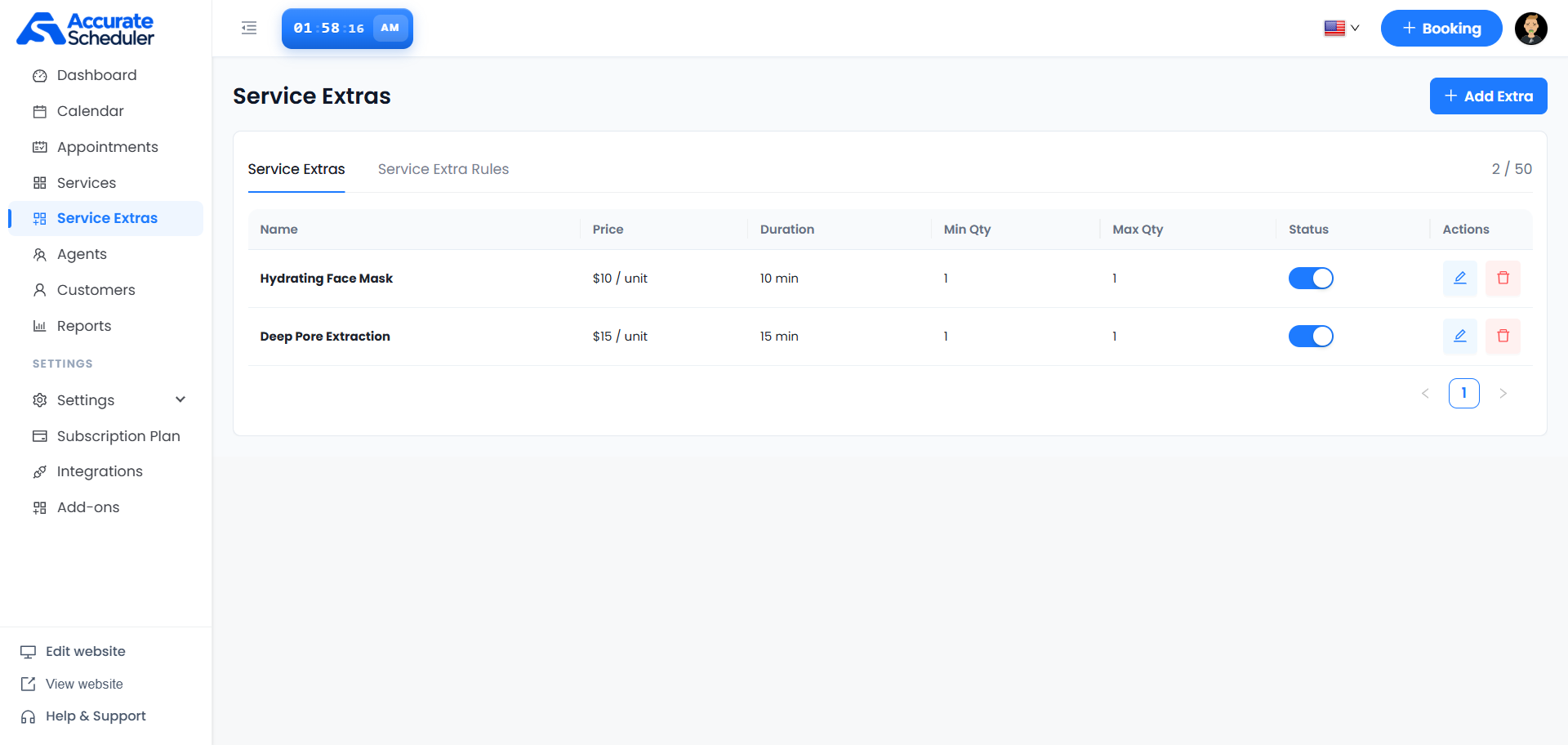
The example contains Hydrating Face Mask at $10 per unit with 10 minutes, and Deep Pore Extraction at $15 per unit with 15 minutes. Both have minimum and maximum quantities of 1. These are example settings, not required values for your business.
Use the page controls below the table to move through results. The displayed 2 / 50 counter belongs to this example workspace; check your own workspace for its current limit.
Add an extra
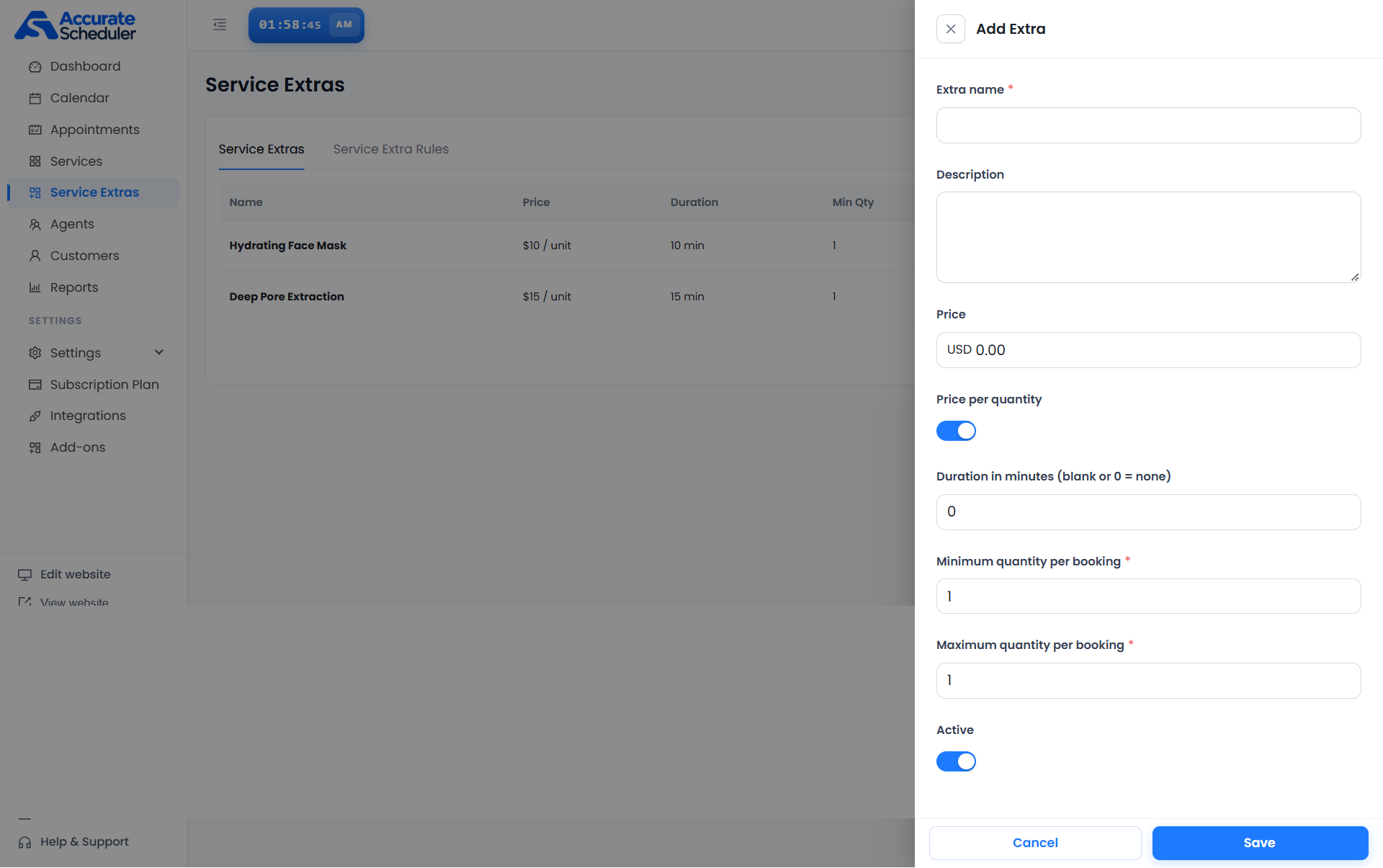
- Select + Add Extra.
- Enter the required Extra name and a useful Description.
- Enter the Price in the displayed currency.
- Review Price per quantity. Enable it when the price should apply per selected unit. Check the final booking total when testing quantities.
- Set Duration in minutes. The field explicitly states that blank or 0 means none.
- Enter the required Minimum quantity per booking and Maximum quantity per booking. Keep the minimum no greater than the maximum.
- Review the Active switch, then select Save.
- Confirm the new row and its values in the list.
Edit an existing extra
- Select the pencil action beside the extra in the list.
- Check the name to confirm you opened the correct record.
- Update only the fields you intend to change.
- Select Save and verify the resulting list values.
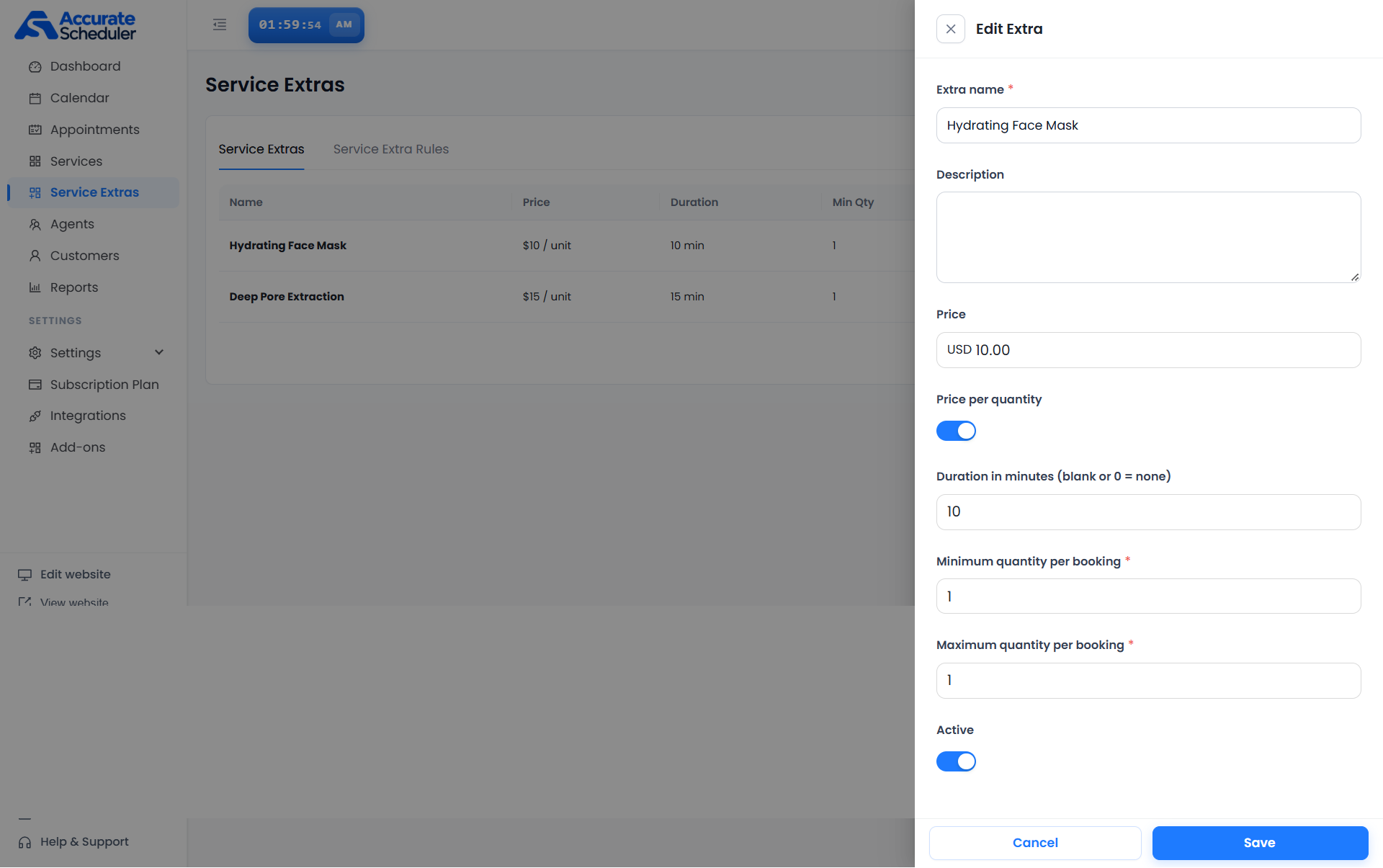
Use Cancel or the close control to leave the panel without completing the save. Review any unsaved-change prompt shown by your workspace.
Manage status and deletion
The list provides a Status switch for each extra and a trash action. Review the extra identity and any confirmation before deleting. Do not assume editing, disabling or deleting an extra changes details already saved in existing appointments.
Review service extra rules and test bookings
The adjacent Service Extra Rules tab is separate from the extras list. Review the rule controls available in your workspace before deciding where an extra should apply. Creating an extra alone should not be treated as confirmation that it is offered for every service.
- Explain what each extra includes and whether your configured booking flow makes it optional or required.
- Test a booking with and without the extra.
- Test the smallest and largest permitted quantities and verify the price.
- Check the resulting duration, appointment details and availability.
- If the rule controls cannot express your intended condition, use a clearly described separate service or ask support before offering an ambiguous booking option.
Troubleshooting
- Cannot save: check the required name and quantity fields and the visible validation message.
- Unexpected total: review Price, Price per quantity and the selected quantity, then compare the booking summary.
- Unexpected duration: check the duration in minutes; blank or 0 means no extra duration in this field.
- Extra not offered: check its active state and the relevant Service Extra Rules configuration.
- Changes not visible: reopen the extra and verify the current saved values before repeating the edit.
Continue with the Services List guide or Add and edit a service.
Need a hand with your setup?
Tell us which step you reached and what happened. Keep passwords and client secrets out of your message.
Contact Accurate Scheduler →