
Price Rules
Updated October 16, 2026 · 7 min read
In this guide
- Activate Price Rules
- Open Price Rules in a service
- Create a Basic pricing rule
- Create an Advanced pricing rule
- Manage and save pricing rules
- How prices appear during customer booking
- Which rule takes priority?
- Understand time-range boundaries
- Quantity, extras and coupons
- Deactivate Price Rules
- Troubleshooting
Price Rules lets you charge different amounts for the same service based on the selected booking day, time, date or staff member. For example, a Cleansing Facial can have its regular price on weekdays and a higher price on weekends. The matching price is automatically calculated when customers select their appointment.
Included in Free and all paid plans. Price Rules is an add-on configured for each service. It sets a replacement service price; it does not add a surcharge or calculate a percentage discount.
Activate Price Rules
- Sign in to your Accurate Scheduler dashboard.
- Open Add-ons from the sidebar.
- Find Price Rules and click Activate.
You can deactivate the add-on when you no longer need rule-based pricing. The four screenshots below show the service editor; an activation-screen screenshot is not yet available.
Open Price Rules in a service
- Go to Services.
- Edit an existing service or create a new one.
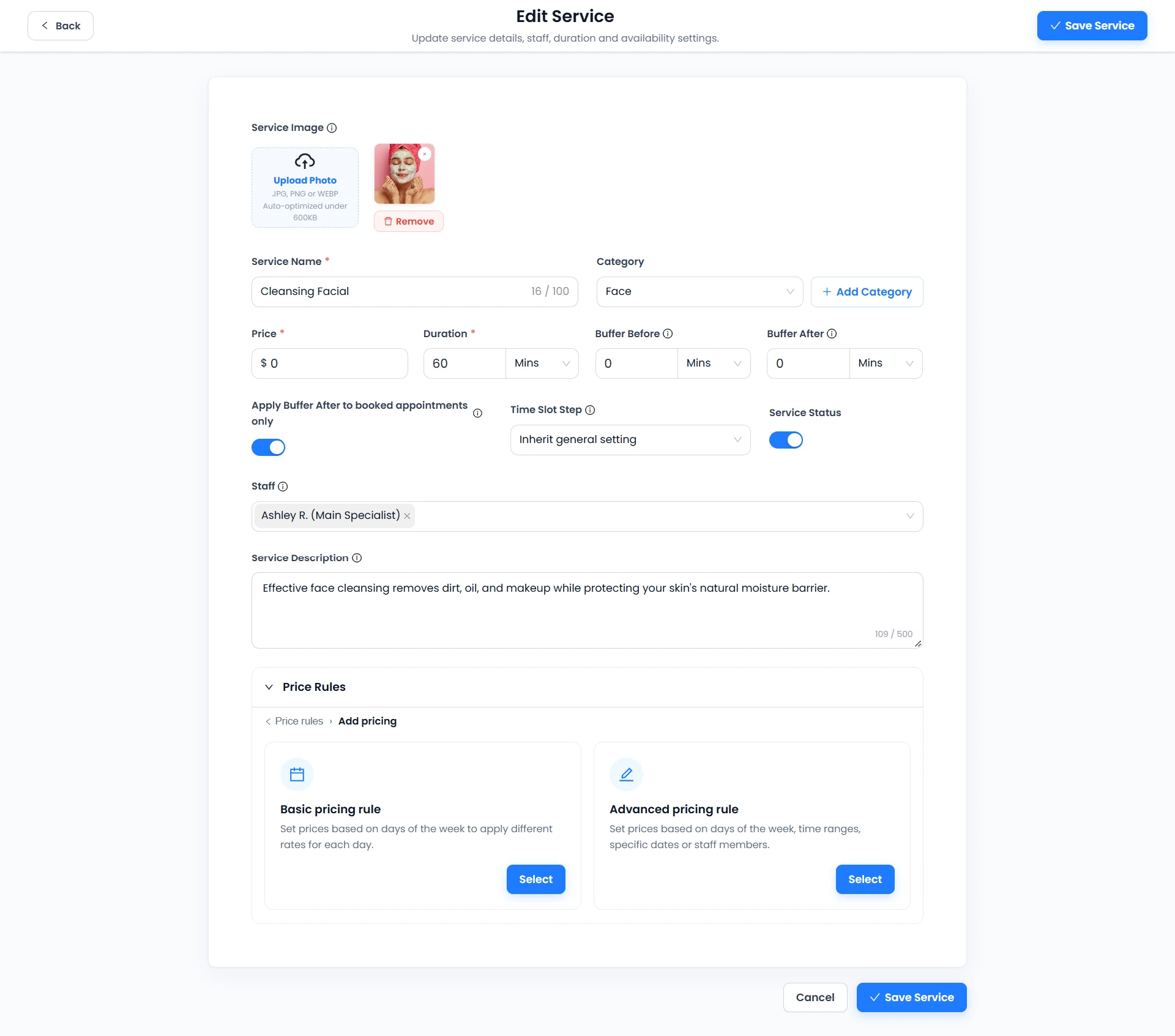
- Scroll to Price Rules and click Add pricing rule.
- Choose Basic pricing rule or Advanced pricing rule.
Keep a normal service price for bookings that do not match any active rule. Start with creating or editing a service if you have not set up the service yet.
Create a Basic pricing rule
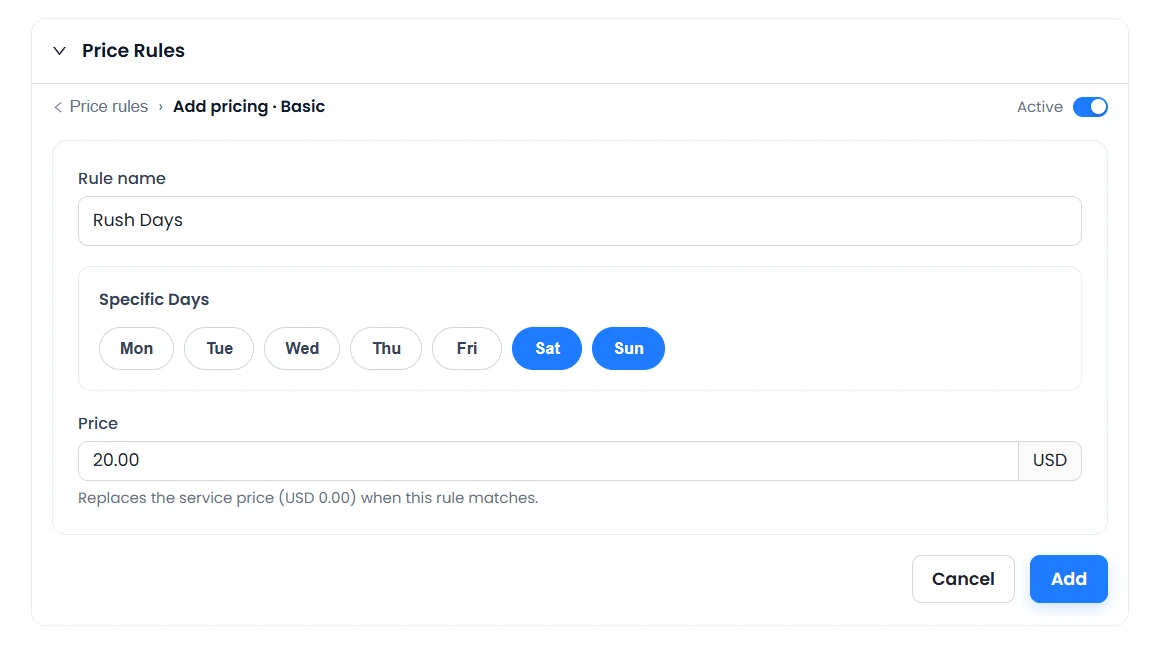
Use a Basic rule to apply a different price on selected weekdays. For example, name a rule Weekend Rate, select Saturday and Sunday, and enter USD 20. This is an example amount, not a suggested rate or promotional offer.
- Choose Basic pricing rule.
- Enter a descriptive rule name and leave the rule active when it should apply.
- Select one or more weekdays.
- Enter the replacement service price in your workspace currency.
- Click Add.
- Click Save Service to persist the change.
The entered amount replaces the normal service price when the rule matches. A USD 20 rule on a USD 15 service produces a base service price of USD 20, not USD 35. The supplied screenshot uses the name “Rush Days” and selects Saturday and Sunday.
Create an Advanced pricing rule
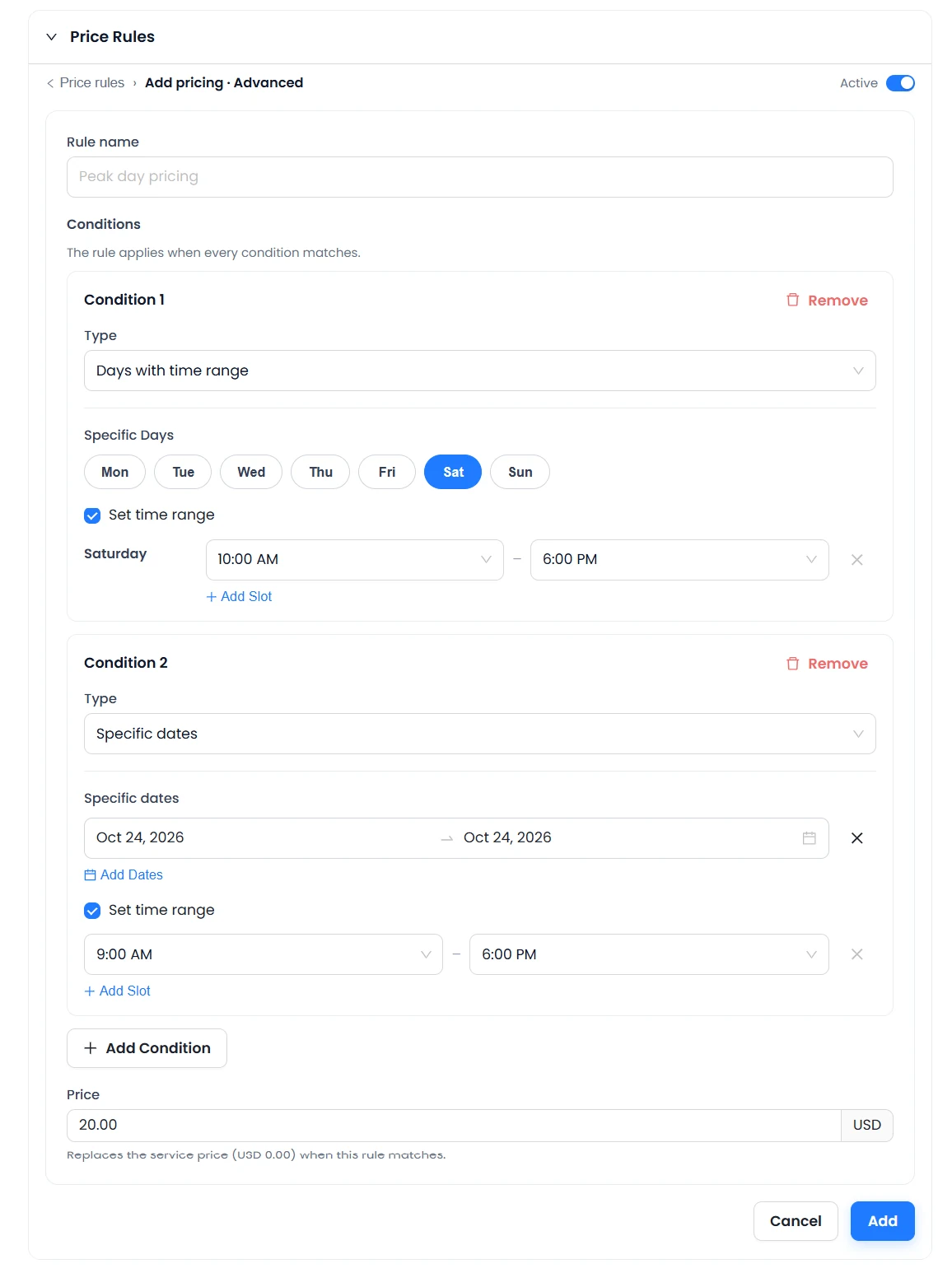
Advanced rules support one or more conditions. Enter a rule name, add the conditions you need, set the replacement price and click Add. Finish with Save Service.
Days with time range
Select weekdays. Enable Set time range when the price should apply only during certain hours, and use Add Slot for additional time slots. For example, Saturday from 10:00 AM to 6:00 PM.
Specific dates
Select an individual date or a date range. You can add dates and optionally set time slots. For example, October 24, 2026, from 9:00 AM to 6:00 PM. These dates illustrate the controls; update them for your intended booking period.
Staff member
Select the staff members whose bookings should use this rule. The staff condition matches when one of those selected members handles the booking. Staff-specific pricing is described in the supplied feature specification; the attached Advanced screenshot shows day/time and date conditions rather than the staff selector.
Every condition must match
Conditions use AND behavior. A Saturday time condition plus a specific-date condition applies only when both match. In the screenshot, Saturday 10:00 AM–6:00 PM intersects with October 24, 2026, 9:00 AM–6:00 PM. The rule therefore applies on that Saturday from 10:00 AM up to, but not including, 6:00 PM. A different Saturday does not match the date condition. Adding a staff condition narrows the rule further.
Manage and save pricing rules
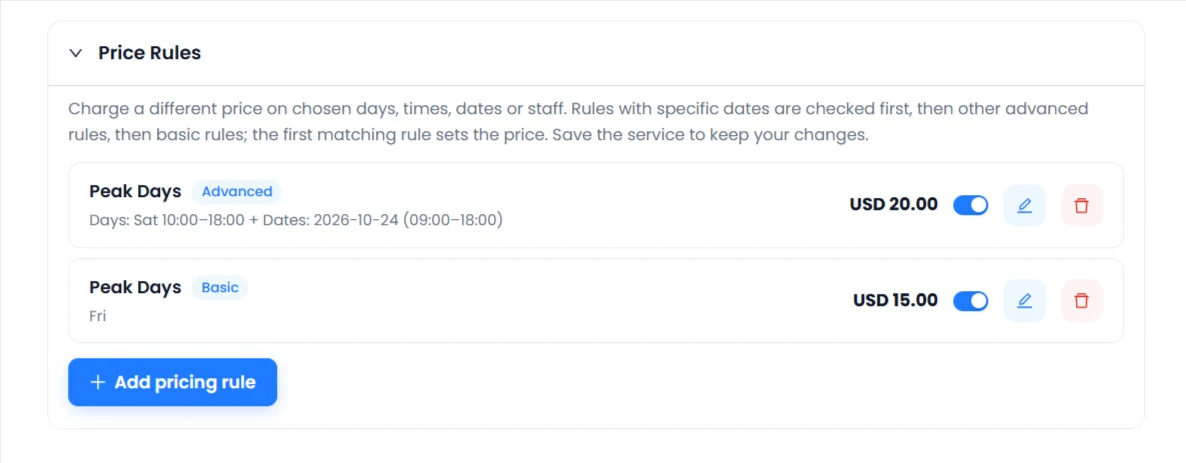
The service editor lists each rule’s name, type, conditions, replacement price and active status. Use the edit button to change it, the switch to activate or deactivate it, and the delete button to remove it. Use Add pricing rule for another rule.
Click Save Service after adding, editing, deleting or changing a rule’s status. Adding a rule to the editor alone does not persist the service changes. Turning an individual rule off preserves it for later use.
How prices appear during customer booking
The booking flow checks rules against the selected service, appointment date and start time, and staff member where applicable. Your configured service determines which choices customers see and their order.
- The customer chooses a service.
- They choose the appointment date and time, and staff where applicable.
- Accurate Scheduler checks the applicable active Price Rules.
- The matching replacement price is displayed and used for the booking.
A matching price is used in available time slots when it differs from the normal price, the booking summary, booking total and online payment calculation. If no rule matches, the normal service price applies. Test both a matching and a non-matching appointment before sharing the service.
Which rule takes priority?
- Advanced rules with specific dates are checked first.
- Other Advanced rules are checked next.
- Basic rules are checked last.
Within a priority group, the first matching rule higher in the list wins. Matching prices are not added together. Do not assume a rule wins because it has the highest or lowest price.
For example, a Basic Saturday rule sets USD 20, while an Advanced rule for October 24, 2026, sets USD 25. A matching appointment on that date uses USD 25. If two specific-date Advanced rules both match, the one higher in the list wins. A rule containing dates still needs all its other conditions to match.
Understand time-range boundaries
A time range includes its start and excludes its end. A 9:00 AM–12:00 PM condition matches appointments starting at 9:00 AM through 11:59 AM, where those start times are available. An appointment starting exactly at noon does not match that range. Price Rules does not create appointment availability; the service duration, staff hours and other booking settings still determine available slots.
Quantity, extras and coupons
The supplied product specification defines this calculation sequence:
- Replace the base service price with the matching Price Rules price, or retain the normal price when no rule matches.
- With Multiple Quantity, multiply that price by quantity when Price Per Person is enabled.
- Add applicable Service Extras.
- Apply eligible Coupons to the calculated total under their configured conditions.
For example, a USD 20 replacement price with two people and Price Per Person enabled gives USD 40 before applicable extras and coupons. This is an illustrative calculation, not a captured customer transaction. Verify the complete configuration in your workspace, especially if you combine add-ons.
See Multiple Quantity, Service Extras and rules, Coupons and payment setup.
Deactivate Price Rules
Switch off an individual rule to retain it without applying it, then save the service. To stop using pricing rules across services, deactivate Price Rules in Add-ons. Services return to their normal pricing. The supplied specification does not establish retroactive changes to existing bookings; do not assume that deactivation rewrites earlier booking or payment records.
Troubleshooting
Why is my custom price not appearing?
Check that the add-on and rule are active, the service was saved, and the chosen day, date, start time and staff satisfy every condition. Check whether a higher-priority rule matches first.
Why is the normal price being charged?
No active rule may match the current selection. Check the condition boundaries, including end times, selected dates and staff. Try a clearly matching appointment and compare the booking summary.
Why does another rule take priority?
Specific-date Advanced rules come before other Advanced rules, then Basic rules. Within a group, the first matching rule higher in the list wins.
Why is my rule not saved?
Click Add or complete the rule edit, then click Save Service. Reopen the service to confirm that the rule is present before testing.
Does the price apply to all staff?
A rule with a staff condition applies only to the selected staff members, provided its other conditions match. Without a staff condition, staff does not restrict that rule; the remaining conditions still apply.
What happens if I deactivate the add-on?
Services use their normal prices rather than Price Rules. For a temporary exception on one service, switch off the individual rule and save instead.
Return to Add-ons or service management.
Need a hand with your setup?
Tell us which step you reached and what happened. Keep passwords and client secrets out of your message.
Contact Accurate Scheduler →