
Google Calendar integration
Updated October 10, 2026 · 6 min read
In this guide
- Step 1: Open Google Calendar integration
- Step 2: Select or create a Google Cloud project
- Step 3: Enable the Google Calendar API
- Step 4: Configure OAuth consent and start an OAuth client
- Step 5: Create a Web application client with the exact callback
- Step 6: Save the credentials in Accurate Scheduler
- Step 7: Connect each staff member and select a calendar
- Step 8: Customize events and review advanced options
- Step 9: Verify appointment sync and busy-time blocking
- Troubleshoot the connection
Connect each staff member’s Google Calendar to Accurate Scheduler so their appointments can appear in the selected calendar and busy Google events can block booking times. First configure Google Cloud credentials, then save them in Accurate Scheduler and connect staff.
The guide includes your Accurate Scheduler screen and Google interface reference images. Some references show an older Google Cloud layout; adapted images are labeled. Use the Redirect URL displayed in your own workspace.
Step 1: Open Google Calendar integration
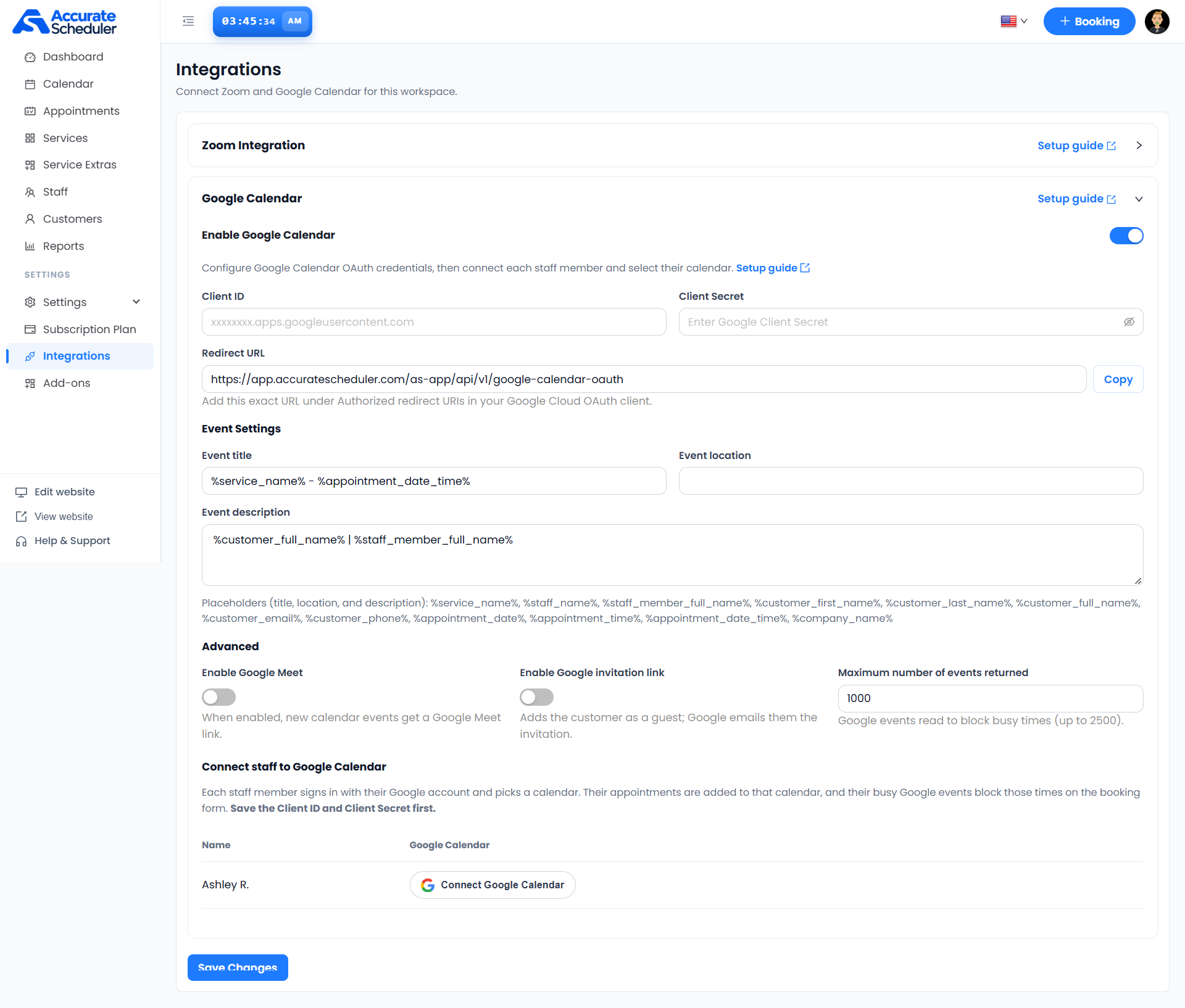
In Accurate Scheduler, select Integrations and expand Google Calendar. Locate Enable Google Calendar, Client ID, Client Secret and Redirect URL. Keep this page open while preparing the Google Cloud application in another tab.
Select Copy beside Redirect URL. You will paste that exact value into the OAuth client configuration in step 5. The supplied screen displays https://app.accuratescheduler.com/as-app/api/v1/google-calendar-oauth; always confirm the value in your current workspace.
Step 2: Select or create a Google Cloud project
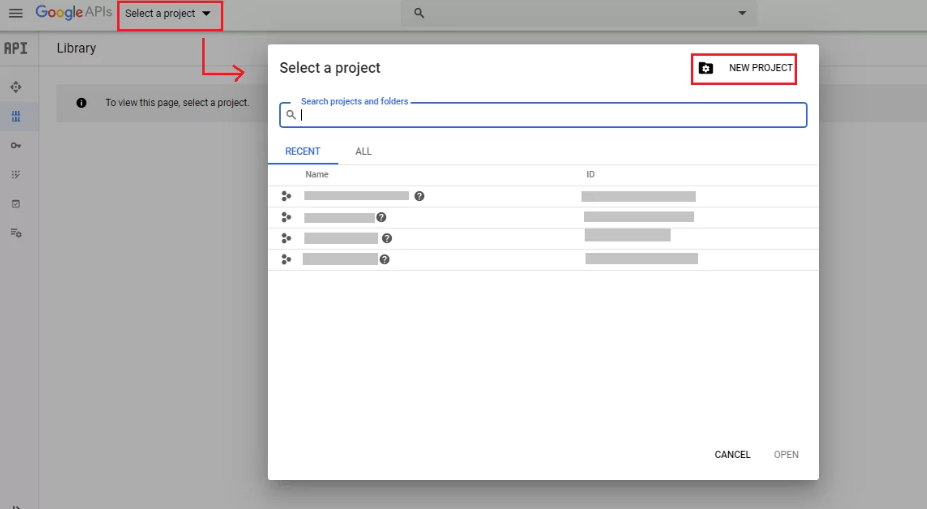
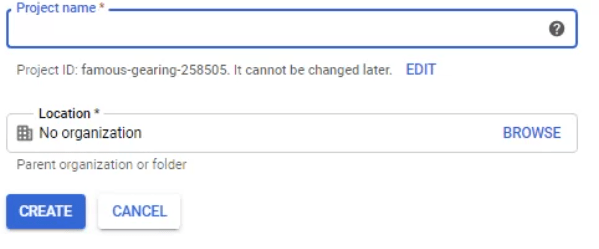
Sign in to the Google Cloud Console. Open the project selector and choose the project intended for this integration. If you need a new project, select New Project, give it a recognizable name such as Accurate Scheduler Calendar, review the organization or location, and create it.
Keep the same project selected while enabling the Calendar API and creating OAuth credentials. The screenshots show the project picker and a new-project form; their example project identifiers are not values to copy into Accurate Scheduler.
Step 3: Enable the Google Calendar API
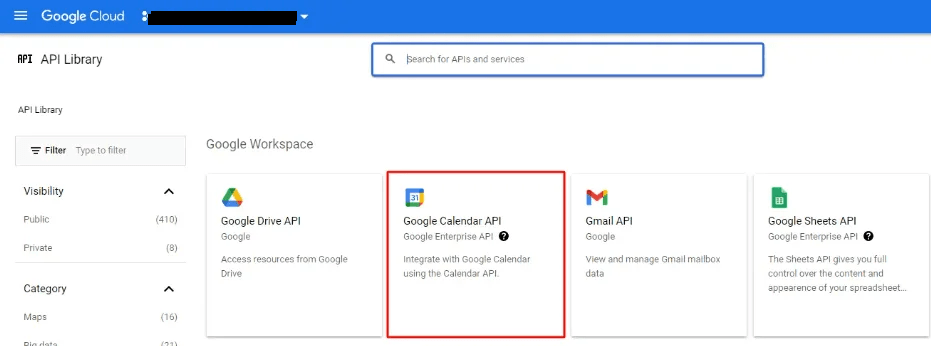
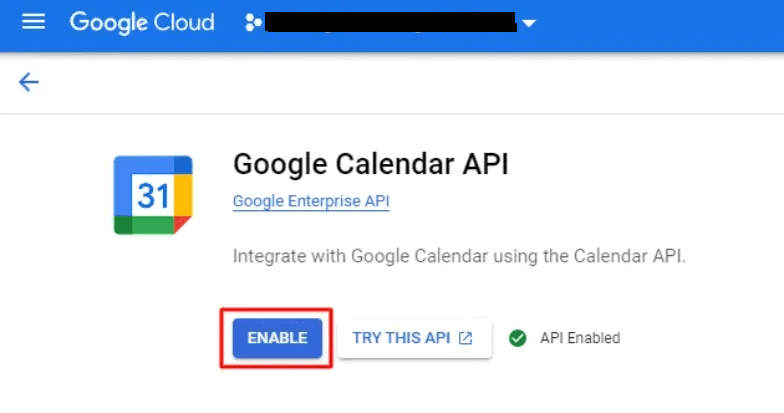
In the selected project, open APIs & Services → Library. Search for Google Calendar API and open its entry. Enable it if it is not already enabled.
Verify that the API belongs to the project you chose. Creating credentials in a different project does not complete this project’s setup. The reference images identify the Calendar API library entry and its Enable control.
Step 4: Configure OAuth consent and start an OAuth client
Configure Google Auth Platform → Branding, including the application name, support email and contact details. Review Audience and Data Access. For an External application in testing, add the staff accounts that will test the connection as test users. Follow the official consent configuration guide for your audience and required permissions.
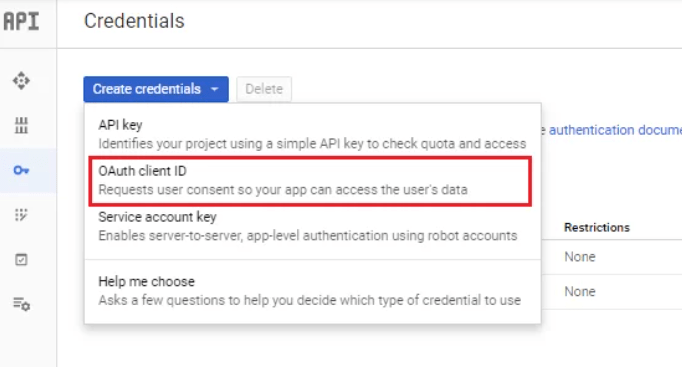
Then open Google Auth Platform → Clients → Create Client. Older consoles expose APIs & Services → Credentials → Create credentials → OAuth client ID, as in the reference image below. It illustrates the client-creation entry point, not the consent-screen fields.
Step 5: Create a Web application client with the exact callback
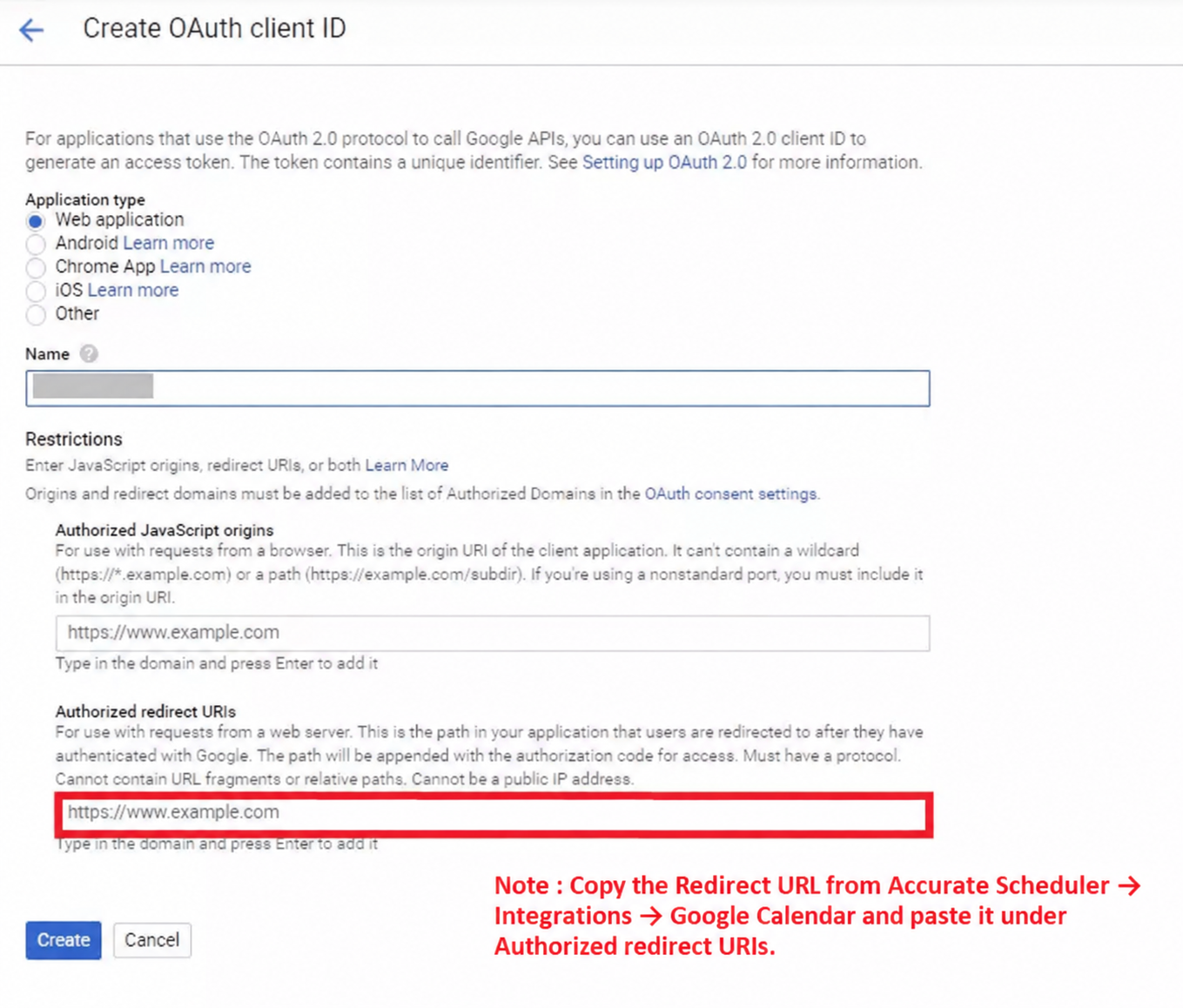
Choose Web application as the application type and name the client Accurate Scheduler Calendar. Under Authorized redirect URIs, add the exact Redirect URL copied from Accurate Scheduler in step 1, then create the client.
An origin identifies a scheme, host and optional port; a redirect URI includes the callback path. Do not put only a homepage or domain into Authorized redirect URIs. Preserve the protocol, path, spelling and trailing-slash behavior of the displayed callback. See Google’s credential instructions and server-side OAuth guide.
Step 6: Save the credentials in Accurate Scheduler
Copy the Client ID and Client Secret from the OAuth client you created. Return to Accurate Scheduler, turn on Enable Google Calendar, paste both values into the matching fields, and select Save Changes.
The Client ID field shows the expected .apps.googleusercontent.com format. Do not substitute a project name, project ID or API key. Keep the secret private. The screen specifically instructs you to save Client ID and Client Secret before connecting staff.
Step 7: Connect each staff member and select a calendar
Under Connect staff to Google Calendar, find the intended staff member and select Connect Google Calendar. Have that staff member sign in to their intended Google account, review the requested calendar permissions and complete the connection. Select the calendar offered by the connection flow.
Verify the account and destination calendar before using it for bookings. Repeat for each staff member who needs sync. The screen explains that appointments are added to the selected calendar and busy Google events block those times on the booking form. Saving workspace credentials alone does not connect every staff member.
Step 8: Customize events and review advanced options
Review Event title, Event location and Event description. The example title is %service_name% - %appointment_date_time% and the description is %customer_full_name% | %staff_member_full_name%. Enter an appropriate location if needed; this Accurate Scheduler screen shows an input field.
Use the exact tokens offered below the fields. The screen lists %service_name%, %staff_name%, %staff_member_full_name%, %customer_first_name%, %customer_last_name%, %customer_full_name%, %customer_email%, %customer_phone%, %appointment_date%, %appointment_time%, %appointment_date_time% and %company_name%.
- Enable Google Meet: the screen states that new calendar events get a Google Meet link when enabled.
- Enable Google invitation link: adds the customer as a guest so Google emails the invitation. Review this separately from Accurate Scheduler notification templates.
- Maximum number of events returned: the example is 1,000 and the screen states a maximum of 2,500 events read to block busy times. This is an event-reading limit, not an appointment capacity limit.
Both optional switches are off in the supplied screenshot. Choose the options needed for your business, save, and check a new test appointment.
Step 9: Verify appointment sync and busy-time blocking
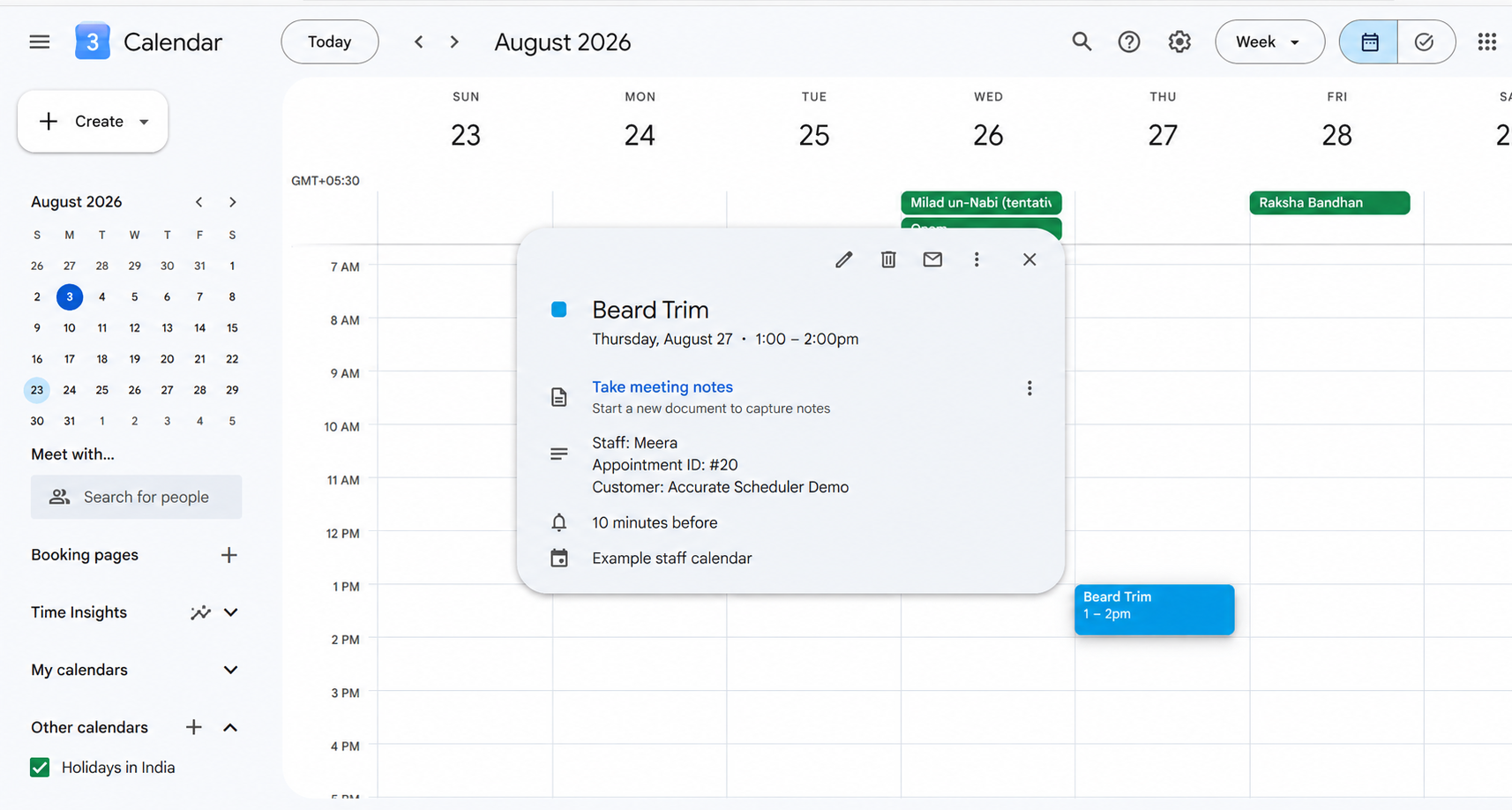
Create an approved test appointment for a connected staff member. Open the selected Google Calendar and inspect the event’s service title, date, time, duration, location and description. Compare timezones in both systems. The example below shows how an appointment event can appear; it is a reference, not proof of a connection to your account.
Next, add a Busy event to the connected calendar during an otherwise available staff shift and check whether that time is blocked on the booking form. Test an appointment update and cancellation too, inspecting the result instead of assuming that every lifecycle change syncs automatically. If enabled, check the Meet link and customer invitation separately.
Troubleshoot the connection
- redirect_uri_mismatch: compare the authorized redirect URI with the exact Redirect URL shown in Accurate Scheduler. Check the OAuth client associated with the saved Client ID.
- Google sign-in is unavailable: review the OAuth audience, test-user access and organization restrictions.
- No calendars or no event: confirm saved credentials, enabled Calendar API, staff authorization, selected calendar and the test appointment’s status.
- Busy time remains bookable: check the calendar selected for that staff member, event Busy/Free setting, timezone and event-reading limit.
- No Meet link or invitation: inspect the corresponding Advanced switch and a newly created event.
Related: Manage Staff, Appointments List, Notifications and Google Meet appointments.
Need a hand with your setup?
Tell us which step you reached and what happened. Keep passwords and client secrets out of your message.
Contact Accurate Scheduler →