You can accept appointment booking without a website by using a hosted booking page. Set up your services, staff availability and customer instructions, then share the page’s public link. Customers visit that page to choose an appointment instead of waiting for you to build a separate business website.
This seven-step guide is for salons, consultants, tutors and home-service businesses in the US, UK and Europe. Booking without a website still needs a clear customer-facing page and an accurate schedule. It does not mean appointments happen without an online destination, a provider account or appropriate business information.
1. Understand booking without a website
A hosted booking page is provided by the scheduling service. A separate website is a site you build or maintain independently, often with its own pages, hosting and domain. An embedded booking widget is another option, but it needs an existing page on which to place the form.
If you do not have a website, begin with the hosted page rather than trying to install a widget. You can add a separate website later if you need more extensive content, resources or other functions. Keep the scheduling workflow useful on its own.
| Approach | Separate website required? | What the customer uses |
|---|---|---|
| Hosted booking page | No | A public page supplied by the scheduling service |
| Booking link in an email or profile | No | A link leading to the hosted booking page |
| Embedded widget | Yes, an existing page | A booking interface placed within that page |
2. Start booking without a website with one clear service
Choose a service customers can understand immediately. A salon might begin with a haircut consultation, a consultant with a discovery call, or a home-service business with an estimate visit. Explain the duration, price and delivery format rather than leaving customers to ask those questions by message.
Accurate Scheduler supports unlimited services and staff on Free and paid plans, subject to appointment allowances. Start with the service setup guide. A small, accurate menu is a better first test than many nearly identical services.
Booking without a website works best when the service page answers basic questions before the customer chooses a time. Distinguish a free enquiry from a paid appointment and state what is included.
3. Set staff availability and the business timezone
Assign the staff who deliver the service and review their working hours, holidays and special days. Test an ordinary appointment and one near the end of the working day. Adding opening hours to a page is not a substitute for checking actual staff availability.
For a local business, explain where customers attend and which location’s time applies. For online consultations serving US and European clients, test the timezone used by the booking page, summary and confirmation. Avoid a numeric date that can be read in two ways without context.
Use the staff availability guide and timezone checklist. Staff Panel access is paid-only, while unlimited staff, shifts and holidays are available on every plan.
4. Make the hosted page look like your business
Booking without a website does not require an anonymous-looking form. In Accurate Scheduler, open Edit website to review the business logo, contact details, page sections and available appearance settings. Choose a template available to your plan, save changes and inspect the customer view.
Include your actual business name and a working contact route. Add an address when customers visit that location, or explain the remote service format when they do not. Do not add an office in another country merely to look local to US or European customers.
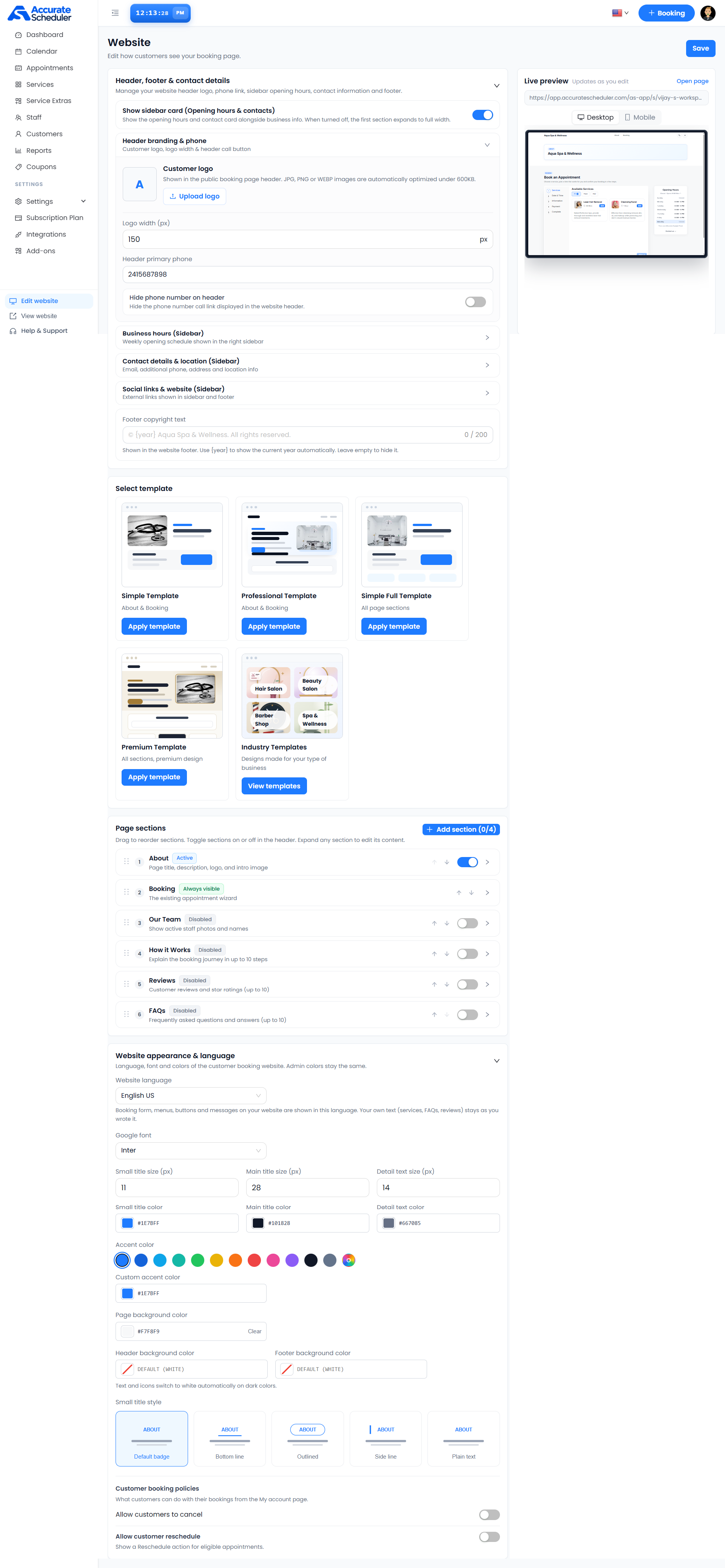
Follow the Website and booking-page editor guide. The displayed opening-hours card describes the business; service availability still needs its own test.
5. Check the form, payments and confirmation
Ask only for information needed to arrange or prepare for the appointment. Custom fields are included in Free and paid plans. Review the booking-form checklist before adding extra required questions.
If the service is paid, connect your own eligible payment-provider account and verify the supported payment flow. Stripe and PayPal integrations are included in Free and paid plans. Other integrations and features can require a paid plan, and provider fees remain separate.
Booking without a website does not remove currency, payment-account or regional eligibility requirements. Inspect the appointment and provider transaction rather than assuming a completed form proves successful payment. Follow the payment setup guide.
6. Find and test the public booking link
Use the customer-facing URL supplied for your workspace. Do not copy an admin dashboard address or an editor preview and send it to customers. Open the intended public page from a browser where you are not signed in as the administrator.
For booking without a website, this link becomes the route you share in appropriate profiles, emails and printed material. Test it from a phone and verify the service menu, available times and next steps. Keep the destination stable where possible so customers do not encounter an old page.
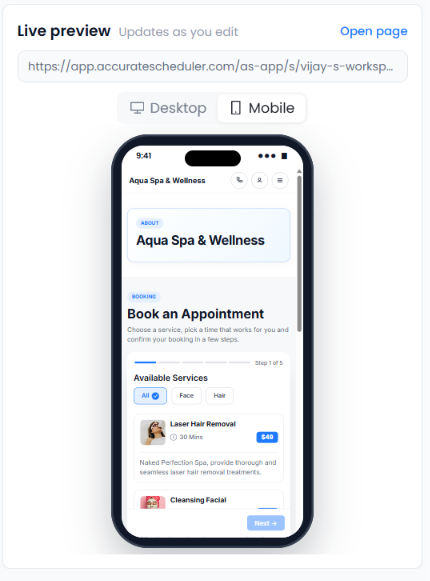
Explore the hosted booking demos to see the customer experience. For distribution ideas, use the appointment booking link guide.
7. Compare hosted booking pages before committing
SuperSaaS documents sharing a schedule link through emails, business profiles and printed material. Picktime describes a customizable booking page with a shareable link. Hosted booking is an established approach, so compare the actual journey and plan requirements rather than treating the lack of a separate website as a unique feature.
For Accurate Scheduler, verify your services, appointment allowance, required integrations and page appearance. The Free plan is listed with 60 appointments and up to 100 customers; its allowance is not labeled monthly. Paid appointment capacity depends on the selected plan. See the current pricing page.
Finish a complete test before promoting the link. Check a received confirmation and the supported cancellation or rescheduling flow. Follow the test-booking checklist. Appointment booking without a website can be a practical starting point, but it does not guarantee visitors, Google rankings or sales.