
An appointment booking link gives customers a direct route to your hosted booking page. You can share it without owning a separate website: use a suitable business profile, an email, a permitted customer conversation or printed material. The important step is making the destination clear and checking that the customer can actually complete a booking.
This guide covers nine practical placements for US, UK and European service businesses. An appointment booking link does not replace clear service descriptions, accurate availability or appropriate communication practices. Choose a small number of channels your customers already use and test them before expanding.
Prepare the appointment booking link before sharing it
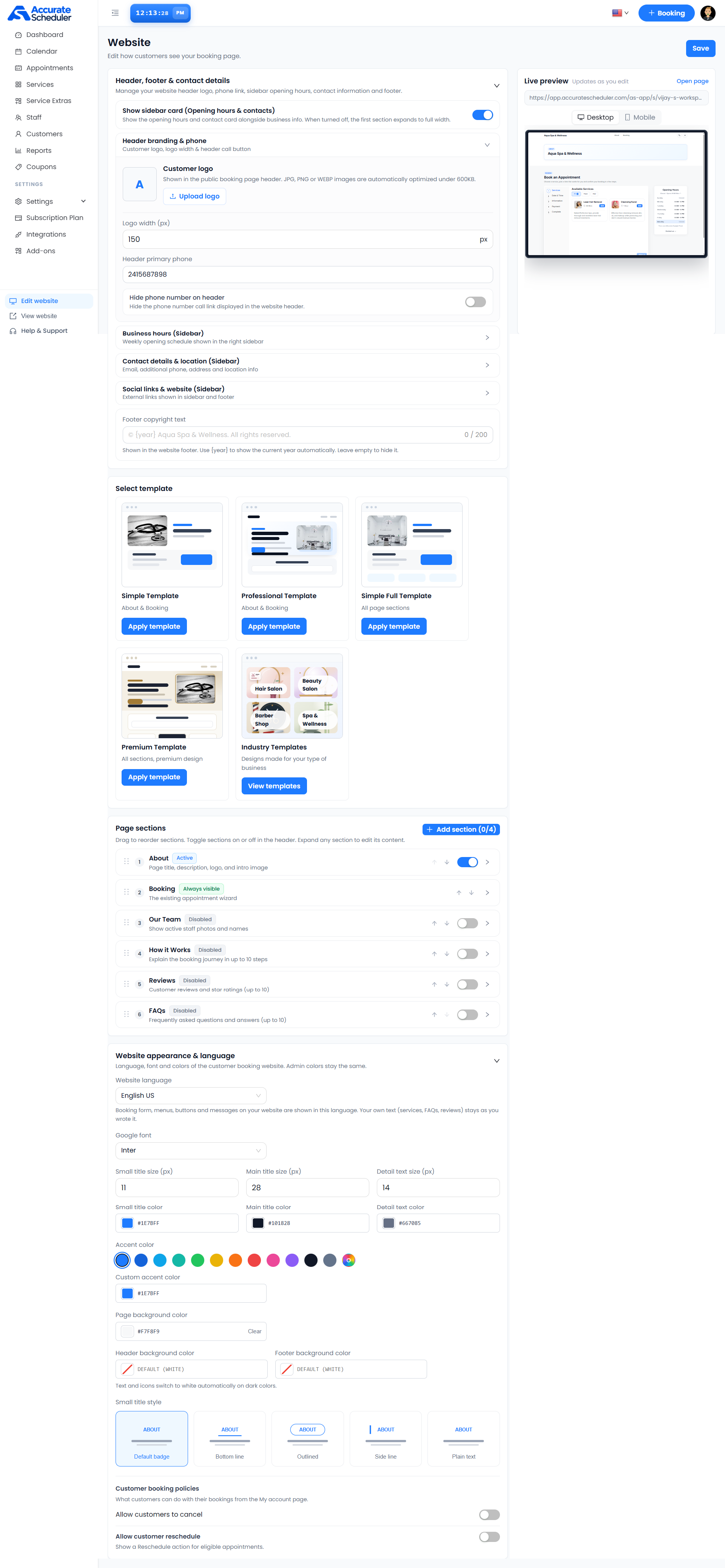
Copy the public customer-facing URL from your scheduling workspace. Open it while signed out of the admin account and check the business name, services, contact details and available appointments. An editor preview or login dashboard is not a customer booking page.
If you are starting from scratch, follow the booking without a website guide. Accurate Scheduler’s Website editor lets you review the hosted page and its appearance. Save and test the page before making a public announcement.
1. Put the appointment booking link in a suitable social profile
Use an editable link area provided by your actual social account, with a label such as “Book a consultation” or “View services and availability.” Avoid an unexplained URL with no indication of the business or destination.
Check the profile from another device and test the live link. Platform controls vary, so do not assume a web address in every post, caption or profile field becomes clickable. Use the supported placement available in your account rather than promising a specific button or native booking integration.
2. Add a booking link to an eligible Google Business Profile
If your business is eligible and the relevant option is available, review the appointment-link controls in Google Business Profile. Google documents managing local business links, including booking-related destinations.
Follow the current requirements for your business type and region. Adding a normal appointment booking link is not the same as being an approved Reserve with Google integration partner. Do not claim that Accurate Scheduler provides that partnership merely because you can share a hosted page URL.
Keep the destination relevant to the listed business and test the customer route after saving. A local profile can help customers reach your booking page, but adding a link does not guarantee a search position or approval of every placement.
3. Include the appointment booking link in your email signature
A short signature link can be useful when you already correspond with customers about services. Use descriptive text that explains the appointment rather than a vague “Click here.”
Arrange a service appointment: [your verified public booking link]
Questions before booking? Contact [your business contact].
This example is illustrative wording. Replace the bracketed items and check both the plain-text and formatted versions of your signature. Do not include private admin URLs or customer-specific access links.
4. Use the link in relevant customer replies
When someone asks how to book, reply with a short explanation of the service and the public appointment booking link. A consultant might identify whether the destination is for a free discovery call or a paid consultation.
Keep the response relevant to the enquiry. Sending the same promotional message repeatedly to unrelated people is not a booking strategy. A link simplifies the next step only when the recipient understands why it is useful.
5. Share it in a permitted messaging conversation
You can send a public appointment booking link in a customer conversation when it is appropriate for that channel. Test that the link opens the intended page and does not require the recipient to sign in as your administrator.
This ordinary link sharing is separate from automated notifications. Accurate Scheduler WhatsApp Notifications requires a paid plan, your own supported Meta or Twilio setup, approved templates and recipient agreement. Provider messaging charges may apply. A pasted URL does not establish native conversational booking or automated WhatsApp functionality on Free.
Use the WhatsApp setup guide if you need the actual notification integration.
6. Use a tested QR code on printed material
A QR code can encode your public booking URL for a reception card, flyer or service brochure. Generate it using a trusted tool and scan the final printed design with a phone before distributing copies. This is a general sharing method, not a claim that your scheduling plan automatically generates QR codes.
Print a short explanation alongside the code, such as “Scan to view appointment availability.” Include a contact alternative for customers who cannot or prefer not to scan. Avoid placing private appointment-management links in material anyone can photograph.
7. Add the appointment booking link to an existing customer handout
A preparation sheet or appointment card can point customers to the public page for a future visit. State which service types they can book and where to ask questions. Distinguish a new booking from a link used to manage an existing appointment.
For US and European customers, check the displayed address, currency and date format. For remote appointments, explain the timezone used by the actual booking flow. Use the timezone checklist when the service crosses borders.
8. Use relevant partner or directory profiles
If a professional directory or partner profile allows a booking destination, check its rules and add an accurate description of your service. Make sure the appointment booking link leads to the correct business page rather than a generic login screen.
Do not create unrelated listings or invent offices to appear local in another country. A referral from a relevant agency or business partner can give the customer context, but it does not establish a guaranteed source of traffic or a search-ranking benefit.
SuperSaaS describes several schedule-link sharing options, while Picktime documents sharing its hosted booking page. Compare destination clarity and customer workflow, not simply the number of places a provider says you can paste a URL.
9. Measure the appointment booking link by completed bookings
A link click is not a confirmed appointment or a paid service. Review the actual appointment records and the result of any configured analytics setup. If you use campaign tags supported by your configuration, test the tagged destination before sharing it and do not add personal customer details to tracking parameters.
Accurate Scheduler’s Google Analytics setup guide explains its supported tracking configuration. Analytics behavior depends on the actual setup and consent choices. Compare suitable enquiries and completed bookings rather than assuming the channel with the most clicks produces the most customers.
Try the booking demos, check plan capacity and complete the test-booking checklist. A useful appointment booking link should make the next step easier without requiring you to build a separate website first.