

Time zone scheduling needs more than subtracting a fixed number of hours. A consultant in the US and a client in Europe can read the same calendar invitation in different local times, and daylight-saving changes can alter the difference between their locations. Your booking page, calendar and confirmation must describe the same appointment.
Use these seven practical checks for remote consultations, coaching sessions and other appointment-based services. This is a workflow-testing guide, not a claim that every scheduling product automatically converts times in the same way. Verify the behavior in your actual Accurate Scheduler workspace before promising it to clients.
1. Start time zone scheduling with the business location
Choose the business timezone deliberately in your workspace settings. If a named location is available, use the one that represents the business schedule rather than assuming an abbreviation or a fixed UTC offset captures every seasonal change.
For a service delivered at one physical address, customers normally need to arrive according to that location’s clock. For remote services, explain which timezone the booking page and summary use. A US business with clients in the UK, Germany or France should check both the business view and the client’s actual booking experience.
Follow the workspace settings documentation and make a small test before changing a calendar that already contains real appointments. Record the old settings so you can investigate a mismatch.
2. Use city-based examples instead of “US time” or “Europe time”
Neither the US nor Europe has a single timezone. New York, Chicago and Los Angeles are different examples within the US; London and Berlin also differ. A label such as “European morning” is not precise enough to confirm a customer’s booking.
For time zone scheduling, identify the specific business location and the client’s intended viewing location. Avoid ambiguous abbreviations when a full timezone or city label is available. Also distinguish the customer’s current location from the business they represent: someone can travel while continuing to book with the same company.
| Illustrative service | Locations to test | What to verify |
|---|---|---|
| Remote business consultation | New York and London | Booking summary and calendar invitation represent the same instant |
| Online coaching appointment | Chicago and Berlin | Customer and host understand the displayed timezone |
| Local salon appointment | Paris business location | Customer instructions use the salon’s actual local time |
These are test scenarios, not fixed conversion tables. Calculate the difference for the actual appointment date rather than applying one offset to every booking.
3. Test time zone scheduling around daylight-saving changes
Daylight-saving rules depend on the location and date. US and European clock changes do not always occur on the same day, so the difference between two cities can temporarily change. Avoid reusing a remembered conversion from last month without checking the appointment date.
Include dates before and after relevant clock changes in your time zone scheduling test. Confirm the service’s displayed time, the stored appointment and any connected calendar event. If the business operates during an hour that changes or repeats, test that case separately instead of assuming it behaves like an ordinary day.
Google explains how its calendar converts events and handles timezones in its official timezone guidance. That describes Google Calendar behavior; your booking page and its integrations still need their own end-to-end check.
4. Match the booking summary to the appointment record
In a time zone scheduling test, select one service, one staff member and an identifiable date. Note the time and timezone shown to the customer, then inspect the resulting appointment in your workspace. Compare the service duration as well as the starting time.
A consultation described as 60 minutes should remain a 60-minute appointment when viewed in another timezone. If two screens disagree, check whether they show different local clocks for the same instant or genuinely different appointments. Document the timezone alongside the time when asking support to investigate.
5. Check calendar sync separately from video meetings
The built-in booking calendar, external calendar synchronization and online meeting links serve different purposes. A meeting link does not prove that an external busy period has blocked the booking slot.
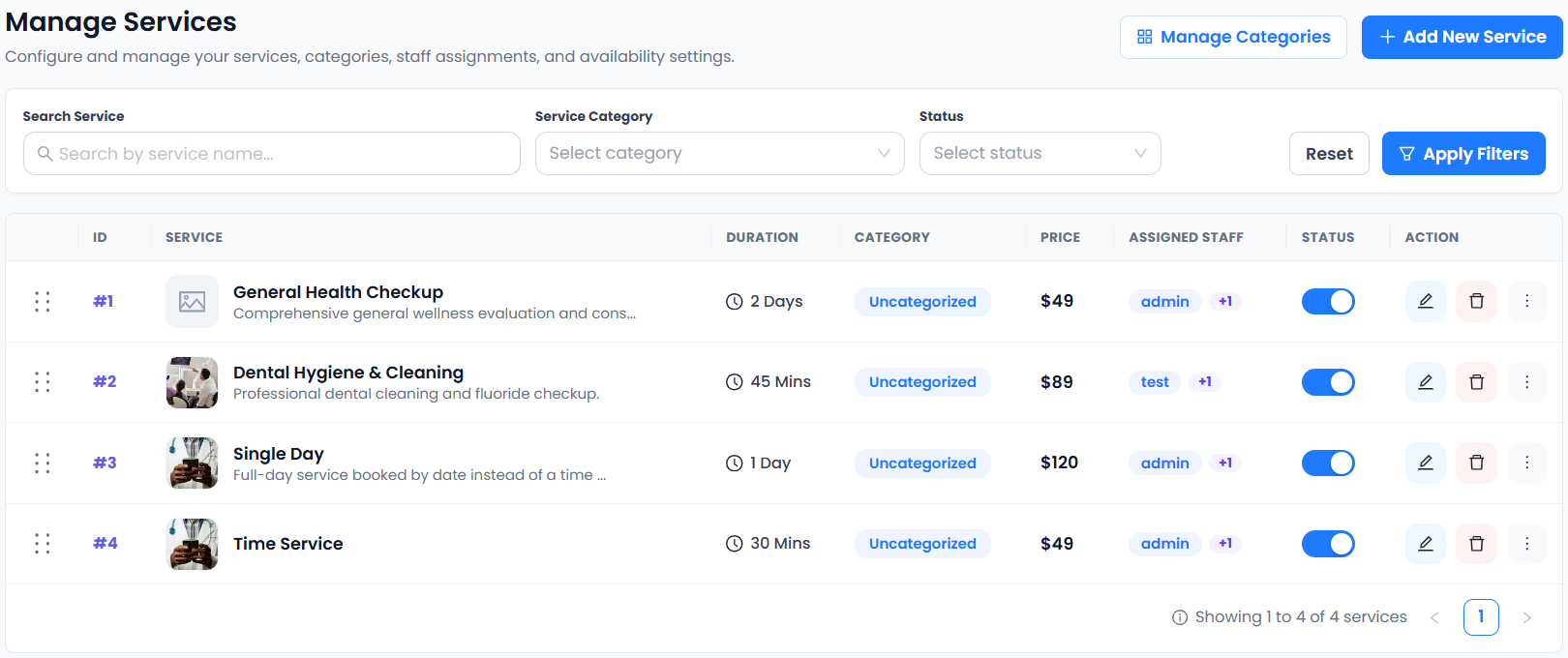
Accurate Scheduler includes its built-in booking calendar and Zoom integration in Free and paid plans. Google Calendar two-way sync and Google Meet require a paid plan. Set up your own eligible provider accounts and test each connection you actually use. Read the Google Calendar integration guide and Zoom setup guide.
For time zone scheduling with an external calendar, test an ordinary booking and an existing busy period. Check the destination calendar, the staff member and the date used in the test. Do not infer that a connection works for every staff member from one successful appointment.
6. Review customer instructions, dates and reminder messages
Time zone scheduling can fail at the communication stage even when the appointment itself is correct. A confirmation that says “Thursday at 10” leaves out useful context for a customer reading it while travelling. Review the actual received email or supported message rather than only the template preview.
For a US and European audience, also check date formatting. A month written as a word is less ambiguous than a short numeric date such as 03/04. Where your configuration supports it, make the timezone explicit and keep the date and time consistent across booking, payment and meeting information.
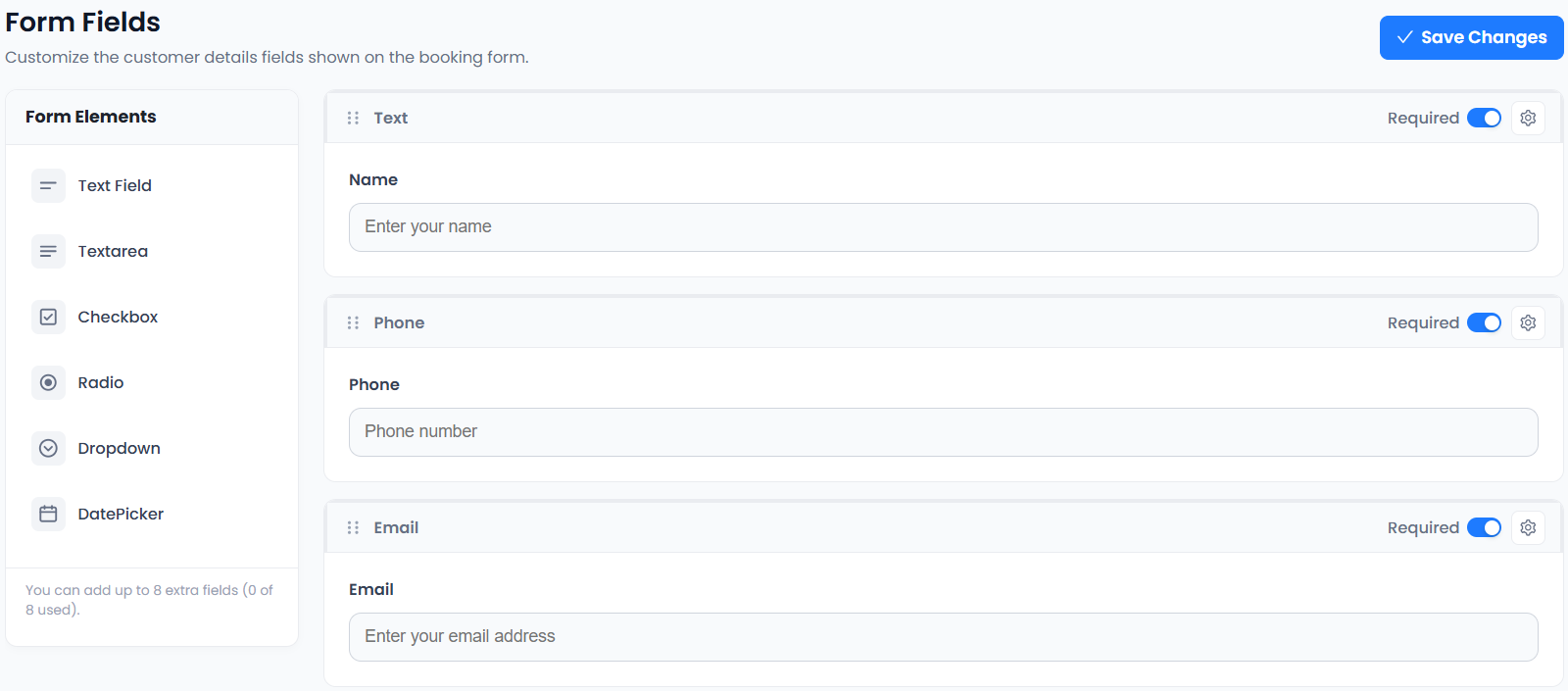
Use custom fields for a short preparation question if needed, but do not expect a customer’s typed location to reconfigure timezone behavior automatically.
7. Retest rescheduling before sharing the booking link
Move a clearly marked test appointment to a different available date. Review the new time in the customer view, staff view and any connected calendar or meeting information. Customer cancellation and rescheduling are included in Free and paid plans; external integration requirements remain separate.
Repeat your time zone scheduling checks after changing a staff schedule, business timezone or connected account. Keep test records clearly identifiable and follow your supported process for cleaning them up. Never use another person’s contact details for test notifications.
A practical time zone scheduling launch checklist
- Business timezone and working hours match the service location.
- Customer-facing instructions explain which timezone is displayed.
- Specific US and European locations are tested for the actual date.
- Clock-change dates are checked where they affect your schedule.
- The booking summary, stored appointment and calendar event agree.
- A received confirmation includes enough date and time context.
- Rescheduling has been tested with the integrations you use.
Explore scheduling for consultants, try the booking demos and follow the test-booking checklist. Check plan availability before choosing integrations for your cross-border appointment workflow.