Appointment reminder templates should tell a customer what is booked, when it happens and how to get help if plans change. A short, accurate message is more useful than a long email that leaves out the date, timezone or service location.
These six practical examples are for salons, consultants and home-service businesses serving US, UK and European customers. Replace every item in square brackets with verified information. The bracketed text is illustrative wording, not a list of working Accurate Scheduler tokens. Use only the placeholders offered by your actual notification editor.
Prepare appointment reminder templates before copying them
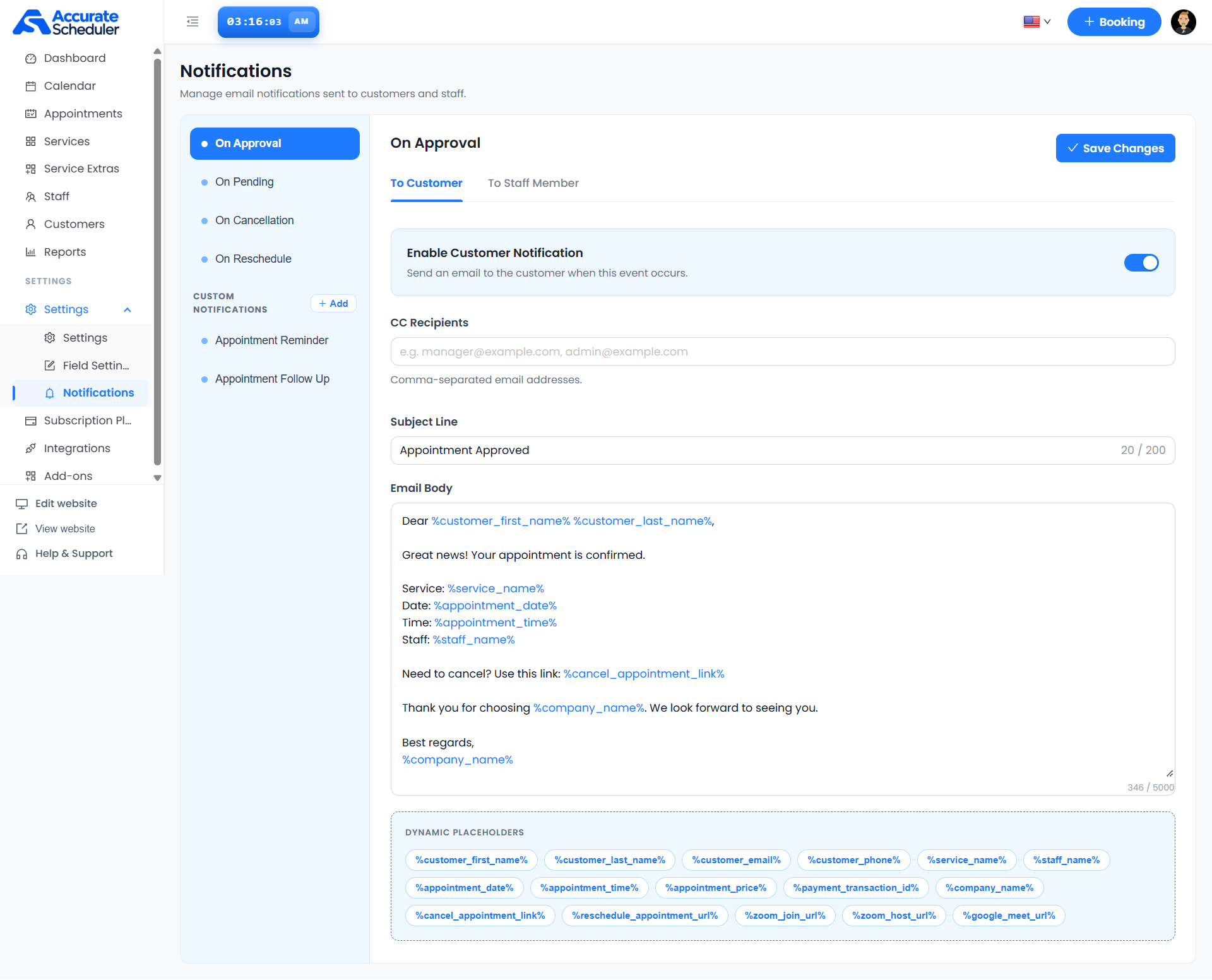
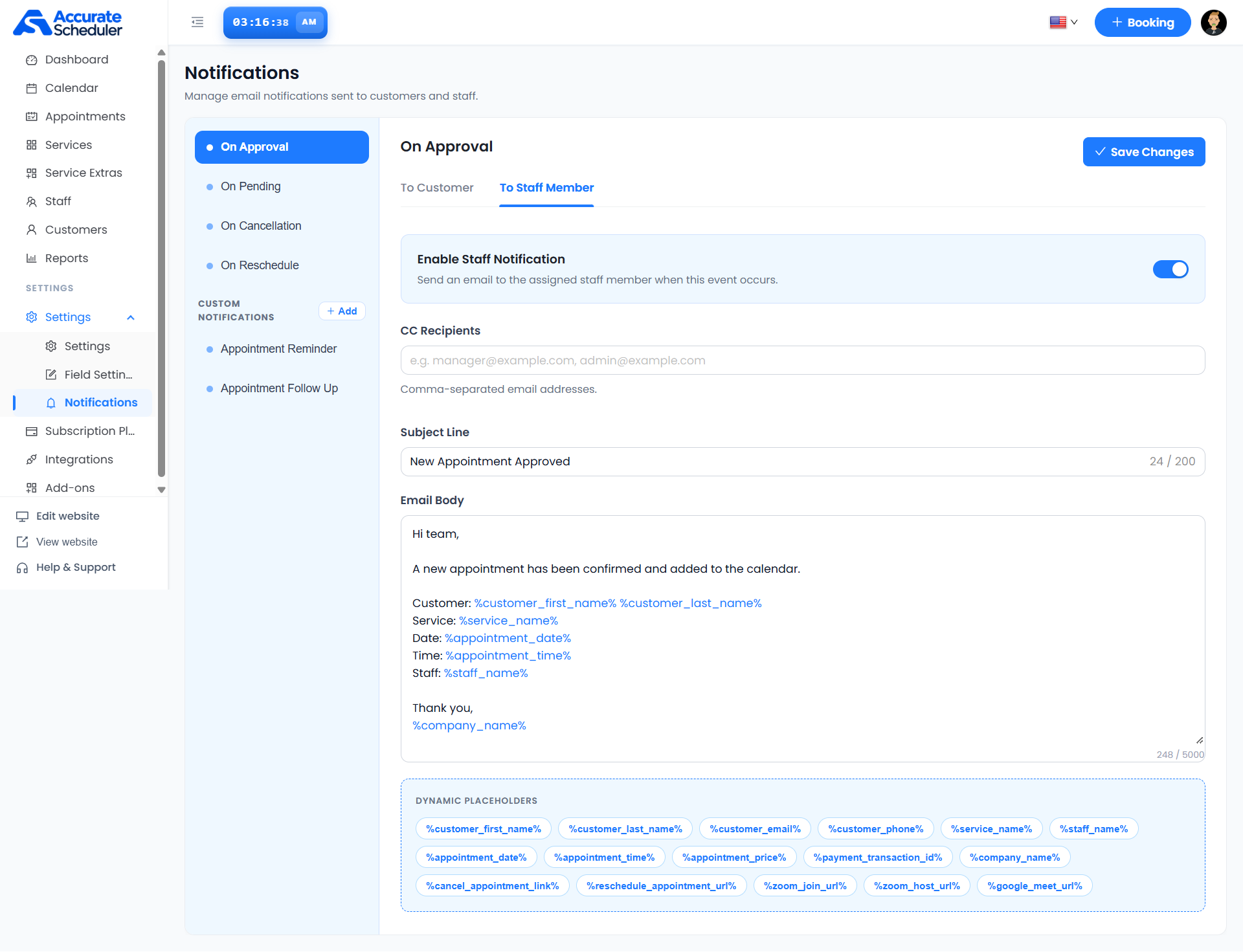
Start with the appointment event and the recipient. A message confirming an approved appointment is different from a timed reminder before the visit. In Accurate Scheduler, review the customer and staff templates separately under Settings → Notifications. Check the available schedule controls rather than assuming every example below can be sent at an arbitrary automatic interval.
The notification setup guide explains the supported events, recipient settings and dynamic placeholders. Scheduled Notifications is included in Free and paid plans. Email delivery still depends on the configured mail setup and the accuracy of recipient information.
1. Appointment reminder templates for a confirmed booking
Use this when the appointment is approved. Identify the business and service, then state the date and time clearly. Avoid calling a pending appointment confirmed.
Subject: Your [service] appointment with [business]
Hello [first name], your [service] appointment is confirmed for [day, month name, date] at [time and timezone]. Duration: [duration]. Location: [address or meeting information]. If you need to change your booking, use [verified customer link] or contact [business contact]. We look forward to seeing you.
Before using appointment reminder templates like this, confirm that each substituted value is available for the relevant appointment. A visible token in an editor does not prove it will have a value in every message.
2. A short reminder before an in-person visit
This wording is suitable for a supported reminder workflow or a carefully managed manual message. Choose a timing that makes sense for your service and customer, then test how the message is actually sent.
Subject: A reminder about your [service] visit
Hello [first name], this is a reminder about your [service] appointment on [day, month name, date] at [time and timezone]. Please come to [full business address]. [One essential preparation instruction.] If you cannot attend, review [booking terms or change link] or contact [business contact].
For a US or European location, include the actual town or city and avoid an unexplained numeric date such as 04/05. Do not invent an arrival requirement or cancellation deadline that your business has not adopted.
3. Appointment reminder templates for online consultations
A remote appointment needs clear joining information. Customers in New York, London or Berlin may view the appointment in different local times, so review the actual date and timezone used by your booking flow.
Subject: Joining your [service] consultation
Hello [first name], your online consultation is scheduled for [day, month name, date] at [time and timezone]. Join using [customer meeting link]. Please check your connection and have [brief preparation item] ready. If the joining information is missing or you need help, contact [business contact].
Keep host-only meeting links out of customer messages. Google describes how its calendar displays events in different zones in its timezone guidance; that does not replace testing your booking and meeting integrations. See the time zone scheduling checklist.
4. A reminder for an estimate or customer-site visit
Home-service appointment reminder templates should distinguish an estimate from agreed work. State what the visitor is attending for, and keep sensitive access information out of a general email.
Subject: Your [estimate or service] appointment
Hello [first name], we have an appointment for [visit purpose] at [visit address] on [day, month name, date] at [time and timezone]. Please contact [business contact] if the address or visit details need updating. [One relevant preparation instruction.] This appointment covers [agreed scope].
Do not promise a technician arrival window, route-tracking feature or final job price unless your actual workflow provides it. Your booking message should reflect the service you have agreed to deliver.
5. Appointment reminder templates after rescheduling
Make the new date prominent and state that it replaces the old one. Send the message only after confirming that the appointment record has changed.
Subject: Updated time for your [service] appointment
Hello [first name], your [service] appointment has moved to [new day, month name, date] at [new time and timezone]. This replaces the previous appointment time. Your location or joining information is [verified details]. Please contact [business contact] if this does not match the change you requested.
Customer cancellation and rescheduling are included in Accurate Scheduler Free and paid plans. Check the customer view and any connected calendar separately. A changed booking status does not prove a payment has been refunded.
6. A clear cancellation acknowledgement
Use appointment reminder templates carefully when an appointment has been cancelled: the message should acknowledge the cancellation, not remind the customer to attend.
Subject: Your [service] appointment has been cancelled
Hello [first name], your [service] appointment on [day, month name, date] at [time] has been cancelled. If you would like to arrange another appointment, visit [booking link]. For questions about payments or your booking terms, contact [business contact].
Keep refund statements separate until you verify the applicable policy and provider transaction. Avoid promising an automatic refund merely because the cancellation email has been sent.
Test appointment reminder templates with real received messages
Create an identifiable test appointment using your own contact details. Check the subject, event, recipient and final message. Review the date, service, timezone and every link. Test customer and staff copies separately and include only appropriate CC recipients.
SuperSaaS highlights notifications and reminders, and Picktime advertises email and SMS reminders. Compare actual channels, plans and timing controls rather than treating every notification feature as equivalent. Accurate Scheduler WhatsApp Notifications requires a paid plan, your own Meta or Twilio setup and approved templates; provider charges may apply. This article does not establish native SMS support.
Use the test-booking checklist, review notification features and verify the plan requirements. Useful appointment reminder templates support a clear booking process; they cannot guarantee attendance or eliminate no-shows.