
Group booking software should let several people reserve places in the same class or session without confusing participant capacity, appointment limits and payment quantities. Before choosing a tool, write down how a customer books one place, how they book several places and what should happen when the session is full.
This nine-point checklist is for yoga instructors, tutors, workshop hosts and other service businesses in the US, UK and Europe. It focuses on practical buying and setup questions. It does not assume that a general appointment scheduler includes event tickets, course enrolment, memberships or every specialist class-management feature.
1. Define the group booking software workflow you need
A shared class and a sequence of services are different booking patterns. In a shared class, several participants attend the same session. In a multi-service appointment, one customer selects services that may run sequentially. Choose the pattern that matches the actual customer journey.
Accurate Scheduler includes Group Booking and Multiple Quantity in Free and paid plans. Its documented add-on setup requires choosing the supported Multi-Service Booking or Multiple Quantity workflow rather than assuming both operate together. Start with the add-ons guide and test one representative session.
2. Separate session capacity from subscription usage
Group booking software can use the word “booking” for different things. A class may hold ten people, one customer may reserve two places and the subscription may count appointment usage according to separate rules. Confirm those rules before calculating the plan you need.
For example, an illustrative 12-place workshop could accept six two-place reservations. That explains participant capacity, not how a particular provider charges or counts the resulting records. Ask how cancellations, edited quantities and rescheduled sessions affect both available places and your plan allowance.
Accurate Scheduler’s paid appointment allowances are listed per month. The Free allowance is listed as 60 appointments without a monthly-reset promise. Review appointment limits and confirm the group-counting rule if it determines your plan choice.
3. Test the smallest and largest permitted quantity
Check whether one customer can reserve one place, several places or only a configured range. In your group booking software test, try the minimum quantity, the maximum quantity and the last available places. Inspect the resulting appointment details after every change.
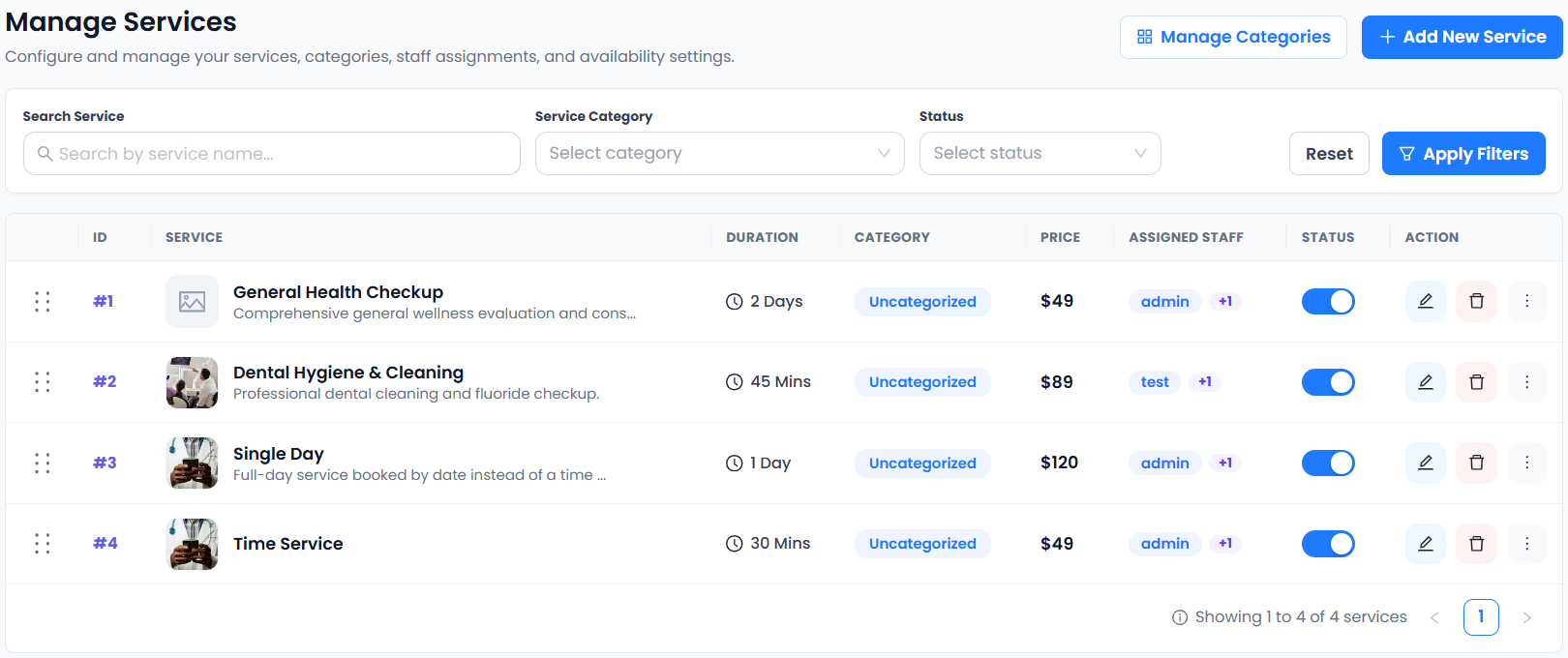
Accurate Scheduler’s Multiple Quantity settings support configured quantity limits and a choice about multiplying the price by quantity. Use the Multiple Quantity guide to review the actual controls rather than assuming every group reservation uses the same pricing calculation.
4. Make group pricing clear before the customer confirms
Decide whether the displayed charge represents one participant, the whole reservation or another configured arrangement. A customer reserving two places should understand the final amount before paying. Test the summary and the provider transaction against that explanation.
Use your business currency and verify the provider is available for your country and account. For example, a US studio and a European workshop may have different payment-account requirements. Do not treat a website price converted into another currency as proof of supported settlement or local payment eligibility.
Stripe and PayPal integrations are included in Accurate Scheduler Free and paid plans; other payment integrations require a paid plan. Provider charges apply separately. Follow the payment setup checklist before accepting real class payments.
5. Check staff schedules and the actual class date
Your group booking software should fit the instructor’s working availability and the session duration. Test a day with normal availability and a day when the instructor is away. Verify that a class does not become bookable solely because its service definition exists.
For online classes serving US and European participants, explain which timezone is shown and test the actual date. Neither region has one universal timezone. Clock changes can affect the difference between two cities. Use the time zone scheduling checklist when planning cross-border sessions.
6. Confirm what happens when a session is full
A capacity limit, a waiting list and automatic promotion from a waiting list are separate features. Add all three to your buying checklist if your business needs them. Test the last place and a further attempted reservation using the provider’s supported process.
Do not assume Accurate Scheduler includes a waiting list or automatic promotion because it supports group quantities. Those capabilities are not established by the confirmed group-booking feature list. If they are essential, ask support to verify availability before choosing your system.
SuperSaaS documents a capacity-schedule model for shared slots. Picktime’s plan comparison lists class allowances and a Pro waiting-list feature. Compare the relevant plan and test it rather than assuming the entry-level offerings are equivalent.
7. Review the information collected for a group reservation
Ask whether the booking record identifies the person making the reservation, every participant or both. The right answer depends on the service. A two-place workshop reservation may need different information from an individual consultation.
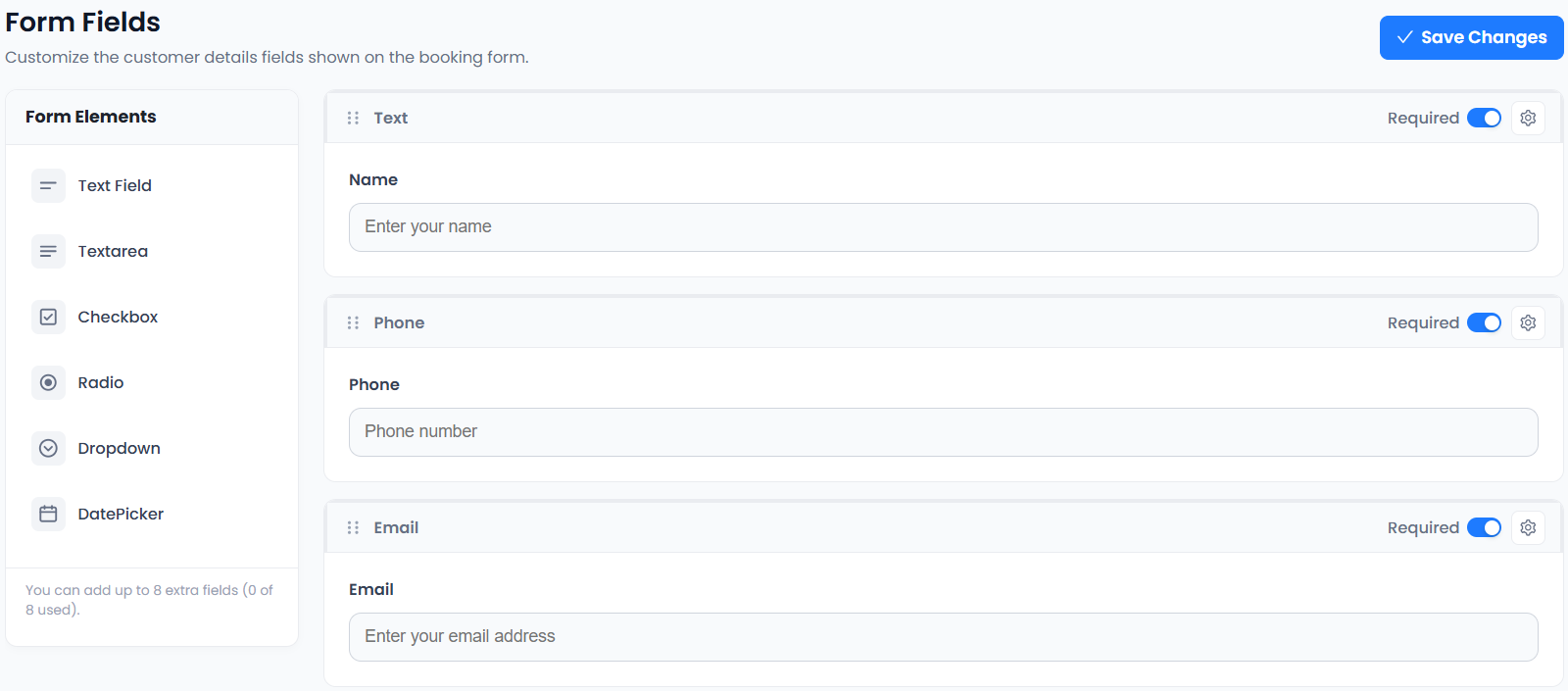
Keep the form focused. Use appropriate custom fields for brief preparation details, and confirm how the chosen workflow handles multiple participants. Do not collect more personal information merely because the form allows it. The W3C form-label guidance is useful when reviewing whether customers can understand the questions.
8. Distinguish one class from a complete course programme
Group booking software that handles an individual session may not manage a recurring course, attendance records, class packs or memberships. Write down which of those functions your business requires and verify each one separately.
A six-week course might require the same participants to attend every week, while a drop-in workshop sells each session separately. Those workflows can need different controls. Accurate Scheduler’s group and quantity support should not be described as proof of recurring-course enrolment or event ticketing.
Use the classes and training overview and group-booking setup guide to define a focused pilot before moving an existing course calendar.
9. Run a group booking software pilot before launch
Create one clearly marked test session. Reserve one place, reserve several places and review the remaining capacity. Check prices, instructor assignment, date, confirmation and supported cancellation or rescheduling behavior.
If you compare products, use the same scenario and record the outcome in each. Subscription prices alone do not show whether the required group workflow works. Keep existing bookings recoverable and use a clear changeover date before replacing public booking links.
Explore the booking demos, compare plan allowances and follow the test-booking checklist. A small group booking software pilot can expose misunderstandings before customers reserve real places.