
Multi-service booking lets a customer select several services within one appointment journey. For a salon, that might mean choosing a haircut and a separate treatment. For a consultant, it could mean combining clearly defined sessions when the supported workflow and staff availability allow it.
This seven-point guide helps US, UK and European service businesses test the setup before sharing it with customers. Multi-service booking is different from booking several seats in one class, and it should not be confused with a complete package, membership or recurring-course system.
1. Choose the multi-service booking workflow deliberately
Start with the problem you want to solve. A customer selecting two different services needs a different flow from one customer reserving two places at the same workshop. Write down the services, the intended sequence and how many people will attend.
Accurate Scheduler’s Add-ons documentation describes Multi-Service as several services in one appointment with combined duration and sequential timeslots. It also states that Multi-Service and Multiple Quantity cannot be active together. Choose the appropriate mode and verify the available controls before switching an existing workspace.
| Customer need | Workflow to investigate | Key question |
|---|---|---|
| Two different services in one appointment | Multi-Service | Do duration, sequence and available times work together? |
| Two places in one shared session | Multiple Quantity | How do quantity, capacity and price interact? |
| A prepaid series over several dates | Verify separate requirements | Does the product support the specific package or recurring workflow? |
2. Prepare each service before combining them
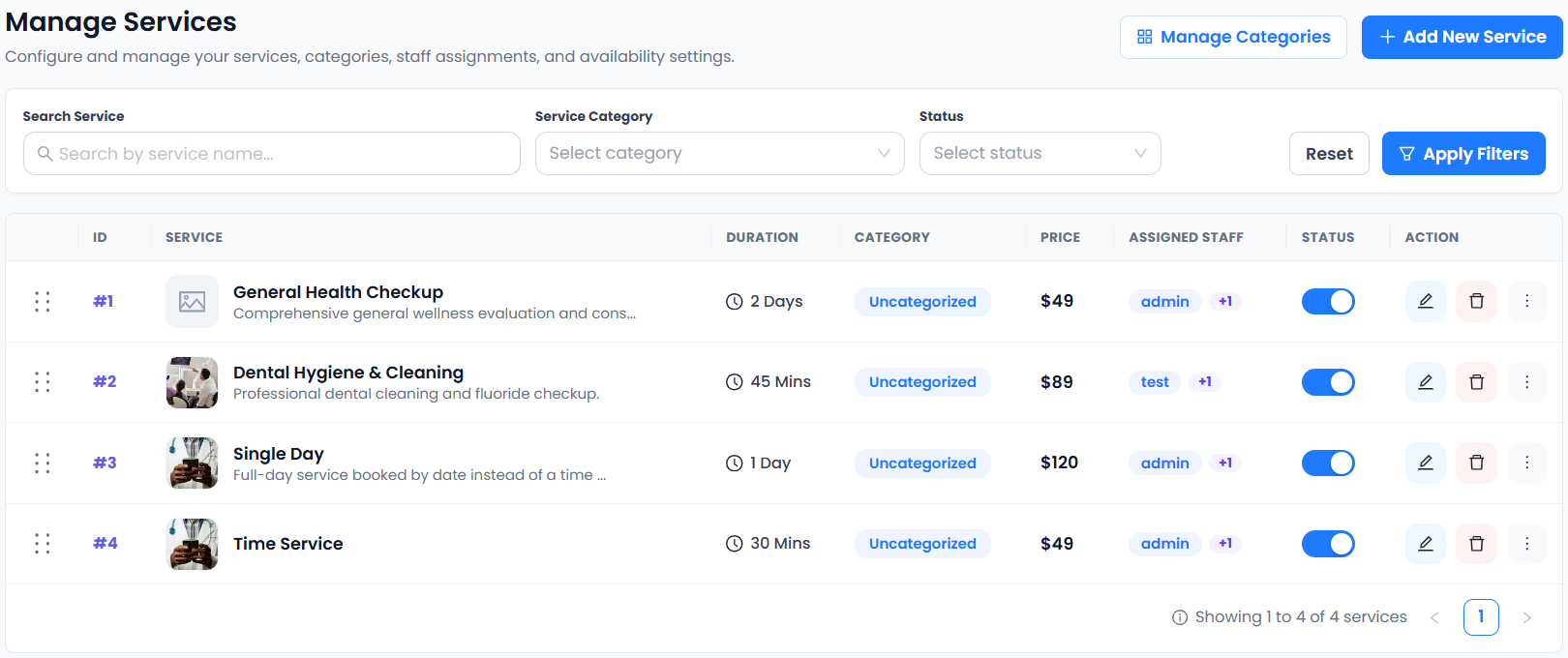
Give every service a clear name, duration and price. Assign appropriate staff and review their working hours and holidays. A multi-service booking cannot compensate for a service that has the wrong duration or is assigned to the wrong professional.
For example, a salon might define a 45-minute haircut and a 30-minute treatment. Those are illustrative service durations, not recommended operating standards. Configure values that match your business, and distinguish a separately bookable service from an optional extra.
Accurate Scheduler includes unlimited staff and services on every plan, while appointment allowances still apply. Staff Panel access requires a paid plan. Read the service setup guide and staff scheduling overview.
3. Check combined duration in a multi-service booking
Add the selected services’ durations as a planning check, then compare your arithmetic with the actual customer summary and stored appointment. Two services lasting 45 and 30 minutes have a combined service duration of 75 minutes before considering how the configured workflow handles preparation gaps.
Do not assume that every multi-service booking uses the same rule for buffers, gaps, staff changes or service order. Test those conditions in your workspace and ask support to confirm behavior that matters to your service delivery.
Try a selection early in the working day and one near closing time. Check that the complete appointment fits the available period. A starting slot alone is not proof that all selected services can be completed as intended.
4. Verify staff availability for the full sequence
Review which staff members can provide each selected service. Check the customer journey when one service has different staff requirements or a professional is on holiday. Avoid promising automatic handovers between staff unless you have verified them.
In a multi-service booking pilot, test one ordinary combination and one combination with constrained availability. Record the selected services, staff, date and displayed result so you can explain any mismatch to support.
The built-in booking calendar and external calendar synchronization are separate features. Google Calendar two-way sync requires a paid Accurate Scheduler plan. If you use it, test an external busy period as well as the booking itself. See the calendar integration guide.
5. Explain the combined service price before payment
Customers should see what the selection includes and what they will pay. In a multi-service booking, compare the service prices, final summary and provider transaction. Check any configured discount, deposit or service-extra behavior separately rather than assuming it applies identically to every combination.
For US and European customers, state the business currency clearly. A translated page or a familiar currency symbol does not establish payment-provider eligibility in the customer’s or business’s country. Review your own eligible account and the supported collection method.
Stripe and PayPal integrations are included in Free and paid plans. Other integrations require a paid plan, and provider fees remain separate. Follow the payment setup guide. For supported testing environments, Stripe provides official testing instructions; do not assume a live payment test is free of charges.
6. Keep the multi-service booking form focused
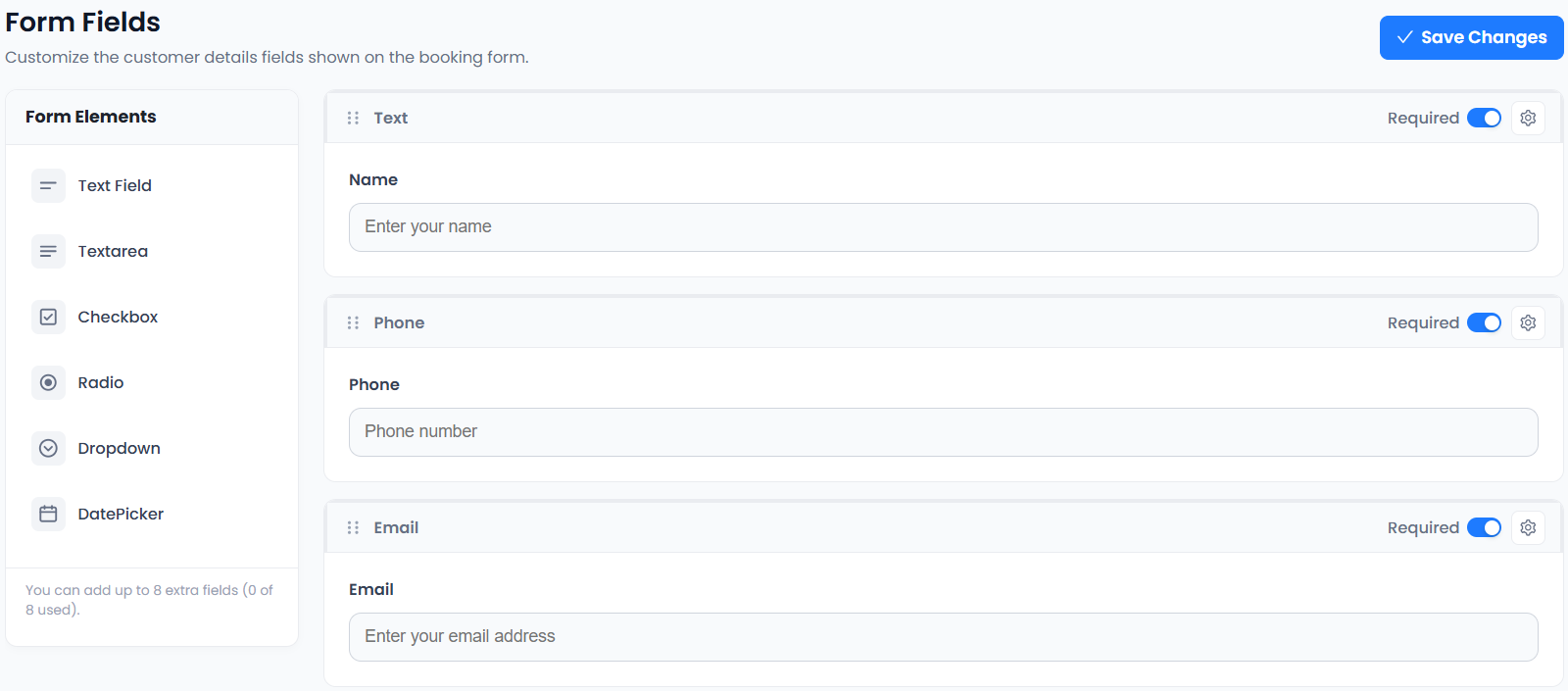
Ask for the information needed to arrange or prepare for the selected services. A short optional preparation question may be useful for a consultation, while a salon can explain any service-specific arrival instructions in the description.
Test names, international phone-number formatting and the displayed appointment date. An ambiguous numeric date can be read differently by US and European customers. For remote sessions, verify the timezone used by the booking summary and received confirmation.
Custom fields are included in Accurate Scheduler Free and paid plans. The booking-form checklist helps you review required fields and customer instructions without adding unnecessary questions.
7. Compare multi-service booking with the same test scenario
SuperSaaS documents different schedule types, including a service schedule for service-first or multi-resource needs. Picktime presents appointment, team and booking-page features. Neither description alone proves that a particular combination, sequence or staff handover matches your business.
Use the same two-service example when evaluating any provider. Check duration, staff, price, available times, customer confirmation and supported rescheduling. Verify the plan, rather than assuming a similar feature name means identical behavior.
For Accurate Scheduler, start with one clearly marked multi-service booking test and inspect the resulting record. Repeat it after changes to services, availability, provider settings or add-ons. Confirm how the combined appointment counts against your plan allowance if that affects your selection.
Explore salon and wellness workflows, consultant scheduling and the booking demos. Finish with the test-booking checklist before moving real customers into a new multi-service booking flow.