A booking waitlist gives people a way to ask for an earlier appointment when your calendar is full. Start with one popular service and a few clear rules. A useful waitlist helps the front desk offer the right opening quickly, gives customers a clear deadline to respond and prevents two people from thinking they have secured the same slot.
On this page
1. Choose which openings your booking waitlist can fill
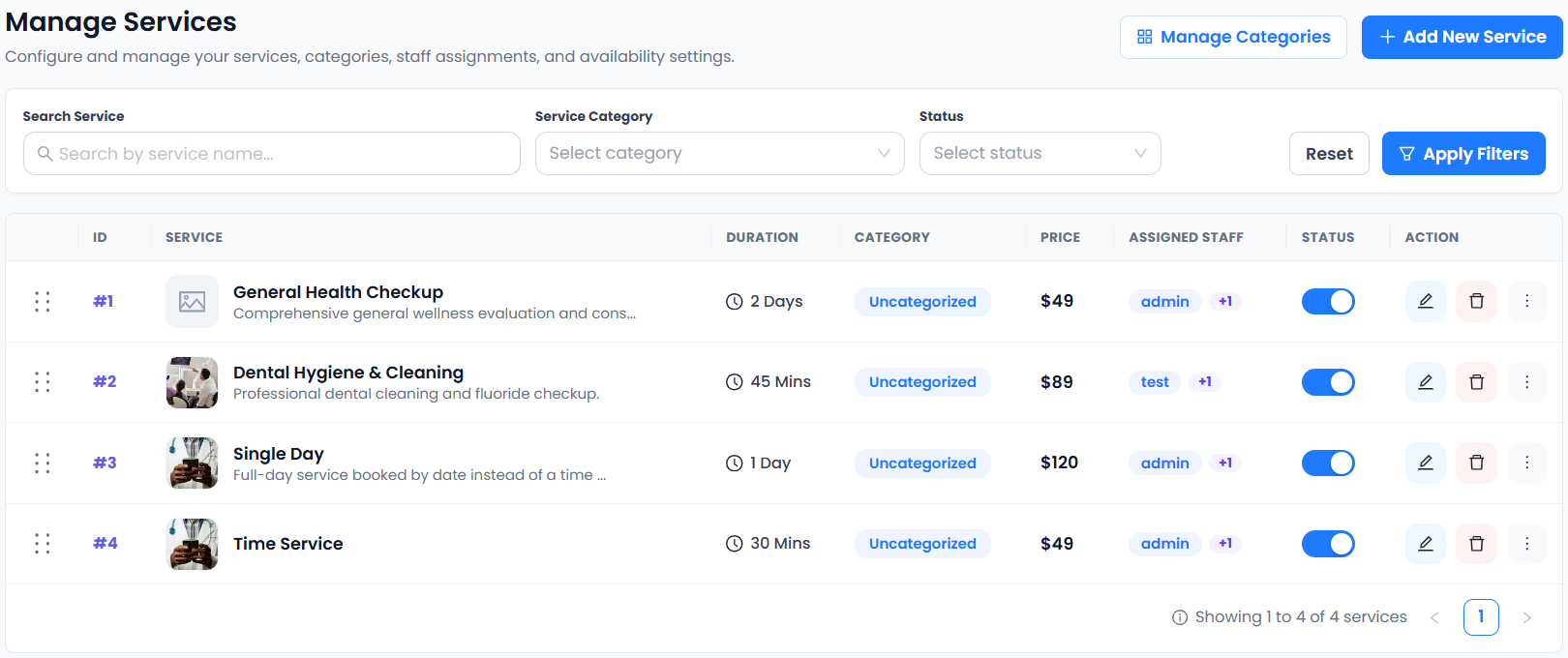
List the service, duration, branch and staff qualifications that make an opening suitable. A 20-minute haircut slot cannot absorb a 90-minute color appointment. For a fitness studio, a class cancellation opens a seat, while a private appointment opens a specific instructor’s time. Treat those as separate queues.
Decide whether people already booked for later can join the queue. If they can, document what happens to their existing slot when they move, and verify that it becomes available only after their new appointment is confirmed.
2. Collect preferences that help you match quickly
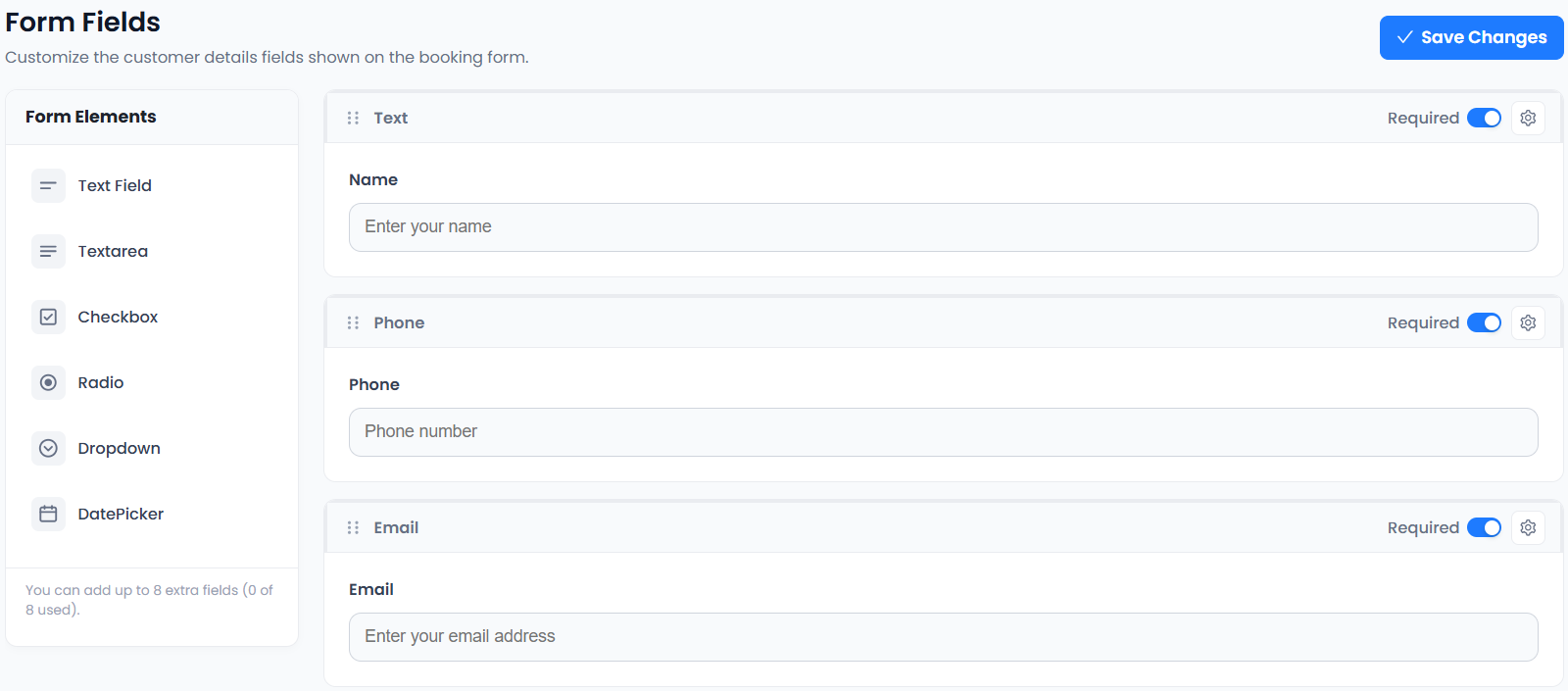
Ask for the desired service, location, preferred days, time windows and the contact method the customer expects you to use. Add an optional field for how much notice they need. Someone who can arrive in 30 minutes may be a good match for a same-day vacancy, while a customer travelling from another city needs more time.
Use clear date examples in any instructions. A US customer may read 12/04 as December 4 while a UK customer may read it as 12 April. Write the month in full when offering a specific opening.
3. Set a fair offer and response window
Choose a policy that front-desk staff can follow under pressure. You might offer the opening to the earliest eligible customer and give them 30 minutes during staffed hours. For a same-day opening, a shorter window may make sense if customers agreed to receive short-notice offers. Keep a record of when the offer expires.
In each message, say whether the slot is held during that window. If you contact several people at once, state how confirmation works and make sure the booking page stops accepting responses after the slot is taken.
4. Write a short offer customers can act on
Try this message: An opening is available for a 45-minute consultation at our London office on 4 December at 14:00 local time. Reply by 12:30 to request it. We’ll send a separate confirmation once your booking is secured. Include a time zone for virtual appointments and a branch address for in-person visits.
Use your existing appointment reminder templates for confirmed bookings. Give waitlist offers their own wording so customers can distinguish an invitation from a reservation.
5. Test your tools with two customers
Picktime lists waitlist features on its pricing page. SuperSaaS includes a waiting-list example in its class booking tutorials. Check whether your plan supports your specific use case, such as a class seat or an individual appointment.
Cancel a test booking, offer it to one test customer and try to claim it from another session. Then let an offer expire and check the next handoff. Review how to test a first booking before releasing the flow.
6. Measure whether the booking waitlist earns its time
Track how many openings you offered, how many were accepted and how long each successful fill took. Compare like with like. Friday afternoon class seats may behave differently from Tuesday morning appointments. If offers regularly expire, narrow the intake preferences or increase the notice you give. If staff spend more time managing a queue than it saves, keep it for the busiest service and review it again after a month.