Services and optional extras
Show prices and durations, offer relevant extras and update the summary as customers make their selections.
Explore service extras →Turn your website into a place to book. Accurate Scheduler’s appointment booking widget guides customers from choosing a service to reviewing their appointment, with your availability, extras and payment options in one flow.

Popup button or embedded frame · Works with your configured services

Six steps, shown through real product screenshots. This feature walkthrough explains the interface; it does not submit a booking. Your enabled features determine which steps customers see.
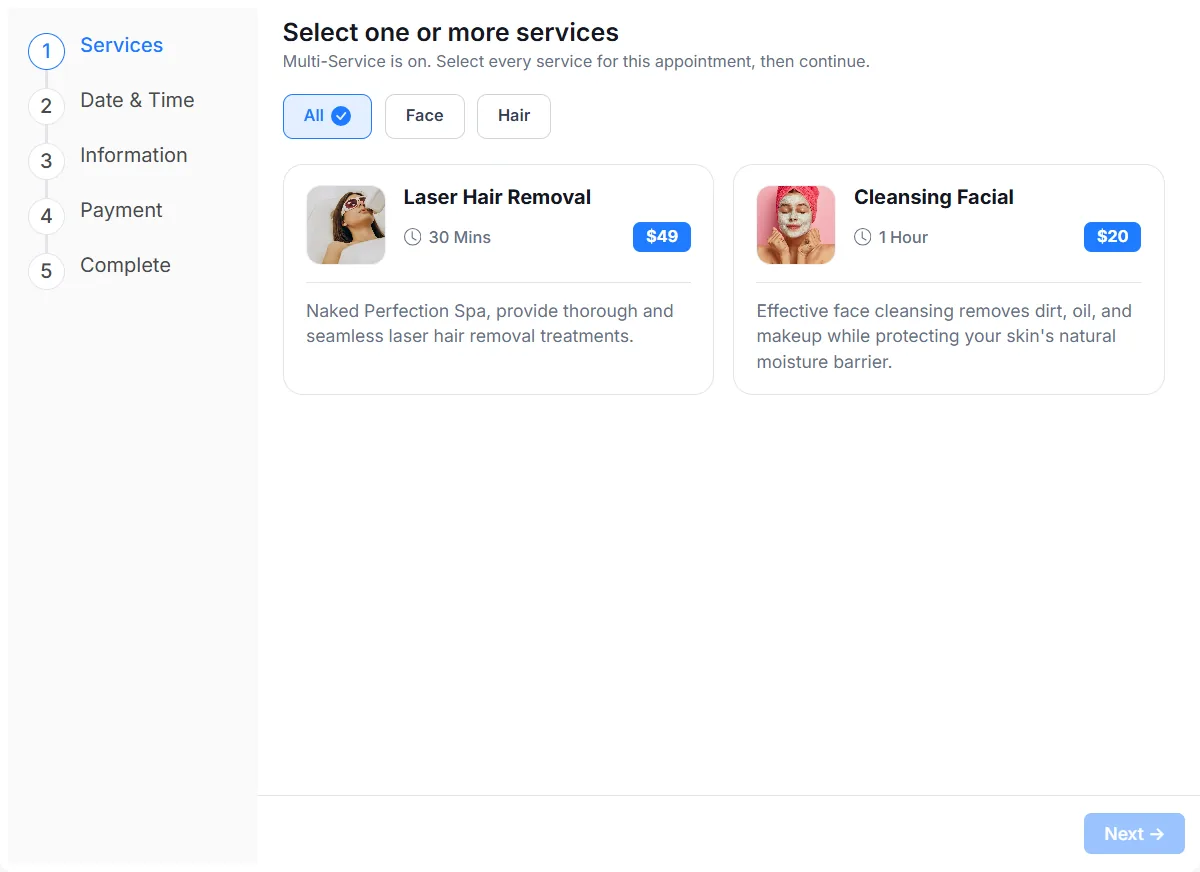
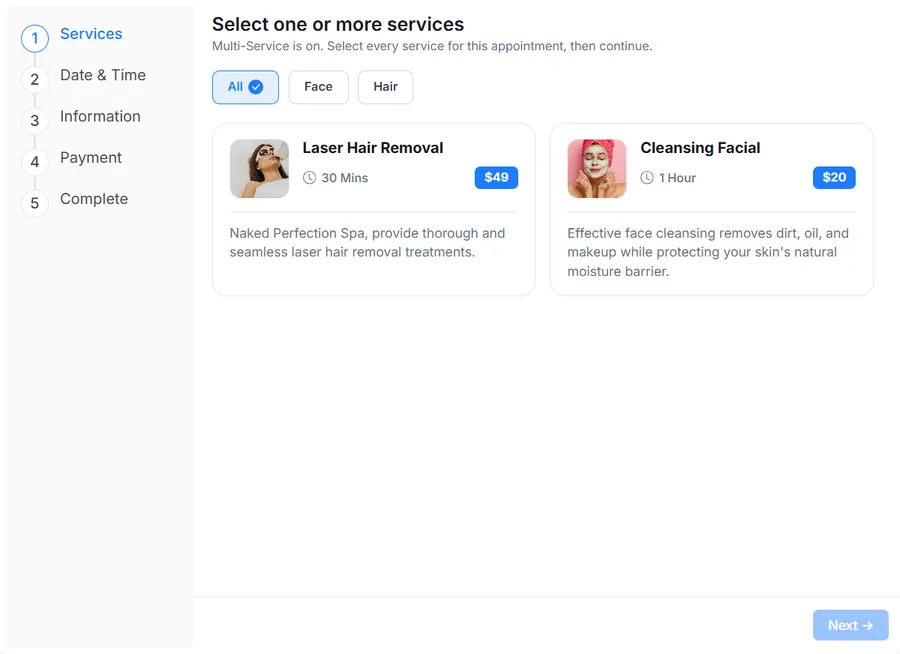
Show services with images, descriptions, prices and durations. When Multi-Service is enabled, customers can choose more than one service for the appointment.

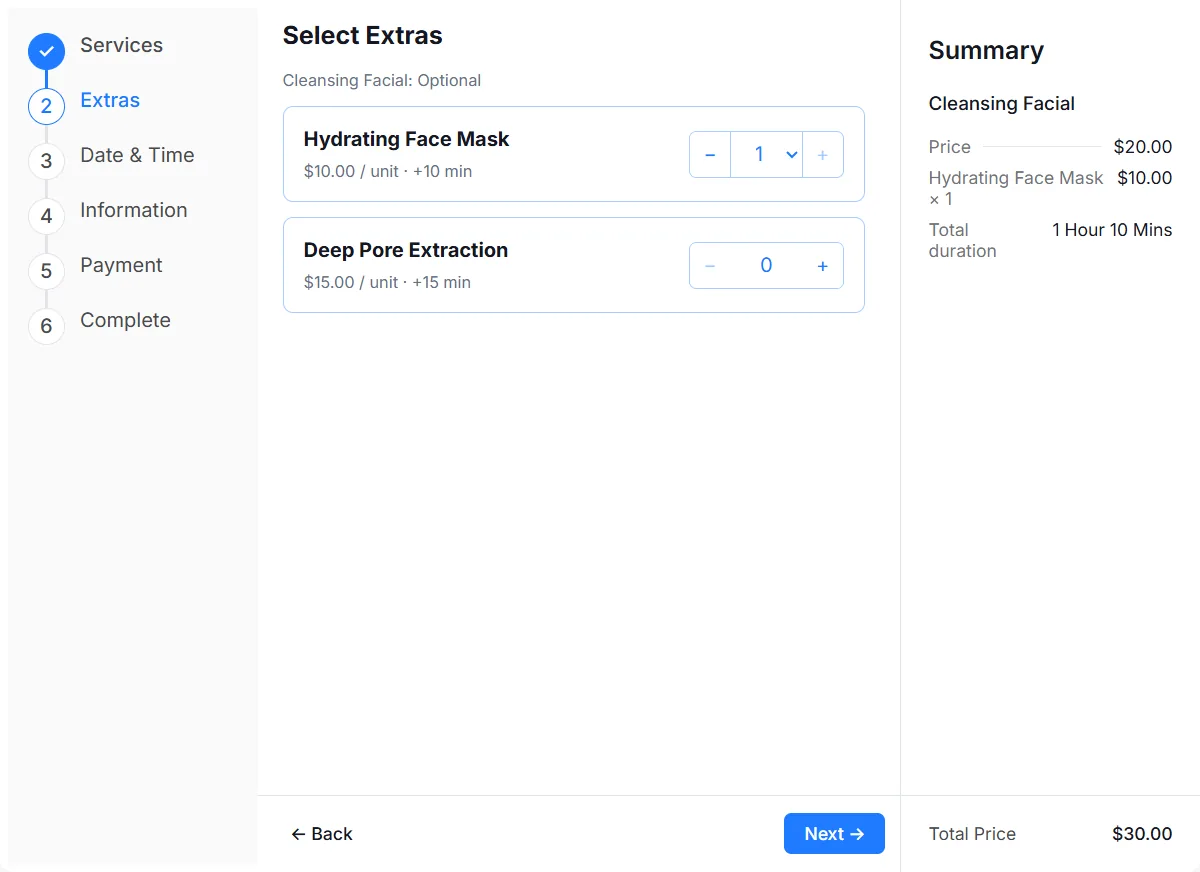
Offer optional extras with their own price and additional time. Quantity controls and the booking summary help customers review their selection. The Extras step appears when the selected service has configured extras.

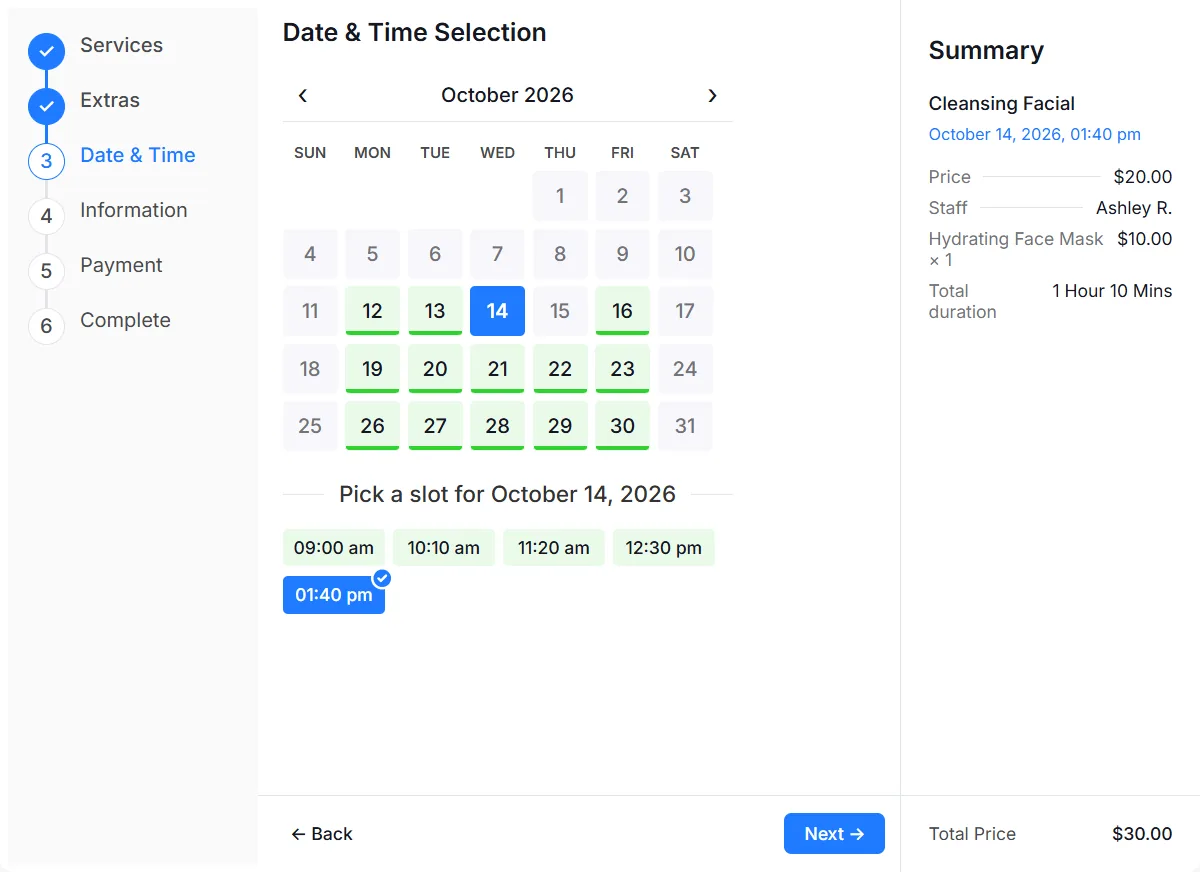
Customers pick a date and an available time slot. The summary shows their appointment time, assigned staff, selected extras and total duration. Availability follows your service and staff settings.

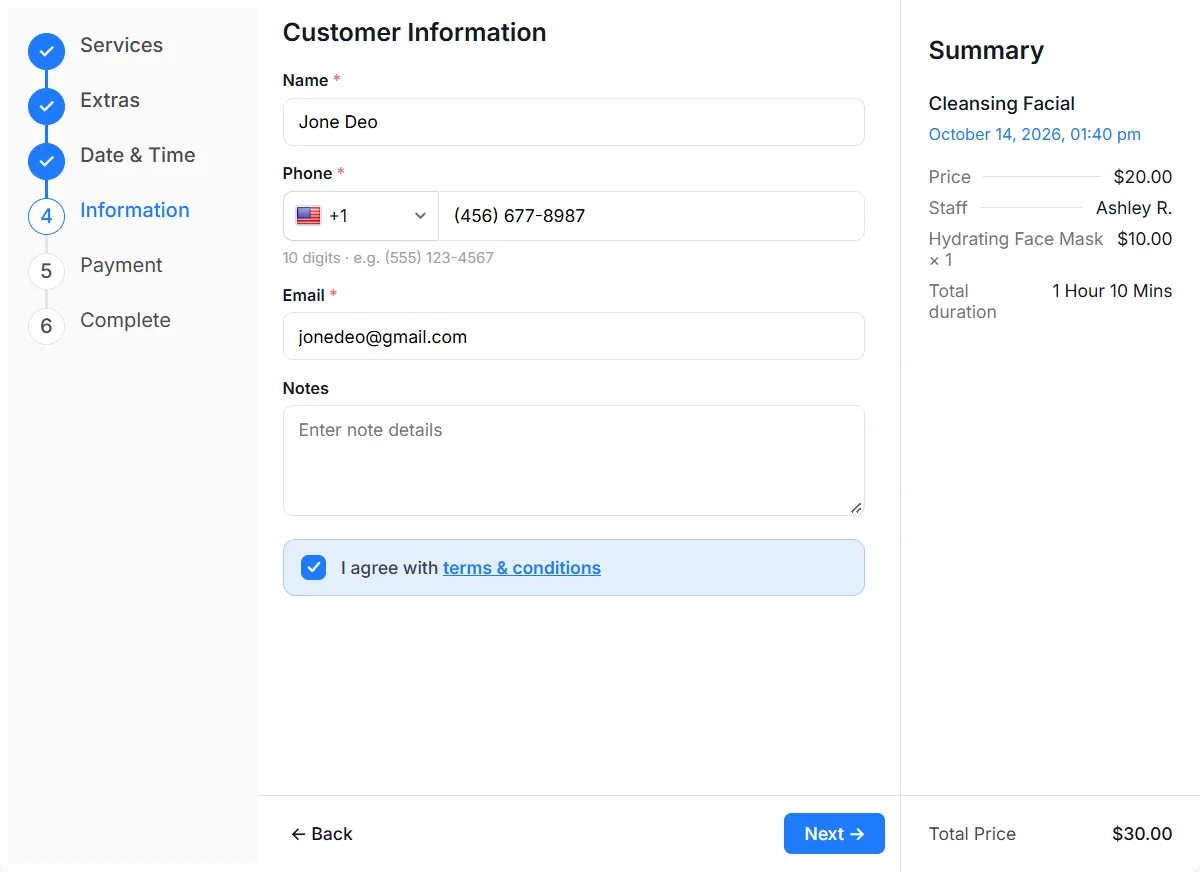
A website booking form collects customer details, notes and agreement to your terms. Configure the fields for your business so customers know what to provide.

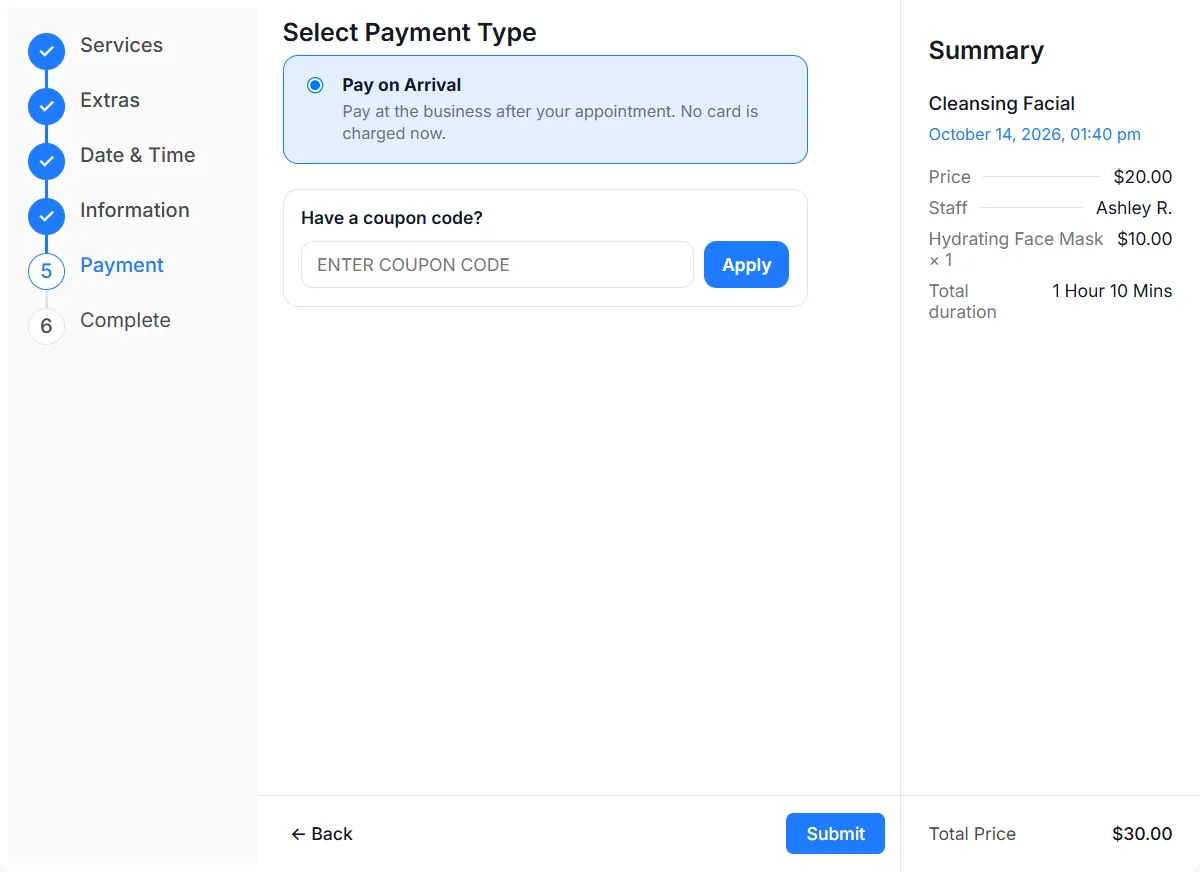
Offer the payment methods enabled in your workspace, including Pay on Arrival, Stripe or PayPal. Customers can apply an eligible coupon and review the booking total before submitting. This example shows Pay on Arrival.

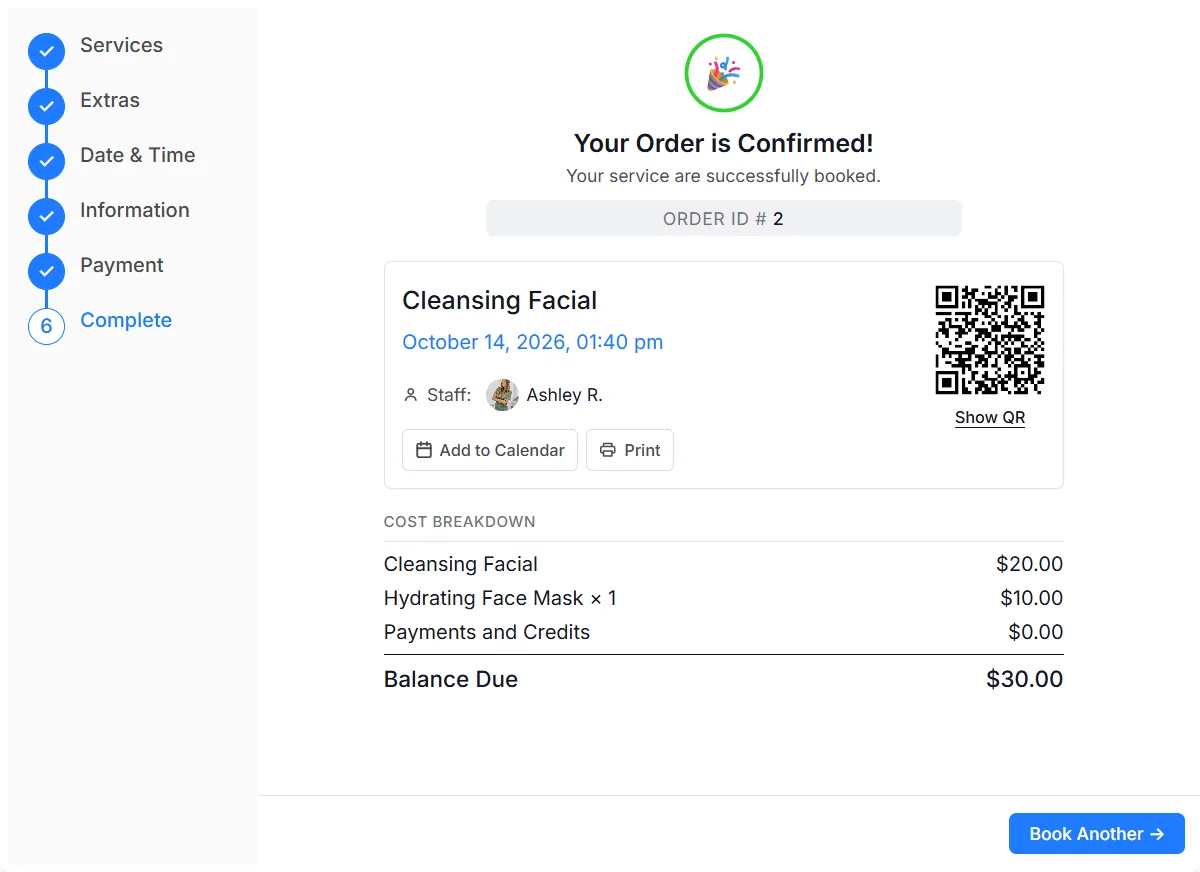
The confirmation screen brings together the service, date, staff and cost breakdown. The supplied example also shows Add to Calendar, Print and a QR code. Confirmation status follows your configured booking approval workflow.

A website booking form helps customers see what they are choosing before they submit.
Show prices and durations, offer relevant extras and update the summary as customers make their selections.
Explore service extras →With Multiple Quantity enabled, set minimum quantity, maximum quantity per booking and service capacity. Choose whether pricing is per person.
Read the quantity guide →Let eligible customers apply a coupon. Show only the payment methods you enable, with a cost breakdown at confirmation.
Explore payments →Multi-Service and Multiple Quantity cannot run at the same time. Extras, coupons and payment gateways require configuration.
Use a booking button on an existing page or place an embeddable booking calendar directly in its content.
Choose Popup button or Frame in Add-ons. Set button text and color, or the frame’s width and height.
Copy the snippet generated by Accurate Scheduler and paste it into your website’s HTML or embed area.
Preview on desktop and mobile. Confirm service availability, required fields and payment settings before sharing it.
Help customers compare treatments, choose optional extras and review the appointment duration.
Beauty and wellness →Present appointment types clearly and collect the booking details your team needs through configured form fields.
Healthcare scheduling →Offer available appointment times on your website and give customers a clear confirmation to refer to.
Consultant scheduling →The current Free plan includes the booking widget, optional extras, Multi-Service, Multiple Quantity, coupons and payment options. Paid plans add Google Calendar, Google Meet, Zoom and 50+ industry themes. Appointment and customer limits still apply.
Customer “Add to Calendar” on a confirmation is distinct from the paid Google Calendar integration. Configure services, gateways and add-ons before making them available to customers.
Compare current plans → Browse all features →Open Add-ons in Accurate Scheduler, activate Booking widget if needed and choose Configure. Select a popup button or frame, copy the generated code and paste it into a page that supports HTML or scripts. Follow the booking widget documentation for the full setup.
Yes. A popup button opens your booking form over the page. A frame places the form within your page. Frame width and height can be configured; the booking steps depend on your enabled services and settings.
You can change the popup button text and color, set frame dimensions and manage allowed websites. Use Edit website to customize your booking page’s branding and appearance.
Enable Multi-Service to combine services in one appointment. Multiple Quantity supports several places in a time slot with service capacity and quantity limits. These two add-ons cannot run at the same time.
No. Extras appear for services with configured extras. Payment choices follow the gateways you enable. Pay on Arrival lets a customer book without an online card charge; payment is collected by your business.
The current Free configuration includes booking widget functionality, payments, extras, Multi-Service, Multiple Quantity and coupons. Google Calendar, Google Meet, Zoom and 50+ industry themes are available in paid plans. Appointment and customer allowances differ; check pricing for current limits.
No. It switches between real application screenshots to explain the customer journey. Use View Live Demo to open the application and explore its live experience.
Start with Free. Choose more appointment capacity as your business grows.