
A Black Friday booking page should explain the offer before asking the customer to choose a time. The customer needs to know what the service includes, what they will pay and which conditions matter. A large discount heading cannot replace those answers.
These seven original copy examples are illustrative. Replace all bracketed items and use only the wording that matches your tested service and real offer. They are not active promotions, legal terms or a claim that a particular page layout guarantees bookings.
1. Define your black friday booking page plan
Before: “Our biggest sale ever.” After: “[Service name] appointments for [intended customer], with [verified offer] when [actual condition].” The second version helps someone identify the service before judging the discount.
On a Black Friday booking page, avoid unsupported superlatives and a sale percentage that applies to only an unexplained subset. If your promotion is a fixed service price, describe it as that rather than inventing a reference price or savings amount.
2. Describe the appointment’s actual scope
Before: “Book your package.” After: “This appointment includes [specific work] and lasts [actual duration]. [Any later work] is arranged separately.” Keep the explanation consistent with the service settings.
A consultation, treatment and estimate are different commitments. Do not make a Black Friday booking page imply that a paid treatment is included when the customer is only reserving an introductory conversation. Review the service setup guide before publishing the wording.
3. Show the total your configuration produces
Before: “Up to 50% off everything.” After: “[Verified discount] applies to [eligible service] under [actual conditions]. Review the final appointment total before confirming.” Add your real amount and currency where appropriate.
For US and European customers, a symbol alone can be ambiguous. Explain the business currency and any actual payment arrangement. Your Black Friday booking page should match the tested booking summary, including the effect of any configured quantities, extras or deposits.
4. Separate booking dates from service dates
Before: “This weekend only.” After: “Bookings can use this offer during [verified booking period]. Eligible appointments take place during [verified service period, if enforced]. Times use [the applicable timezone].”
Those two periods need not be the same. Do not promise an appointment-date restriction if your setup only limits coupon redemption dates. Use the coupon checklist and off-peak pricing checks to verify the behavior.
5. Explain who can use the offer
Before: “For everyone.” After: “Available for [the customer group actually configured] on [eligible services]. Contact [business route] if you are unsure which appointment to choose.”
In Accurate Scheduler’s documented coupon controls, empty customer or service restrictions mean all. Check those settings before a Black Friday booking page promises a narrower audience. Coupons and Price Rules require paid plans. A sentence on a page is not proof that the software enforces it.
6. Give a useful action and support route
Before: “Hurry, act now!” After: “View eligible appointments and choose a time. For questions about [service or eligibility], contact [working business contact].” If an offer genuinely expires, state the actual deadline instead of a continuously resetting timer.
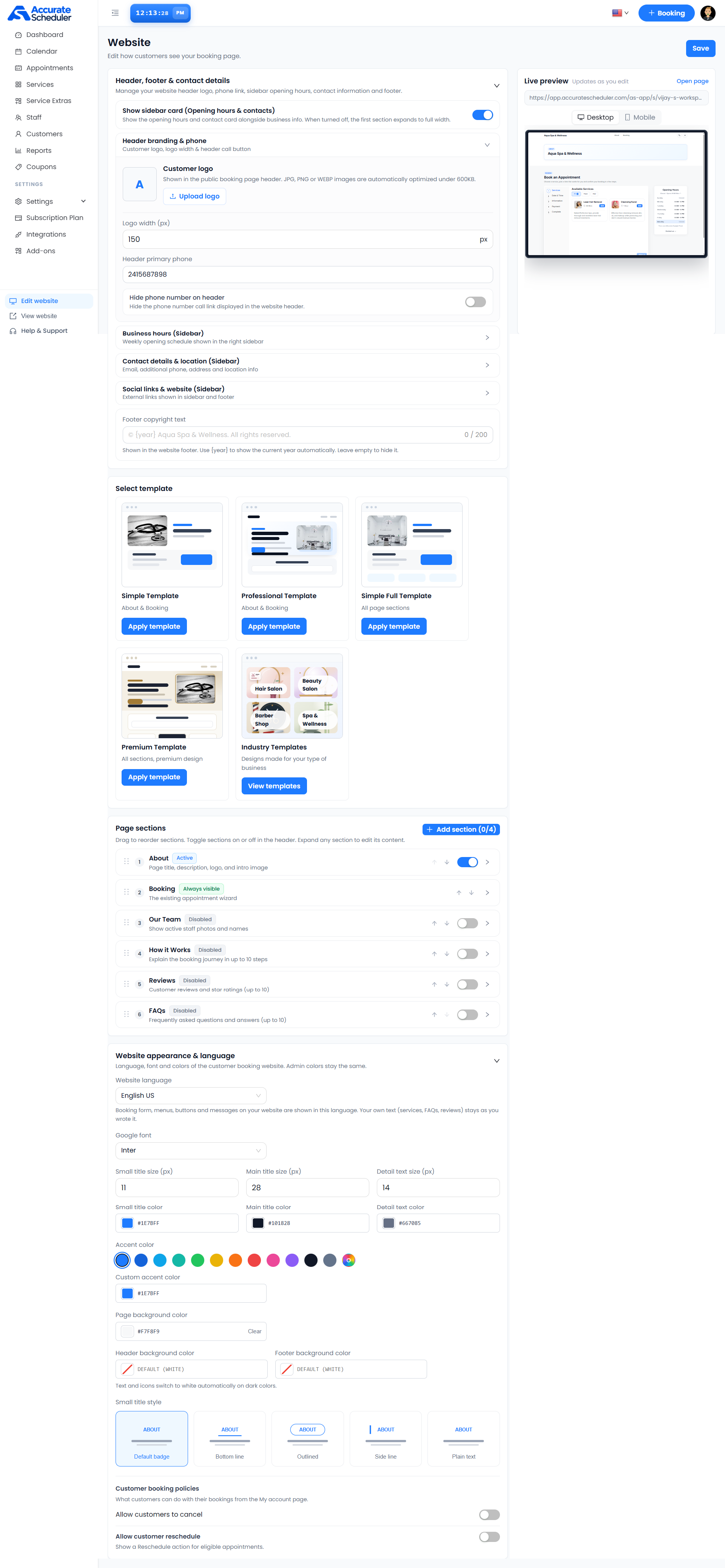
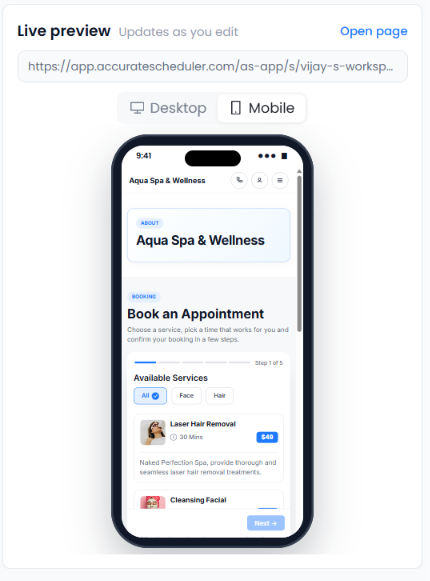
Keep the action understandable on a phone and label customer form fields clearly. The W3C form-label guidance is useful for reviewing the step after the offer. A Black Friday booking page can be hosted without building a separate website first.
7. Check the saved page against the whole journey
Read the page as a customer, follow the public link and complete a clearly marked test. Compare headline, service description, eligibility and final total. Review a received confirmation and the actual appointment record before sharing the offer.
Picktime describes a customizable hosted booking page; SuperSaaS documents shareable scheduling destinations. Choose the setup that fits your workflow. For Accurate Scheduler, use the Website editor guide, checkout tests and demos. A clear Black Friday booking page supports informed decisions rather than promising automatic sales.
Set up your next step: Accurate Scheduler is designed for service-based businesses. Review a clear public booking destination in the live demos, then compare the current plans and included features before choosing your setup.